
Router settings live on the router itself, not on your computer. Any phone, tablet or laptop connected to your network can open them by typing the router's address into a web browser, so every login starts with finding that address. This page shows where Windows, macOS, iPhone and Android display it, explains which password the login page wants, and links to the step-by-step login guide for each UK provider's hub and the main router brands.
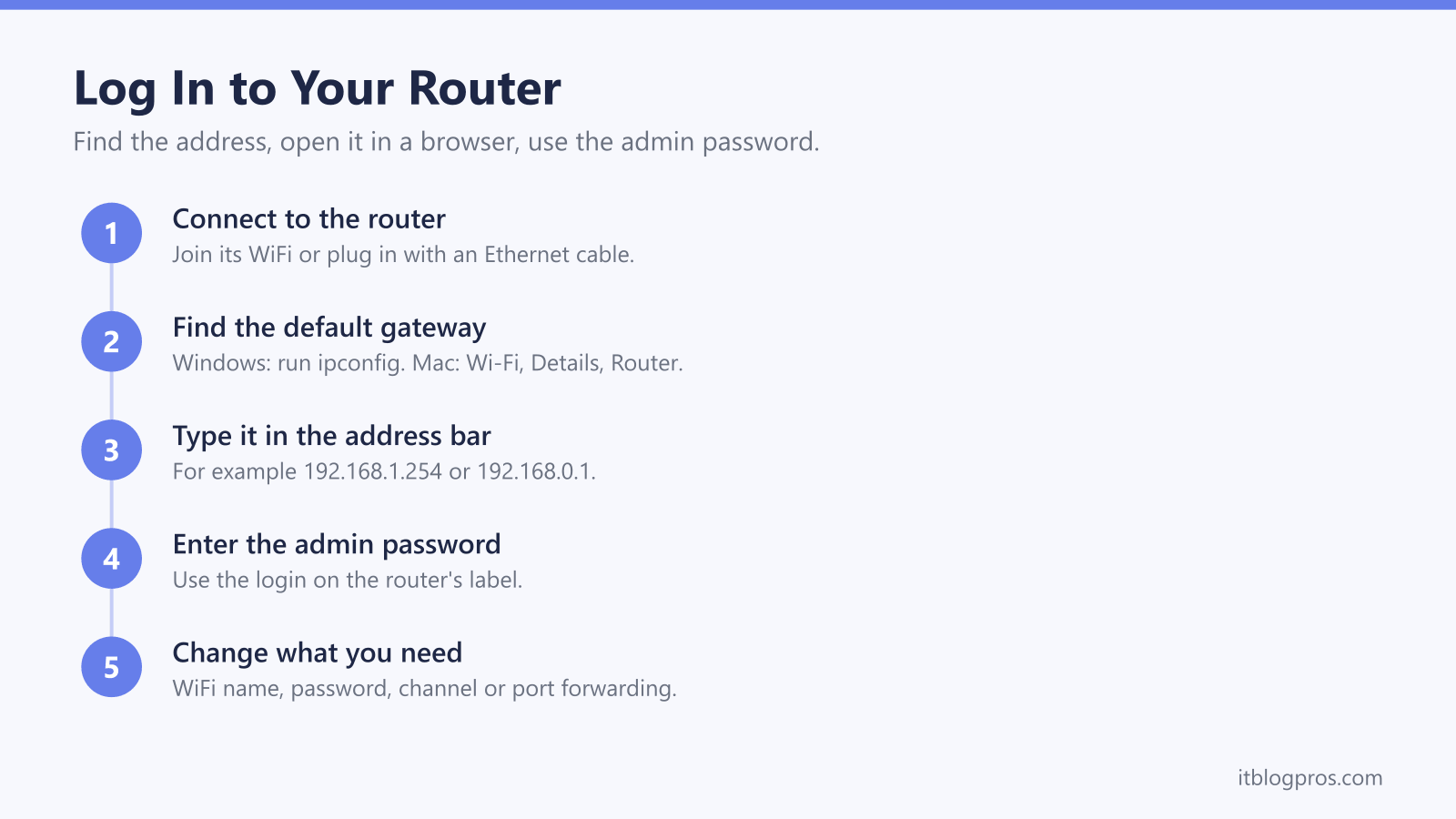
To log in to a router, connect to its network, find its address and type it into a browser's address bar. Microsoft's Windows help says to run ipconfig and read the Default gateway line, and Apple's Mac help lists the address as Router under Wi-Fi Details. Sign in with the admin password from the router's label, which TalkTalk's help page says is completely different from the WiFi password.
Key Takeaways
- Microsoft's Windows help finds the router's address by running ipconfig in Command Prompt and reading the Default gateway line, with 192.168.1.1 as its example.
- Apple's Mac help lists the router address under System Settings, Wi-Fi, Details, and Linksys and TP-Link say an iPhone shows it as Router in the network's info screen.
- TalkTalk's help page says the router admin password and the WiFi password are completely different: one opens the settings, the other joins devices to the network.
- UK hubs differ: BT, EE and Plusnet use 192.168.1.254, while Virgin Media and Sky use 192.168.0.1, according to each provider's help pages.
- A login can change the WiFi name, password and channel, but Microsoft's advice for a weak signal is to move the router towards the middle of the home and higher up.
Find Your Router's Address on a Windows PC or Mac
The router's address is the number your devices send their internet traffic through, which is why computers call it the default gateway. TP-Link's guide to finding a router's address puts it the same way: the IP address, also called the default gateway, is what you type into a browser to reach the admin panel.
On Windows, Microsoft's help page for fixing Wi-Fi problems gives the quickest route. Select Search on the taskbar, type command prompt and open it, then type ipconfig and press Enter. Microsoft says to find the IP address listed next to Default gateway for your Wi-Fi network, and gives 192.168.1.1 as an example.
On a Mac, Apple's Wi-Fi settings guide says to choose the Apple menu, then System Settings, click Wi-Fi in the sidebar and click Details next to your network. Apple describes the Router entry there as the router address for the Wi-Fi connection. Apple's Mac help also offers a shortcut: hold Option and click the Wi-Fi icon in the menu bar, and the router address appears under the connected network.
Find the Router Address on an iPhone, iPad or Android Phone
Apple's iPhone guide covers the route to a network's details: open Settings, tap Wi-Fi, then tap the info button next to the connected network, and Apple's iPad guide uses the same button. Apple's page lists what can be changed there rather than what it shows, but Linksys's support article on looking up a router's address says the Router section there shows the router's IP address, and TP-Link's guide agrees.
Android is less uniform. Google's Android help gets you to the network's settings: open Settings, tap Network and Internet, then Internet, and tap the connected network. Google's page does not name a router or gateway field on that screen. TP-Link's guide says Android lists the router's address as Gateway in the network details, and Linksys says Samsung Galaxy phones offer a Manage router option there that opens the router's page in the browser. If a phone hides it, use a computer or check the router's sticker, which TalkTalk's help page names as the place to confirm the address.
The Admin Password Is Not the WiFi Password
Every router has two passwords. TalkTalk's help page says they are often confused but completely different: the WiFi password lets phones, laptops and smart TVs join the network, while the router admin password lets you log in to the router settings and make changes. Virgin Media's help page says the same of its Hub settings password, printed on the base of the Hub.
Sky is the exception. Sky's help page says the Sky Broadband Hub's settings login is the username admin with the WiFi password from the back of the hub, while the Sky Q Hub and Sky Hub use admin and sky.
Defaults are changing as well. GOV.UK's announcement of the rules in force from 29 April 2024 says manufacturers are banned from weak, easily guessable default passwords such as admin or 12345, and names broadband routers among the devices covered. The router admin password guide covers where each brand prints it. A lost one means a factory reset, which TalkTalk says restores the original login details, and the router reset guide covers each provider.
Changing the WiFi Password Happens in the Router Settings or App
The usual pattern for a new WiFi password is simple: sign in with the admin password, open the wireless or WiFi section, type a new network key and save. Sky's help page for the Sky Broadband Hub, Sky Q Hub and Sky Hub follows exactly that route at 192.168.0.1, with the new password typed next to Network Key and saved with Apply.
More providers now steer customers to an app. Virgin Media's help page says Hub 3, 4 and 5 owners can change the WiFi name and password in the My Virgin Media app as well as in the Hub settings at 192.168.0.1. Sky's help says the Sky Max and Gigafast+ Hubs are managed in the My Sky app, and EE's help says its hub's settings can be managed in the EE app.
Whichever route you take, expect a short disruption. Sky's help page warns that changing the WiFi password disconnects every device, and that each one, smart home kit included, needs the new password entered. The provider guides below give the exact menu names for each hub.
Every UK Provider's Hub Has Its Own Login Guide
BT's help page sends Smart Hub owners to Hub Manager at 192.168.1.254 or http://bthomehub.home, covered in the BT Smart Hub login guide and the 192.168.1.254 Hub Manager guide. EE's help gives the same number, set out in the EE Smart Hub login guide, and so does Plusnet's Hub Two guide, in the Plusnet Hub Manager login guide.
Virgin Media's help page gives 192.168.0.1 for the Hub and 192.168.100.1 once modem mode is on, which the Virgin Media Hub login guide and the 192.168.100.1 modem mode guide cover. Sky's help uses 192.168.0.1 too, as the Sky Hub login guide explains. TalkTalk lists 192.168.1.1 and 192.168.1.254 as its common addresses, and the TalkTalk router login guide separates its models.
The Vodafone hub login guide and the Hyperoptic router login guide cover those hubs. Three's device guide says most devices use 192.168.8.1, 192.168.1.1 or 192.168.0.1, and the Three 5G Hub login guide matches each model to its address.
Router Brands and Common Addresses Have Their Own Guides
Several router makers use a web name instead of a number. TP-Link's guide lists tplinkwifi.net for its standard routers, covered in the tplinkwifi.net login guide, and TP-Link's extender FAQ uses https://tplinkrepeater.net, explained in the tplinkrepeater.net login guide. Netgear's support article gives routerlogin.net with the username admin, as the Netgear router login guide sets out, and ASUS's FAQ gives http://www.asusrouter.com or 192.168.50.1, in the ASUS router login guide.
Huawei's 4G and 5G routers and GL.iNet's routers share 192.168.8.1, according to both makers' support pages, and the 192.168.8.1 login guide separates their very different passwords.
When all you have is a number, the address guides are the place to start. TP-Link's guide gives 192.168.0.1 and 192.168.1.1 as the defaults for most of its routers, and the 192.168.0.1 and 192.168.1.1 guides cover both. In the US, Xfinity's support article says 10.0.0.1 opens only after Admin Tool online access is turned on in the Xfinity app, as the 10.0.0.1 Xfinity guide explains.
A Login Changes Settings, Not WiFi Coverage
Once you are in, the menus are broadly similar from brand to brand. BT's Hub Manager page links guides for changing the admin password, Access Controls, seeing which wireless band a device is using, turning wireless off, splitting the network name and setting up port forwarding. Splitting the bands is covered for BT, Sky and Virgin Media hubs. Microsoft's guide to Wi-Fi and home layout adds the channel: on 2.4 GHz it recommends channel 1, 6 or 11, because those channels do not overlap.
What a login cannot do is push the signal through more walls. Microsoft's advice for a weak signal is physical: move the router towards the middle of the home and higher if possible, since a corner or the space under a desk weakens it, and try an extender if that is not enough. If a dead spot survives the move, the fix is coverage, and the extender versus mesh guide and the weak WiFi guide are the next stop.