
A WiFi QR code saves typing a long password: point a camera at it and the device joins the network. Windows 11 can scan one with its own Camera app, and phones and PCs can show one for the network they are already on. This guide covers scanning a code on Windows, finding the code on Windows, Android and iPhone, and making one for your own network with the free maker below.
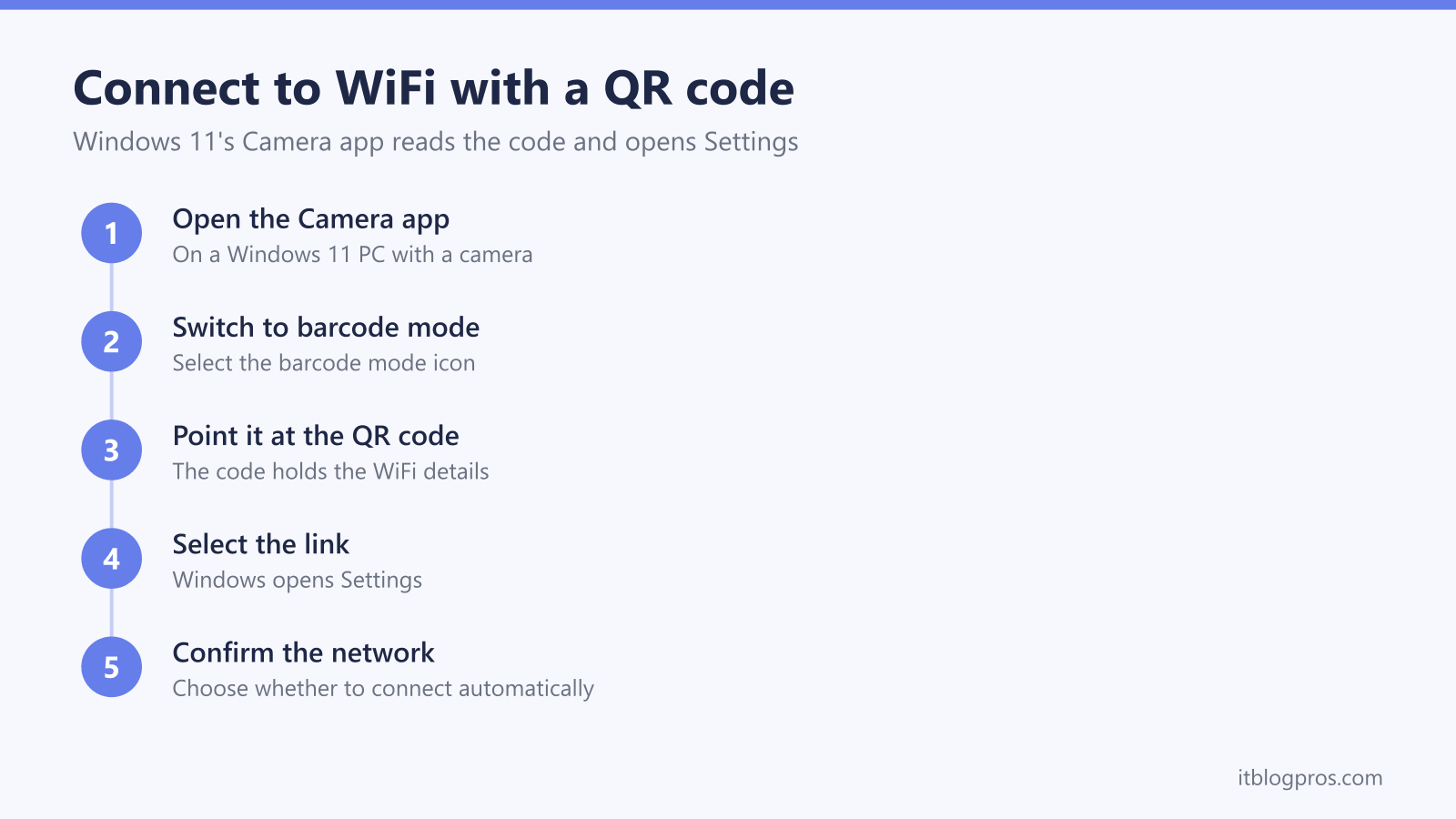
Open the Windows 11 Camera app, select the barcode mode icon and point the camera at the WiFi QR code. Select the link that appears, and Settings asks you to confirm adding and joining the network, with an option to connect automatically. Microsoft's QR code steps are for Windows 11; its Windows 10 instructions have no QR option.
Key Takeaways
- Microsoft says a Windows device with a camera can scan a WiFi QR code in the Camera app's barcode mode and join without typing the network details.
- After scanning, select the link in the Camera app; Settings opens and asks you to confirm the network, with an option to connect automatically.
- To share a network from Windows 11, Microsoft's steps are Settings, Network and internet, Properties, then Show next to Wi-Fi network password.
- Android shows a QR code from Network and Internet settings, and an iPhone shows one from the Passwords app, so a phone can share the network too.
- The QR code maker on this page works in your browser: the network name and password are not sent anywhere and the site stores neither.
WiFi QR code maker
Type your network's details and the code appears below, ready to scan, save or print for visitors.
WiFi
Password:
Point a phone or laptop camera at the code to join.
Scan it with your own phone before printing or sharing it, to check it joins the right network.
The code is made in your browser. The network name and password are not sent anywhere, and this site doesn't store them.
Scan a WiFi QR code with the Windows 11 Camera app
Microsoft's steps for joining WiFi with a QR code on Windows 11:
- Open the Camera app and select the barcode mode icon, which switches the camera from photo mode to barcode mode.
- Point the camera at the QR code that holds the WiFi details.
- Select the link that appears in the Camera app. Windows opens Settings.
- Confirm that you want to add and connect to the network. Settings also lets you choose whether Windows connects to that network automatically when it is in range.
Microsoft notes that these codes turn up in public places such as coffee shops, and that you can scan one shown on another Windows device. The PC needs a camera: on a desktop without a webcam, join the usual way from the network list instead.
Windows 10 joins the usual way
Microsoft's Windows 10 instructions for connecting to WiFi have no QR code section. Select the network icon on the taskbar, choose the network, select Connect and type the password when asked.
To find the password on a Windows 10 PC that is already connected, Microsoft's steps are: open Settings, select Network & Internet, then Status, then Network and Sharing Center. Select your WiFi network name next to Connections, select Wireless Properties, open the Security tab and tick Show characters. The password appears in the Network security key box.
Show the QR code for a network you are already on
A device that is already connected can share the network with a QR code, so nobody has to read out the password.
- Windows 11. Microsoft's steps are Settings, Network & internet, Properties, then Show next to Wi-Fi network password. For a network the PC has saved but isn't connected to, open Manage known networks, select the network and select Show. Microsoft says another device can then connect by scanning the QR code or entering the details.
- Android. Google's steps are Settings, Network and Internet, Internet, then tap your WiFi network and tap Share. Google says the device shows a QR code that a friend can scan with another device to join the same network.
- iPhone. Apple's steps are to open the Passwords app, tap Wi-Fi, tap the network and tap Show Network QR Code, which friends and family can scan to join.
Make a QR code for your own network
The maker above builds the same kind of code for any network you have the details for, which is handy for a card by the router or a guest room. Type the network name exactly as it shows in the WiFi list, including capitals and spaces, then the WiFi password. If you have never changed them, check the label on the router or hub for the network name and password it came with.
Scan the finished code with your own phone before printing or sharing it. If the phone offers the wrong network or the password fails, the name or password on the card doesn't match the router, so check both and make the code again.
If you change the WiFi password later, every printed code stops working and needs replacing. The router login guide covers reaching the router's settings, where the network name and password are changed, and explains how the WiFi password differs from the router's admin password.
A WiFi QR code contains the password
The code holds the network name and password as plain text, so anyone who scans it can join the network and read the password, the same as if it were written on the card. Put a printed code where you would be happy to leave the password itself, such as inside the house rather than in a window.
If the Camera app doesn't show a link, hold the code flat and steady, move the camera until the code fills most of the frame and avoid glare on glossy paper or a phone screen. When it still won't read, join from the network list and type the password, which the card can show under the code.