WiFi settings live in two places. The device you are using decides which network it joins and how, and the router sets the network's own name, password, bands and security. This guide gives the path to the WiFi settings on Windows 11 and 10, Mac, iPhone, iPad and Android, in each maker's own menu names, then covers the router's settings and the ones worth changing.
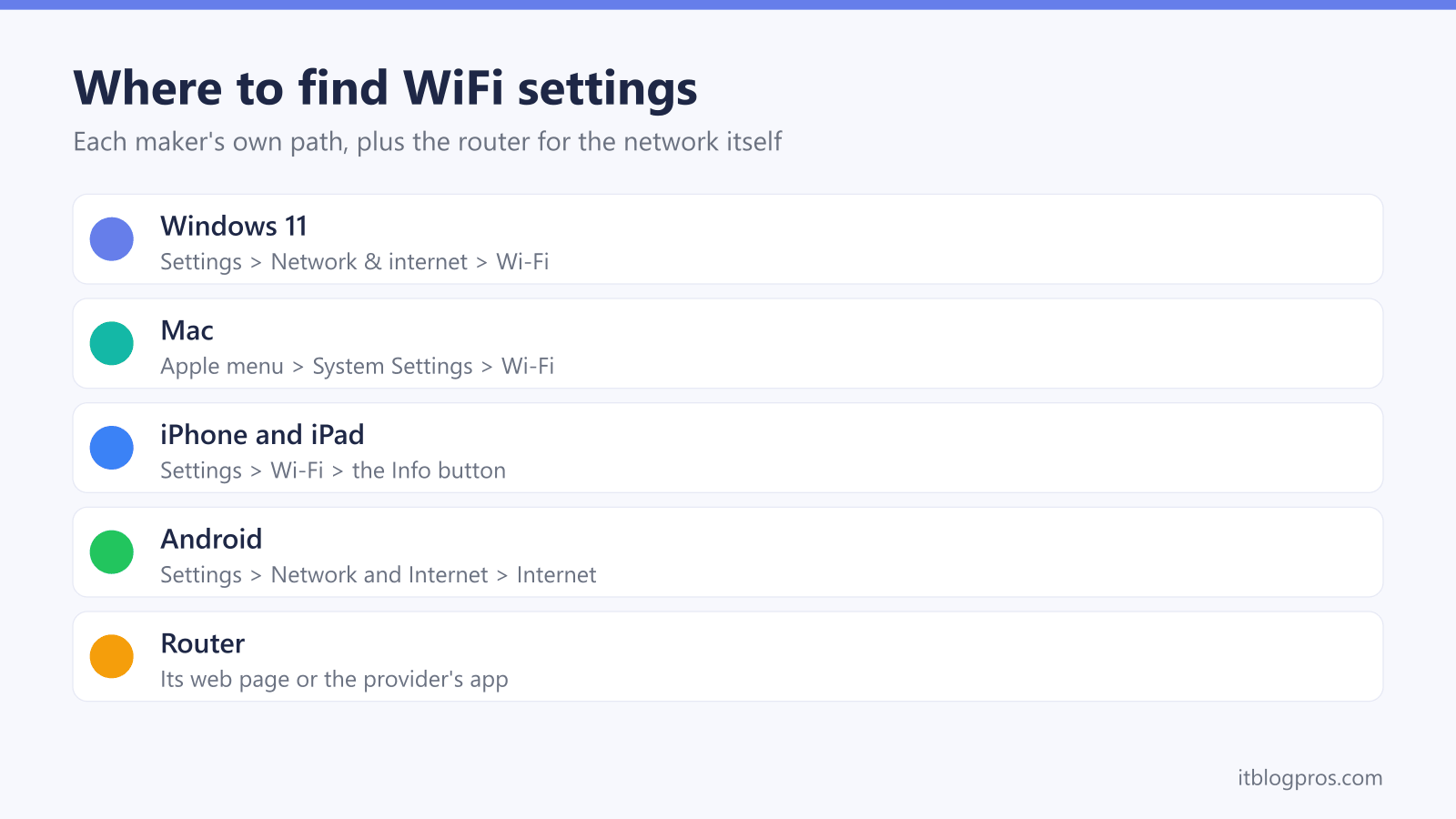
On Windows 11, open Settings, then Network & internet, then Wi-Fi. On a Mac, choose the Apple menu, System Settings, then Wi-Fi. On an iPhone or iPad, open Settings and tap Wi-Fi. On Android, Google's path is Settings, Network and Internet, Internet. The WiFi name and password belong to the router, so change them in its settings page or the provider's app.
Key Takeaways
- Microsoft's path on Windows 11 is Settings, Network & internet, Wi-Fi; Windows 10 uses the same route but spells it Network & Internet.
- Apple puts a Mac's WiFi settings in System Settings, Wi-Fi, and an iPhone's in Settings, Wi-Fi, with an Info button next to each network.
- Google's path on Android is Network and Internet, then Internet, though Google says the names vary by phone and Android version.
- The network name, password, bands, channel and security mode are router settings, reached through the router's web page or the provider's app.
- BT advises against changing its Hubs' channels by hand because that turns off Smart Wireless, and Sky recommends keeping its newer hubs' security on WPA3-T.
Windows 11 keeps WiFi settings under Network & internet
Microsoft's path to the main WiFi page is Settings, Network & internet, Wi-Fi. Two shortcuts from the taskbar get there faster:
- Select the Network, Sound or Battery icon on the taskbar to open quick settings, then select Manage Wi-Fi connections on the Wi-Fi quick setting to see and join networks.
- Right-click the network or Wi-Fi icon on the taskbar and select Network and internet settings.
Microsoft's support pages put the settings people most often look for in these places:
| Setting | Where Microsoft puts it in Windows 11 Settings |
|---|---|
| Public or private network | Network & internet, Properties next to the connected network, then Network profile type |
| Metered connection | Network & internet, Wi-Fi, the network you're connected to, then Metered connection |
| IP address and DNS | Network & internet, Wi-Fi, Manage known networks, the network, then Edit next to IP assignment |
| Band and channel | Network & internet, Wi-Fi, your network's properties, then Network band (channel) |
| Random hardware addresses | Network & internet, Wi-Fi, then Random hardware addresses |
| Forget a network | Network & internet, Wi-Fi, Manage known networks, the network, then Forget |
Microsoft says Windows 11 sets a network to public when you first connect to it, and the profile type offers Public network (Recommended) or Private network. Under IP assignment, Edit offers Automatic (DHCP) or Manual, and a manual DNS server goes in the Preferred DNS and Alternate DNS boxes.
For shortcuts, Microsoft's list of Settings page addresses gives ms-settings:network-wifi for the Wi-Fi page, on a device with a WiFi adapter, and ms-settings:network-wifisettings for Manage known networks. Typing either into the Run box (Windows key + R) opens that page directly.
Windows 10 uses the same route with a capital I
Microsoft's Windows 10 path is Settings, Network & Internet, Wi-Fi. From there, Manage known networks lists the saved networks, and selecting the network you're connected to opens its properties, where Microsoft puts the metered connection switch.
Microsoft notes that support for Windows 10 ended on 14 October 2025.
A Mac's WiFi settings are in System Settings
Apple's path is the Apple menu, System Settings, then Wi-Fi in the sidebar, and Apple notes you may need to scroll down to find it. Select Details next to a network to reach the settings Apple lists for it:
- IP and router addresses, with the router address on its own row. That address is the one to type into a browser to reach the router's own settings.
- Automatically join this network, to connect whenever the network is in range.
- Private Wi-Fi address, with Off, Fixed and Rotating choices, which Apple says helps reduce tracking of your Mac by WiFi network operators. Apple says this menu needs macOS Sequoia 15 or later.
- Low data mode, which Apple says reduces your data use on that network.
- Forget This Network, to remove it.
iPhone and iPad keep WiFi settings under Settings, then Wi-Fi
Apple's steps start with Settings, then Wi-Fi. Tap the Info button next to the network you're connected to for that network's own settings, including Low Data Mode, Private Wi-Fi Address, Auto-Join and Forget This Network. Apple says the private address helps reduce tracking of your iPhone across different WiFi networks, and turning off Auto-Join stops the iPhone joining that network automatically.
Back on the Wi-Fi screen, Ask to Join Networks has Off, Notify and Ask settings. Apple's help for iPhone and iPad says to tap Edit to view the networks known to the device. Apple also warns that forgetting a network on one of your devices makes your other devices forget it as well.
Android keeps WiFi under Network and Internet
Google's path on its UK help page is Settings, Network and Internet, Internet, and tapping a network opens that network's settings. To remove a saved network, Google says to touch and hold it and tap Forget. Network preferences, at the bottom of the list, holds options such as turning WiFi on automatically near saved networks.
Google adds that these menus vary by phone and Android version, and some of its steps only work on Android 12 and up. If your phone's menus look different, Google's advice is to get help from the phone's manufacturer.
The router holds the network's own settings
The WiFi name, password, bands, channel, security mode and guest network belong to the router, which is why every device sees the same network. They are changed on the router's settings page, opened by typing its address into a browser, or in the provider's app. The router login guide gives the address for each common make and explains the admin password.
- BT Hubs. BT's steps start with opening a browser on a device connected to the Hub and typing 192.168.1.254 in the address bar. On a Smart Hub 3, BT says to select Advanced Settings, then Wireless, to enter a new network name and password. The BT Smart Hub login guide covers the admin password.
- Sky Max and Gigafast+ hubs. Sky's help puts these hubs' WiFi settings in the My Sky app: tap WiFi settings, then the pencil icon next to WiFi details to change the name and password. Sky lists port forwarding, DMZ, Disable WiFi and WiFi security level among the advanced settings. The Sky hub login guide covers the 192.168.0.1 page that Sky gives for its hubs.
- Virgin Media Hub 5 and Hub 5x. Virgin Media's steps for a guest network are to sign in to the Hub, go to Advanced settings and select Enable guest network, and Virgin says the Hub creates the guest network's name and password for you. The Virgin Media Hub login guide covers signing in.
Four router settings are worth changing
- The name and password. The label on the router shows the name and password it came with. A new password means every device has to join again with it, and a printed WiFi QR code needs making again.
- The security mode. Sky offers WPA2, WPA3-T and WPA3 on its Max and Gigafast+ hubs and recommends keeping the security set to WPA3-T.
- The bands and channel. Sky's app can turn the 2.4GHz, 5GHz or 6GHz band off on those hubs. BT says you have to split the wireless bands to choose a specific channel, but it doesn't recommend changing channels by hand on its Hubs, because that turns off Smart Wireless. The BT, Sky and Virgin Media band-splitting guides cover each hub.
- A guest network. Visitors get their own network name and password, so the main password stays private. On a Virgin Media Hub 5, it is the Enable guest network option above.
If a device still connects badly after these changes, the WiFi speed test shows whether the problem is the WiFi or the line, and the guide to a phone that won't connect to WiFi works through a device that refuses to join.