
Logging in to a BT Smart Hub or Smart Hub 2 means opening BT Hub Manager, the built-in settings panel that lives on the hub itself. From there you can rename your Wi-Fi, set parental controls, open ports for gaming, dim the hub lights and change the admin password. This guide gives you the exact login address, tells you precisely where to find the password BT printed on your hub, and walks through the login step by step. It also covers where bridge mode really stands, because the modem-only steps BT publishes come from BT Business rather than BT's residential help, and explains the proper way to run your own router on BT broadband instead.
The BT Smart Hub login address is 192.168.1.254, also reachable as http://bthomehub.home from any device on the hub's network. BT's admin password help puts the default admin password on the pull-out Hub settings card on the back of the Smart Hub and Smart Hub 2. That password is not your Wi-Fi key. Enter it in BT Hub Manager to change settings.
Key Takeaways
- The BT Smart Hub login address is 192.168.1.254, and http://bthomehub.home reaches the same BT Hub Manager panel from any connected device.
- BT's admin password help puts the default admin password on the pull-out Hub settings card on the back of the hub, and gives a base label only for the older Home Hub 3, 4 and 5.
- The admin password is separate from your Wi-Fi key, is case-sensitive and must be 5 to 20 characters, and the browser switching to HTTPS during login is normal.
- BT Hub Manager lets you rename Wi-Fi, set BT Access Controls, forward ports, dim the lights and change the admin password. BT's pages disagree on band splitting for the Smart Hub 2, so check the 5GHz settings on your own hub.
- Modem-only mode on the Smart Hub 2 is documented by BT Business but not in BT's residential help, so running your own router means placing it behind the hub, or on full fibre connecting it straight to the ONT over PPPoE.
The BT Smart Hub login address is 192.168.1.254
Every BT Smart Hub and Smart Hub 2 hosts its settings panel, BT Hub Manager, at the local address 192.168.1.254. You reach it from a phone, tablet or computer that is already connected to the hub, whether by Wi-Fi or an Ethernet cable. Type 192.168.1.254 straight into the browser address bar, not into a search box, because a search engine will not find a device on your home network.
BT also gives the hub a friendly name, so http://bthomehub.home opens exactly the same BT Hub Manager panel. Both routes are equivalent, and the friendly name is handy when you cannot remember the numbers. As the page loads you may see a prompt to switch to a secure HTTPS connection. BT's admin password help for the Smart Hub 3 says that message is expected, due to security compliance regulations, so allow it and carry on.
Find the admin password on the pull-out card
The BT Smart Hub login needs the admin password, and BT prints it for you. BT's admin password help says that on the Smart Hub and Smart Hub 2 it sits on the pull-out Hub settings card on the back of the hub, the same card that lists your default Wi-Fi name and wireless key. Slide the card out and look for the line labelled as the admin password for Hub Manager, and if the labelling is unclear our guide on how to find the router admin password shows what to look for on any hub.
BT's admin password help gives a label on the base as a second place only for the Home Hub 3, 4 and 5, not for the Smart Hub or Smart Hub 2. One point trips people up: the admin password is not the same as your Wi-Fi password. The Wi-Fi key connects devices to the network, while the admin password unlocks the settings. BT's password help says the admin password is case-sensitive and must be 5 to 20 characters, so type it exactly as printed. If the card has been lost, or you changed the password yourself in the past and have forgotten it, the reset section below covers your options.
Open BT Hub Manager step by step
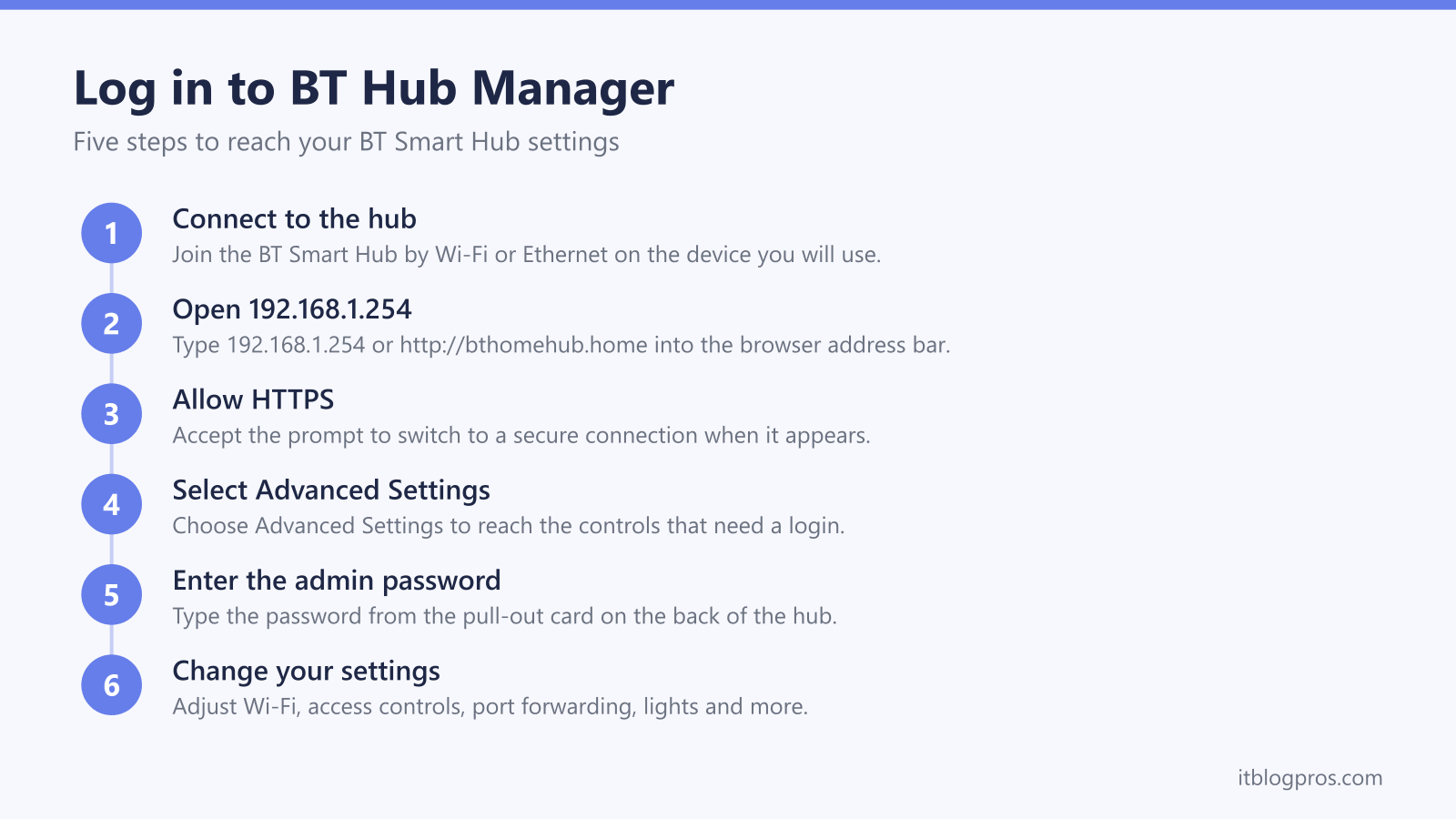
Connect the device you are using to the BT Smart Hub first, then follow these steps. Open a fresh browser tab and type 192.168.1.254 or http://bthomehub.home into the address bar, then press Enter. When the browser offers to switch to a secure HTTPS connection, accept it. BT Hub Manager then loads its home screen showing your broadband status.
To change anything beyond the basics, select Advanced Settings and enter the admin password from the pull-out card when prompted. You are now logged in and can move through the menus. The home screen alone shows broadband status and connected devices, while the settings that matter for Wi-Fi, controls and ports all sit behind that Advanced Settings login.
What you can change in BT Hub Manager
Once logged in, BT Hub Manager gives you genuine control over the hub. You can change the Wi-Fi network name and password and adjust the wireless mode. BT's Wi-Fi on and off help gives one switch on the original Smart Hub that turns off both bands together, separate per-band settings only on the Home Hub 4 and 5, and no Smart Hub 2 section. Splitting the network name so the 2.4GHz and 5GHz bands carry separate names depends on which hub you have: BT's split help page says the Smart Hub 2 does not have that capability, while BT's dual-band troubleshooting page includes the Smart Hub 2 and Smart Hub 3 in its Sync with 2.4GHz steps, so check the 5GHz section on your own hub.
You can set up BT Access Controls to restrict when chosen devices get online, useful as basic parental controls. Gamers and anyone self-hosting can configure port forwarding to direct incoming traffic to a specific device. You can also turn Smart Setup on or off, dim the hub lights for a bedroom, and change the admin password itself. If the indicator lights are confusing you rather than the settings, the BT Smart Hub lights guide explains what each colour means.
Bridge mode on the Smart Hub 2 is documented by BT Business, so here is the alternative
This is the honest part, and it is more interesting than a flat no. BT Business publishes a live guide to putting a Smart Hub 2 into modem-only mode, found under Advanced Settings, Broadband, Routing and then Bridging, warning that the hub light turns orange and that router features such as NAT, DHCP and DNS are switched off. BT's declaration of conformity then lists the BT Smart Hub 2 and Business Smart Hub 2 under a single model number. BT's residential help pages say nothing about bridging either way, so check Advanced Settings, Broadband on your own hub for a Routing tab rather than planning around it. Workarounds that edit hidden URLs are not something BT documents or supports, so they are not worth relying on.
If you want better Wi-Fi or more control, there are two clean routes. The simplest is to run your own router behind the Smart Hub, leaving the hub to handle the connection while your router runs the Wi-Fi. On full fibre (FTTP) you can go further and plug your own router directly into the ONT box, setting it to PPPoE with the username [email protected] and the password BT, with no BT hub in the chain at all. One caveat: if you use BT Digital Voice for your landline, that service needs the Smart Hub 2 connected, so keep the hub in place for phone calls. For models that pair well with BT and handle PPPoE cleanly, see the guide to the best router for BT broadband.
Fix a BT Smart Hub login that will not work
If the BT Smart Hub login fails, work through the usual causes. Make sure the device is actually connected to the BT hub and not a neighbour's network or mobile data, since 192.168.1.254 only resolves on the hub's own network. Confirm you are typing the address into the browser address bar rather than a search box. Try http://bthomehub.home if the numeric address misbehaves, or the other way round. The full troubleshooting ladder for the address itself, including HTTPS warnings and finding the gateway when nothing answers, lives in our 192.168.1.254 BT Hub Manager guide.
If the admin password is rejected, re-check the pull-out settings card, and remember it is case-sensitive and separate from your Wi-Fi key. BT's password help says some older hubs offer a password override using the WPS button that sets a new admin password without losing your settings, and says a Smart Hub 2 or later may need a factory reset using the pinhole reset button on the back instead, although the same page lists override steps for the Smart Hub 2, so look for a Password Override option before resetting. The reset guide for BT broadband routers walks through reboot versus factory reset, including third-party routers, so you do not wipe more than you intend to.
When the login is really about weak WiFi
Plenty of people open the Hub Manager hoping a setting will fix poor coverage, but range problems rarely have a settings answer. On BT the hub tends to stay put anyway. If the landline runs on Digital Voice, BT's own setup guidance has the handset going into the green phone port on the back of the hub, or linking to the hub wirelessly through a Digital Voice Adapter, so pulling the Smart Hub 2 out of the chain takes the phone with it. That makes a mesh set behind the hub the sensible upgrade rather than a replacement for it. A TP-Link Deco X50 three-pack suits most homes, with the first unit wired into a hub LAN port and the other two in the rooms that fade, and nothing in Hub Manager needs changing to make it work. Be clear on what it cannot do, though. A mesh spreads the signal you already have, so it will not raise the speed BT delivers to the line and it will not steady a hub that keeps dropping the connection. A wired speed test at the hub that comes in low, or a connection that drops out while wired, is a line or hub fault for BT to fix rather than something more WiFi hardware can cover up. The best router for BT broadband guide explains where a mesh beats a single replacement router.
