
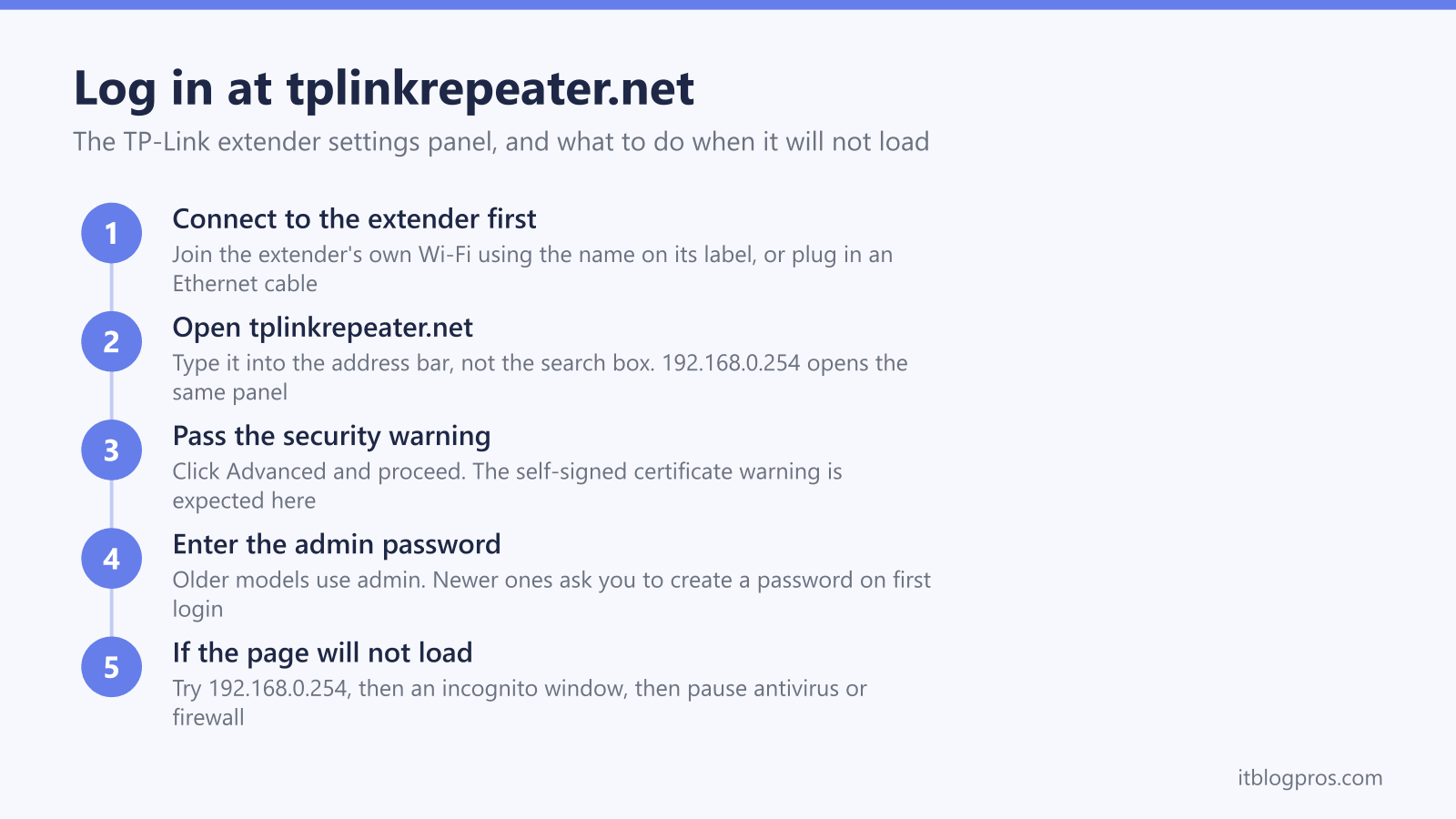
Setting up or adjusting a TP-Link range extender means opening its own settings panel, which lives on the extender rather than anywhere on the internet. TP-Link gives that panel a friendly address, tplinkrepeater.net, and a numeric one, 192.168.0.254. This guide covers both, explains exactly where the password comes from on older and newer models, and works through the reasons the page refuses to load, which is where most people get stuck.
The TP-Link extender login address is tplinkrepeater.net, and 192.168.0.254 opens the same panel. Connect your phone or laptop to the extender first, by Ethernet or its own Wi-Fi, because the page is hosted on the extender itself. Older models use admin as the username and password, while newer ones ask you to set an administrator password on first login.
Key Takeaways
- The TP-Link extender settings panel is at tplinkrepeater.net, and 192.168.0.254 reaches the identical page if the friendly name will not resolve.
- Your device must already be connected to the extender, by cable or by its own Wi-Fi, because the page is served by the extender and not from the internet.
- Older TP-Link extenders use admin as both username and password, while newer models prompt you to create an administrator password the first time you log in.
- The browser security warning on tplinkrepeater.net is expected, because the extender uses a self-signed certificate rather than a publicly issued one.
- When the page will not load, the usual causes are the wrong network, the search box instead of the address bar, a stale DNS cache, or firewall software blocking the reply.
The TP-Link extender login address is tplinkrepeater.net
Every current TP-Link range extender hosts its configuration panel at tplinkrepeater.net. The same panel answers on 192.168.0.254, which is the extender's default local IP address. Both routes are equivalent, so use whichever loads.
Type the address into the browser address bar at the top of the window, not into a search field. This trips up more people than any other step. A search engine looks outward at the public internet, while the extender sits on your local network, so a search will only ever return unrelated results.
No internet connection is required for this. The extender serves the page itself, which is why the address still works during initial setup, before the extender has been joined to your router at all.
Your device has to be connected to the extender first
The single most common reason the login page never appears is that the phone or laptop being used is still connected to the main router rather than to the extender.
On a brand new or freshly reset extender, look at the label on the unit. TP-Link prints a default Wi-Fi network name there, and a default password where one applies. Join that network from your device, then open the address. TP-Link recommends a wired connection where the extender has an Ethernet port, because a cable removes any doubt about which network you are on.
Once the extender has been configured and joined to your router, it usually keeps answering on tplinkrepeater.net from anywhere on the same home network, so this step matters most during first setup and after a reset.
The password depends on how old the extender is
There are two different behaviours here, and knowing which one applies saves a lot of guessing.
Older TP-Link extenders ship with admin as both the username and the password. Type admin into both boxes and you are in. The wider guide on how to find your router admin password lists the same brand defaults for routers and ISP hubs.
Newer models drop that default entirely. Instead, the first time you open tplinkrepeater.net the extender asks you to create an administrator password of your own. There is no factory password to look up on these, because one was never set.
That distinction explains a situation people often find confusing. If a newer extender is asking for a password rather than offering to create one, it has already been set up at some point, and the password is whatever was chosen then. If nobody remembers it, the reset section below is the way forward.
The browser security warning is expected here
When the page loads over HTTPS, browsers commonly show a privacy or certificate warning. That is normal on this address and does not indicate a problem with the extender.
The reason is straightforward. TP-Link secures the page with a self-signed certificate rather than one issued by a public certificate authority, because a device on your home network has no public domain name to certify. Browsers cannot verify a self-signed certificate, so they warn.
Click Advanced, then choose to proceed to tplinkrepeater.net. The traffic is only moving between your own device and a box plugged into your wall.
Fixes when tplinkrepeater.net will not load
Work down this list in order, because the early items are far more likely than the later ones.
- Confirm which network you are on. Check that the device is connected to the extender's own Wi-Fi, or plugged into it by Ethernet. This is the cause the majority of the time.
- Use the address bar, not the search box. Type the address into the bar at the top of the browser window and press Enter.
- Try the IP address instead. Open
http://192.168.0.254. If the friendly name is failing because of a DNS quirk, the numeric address bypasses it entirely. - Open an incognito or InPrivate window. Browsers cache DNS results, and a stale entry will keep sending you nowhere. A private window sidesteps the cache.
- Pause antivirus or firewall software. Security software sometimes blocks the extender's reply. Turn it off briefly, load the page, then turn it back on.
- Factory reset as a last resort. If none of the above works, reset the extender to defaults using the recessed reset button and set it up again from scratch. This also clears a forgotten administrator password.
The Tether app reaches the same settings
TP-Link's Tether app is often the faster route from a phone, because it discovers the extender on the network for you and avoids the certificate warning altogether.
The app and the web page share one administrator password. Change it in Tether and the web page expects the new one, and the reverse is equally true. Neither is more authoritative than the other, so use whichever suits the device in your hand.
When the extender itself is the limitation
Some problems are not login problems. If the extender connects fine but keeps dropping, or the speed in the far room is disappointing, the cause is usually where it sits or what it is being asked to do. TP-Link's FAQ on extender speed explains that a device may not get the same speed through an extender as from the main router, and that the more wireless hops a connection takes, the slower it gets.
Placement is worth checking first, and it is free. TP-Link's placement guidance puts the extender roughly halfway between the router and the dead zone, not inside the dead zone, and its guide to reading the Signal LED says that a red light means the extender should be moved closer to the router. If the right spot still does not fix it, TP-Link's troubleshooting steps for an extender that does not extend coverage go on to giving the extender a different Wi-Fi name from the router, so it is obvious which one a device has joined, and then updating the extender's firmware.
If the extender still drops once it is well placed and up to date, the hardware may be the wrong tool rather than in the wrong position. Where the problem is a single room and the unit in use is an older model that only broadcasts on 2.4GHz, replacing it with a current dual-band extender such as the TP-Link RE315 adds a second band, since TP-Link's specification lists both 2.4GHz and 5GHz. Where weak spots remain across several rooms or floors, TP-Link's own comparison of extenders, powerline and mesh rates an extender's reliability as Fair against Great for mesh, and says a mesh system may be the right solution if dead zones remain throughout the home. A kit such as the TP-Link Deco X10 two-pack does not have to replace an ISP hub either, since TP-Link's Deco documentation describes Access Point mode for a Deco connected to the LAN port of an existing router.
The honest comparison between adding an extender and moving to a mesh system is covered in the extender versus mesh guide, and the TP-Link extender buying guide covers which current models suit which situation.