
A TP-Link range extender is one of the cheapest ways to reach a room the router cannot, but only when it is set up in the right place and matched to the broadband behind it. Two things decide whether it works: where the unit is plugged in, and whether the model can keep up with the speed coming into the house. This guide covers the setup itself, the placement rule that most instructions leave out, and the honest differences between the two TP-Link models worth buying in the UK.
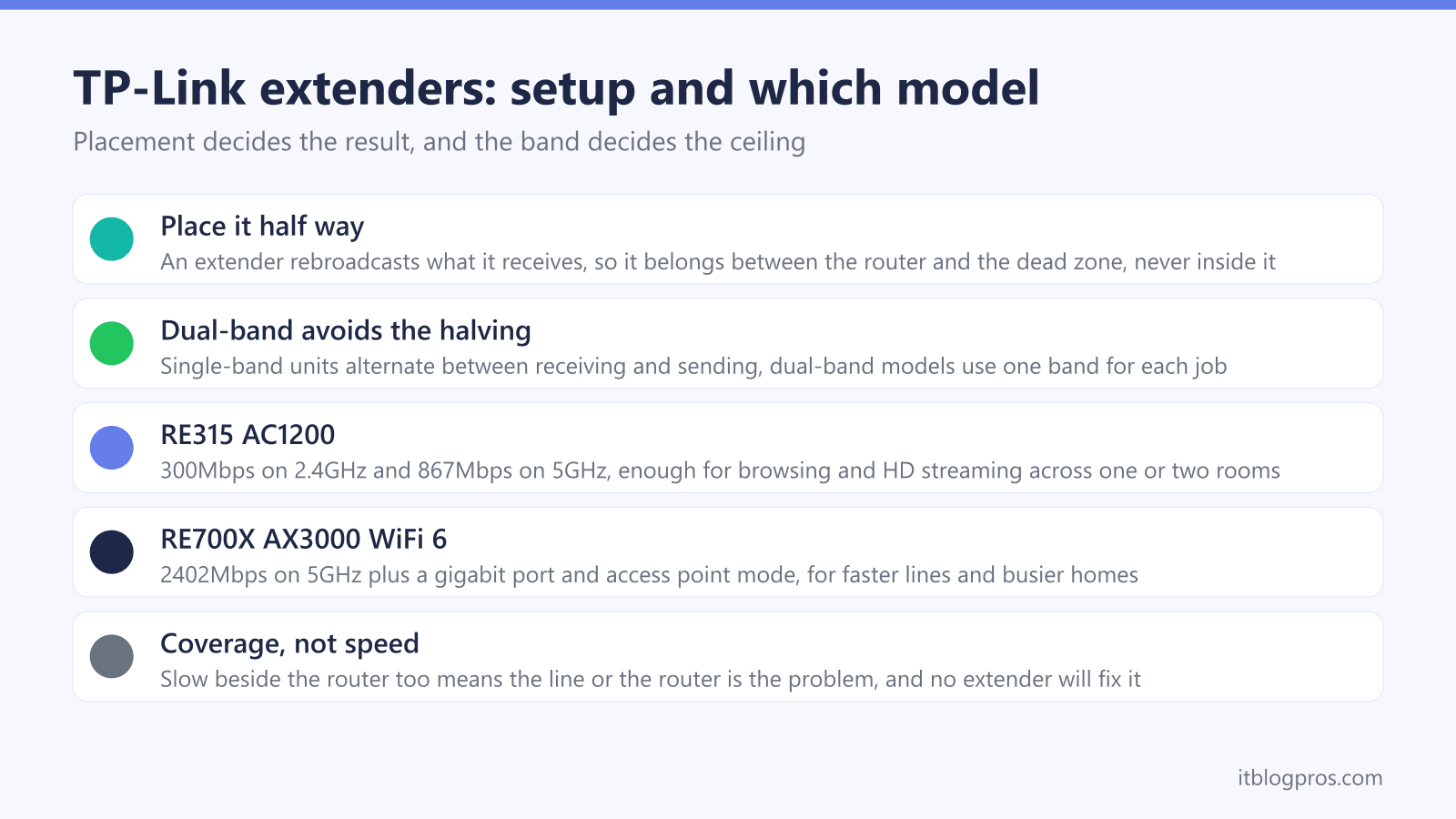
A TP-Link extender is set up either by pressing WPS on the router then the button on the extender, or by connecting to the extender's own Wi-Fi and opening tplinkrepeater.net. Place it roughly half way between the router and the dead zone, never inside the dead zone, because an extender can only rebroadcast the signal it receives.
Key Takeaways
- Setup runs either through WPS, by pressing the router button then the extender button, or through the tplinkrepeater.net wizard on the extender's own network.
- Placement decides the result: an extender belongs about half way between the router and the dead zone, because it can only rebroadcast what it receives.
- Single-band extenders halve throughput by design, while dual-band models such as the RE315 and RE705X talk to the router on one band and serve devices on the other.
- The RE315 is the AC1200 choice for ordinary browsing and streaming, and the RE705X is the AX3000 WiFi 6 choice for faster lines and busier homes.
- An extender fixes coverage rather than speed, so a house that is slow everywhere including beside the router has a different problem entirely.
Setting up a TP-Link extender takes one of two routes
The quickest route is WPS, where supported. Press the WPS button on the router, then press the button on the extender within two minutes. The two negotiate between themselves and the extender copies your existing network details.
The route that always works is the web wizard. Plug the extender in near the router to begin with, connect a phone or laptop to the default Wi-Fi network printed on the extender's label, then open tplinkrepeater.net in a browser. The wizard asks which network to extend and for that network's password, then applies the settings. The full walkthrough, including what to do when that page refuses to load, is in the tplinkrepeater.net login guide.
The TP-Link Tether app does the same job from a phone and tends to be less fiddly, because it finds the extender for you.
Once setup completes, unplug the extender and move it to its permanent position. This is the step most people skip, and it is the one that decides whether the thing works.
Placement is the part that decides whether it helps
An extender cannot invent signal. It receives your existing Wi-Fi and rebroadcasts it, so the quality of what it sends out is capped by the quality of what it receives.
That produces one rule worth following exactly: place the extender roughly half way between the router and the area with no coverage. Plugging it into the dead room itself is the most common mistake, and it simply spreads a weak signal a little further.
If the extender's indicator suggests a poor link back to the router, move it a socket or two closer to the router and check again. A shorter, stronger link to the router beats a shorter link to the dead zone every time.
Walls matter more than distance. A single thick stone or brick wall costs more signal than several metres of open hallway, which is why older houses often need the extender in a position that looks illogical on a floor plan.
Dual-band models avoid the speed penalty that gives extenders a bad name
The reputation extenders have for halving your speed comes from single-band units. A single radio cannot receive and rebroadcast simultaneously, so it alternates, and throughput drops by roughly half.
Dual-band extenders sidestep most of that by using one band for the link back to the router and the other to serve your devices. Both models below are dual-band, which is the main reason they are worth buying over the cheapest units on the shelf.
Expect the extended network to still be slower than standing next to the router. That is normal and unavoidable. The goal is a usable signal where there was none, not parity with the room the router is in.
The TP-Link RE315 suits ordinary browsing and streaming
The RE315 is an AC1200 dual-band unit, rated at 300Mbps on 2.4GHz and 867Mbps on 5GHz. For one or two rooms of browsing, video calls and HD streaming, that is comfortably enough, and it is the sensible default for most UK homes on a standard fibre package.
It also supports mesh operation with compatible TP-Link routers, which lets it share one network name rather than creating a second one your devices have to be told about.
The honest limits are worth stating first. On a gigabit line the 867Mbps 5GHz radio becomes the bottleneck rather than your broadband. There is no gigabit ethernet port for wiring a device in at the far end. And like any extender, it will not help if the router itself is the weak point.

The TP-Link RE705X suits faster lines and busier homes
The RE705X is an AX3000 WiFi 6 unit, rated at 2402Mbps on 5GHz and 574Mbps on 2.4GHz. The extra headroom matters in two situations: a fast broadband package where the RE315 would cap you, and a household with a lot of devices, because WiFi 6 handles congestion considerably better than WiFi 5.
It is EasyMesh compatible, so it can join a single seamless network with an EasyMesh router rather than sitting as a separate hop. It also has a gigabit port and an access point mode, which means it can turn an existing ethernet run into a fresh Wi-Fi zone rather than merely repeating a wireless signal. That access point mode is the strongest configuration available here and worth using if a cable already reaches the far room.
The caveats are cost and ceiling. It is meaningfully more expensive than the RE315, and WiFi 6 speeds only materialise for devices that support WiFi 6. On a slower line with older devices the extra money buys headroom you will not use.

An extender fixes coverage, not speed
This distinction saves money more often than any product recommendation.
Stand next to the router and run a speed test on a wired connection. If the result roughly matches the package you pay for, coverage is your problem and an extender is a reasonable answer. If the result is poor there too, the issue is the incoming line or the router, and no extender will change it.
Where the dead zone is large, or where several rooms are affected rather than one, a mesh system usually beats an extender because the nodes coordinate rather than daisy-chaining. The extender versus mesh comparison covers where that line falls, and the decider guide covers the third option, which is that the router itself is simply due for replacement.