
tplinkwifi.net is the address TP-Link gives the settings page on its routers, and it only works from a device on the router's own network. Modem routers, the TP-Link boxes with the broadband modem built in, use tplinkmodem.net instead, and both names have a numeric fallback. This guide covers which address fits which TP-Link box, the first login and its password, the Tether and Deco apps, TP-Link's own fixes when the page will not open, and how a factory reset works.
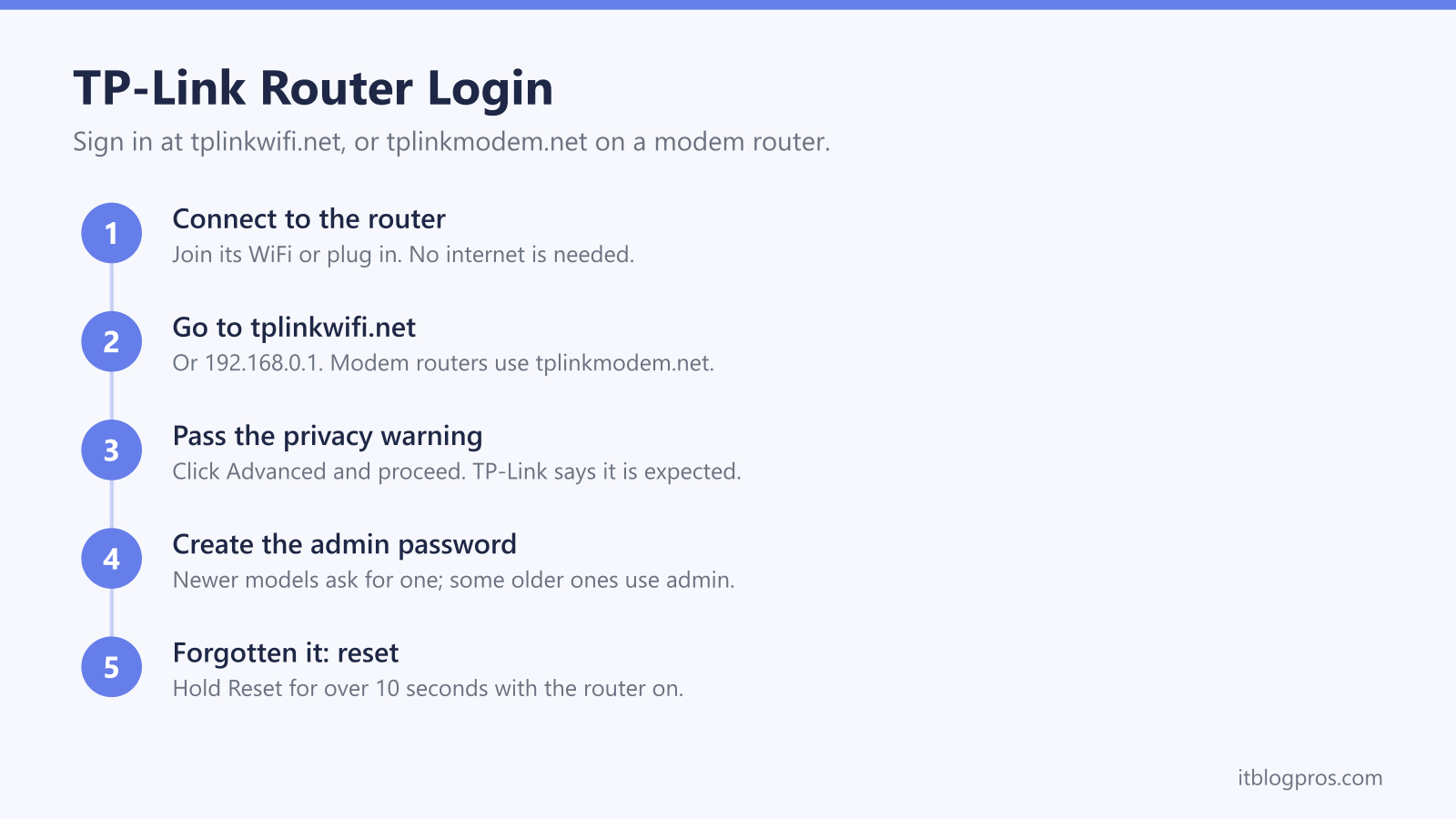
TP-Link's router login FAQ gives tplinkwifi.net or 192.168.0.1 as the address, typed into the address bar on a device connected to the router. DSL, 4G and 5G modem routers use tplinkmodem.net or 192.168.1.1. Newer models ask you to create an admin password on the first visit, while some older models use admin as both the username and the password.
Key Takeaways
- TP-Link's FAQ on domain name login issues lists tplinkwifi.net and 192.168.0.1 for Archer and Aginet routers, and tplinkmodem.net and 192.168.1.1 for DSL, 4G and 5G modem routers.
- TP-Link's router login FAQ says newer models ask you to create an admin password at the first login, while some older models use admin as both the username and the password.
- TP-Link's password reset page says the admin password and the WiFi password are two different things, and that a lost admin password cannot be looked up.
- TP-Link's fixes for a page that will not open run from the right network and the IP address through the cache, VPN and Secure DNS to a reboot, with a factory reset last.
- TP-Link's factory reset guide says to hold the Reset button for more than 10 seconds with the router on, which erases every setting, including the ISP connection details.
tplinkwifi.net Is the Address for TP-Link Routers
TP-Link gives each kind of product its own login name, so the right address depends on the box in front of you. TP-Link's FAQ on domain name login issues lists tplinkwifi.net for its Archer and Aginet routers, with 192.168.0.1 as the matching IP address. The same FAQ says the page can only be reached from a device connected to the TP-Link router's network, by WiFi or by an Ethernet cable.
That point matters wherever a TP-Link router sits behind a provider's hub. A phone joined to the hub's WiFi is on the hub's network, not the TP-Link's, and tplinkwifi.net cannot find the TP-Link from there. Join the TP-Link's own network first. TP-Link's router login FAQ adds that the management page does not require an internet connection, only a connection to the router itself, so the address still works on a new router before the broadband is set up. The addresses for every other brand are in the router login guide.
Modem Routers Answer at tplinkmodem.net and 192.168.1.1
A modem router has the broadband modem built in, connecting to the phone line or, on 4G and 5G models, to the mobile network, rather than plugging into a separate modem or hub. TP-Link's FAQ on domain name login issues gives these boxes a different address: tplinkmodem.net for DSL, 4G and 5G modem routers, with 192.168.1.1 as the IP address. TP-Link's DSL modem router login FAQ repeats both addresses and says no internet connection is required, only a local connection to the modem.
So match the name to the box: tplinkwifi.net for an ordinary TP-Link router, tplinkmodem.net for a modem router. If neither the name nor the default number answers, the address may have been changed. TP-Link's LAN IP address FAQ says to read the current one from the device's network settings, where Windows lists it as the Default Gateway, an iPhone shows it as Router and Android shows it as Gateway. The 192.168.1.1 login guide and the 192.168.0.1 login guide cover both numbers across other brands.
How to Log In at tplinkwifi.net
Start by connecting a computer, tablet or phone to the TP-Link router, by WiFi or with an Ethernet cable. TP-Link's router login FAQ recommends a wired connection when changing wireless settings or updating firmware, since a WiFi change can cut off the very device making it.
Next, open Chrome, Firefox or Edge, the browsers that FAQ names, and type tplinkwifi.net, or tplinkmodem.net on a modem router, into the address bar rather than a search box. A privacy warning may appear before the login page. TP-Link's FAQ says that is expected, because the router uses a self-signed certificate, and its steps are to click Advanced and proceed to the address.
The sign-in screen follows. It asks either for a new password or for the one already set, which the next section explains. Where the router has been linked to a TP-Link ID, TP-Link's FAQ says to sign in with that TP-Link account instead, and the sign-in screen lets you switch between the local password and the TP-Link ID.
New TP-Link Routers Ask You to Create the Password
There is no single TP-Link default password. TP-Link's router login FAQ says newer models ask you to create a custom admin password the first time you log in, while some older models use admin as both the username and the password, and on some of those the fields arrive pre-filled with admin. After that first visit, the FAQ says to enter the local admin password you created during setup.
TP-Link's password reset page is blunt on two points. The admin login password and your WiFi password are two different things, so the WiFi password will not open the settings. And there is no way to recover or look up a lost admin password: the page says a factory reset is the only way to regain access, while noting that some newer models offer a recovery option through a linked TP-Link ID. The Tether app is no way round it, because TP-Link's Tether Q&A says its login is the same as the web page's. The router admin password guide covers the same split on other brands.
TP-Link's Fixes When tplinkwifi.net Will Not Open
TP-Link's FAQ on domain name login issues sets out an order worth following. First, confirm the device is connected to the TP-Link's own network. Second, clear the browser cache and history, since the FAQ says a browser can save a public IP address for tplinkwifi.net and head somewhere other than the router; another browser or device is a quick test. Third, type 192.168.0.1 directly, or 192.168.1.1 on a modem router.
Fourth, disconnect every internet and VPN connection except the one to the router. Fifth, turn off Secure DNS, which the FAQ says some browsers use by default and which can bypass the router's local DNS so the name never resolves; it gives the steps for Chrome, Firefox and Edge. Sixth, reboot the router, the modem and the device. Seventh, briefly disable firewall or antivirus software, which the FAQ says may block tplinkwifi.net. TP-Link's router login FAQ adds plugging in with an Ethernet cable. Only after all of that does TP-Link point to a factory reset.
A Factory Reset Clears the Password and Every Setting
TP-Link's factory reset guide gives the button method. With the router powered on, press and hold the Reset button for more than 10 seconds, then release it when the SYS LED changes from a slow flash to a quick flash. The button may be a dedicated Reset button, a combined WPS/Reset button or a pinhole that needs a paperclip, and on a combined button a press of under five seconds starts WPS instead. The timing varies between TP-Link's own pages: its password reset page says about 10 seconds, and its older reset FAQ for xDSL modem routers says about 6 to 10 seconds with a pin.
The reset guide is clear about the cost. A reset erases the internet (ISP) settings, the WiFi settings, port forwarding rules and parental controls, and the router returns to the default login details and IP address on its bottom label. If you can still log in, the guide suggests backing up the configuration first from the Backup and Restore page, which is also where its web-based Factory Restore option sits.
Deco, Tether and Range Extenders Take Their Own Routes
Not every TP-Link product lives at tplinkwifi.net. TP-Link's Deco login FAQ says a Deco mesh network is set up through the Deco app and calls the app the primary management tool. Once that is done, the same FAQ says the settings can also be reached in a browser at tplinkdeco.net or 192.168.68.1, signing in with the password for the owner TP-Link ID, although not all Deco models support web management yet and manager accounts have no web access. The Deco light meanings guide decodes the units' lights.
Range extenders have their own address as well. TP-Link's FAQ on domain name login issues lists tplinkrepeater.net and 192.168.0.254, and the tplinkrepeater.net login guide walks through it, with setup and model choice in the TP-Link extender setup guide. On a phone, TP-Link's router login FAQ offers the Tether app as the alternative to the browser, and TP-Link's Tether Q&A says it only works from the main WiFi network, not the guest network, on the hardware versions it lists or newer.