
The single LED on a TP-Link Deco tells you exactly what the unit is doing, from a clean working state to a fault that has knocked your WiFi offline. The trouble is that the same ring cycles through yellow, blue, green or white, and red, and each colour means something different depending on whether it is solid or pulsing. A solid red light on the main Deco is the one that sends most people searching, because it means the system cannot reach the internet. This guide sets out every Deco LED colour and state straight from TP-Link's official support documentation, explains what each one means, and walks through the fixes that clear the common faults. The meanings are the same whether you are in the UK or the US, because they are built into the Deco firmware rather than set by any internet provider.
A TP-Link Deco LED shows solid yellow while starting up, pulsing blue when ready for setup, and solid green or white once it is registered and working normally. Solid red means the main Deco cannot reach the internet, and pulsing red means a satellite has lost its link to the main unit. Most red-light faults clear with a cable check, a power cycle, or a factory reset.
Key Takeaways
- Solid green or white is the healthy state, and which colour you see depends on your Deco model rather than a fault.
- Solid red on the main Deco means it cannot connect to the internet, so check the modem and cable first, not the Deco itself.
- Pulsing red means a satellite unit has lost contact with the main Deco, which usually points to distance or interference between nodes.
- Flashing blue is normal during setup, but a unit stuck flashing blue for several minutes needs a reset and a fresh run through the Deco app.
- A factory reset clears most stubborn faults: hold the reset button on the base for one second and wait for the LED to return to pulsing blue.
TP-Link Deco light meanings at a glance
| Light | What it means | What to do |
|---|---|---|
| Solid yellow | The Deco is starting up. This is normal for the first minute or two after power-on or a reboot. | Wait one to two minutes for the unit to finish booting. If it stays yellow beyond that, unplug it, wait, then power it back on. |
| Pulsing yellow | The Deco is resetting. You will see this after pressing the reset button or starting a reset from the app. | Let the reset complete. The light moves to solid yellow, then to pulsing blue, at which point the unit is ready for a fresh setup. |
| Pulsing blue | The Deco is ready for setup and is waiting for the Deco app to pair with it over Bluetooth. | Open the Deco app, allow Bluetooth and location permissions, and follow the on-screen steps to add the unit to your system. |
| Solid blue | The Deco is in the middle of setting up while the app configures it. | Leave the unit alone until setup finishes and the light turns green or white. Do not unplug it during this stage. |
| Solid green or white | The Deco is registered and everything is working normally. Green or white depends on the model. | No action needed. This is the state you want every unit to settle on once setup is complete. |
| Pulsing green or white | The Deco is upgrading its firmware. The pulse continues until the update has installed. | Leave the unit powered on and connected until the light returns to solid. Interrupting a firmware update can corrupt the unit. |
| Solid red | The main Deco cannot connect to the internet. This is a connection or configuration issue rather than a hardware fault. | Check the cable to the modem, power-cycle the modem and Deco, confirm only the main Deco is wired to the modem, then set DNS to 8.8.8.8 and 8.8.4.4 or use MAC clone if needed. |
| Pulsing red | A satellite Deco has lost its connection to the main Deco. The node is too far away or blocked by interference. | Move the satellite closer to the main unit or another working node, clear obstructions, then power-cycle the satellite and let it re-link. |
| No light (off) | The Deco has no power, or the LED has been switched off in the app schedule. | Check whether LED or LED Off Time is enabled under More then LED control in the app, then confirm the power cable is seated firmly. If it stays dark, the unit may have a hardware fault. |
A solid red light on the main Deco means no internet
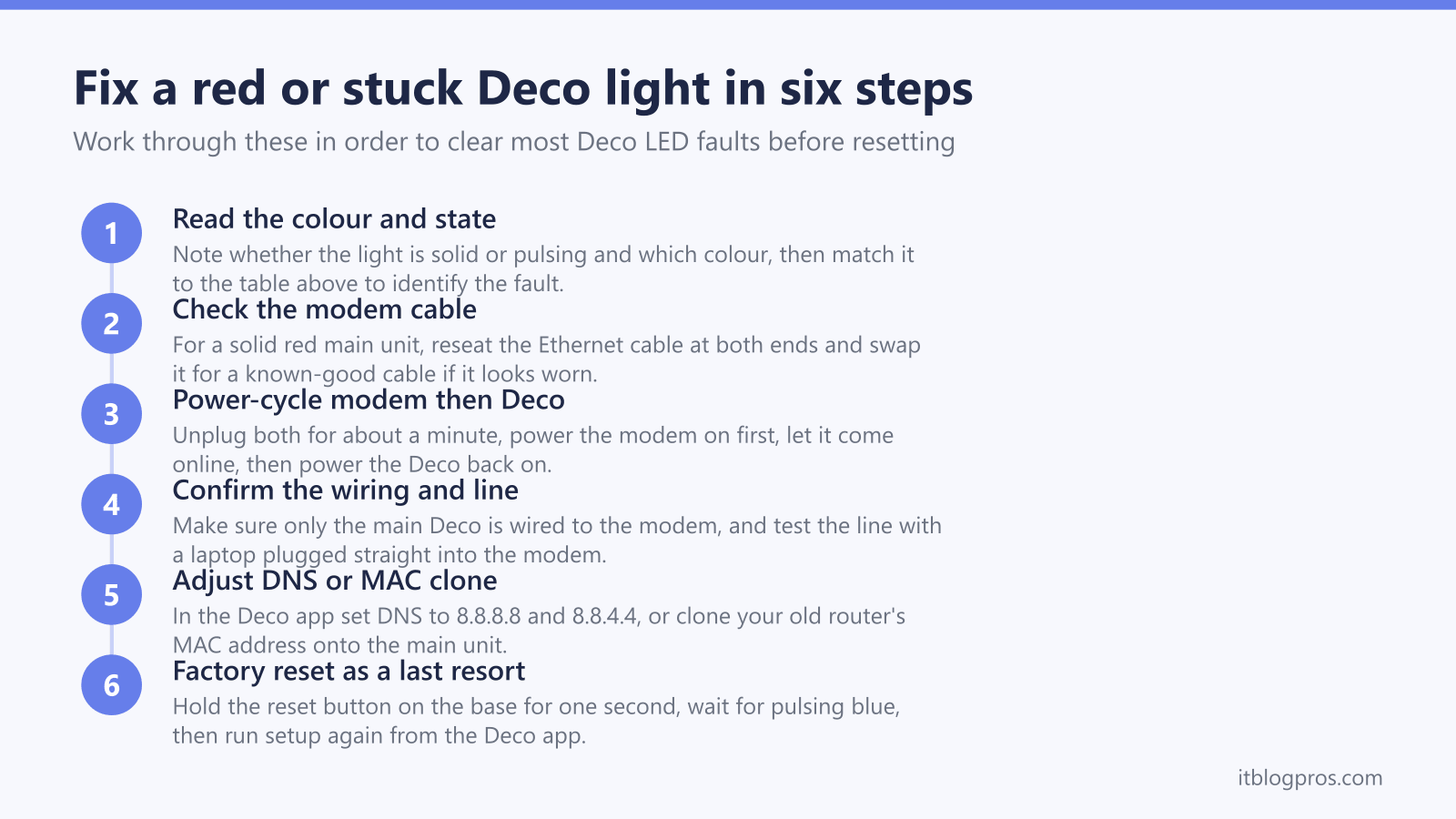
The fault that drives most Deco searches is a solid red light on the main unit, the one wired to your modem. TP-Link's support documentation is clear that this means the Deco cannot connect to the internet, and it is almost always a connection or configuration issue rather than a broken unit. Work through the checks in order. Start with the Ethernet cable between the modem and the main Deco, reseating it at both ends and swapping it for a known-good cable if it looks old or damaged. Next power-cycle the modem and the Deco together: unplug both, leave them off for around a minute so the modem drops its old session, then power the modem on first and let it come fully online before powering the Deco. Confirm that only the main Deco is wired to the modem, because plugging a satellite into the modem by mistake causes the same red light. If the line is genuinely down, plugging a laptop or spare router straight into the modem will show it, in which case the problem sits with your internet provider rather than the Deco.
DNS and MAC clone fixes clear the stubborn red lights
If the cable and power cycle do not move the main Deco off red, two settings in the Deco app fix most of the remaining cases. The first is the DNS server. Some networks fail to resolve addresses with the default settings, so changing the Deco's IPv4 DNS to 8.8.8.8 as the primary and 8.8.4.4 as the secondary often restores the connection. The second is MAC clone. Many modems and some internet providers tie the connection to the MAC address of the device that first registered on the line, usually your old router. Cloning that old router's or your computer's MAC address onto the main Deco persuades the modem to hand out an address again. Both options live in the Deco app under the internet or advanced settings for the main unit. These two steps, in that order, resolve the large majority of red-light faults that survive a cable check and a reboot.
A pulsing red light points to a satellite that has dropped out
A pulsing or blinking red light is a different problem from solid red. It appears on a satellite unit and means that node has lost its connection to the main Deco. The cause is usually physical: the satellite is too far from the main unit or another working node, or there is too much wall, floor, or appliance interference in between. Move the satellite closer to a unit that is showing green or white, ideally within line of sight or no more than a room or two away, and clear large metal objects or dense walls from the direct path. Power-cycle the satellite by unplugging it for a few seconds, then let it re-establish the link, which can take a minute. If a satellite that used to work suddenly pulses red, check that nothing has moved or been switched on nearby that could be blocking the signal, such as a new appliance or a relocated unit.
A flashing blue light is normal setup unless it sticks
A flashing or pulsing blue light is the expected state when a Deco is fresh out of the box or has just been reset. It means the unit is ready for setup and is waiting for the Deco app to find it over Bluetooth. During a normal setup the light moves to solid blue while the app configures the unit, then settles on green or white. The problem only arises when a unit stays flashing blue for several minutes without progressing, which means the app cannot complete the pairing. Make sure Bluetooth and location permissions are switched on for the Deco app on your phone, move the phone and the unit close together during setup, and restart the phone if the app still cannot see the Deco. If the unit refuses to pair, reset it as described below so it returns to a clean pulsing-blue state and run the setup again from the start.
A factory reset clears faults that nothing else fixes
When a Deco is stuck on a fault that survives cable checks, power cycles, and setting changes, a factory reset is the reliable next step. TP-Link draws a clear line between a reboot, which restarts the unit and keeps all your settings, and a reset, which wipes the configuration back to factory defaults. For a single unit, find the small recessed reset button on the base, then press and hold it for one second using the unit's button or a paperclip. The LED flashes yellow as it resets, turns solid yellow as it boots, then settles on pulsing blue to show it is back to factory state and ready for a fresh setup in the app. If the button press does nothing, unplug the unit, wait two minutes, and try again. When resetting a whole system through the app, remove the satellite units first and the main unit last, so the network does not collapse part way through.
When a Deco light never settles, look at power and warranty
A Deco that shows no light at all, or one whose light never reaches a steady green or white, points to something beyond a normal setup hiccup. First rule out the obvious: the LED can be switched off on a schedule, so check under More then LED control in the Deco app to confirm the light has not simply been turned off or set to an off-time window. If the LED control is on and the unit is still dark, reseat the power cable firmly at both the unit and the socket, and try a different socket. A unit that has power but cannot complete setup, or one that stays dark after these checks, may have a genuine hardware fault. At that point it is worth confirming whether the unit is still in warranty and contacting TP-Link support, rather than buying replacement parts. A single failed node can usually be replaced on its own without scrapping the whole system.
When the fault is a dead unit out of warranty, a newer Deco runs on the same Deco app and network, so it can replace the failed node or take over as the main unit without a rebuild. The budget mesh guide covers whether a like-for-like replacement or a step up makes more sense for the size of home.
