
ASUS routers answer to a web address as well as a number, which spares you from memorising digits. ASUS's own documents name two addresses, router.asus.com and asusrouter.com, plus the IP addresses 192.168.50.1 and 192.168.1.1. The login is where most people stall, because ASUS's FAQ describes a printed default on some models and a login you create at setup on others. This guide covers the addresses, the login, the ASUS Router app, AiMesh and ASUS's fixes when the page will not open.
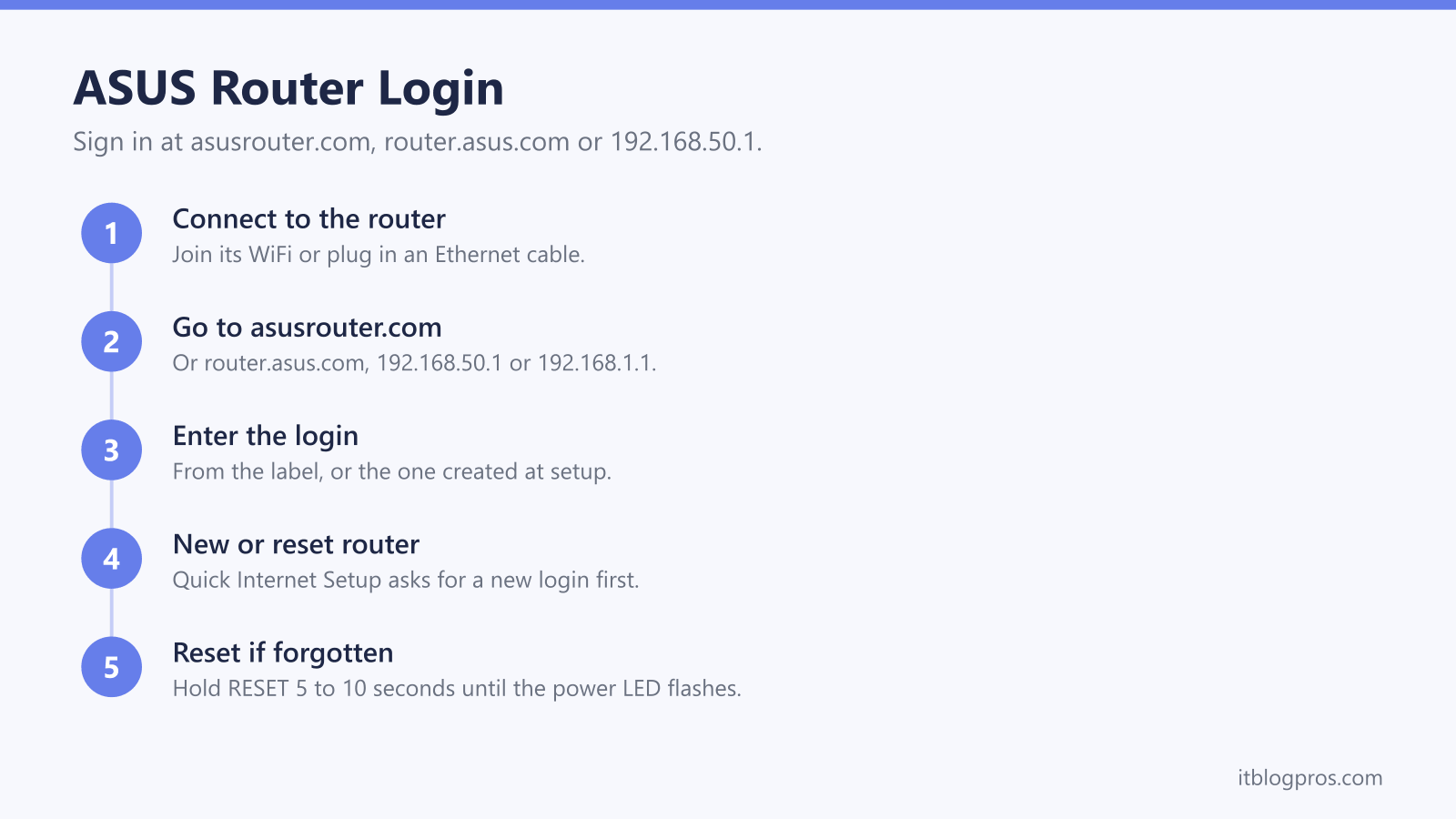
An ASUS router's settings open at http://www.asusrouter.com, the address ASUS's support FAQ gives, or at router.asus.com, the address in ASUS's ZenWiFi quick start guides. ASUS's FAQ gives 192.168.50.1 or 192.168.1.1 as the default IP and says the label shows which. Some models print admin as the default username and password, and on a first login or after a reset ASUS says you create your own.
Key Takeaways
- ASUS's support FAQ gives http://www.asusrouter.com as the login address, and ASUS's ZenWiFi quick start guides point to http://router.asus.com for the same Web GUI.
- ASUS's FAQ gives 192.168.50.1 or 192.168.1.1 as the default LAN IP without saying which models use which, and says the default IP is printed on the router's label.
- Some ASUS models list admin as the default username and password on the label, while ASUS says a first login or a factory reset means creating the login first.
- ASUS says all router settings can only be done on the AiMesh router rather than on AiMesh nodes, and the ASUS Router app handles setup from a phone.
- ASUS's reset FAQ says to hold the RESET button for 5 to 10 seconds until the power LED flashes, which deletes every setting, including the WiFi name and password.
ASUS Documents Two Web Addresses and Two IP Addresses
Most routers make you remember a number, and ASUS offers a name instead. ASUS's support FAQ on entering the router's settings page gives http://www.asusrouter.com as the router URL, alongside the router's LAN IP, with http://192.168.50.1 as its example. ASUS's quick start guides for ZenWiFi mesh systems such as the XD5 send you to the web GUI at http://router.asus.com instead. Both are described as the way into the Web GUI, which is ASUS's name for the settings page.
For the numbers, ASUS's FAQ on changing the LAN IP says the default is 192.168.1.1 or 192.168.50.1. That page does not say which models use which, and ASUS's Device Discovery FAQ says the default IP address can be found on the label on the router. If neither number answers, the 192.168.1.1 login guide explains how to read a router's real address from a connected device, and the router login guide covers the other brands.
How to Log In to an ASUS Router
ASUS's FAQ starts before the browser opens. Power on the router and check that its LED is on and stable, then connect a laptop or phone to it by Ethernet cable or WiFi. A router that has not been set up yet broadcasts a default network name, which ASUS's FAQ gives as ASUS, ASUS_5G or ASUS_XX depending on the model, printed on the label on the back.
Next, open a browser. ASUS says any web browser works, naming Microsoft Edge, Firefox, Apple Safari and Google Chrome as examples. Type http://www.asusrouter.com or the router's LAN IP, such as http://192.168.50.1, into the address bar rather than a search box, then key in the router's username and password on the login page.
A brand new router behaves differently. On the first login, or after a factory reset, ASUS's FAQ says you are sent straight to the Quick Internet Setup page, known as QIS, and that the router login account and password have to be set first.
The Default Login Depends on the Model and Its Label
There is no single default login across the range. ASUS's FAQ says some models carry a default username and password on a sticker on the back or bottom, and that for those the default username and password are both admin. Other models print their own defaults on the label, and the FAQ says to use whatever that label shows. The same page says a first login, or a login after a factory reset, means setting the router login account and password first. ASUS ties none of this to a firmware version, so the label is the deciding check.
Two points cause most refused logins. ASUS's FAQ says the router username and password are for the management interface, not the WiFi network name and password, nor the account from your broadband provider. ASUS's FAQ on failed logins adds that capital letters in the password matter. The guide to finding your router admin password explains the difference between the two kinds of password in more detail.
The ASUS Router App and AiMesh Nodes Have Their Own Rules
A phone can do the whole job instead of a browser. ASUS's app setup FAQ links the ASUS Router app on the Apple App Store and Google Play, and its steps have you join the router's default network, named ASUS_XX on the label, before opening the app. The app then asks for a WiFi name and password, followed by a login name and password, which ASUS says are required when accessing the router's configuration page later. ASUS's ZenWiFi XD5 quick start guide describes the app as the way to set up and manage your routers.
AiMesh, where extra ASUS units called nodes extend the main router's network, has a single point of control. ASUS's AiMesh setup FAQ says all router settings can only be done under the AiMesh router, rather than under the nodes, and that guest networks are broadcast from the AiMesh router only. ASUS's FAQ on node WiFi says a device connected to either the router or a node reaches the Web GUI at the LAN IP or asusrouter.com.
ASUS's Checklist When router.asus.com Will Not Open
ASUS's troubleshooting FAQ for a settings page that will not load works from the cables inward. It asks for a wired connection first: the modem plugged into the router's WAN port, the computer plugged into a LAN port with a network cable, and the router's power button pressed once the adapter is in.
After that, ASUS says to make sure the computer's network adapter is set to obtain an IP address automatically, and that the browser has no proxy server set. If the address still fails, ASUS suggests its Device Discovery utility, which its own FAQ says finds ASUS networking devices and shows the router's IP address so the Web GUI can be opened directly. Only then does ASUS move on to restoring the router to default settings, followed by Rescue Mode for firmware restoration and, finally, a call to ASUS support.
A power LED that never settles points somewhere else, and the ASUS router lights guide explains what each pattern means.
A Factory Reset Is the Way Back From a Lost Password
ASUS is blunt about forgotten logins. Its FAQ on failed logins says that once the username and password have been changed, ASUS will not know them, and that the only way to log in again is resetting the router to its default settings.
ASUS's reset FAQ gives two methods. If the Web GUI still opens, go to Administration, then the Restore/Save/Upload Setting tab, and select Restore; in the ASUS Router app the option sits under Settings, System Settings, System reset to factory default. If the page will not open, press and hold the RESET button for 5 to 10 seconds until the power LED starts to flash. ASUS says the lights going out afterwards is normal while the router restarts, and the reset is complete when they come back on.
Everything goes with it. ASUS's reset FAQ says all current settings are deleted, including the internet settings and the WiFi name and password, and its login FAQ says to set the router up again through QIS in the app or the Web GUI.
An ASUS Router Behind an ISP Hub Needs One More Check
On many UK lines the provider's hub stays plugged in and the ASUS router connects to one of its ports. That leaves two devices routing at once, known as double NAT, and the double NAT guide explains the problems it causes and the fixes.
One way out is to stop the hub routing. Virgin Media's help page lists modem mode for the Hub 3, 4 and 5 and the Super Hub 1, 2 and 2AC, says it is not currently available for the Hub 5x, and gives 192.168.100.1 as the Hub's address once it is on. The Hub 5 modem mode guide walks through it.
The other is to stop the ASUS routing. ASUS's ZenWiFi XD5 quick start guide says the router can run in access point mode, set in the Web GUI under Administration, Operation Mode. ASUS's access point FAQ then says the parent router assigns the ASUS its IP address, so asusrouter.com no longer opens it. The parent router's client list shows the new address.