
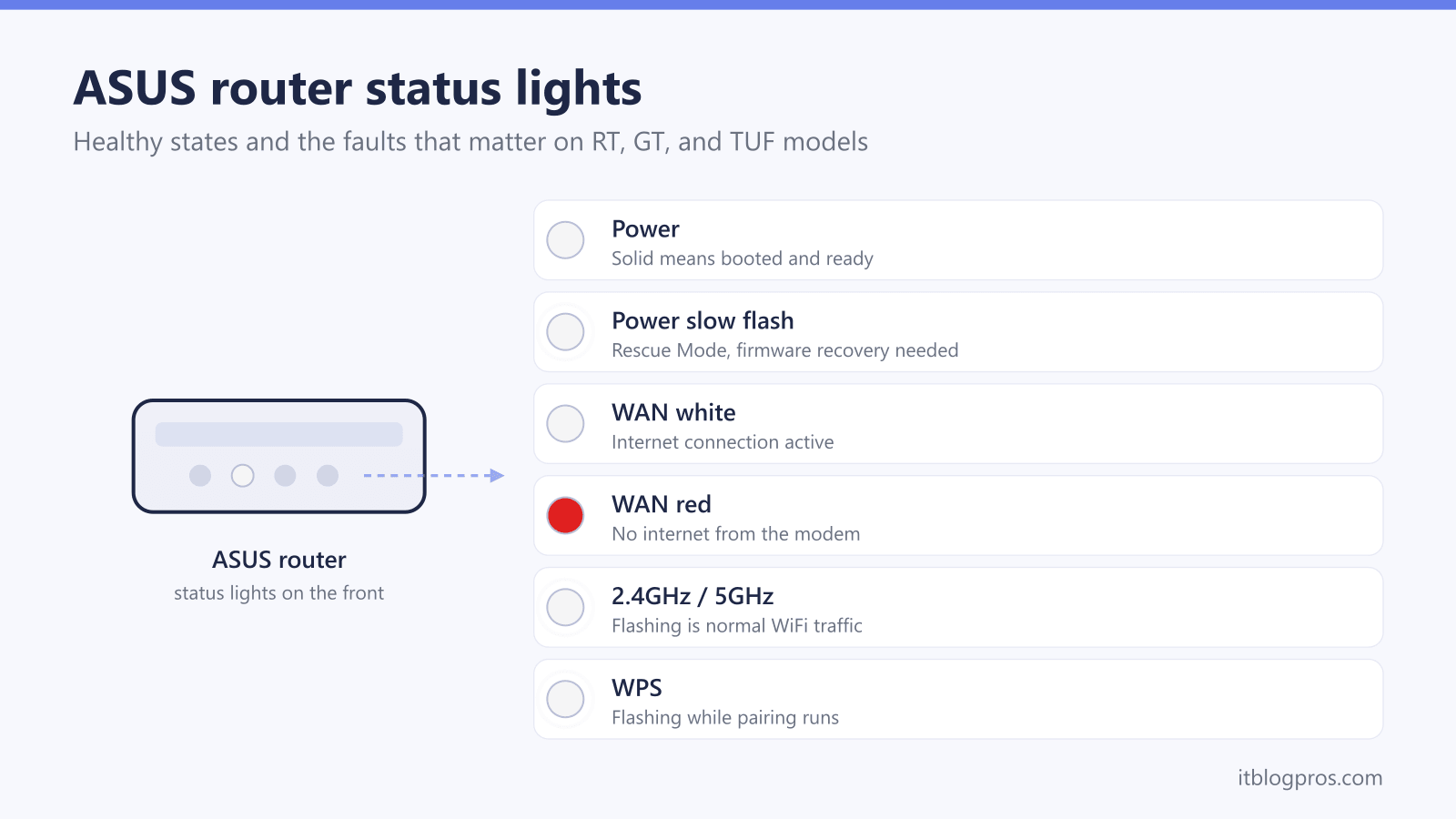
ASUS routers report their health through a row of small status LEDs, and one of them causes more searches than all the others combined: the red WAN light. Unlike some brands that flash a single multicolor ring, ASUS gives each function its own light, so the panel reads like a checklist once you know the code. The same system runs across the standard RT line, the ROG Rapture GT gaming range, and the TUF Gaming models, with only minor differences in which lights are present. This guide decodes every state, explains the difference between a white and a red WAN light, covers the slow-flashing power light that signals firmware rescue mode, and walks through the exact fix order ASUS recommends for each fault.
ASUS router lights follow one system across RT, GT Rapture, and TUF Gaming models. Solid white power, 2.4GHz, 5GHz, and WAN LEDs mean a healthy router, and flashing wireless lights just show traffic. A red WAN light means the router has no internet from the modem, and a slowly flashing power light means Rescue Mode after a failed firmware update. Restart the modem first, then the router, to clear most red WAN lights.
Key Takeaways
- A red WAN light means the ASUS router cannot pull an internet connection from the modem, and restarting the modem first, then the router, clears it in most cases.
- Solid power, 2.4GHz, 5GHz, and WAN lights show a healthy router, and flashing wireless lights only indicate normal data traffic.
- A slowly flashing power light means the router has dropped into Rescue Mode after a corrupt or failed firmware update, and the free ASUS Firmware Restoration tool recovers it.
- A dark 2.4GHz or 5GHz light usually means the band is disabled or scheduled off in the settings at router.asus.com rather than a dead radio.
- The glowing ROG or TUF logo on gaming models is decorative Aura RGB lighting, not a status light, so its color never signals a fault on its own.
ASUS router light states at a glance
| Light | What it means | What to do |
|---|---|---|
| Power solid | The router is powered, fully booted, and ready. | Nothing to fix. Allow one to two minutes after any restart for the panel to settle. |
| Power flashing slowly | Rescue Mode. The firmware is corrupt or a firmware update failed partway through. | Run the free ASUS Firmware Restoration tool from a wired PC to reload the firmware. Full steps are in the power light section below. |
| Power flashing quickly | WPS pairing is running, on models without a dedicated WPS light. | Normal for about two minutes while a device pairs. If it never returns to solid, restart the router. |
| Power off | No power, or all LEDs have been switched off with the LED button or a Scheduler setting. | Press the LED on/off button on models such as the RT-AX86U, check the power button and adapter, then try another outlet. |
| WAN solid white | The router has a live link to the modem and an internet connection. Older AC models show the same state in blue. | Nothing to fix. Brief flickers are normal traffic. |
| WAN red | The router is running but cannot get an internet connection or IP address through the WAN port. The internet is down at the router. | Restart the modem first and let it fully reconnect, then restart the router. Check the cable sits in the blue WAN port, and see the full fix order below. |
| WAN off | No physical connection detected on the WAN port at all. | Reseat or replace the Ethernet cable between modem and router, and confirm the modem has power. |
| 2.4GHz or 5GHz solid | That wireless band is switched on and broadcasting. | Nothing to fix. |
| 2.4GHz or 5GHz flashing | Devices are sending and receiving data on that band. | Normal activity, even when the flashing looks constant. |
| 2.4GHz or 5GHz off | That band is disabled, hidden behind a schedule, or has failed. | Log in at router.asus.com, open Wireless settings, and confirm the radio is enabled with no active schedule. A band that stays dark after a reset and firmware update points to hardware. |
| LAN solid or flashing | A wired device is connected on that numbered port, and flashing shows traffic. | Nothing to fix. A dark LAN light with a cable attached means a bad cable, port, or powered-off device. |
| WPS light flashing | WPS pairing is in progress, on models with a dedicated WPS light such as the RT-AX86U and RT-AX88U. | Normal for about two minutes after pressing the WPS button. Disable WPS in the settings if it is never used. |
| ROG or TUF logo, any color | Decorative Aura RGB lighting on GT and TUF gaming models. It is not a status light. | Change or switch it off under Aura RGB in the router settings. Only user-enabled Event modes tie its color to alerts. |
One light system covers RT, GT Rapture, and TUF Gaming routers
ASUS gives each router function its own LED rather than rolling everything into a single color-coded ring. On a typical current model such as the RT-AX86U, the front panel carries a WPS light, four numbered LAN lights, a WAN (internet) light, a 2.5G port light, separate 2.4GHz and 5GHz wireless lights, and a power light. Cheaper models drop the 2.5G and WPS lights, and tri-band gaming models such as the ROG Rapture GT-AX11000 split the wireless row into 2.4GHz, 5GHz-1, and 5GHz-2.
Current RT, GT, and TUF models use white status LEDs, while older AC-generation routers such as the RT-AC68U show the same states in blue. Red is reserved for one job across the range: the WAN light turning red when the internet connection fails. That single convention makes an ASUS panel fast to read, because any red on the panel points straight at the internet feed rather than the router itself. Other brands assign the same colors to different states, and the cross-brand guide to what each router light color means lines those conventions up for comparison.
Two quirks catch people out. First, many models, including the RT-AX86U, have a physical LED on/off button, and the firmware also offers a lights-off schedule, so a completely dark router is often just muted rather than dead. Second, a fresh boot takes one to two minutes, during which lights turn on and off in sequence. Judge the panel only after it has settled.
The red WAN light means no internet, and the restart order fixes most cases
A red WAN light is the most searched ASUS router fault, and the meaning is precise: the router has booted and is running normally, but it cannot obtain a working internet connection or IP address through the WAN port. The problem sits between the router and your ISP, which is why rebooting the router alone so often fails. Devices keep showing full WiFi bars the whole time, which is the same fault seen from the client side as WiFi connected but no internet. Work through the fixes in this order:
- Check for an outage first. Open your ISP's app or status page on a phone using mobile data. A red WAN light during an outage needs no fixing at your end.
- Check the cable and the port. The modem must plug into the blue WAN port, not a yellow LAN port. A cable moved during dusting or a modem swap is a classic cause. Reseat both ends firmly.
- Restart in the right order. Unplug the modem and the router. Power the modem on first and wait two to three minutes until its own lights show it is fully online. Only then power the router on. Restarting both at once, or the router first, is the main reason a power cycle fails to clear the red light.
- Swap the Ethernet cable. A damaged cable between modem and router produces the same symptom. Any spare Cat5e or better cable works as a test.
- Check the WAN settings. Log in at router.asus.com, which resolves to 192.168.1.1 on older models and 192.168.50.1 on most current ones, and open the WAN section. Cable connections normally use Automatic IP, while some fiber and DSL services need PPPoE credentials. ASUS also recommends confirming any ISP-specific settings with your provider.
- Update the firmware. ASUS lists outdated firmware as a cause of abnormal WAN LED behavior. Update from Administration, Firmware Upgrade, or download the file manually from the ASUS support site.
- Bypass the router to place the blame. Connect a computer directly to the modem. Internet working direct but not through the router points at the router or its WAN settings. No internet direct means the modem or the line is at fault.
When the bypass test keeps landing on the modem side and you rent an aging cable modem from your ISP, replacing it solves the recurring red light and removes the rental fee, a swap costed out in full in the case for buying your own modem instead of renting the gateway. The Motorola MB8611 and ARRIS SURFboard S33 are both DOCSIS 3.1 modems with multi-gig Ethernet that pair well with a fast ASUS router on Xfinity, Spectrum, and Cox. This only makes sense when the modem is the proven failure point, so run the bypass test before spending anything.
Power light codes separate boot, Rescue Mode, and WPS activity
A solid power light means the router is booted and ready, and a dark power light means no power or muted LEDs. The two flashing patterns carry the real information.
A slowly flashing power light means Rescue Mode. ASUS support confirms the router enters Rescue Mode when the power indicator flashes slowly, which almost always follows a failed or corrupt firmware update, often caused by a power cut mid-flash. The router is not dead. Recover it with the free ASUS Firmware Restoration utility:
- Download the latest firmware for your exact model and the Firmware Restoration tool from the ASUS support site, and unzip the firmware file.
- Connect a computer to a LAN port with a cable, then set its IPv4 address manually to 192.168.1.10 with subnet mask 255.255.255.0.
- Unplug the router's power, hold the Reset button, and plug the power back in while still holding Reset. Keep holding until Rescue Mode is active.
- Open Firmware Restoration, browse to the firmware file, and click Upload. The flash takes a minute or so, and a steady power light confirms the recovery completed.
- Set the computer's network adapter back to obtaining an IP address automatically.
A quickly flashing power light means WPS is pairing on models without a dedicated WPS light. It runs for around two minutes after the WPS button is pressed and settles back to solid on its own. Models with a separate WPS light, such as the RT-AX86U and RT-AX88U, blink that light instead.
Dark wireless lights usually mean a disabled band, not a dead radio
The 2.4GHz and 5GHz lights each report one radio. Solid means the band is broadcasting, flashing means devices are moving data across it, and constant flickering in a busy household is completely normal. Off is the state worth investigating, and ASUS's own troubleshooting for a WiFi LED that is not on starts in software rather than hardware.
Log in at router.asus.com and open Wireless, General. Confirm the radio for the dark band is enabled, and check Wireless, Professional for a schedule that switches the band off at set times, a feature people enable and forget. A factory reset followed by a firmware update rules out a configuration fault entirely.
Smart home gear complicates the 2.4GHz band specifically. Some plugs, cameras, and bulbs only join 2.4GHz (Wyze's band support article, for example, lists its plugs and bulbs as 2.4GHz devices and says only a few of its devices support 5GHz), and the device's spec sheet or setup guide states which band it needs. A dark 2.4GHz light takes those 2.4GHz-only devices offline even while dual-band phones and laptops carry on over 5GHz, and that pattern points at the 2.4GHz radio or its settings rather than the internet connection.
A band whose light stays off after a reset and a firmware update, with the radio enabled and no schedule, has genuinely failed, which is rare but terminal. That router can keep working as a single-band unit, but a failed radio is a hardware fault with no software fix.
LAN, 2.5G, and WPS lights confirm cabling and pairing
The numbered LAN lights each track one yellow Ethernet port. Solid means a powered device is connected on that port, flashing means traffic, and dark with a cable attached means the cable, the port, or the device at the far end is at fault. Swapping the cable to a different numbered port is a ten-second test that separates a bad port from a bad cable.
Models with a multi-gig port, such as the RT-AX86U with its 2.5G port, add a dedicated 2.5G light that behaves the same way. That port doubles as either WAN or LAN in settings, so a dark 2.5G light after reconfiguring it is worth a second look in the network map.
The WPS light flashes while a WPS pairing window is open, normally for about two minutes after the WPS button on the back is pressed, then goes out. A WPS light flashing when nobody pressed the button means someone in the house did, or the button is being nudged by something on the shelf. WPS is a known weak point for network security, so switching it off under Wireless, WPS in the settings is sensible if nothing in the house uses it, and it silences that light for good.
ROG and TUF logo lighting is Aura RGB decoration rather than status
Gaming models add a large illuminated logo, the ROG eye on Rapture GT models and the TUF badge on TUF Gaming models, and it glows red out of the box on many units. That red means nothing. It is Aura RGB decorative lighting, separate from the status LEDs, and ASUS lets you set it to any color or effect, including static, breathing, rainbow, and comet patterns, or turn it off entirely under the Aura RGB section of the router settings.
The one exception is the optional Event mode, which deliberately ties the logo to triggers: Game Boost shows a breathing red effect, the Traffic Meter cycles a rainbow with internet speed, and a failed login attempt or a blocked attack shows a red comet effect. Those alerts only appear when Event mode has been switched on by the user. A glowing red ROG logo on default settings is cosmetic, and the status row of small LEDs described above remains the only place the router reports genuine faults.
Persistent faults after resets point to hardware, and targeted replacement beats repeat troubleshooting
Most ASUS light problems end at the steps above, and a router that passes them needs nothing bought for it. Hardware is the verdict when a fault survives a factory reset and a firmware reload: a WAN port that stays red while the modem bypass test works perfectly, a wireless band that never lights again, a power light that keeps dropping into Rescue Mode after clean recoveries, or a router that reboots itself under load.
A like-for-like swap keeps things simple. The ASUS RT-AX86U Pro is the current version of ASUS's most popular home router, supports AiMesh so an old working ASUS unit can live on as a mesh node, and its settings pages match this guide. On a tighter budget, the TP-Link Archer AX55 covers WiFi 6 for a typical household at a much lower price, with the trade-off of leaving the ASUS ecosystem.
Households that only ran into these lights while fighting dead zones, WPS pairing to extenders, and weak-signal drops are better served by mesh than by another single router. The eero Pro 6E and the TP-Link Deco X55 both replace one router with two or three cooperating units, which removes the coverage problem rather than treating it. That is a different purchase decision from fixing a red WAN light, and nothing on this page justifies it while the current router's panel reads healthy.