
WiFi that keeps dropping is one of the most maddening faults in a home, partly because it feels random and partly because the internet is full of advice that jumps straight to buying new kit. The good news is that most dropping is not a hardware fault at all. Interference, a congested channel, devices flapping between bands, stale firmware and an overheating hub cause the large majority of disconnects, and every one of those is free to put right.
This guide runs the free diagnostic ladder first, in the order that fixes the most connections for the least effort, so a dropping network can be steadied without spending a penny. Only after that does it lay out an upgrade ladder, tier by tier, for the minority of cases where a router really is old, overloaded or too weak to cover the home, so a reader at any budget knows exactly which box to buy and, just as importantly, when not to bother.
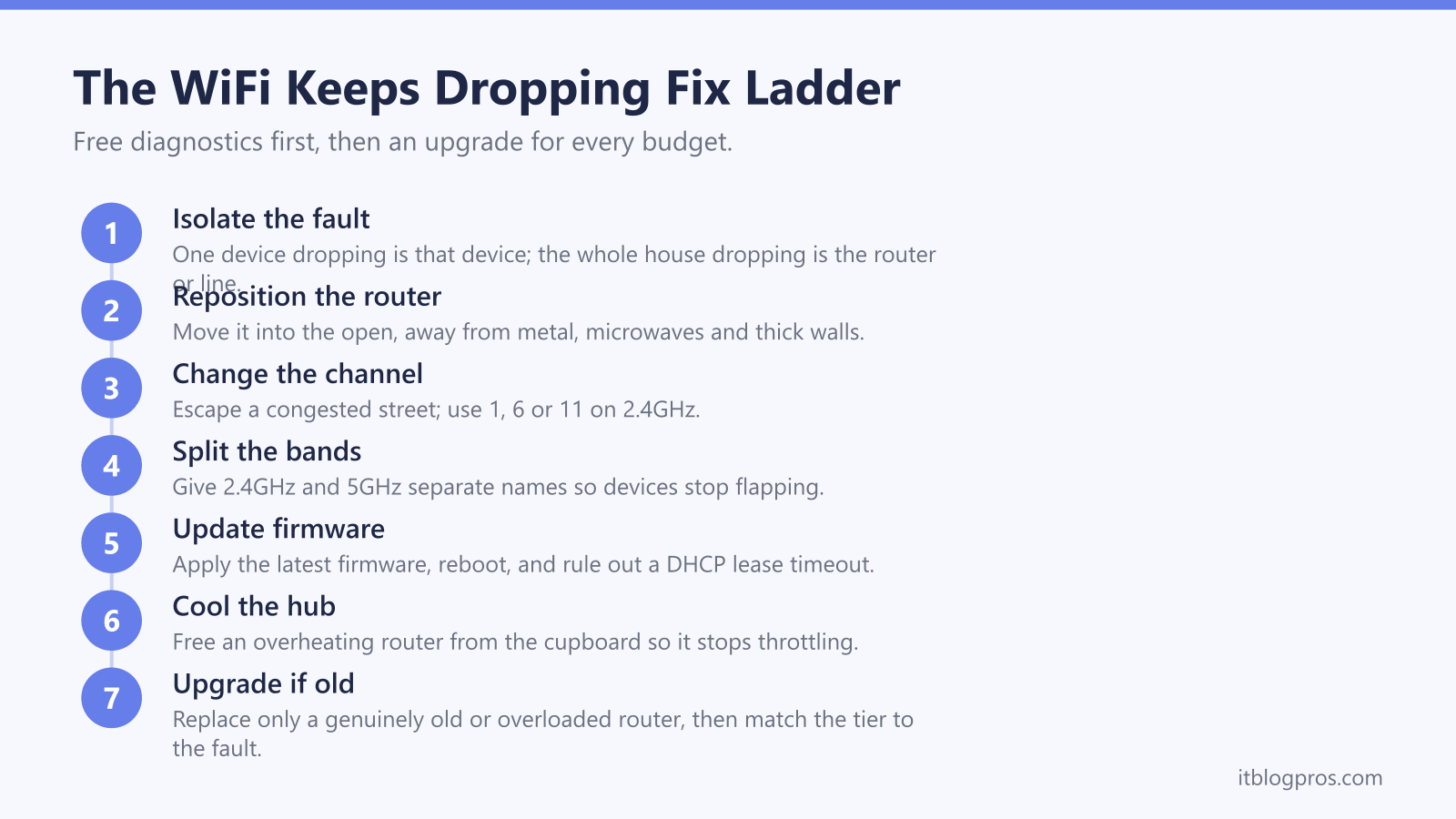
Most WiFi that keeps dropping is fixable for free. Work out whether one device or the whole house is affected, then move the router away from metal and microwaves, change to a clear channel, split the 2.4GHz and 5GHz bands, update the firmware and stop the hub overheating in a cupboard. Only upgrade the hardware once a router is genuinely old, overloaded or the true cause of poor coverage.
Key Takeaways
- Most dropping traces to interference, a congested channel, band-steering flapping, stale firmware or an overheating hub, and every one of those is free to fix.
- A single device dropping points to that device; the whole house dropping points to the router, the line or the ISP hub.
- On 2.4GHz only channels 1, 6 and 11 avoid overlapping, so a dense street is the most common cause of intermittent drops.
- Giving the 2.4GHz and 5GHz bands separate names stops devices bouncing between them and dropping mid-task.
- Upgrade only when a router is genuinely old, overloaded or the real cause of poor coverage; the ladder runs from a WiFi 6 extender to a WiFi 7 mesh.
Work out whether one device drops or the whole house does
The first move costs nothing and saves hours: work out how many devices are affected. If a single laptop or phone keeps falling off while everything else stays connected, the fault is almost always on that device rather than the router, so its wireless driver, power-management settings or adapter is the place to look, and the step-by-step for that lives in WiFi that keeps dropping on a laptop. If every device drops at once, or the whole house loses connection together, the router, the line or the ISP hub is the culprit and the rest of this ladder applies. Watch the pattern too: a drop at the same minute past every hour behaves very differently from random drops in one back room, and that timing is a clue worth noting before changing anything.
Move the router away from metal, microwaves and thick walls
WiFi is radio, and radio hates metal, water and competing signals. A router tucked behind a television, shut inside a metal media unit, next to a fish tank or beside the kitchen microwave will drop devices every time that appliance fires up. Bluetooth speakers, cordless phone bases and baby monitors all crowd the same 2.4GHz airspace and can knock a marginal connection offline. Lift the router into the open, off the floor and roughly central to the home, with clear air around it and as few thick or foil-backed walls as possible between it and where you sit. Mirrors and large metal appliances reflect and absorb the signal, so a few feet of repositioning often steadies a connection that looked like a hardware fault.
Change the WiFi channel to escape a congested street
In a terrace or a block of flats, dozens of neighbouring networks pile onto the same channels, and that congestion is the single most common cause of intermittent drops. The 2.4GHz band has only three channels that do not overlap, 1, 6 and 11, so if the whole street defaults to the same one, every network fights for the same air. A free WiFi analyser app shows which channels are busiest nearby; pick the quietest of 1, 6 or 11 on 2.4GHz, and on 5GHz move to the higher channels in the 100 to 140 range where there is more room. Set the channel manually in the router settings rather than leaving it on auto, because auto often parks itself straight back on the crowded default.
Split the 2.4GHz and 5GHz bands so devices stop flapping
Most hubs ship with both bands sharing one network name and a feature called band steering that decides which band each device uses. Band steering is not part of the WiFi standard, so every maker implements it differently, and on a marginal signal it can bounce a device back and forth between 2.4GHz and 5GHz, dropping the connection each time it switches. The fix is to give the two bands separate names, for example HomeWiFi and HomeWiFi-5G, and let each device settle on one. Use 5GHz for phones, laptops and streaming near the router because it is faster; use 2.4GHz for the far rooms and smart-home gadgets because its longer waves punch through walls better. The exact steps for a Virgin hub are in split the WiFi bands on a Virgin Media hub, and the same principle applies to most routers.
Update the firmware and rule out a DHCP lease timeout
Out-of-date firmware is a quiet cause of random disconnects, and manufacturers push fixes for exactly these stability bugs, so check for a firmware update in the router settings or app and apply it, then reboot the hub. While there, look again at the timing of the drops: a connection that dies at a precise, repeating interval, say every 60 or 120 minutes, is the signature of a failed DHCP lease renewal, where the router and device fail to renew the device's IP address cleanly. Lengthening the DHCP lease time to 24 hours in the router settings usually clears it. A single reboot of both the hub and the affected device also flushes a stuck lease and is worth doing before anything more drastic.
Free an overheating hub from the cupboard
A router is a small computer, and like any computer it throttles and crashes when it cooks. Shut inside a cupboard, boxed in behind the TV or sat on top of a radiator, the WiFi radio overheats, drops every device to cool down, then reconnects a few minutes later; the tell-tale sign is a two to five minute outage that repeats every few hours rather than at random. Pull the hub out into open air, stand it upright so its vents are clear, and keep it off soft surfaces like a sofa or carpet that block airflow. If the case is hot to the touch, that alone can explain months of unexplained drops.
Replace a failing or cheap Ethernet cable
Not every drop is wireless. If the devices that fall off are the wired ones, a games console, a smart TV or a mesh node cabled back to the hub, suspect the cable before the hardware. A kinked, crushed or cheap cable loses packets, forcing constant retransmissions that show up as stutter, buffering and full dropouts. Swap it for a known-good Cat5e or Cat6 cable and reseat both ends firmly; a loose or corroded connector at a wall socket does the same thing. This is a couple of pounds and two minutes, and it rules out a whole class of faults that look identical to a dying router.
Suspect an ageing or overloaded router last
If the whole house still drops after all of the above, the router itself may simply be past it. The average router lasts three to five years before the radios and power components start to degrade, and a hub that coped with a handful of devices years ago can be swamped now that a modern home runs dozens of phones, TVs, doorbells and plugs at once; an overloaded router sheds connections, reboots itself and runs hot. ISP hubs are the usual offenders because they are built to a price. If you are on a specific network, the tuned guides for Virgin Media WiFi that keeps dropping and BT WiFi that keeps dropping cover the hub-specific settings first. Only once a router is genuinely old, overloaded, or too weak to cover the home does spending money become the right call, which is where the upgrade ladder below comes in.
When the free fixes do not hold, upgrade at your budget
Reach for hardware only after the free ladder, and match the spend to the actual problem. If one room is the sole dead spot, a single WiFi 6 extender is the cheapest honest fix. If the whole house is patchy, a mesh replaces the coverage rather than patching it, and the difference between the two is set out in WiFi extender versus mesh. If the ISP hub itself is the weak link, a proper standalone router is the upgrade, and the mesh, extender or new router decider helps you choose between them. The four tiers below span every budget, from a single-room patch to a future-proof WiFi 7 mesh; pick the lowest tier that matches your real fault, because a bigger box does nothing for interference, a congested channel or an overheating cupboard.
Budget single-room fix: the TP-Link RE705X WiFi 6 extender
An extender only rebroadcasts the signal it can already hear, so it is the right buy for exactly one job: pushing a usable signal into a single stubborn room a mesh would be overkill for, such as a back bedroom, a loft or a garden room. It will not cure a whole house that flaps between bands, and it is the wrong tool if every device drops at once. Within that lane the TP-Link RE705X earns its place: dual-band WiFi 6 rated AX3000 (2,402 Mbps on 5GHz and 574 Mbps on 2.4GHz), four amplifiers for reach, and a gigabit Ethernet port so it can also serve as a wired access point. TP-Link lists it as EasyMesh-compatible, so paired with an EasyMesh router it joins a single network name instead of leaving a second SSID to switch to by hand.
Check the TP-Link RE705X WiFi 6 extender on Amazon UK →
Whole-home mesh: the TP-Link Deco X50
When coverage is the real root cause and more than one room drops, a mesh replaces the weak signal across the whole property instead of stretching it. The TP-Link Deco X50 is the sensible mid-range fix: AX3000 dual-band WiFi 6, three gigabit ports on every unit, WPA3 and free HomeShield parental controls, and support for wired or wireless backhaul between nodes. TP-Link rates the three-pack for coverage up to around 6,500 sq ft, enough for most three and four-bedroom homes. It runs alongside an ISP hub in access-point mode, or the hub can be dropped into modem mode to hand the mesh full control. For alternatives at the same level, weigh it against the picks in best budget mesh WiFi in the UK, the thick-wall options in best mesh WiFi for thick walls, and the head-to-head in eero versus Deco.
Check the TP-Link Deco X50 mesh on Amazon UK →
Replace a failing ISP hub: the TP-Link Archer BE550
If the diagnosis is that the ISP hub itself is the weak link and you would rather run one box than a set of nodes, a standalone router is the upgrade. TP-Link lists the Archer BE550 as tri-band WiFi 7, with a dedicated 2.5 Gbps WAN port for a multi-gig line and four 2.5 Gbps LAN ports, Router Mode and Access Point Mode, and EasyMesh compatibility, so it can work with other EasyMesh routers and range extenders. One honest caveat before buying: to use it as the main router the ISP hub must go into modem or bridge mode, and a few ISP hubs do not offer a true bridge mode, while CGNAT lines block some inbound features, so confirm the hub supports modem mode first. This is the buy when the hub is genuinely the bottleneck, not a workaround for interference or a congested channel.
Check the TP-Link Archer BE550 price on Amazon UK →
Future-proof WiFi 7 mesh for a gigabit home: the TP-Link Deco BE68
This is the top of the ladder and it is honestly overkill for most homes, so buy it only on a gigabit or multi-gig fibre line with WiFi 7 devices worth feeding. The TP-Link Deco BE68 is a tri-band WiFi 7 system rated BE14000, which TP-Link describes as 8-stream 14 Gbps, with one 10 Gbps, one 2.5 Gbps and one 1 Gbps port per unit, of which only one can serve as the WAN at a time, 320MHz channels on 6GHz, and MLO that runs wired and wireless backhaul together. TP-Link rates the three-pack at up to 8,100 sq ft. On a standard broadband line none of that headroom reaches your devices, and the Deco X50 or the Archer BE550 above will stop the dropping for a fraction of the cost; the BE68 is a deliberate future-proofing buy for a fast home, not a fix for a congested channel or an overheating hub.