
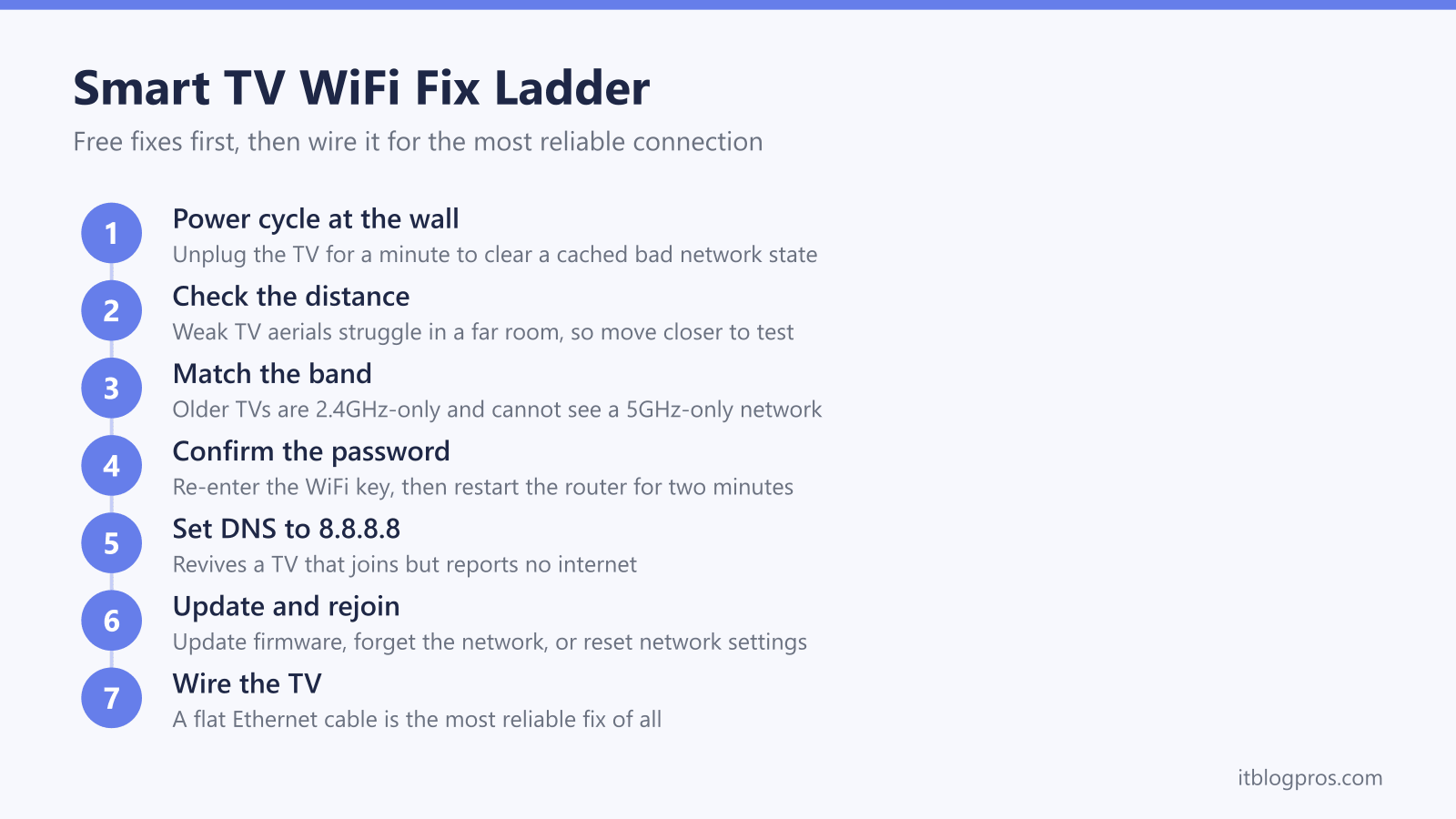
A smart TV that refuses to join the WiFi is one of the most common home network complaints, and the advice online tends to jump straight to a factory reset or a new router. Neither is where to start. Most of the time the fault is a stale network state the TV is clinging to, a weak built-in aerial struggling with distance, or an older set that simply cannot see a modern 5GHz network. Every one of those is free to put right.
This guide works the fix ladder in order, from the thirty-second power cycle that clears the majority of cases to the DNS change that revives a TV stuck on "connected, no internet". It ends with the honest truth about smart TVs: they are streaming boxes that were never given good WiFi hardware, so wherever a cable can reach, wiring the TV is the most reliable fix of all.
Most smart TVs that will not connect to WiFi are cured for free: unplug the TV at the wall for a minute to clear a stale network state, move it closer to the router, and if it is an older 2.4GHz-only set, connect it to the 2.4GHz network name rather than a 5GHz-only one. When a TV must stay put, a flat Ethernet cable is the most reliable fix of all.
Key Takeaways
- A full power cycle, unplugging the TV at the wall for a minute, clears the cached network state that causes most smart TV WiFi failures.
- Smart TVs have weak built-in aerials, so a set in a far lounge is a common dead spot the router signal barely reaches.
- Older TVs are 2.4GHz-only and cannot see a 5GHz-only network, so give the 2.4GHz band its own name and join the TV to that.
- A TV that connects but shows no internet is often a DNS fault, cleared by setting the TV's DNS server to 8.8.8.8.
- A smart TV is a streaming device, so a flat Ethernet cable is the most reliable fix of all and ends buffering as well as dropouts.
Power cycle the TV at the wall before touching anything else
Smart TVs rarely switch fully off. Quick-start and fast-boot features keep the set in a low-power sleep so the home screen loads instantly, which means the network chip never cold-boots and a bad network state stays cached. Put the TV in standby, then pull the power lead out of the wall socket, not just the back of the set, and leave it for a full minute; holding the physical power button on the TV while it is unplugged drains the residual charge and forces the WiFi module to reinitialise cleanly. Plug it back in and try the network again. This single step clears a large share of smart TV WiFi failures and costs nothing, so it is always the first move.
Check how far the TV sits from the router
A smart TV has a small internal aerial tucked behind a metal-backed panel, so its WiFi reception is weaker than a phone held in the same spot. A television in a lounge at the far end of the house, with two or three walls between it and the router, often sits in a genuine dead spot where the signal is too faint to hold. Note the distance and the walls in the way. If the TV connects fine when tested near the hub, or when the router is temporarily moved closer, weak signal is the cause and no amount of resetting the TV will fix it; the answer is a stronger signal in that room or a cable, both covered below. A whole house that keeps losing WiFi is a separate problem, worked through in WiFi that keeps dropping.
Match the band: an older TV cannot see a 5GHz-only network
Many TVs sold before roughly 2018, and plenty of budget sets since, have 2.4GHz-only WiFi. If the router broadcasts a single 5GHz network, or a combined name that steers the TV towards 5GHz, that set will either not list the network at all or fail to join it. The fix is to give the two bands separate names in the router settings, for example HomeWiFi and HomeWiFi-5G, and connect the TV to the 2.4GHz one. On some hubs this also means turning off band steering or Smart Connect so the TV is not bounced onto a band it cannot use. The 2.4GHz band is slower but its longer waves travel further and pass through walls better, which suits a TV in a distant room. The step-by-step for a Virgin Media hub is in split the WiFi bands on a Virgin Media hub, and the same idea applies to most routers.
Confirm the password, then restart the router
A mistyped WiFi key is a common and easily missed cause, because the TV reports a vague failure rather than a clear wrong-password error. Re-enter the password carefully, watching for case sensitivity, a confused capital O and zero, and any recent password change made on the router. If the key is right, restart the router itself: power it off, wait two minutes and power it back on, which clears a hub that has quietly stopped handing addresses to new devices. Give the TV a moment to find the network again once the router is fully back up and its lights have settled.
For a TV that joins but says no internet, change the DNS
When the TV connects to the network but reports no internet, and other devices are online, the usual culprit is a DNS fault, where the TV cannot translate website names into addresses. Pointing the TV at Google's public DNS normally clears it. On a Samsung set, open Settings, then General, then Network, then Network Status, choose IP Settings, switch DNS Setting to Enter Manually and type 8.8.8.8. On an LG webOS set, go to Settings, then Network, then Wi-Fi Connection, then Advanced Settings, choose Edit and set the DNS server to 8.8.8.8. The broader version of this fault, across any device, is covered in why WiFi says no internet.
Update the firmware, then forget the network and rejoin
TV makers push firmware fixes for exactly these connection bugs, so check for a software update: on a Samsung set under Settings, Support, Software Update; on an LG set under Settings, Support, Software Update; on a Sony or other Android or Google TV under Settings, Device Preferences, About, System update. One honest caveat: a bad update occasionally causes the fault, as Sony acknowledged with one Android TV release, so if the trouble started right after an update, waiting fifteen minutes and turning off any Fast Roaming setting can help. Once updated, forget the saved network and rejoin it fresh, which rewrites a corrupted stored profile. If that fails, reset only the network settings rather than the whole TV: on Samsung, Settings, then Connections or General, then Network, then Reset Network; on LG, Settings, All Settings, General, Reset to Initial Settings, then Reset Network Settings where the webOS version offers it. A network reset clears saved WiFi details without touching apps, logins or picture settings.
Rule out MAC address filtering on the router
If the TV is the only device that cannot join, and everything above has been tried, check whether the router has MAC address filtering or an access-control list switched on. This security feature only lets approved devices connect, and a TV added later, or a router set up by someone else, can be silently blocked by it. Log into the router, find the MAC filtering or access-control section, and either add the TV's WiFi MAC address, shown in the TV's network information screen, to the allowed list, or turn the feature off. A guest-network or client-isolation setting can cause the same symptom, so rule that out at the same time.
The most reliable fix of all: wire the TV with a flat Ethernet cable
A smart TV is, at its heart, a streaming device, and streaming is the one job that gains most from a wired connection. Ethernet does not care about distance, thick walls, a congested channel or a weak internal aerial. It simply stays connected, which ends buffering and mid-film dropouts as well as the connection failures above. Almost every smart TV has an Ethernet, or LAN, port on the back, so the only real question is whether a cable can reach. If the TV sits near the router, or a lead can be run discreetly along the skirting, this is the single most reliable fix available, and it is cheap. A flat cable is made for exactly this, sitting under skirting or beneath a carpet edge without the bulge of a round cable, and a flat Cat6 lead like the Jadaol comes in lengths from short to very long and carries far more than any streaming service needs. The one honest caveat: a handful of the cheapest and oldest sets have no Ethernet port, so check the back panel before buying a cable.
When a TV's own apps are the problem rather than its connection, the Fire TV Stick vs Roku vs Google TV guide compares the plug-in alternatives.
When the TV's own apps are the weak link, a streaming stick in a spare HDMI port is the alternative, and the Fire TV Stick guide compares Amazon's models, including the Cube with its own Ethernet port.
When the TV must stay wireless and sits in a dead spot
If running a cable is genuinely impossible and the TV is stuck in a room the router cannot reach, the answer is more signal in that room, not another reset. An extender rebroadcasts the router's signal into one stubborn spot, and it is the cheap fix when a single distant TV is the only problem. It will not help a TV that fails because of the wrong band, a DNS fault or MAC filtering, so reach for it only once the free steps above are ruled out and weak signal is proven to be the cause. The TP-Link RE705X is a dual-band WiFi 6 extender with a gigabit Ethernet port, so it can rebroadcast wirelessly or, better still, feed the TV by a short cable from a plug socket near the set. For a whole house that is patchy rather than one dead room, a mesh is the better buy, and the trade-off between the two is set out in WiFi extender versus mesh.