
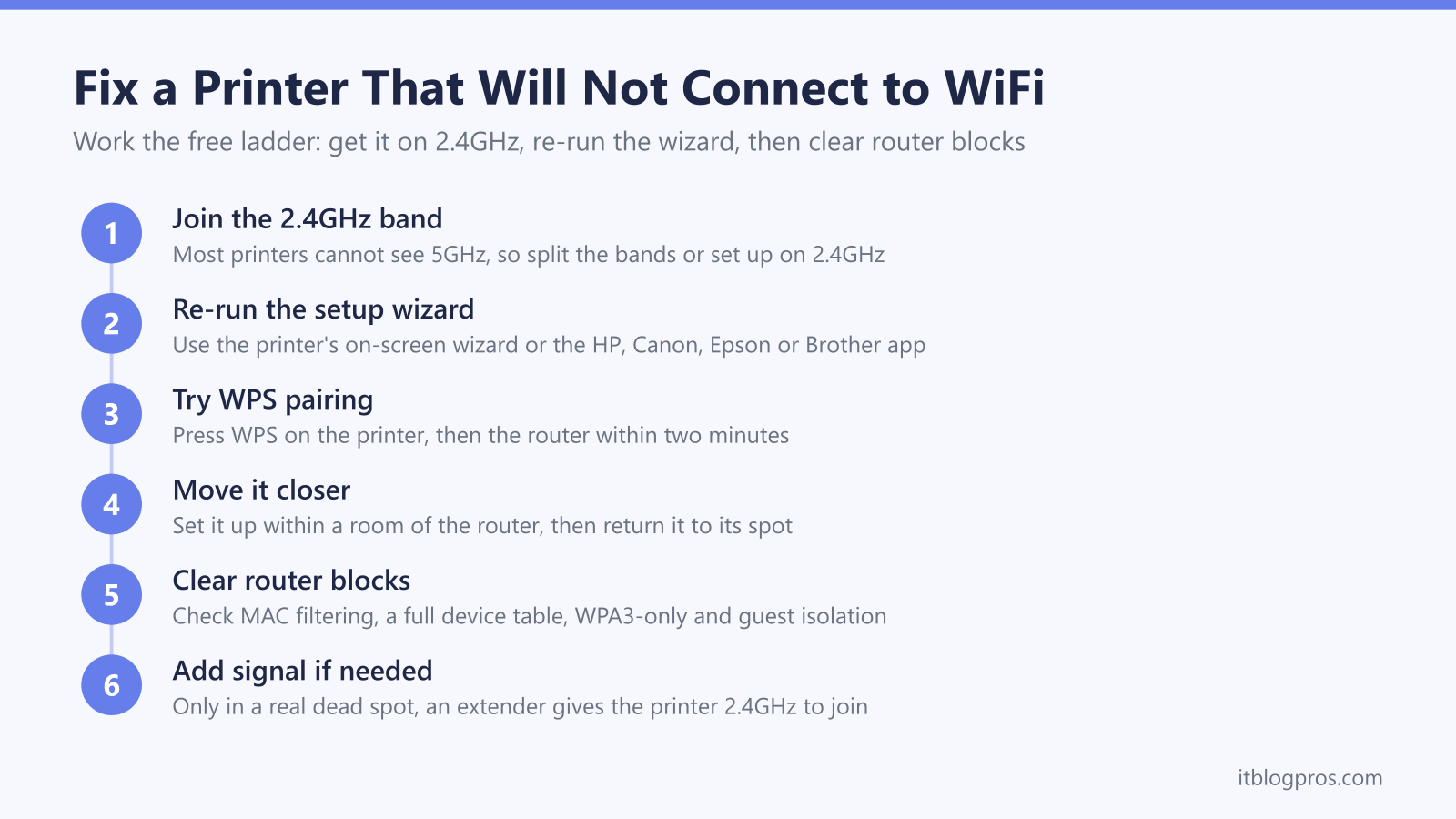
A wireless printer that will not connect to WiFi is one of the most common home-network headaches, and it almost always looks worse than it is. The printer sits there refusing every network, the password seems right, and nothing obvious explains it. In the large majority of cases the reason is not a broken printer or a broken router at all, but a band mismatch that a couple of free settings changes put right.
The single biggest cause, and the place to start, is the band the printer is trying to use. Most home printers can only speak to the 2.4GHz band, and modern routers hide that band behind a single network name that steers setup towards 5GHz, where the printer is deaf. This guide leads with that fix, then works down the rest of the ladder, from the setup wizard and WPS to router-side blocks, and it is honest about the one case where a piece of hardware genuinely helps.
If the printer is past saving, the home printer guide compares inkjet, ink tank and laser models.
Most home printers only support the 2.4GHz band and cannot see 5GHz, so on a modern router that hides both bands under one name the setup fails to find the network. Give 2.4GHz its own name, or put the setup phone on 2.4GHz while the printer joins, then re-run the wireless wizard. Router blocks like MAC filtering, WPA3-only security or guest-network isolation cause the rest.
Key Takeaways
- Most home printers only support 2.4GHz and cannot see 5GHz, so a single-name band-steered network is the usual reason setup fails to find the WiFi.
- The free fix is to give 2.4GHz its own network name, or put the setup phone on 2.4GHz while the printer joins, then switch the phone back to 5GHz.
- Re-running the printer's wireless setup wizard or the maker's app, and WPS button pairing, reconnect most printers without buying anything.
- Router-side blocks like MAC filtering, a full device table, WPA3-only security and guest-network client isolation stop a correct password working.
- Hardware only helps in a genuine dead spot, where an extender near the printer rebroadcasts a 2.4GHz signal it can actually join.
Most home printers only see 2.4GHz, and that is the usual cause
The single biggest reason a wireless printer will not join is that its radio only supports the 2.4GHz band and cannot see 5GHz at all. This covers the large majority of home models: HP DeskJet and OfficeJet, Canon PIXMA (the TR4520 states outright that it does not support 5GHz networks), Epson WorkForce and Expression, and nearly every Brother DCP and MFC. On an older router that gave 2.4GHz and 5GHz separate names, the printer simply picked the 2.4GHz one. Modern routers and mesh systems hide both bands under a single network name and use band steering, sometimes called Smart Connect, to decide which band each device uses. During setup the printer, or the maker's app running on your phone, tries to join whatever band the phone is currently on, and if that is 5GHz the printer never sees a network it can join, so setup fails.
There are two free fixes. The durable one is to split the bands, giving 2.4GHz its own network name and pointing the printer at it. The quick one, if you would rather not split them, is to connect the phone running the setup to the 2.4GHz network for the duration of setup, let the printer join, then move the phone back to 5GHz. Once the printer is on 2.4GHz, phones and laptops on the faster 5GHz still print to it perfectly, because a print job does not need both devices on the same band. The steps to split the bands on a Virgin hub are in split the WiFi bands on a Virgin Media hub, and the very same 2.4GHz-only trap catches smart-home kit, which is why a smart plug will not connect to WiFi for identical reasons.
Re-run the wireless setup wizard from the printer or its app
With the band sorted, put the printer back into setup and run its wizard fresh. On a printer with a screen, open the Setup, Network or Wireless menu and choose Wireless Setup Wizard, pick your 2.4GHz network name from the list, and enter the password. Epson lists it under the Home button as WiFi Setup, then WiFi Setup Wizard; Brother lists WLAN Setup Wizard under Network. If the printer has already half-joined and is stuck, restore its network defaults first, through Network setup then Restore Network Settings, so it advertises itself for setup again, and then complete the join inside the time window the printer allows.
The maker's app is the easiest route from a phone. HP Smart, Canon PRINT, Epson Smart Panel and Brother Mobile Connect each walk through adding the printer and typing the password, and this is exactly where putting the phone on 2.4GHz first matters, because HP Smart in particular tries to hand the printer whatever band the phone is on. If the printer joins and then keeps falling off later, rather than failing to connect in the first place, that is a different fault, and the general WiFi keeps dropping ladder covers it.
Try WPS button pairing where the router supports it
WPS pairs the printer without typing a password, which rules out a mistyped key entirely. Start WPS on the printer, from a WPS or WiFi menu item or a dedicated button, then press the WPS button on the router within two minutes; the two negotiate a connection and the printer's WiFi light goes solid when it joins. Brother models often have WPS right on the control panel, making this the fastest route on that brand.
Two honest limits apply. WPS still uses the 2.4GHz band, so it does not rescue a printer that cannot see the network for band reasons, it only saves password entry. And a growing number of newer routers ship with WPS disabled or removed for security, particularly once WPA3 is switched on, so if there is no WPS button to be found, the wizard or app route is the one to use instead.
Move the printer closer to the router while it joins
Setup needs a stronger, steadier signal than day-to-day printing does, and a printer sitting in a back bedroom, a garage or a far corner may simply be too far from the router to complete pairing, even though it would hold a connection once joined. If setup keeps failing in the printer's permanent spot, carry it, or run setup on the router's 2.4GHz network, to within a room or two of the router, complete the join there, then move the printer back. If it then will not hold the connection in its usual place, coverage in that corner is the real problem, which the hardware section below addresses.
Confirm the WiFi password and the security mode
A wireless printer gives no useful error for a wrong password, it just fails to join, so retype the network key carefully and watch the case, because it is case sensitive and a stray capital or a zero-for-O slip is the commonest silent failure.
Security mode matters as much as the password on a current router. Many printers only speak WPA2, and a router set to WPA3-only will turn them away even with the right key. Setting the router to WPA2, or to a mixed WPA2/WPA3 transition mode, lets the printer authenticate while newer devices stay on WPA3, and Canon documents printers failing to join WPA3 networks for exactly this reason. If the network name uses unusual characters or is hidden, simplify and unhide it for setup, since some printers cannot type or find those.
Check the router for MAC filtering or a full device table
If the band, password and security mode are all right and the printer still will not join, the router may be turning it away. MAC address filtering, where the router only admits a listed set of devices, blocks any printer whose address is not on the allow list, and HP's own setup flags this as a cause. Either add the printer's wireless MAC address, printed on a network settings sheet from the printer, to the allow list, or switch filtering off to test.
A full device table is the other router-side block. If the DHCP address pool is exhausted or a device limit is reached, there is no address left to hand the printer, so it associates and then drops straight off. Removing stale devices or widening the DHCP range frees an address, and rebooting the router clears a jammed table as a quick first test.
Rule out guest-network isolation between the phone and printer
A printer that connects fine but cannot be reached is often a guest-network problem. Guest networks switch on client isolation, also called AP isolation, by design, which blocks devices on that network from talking to each other and blocks the discovery traffic that printing relies on. So a printer on the guest network is invisible to a phone on the main one, and a phone on the guest network cannot reach a printer on the main one.
The fix is to keep both the printer and the devices that print to it on the same main network, not the guest one, and to leave client isolation off on that network. The same isolation between a 2.4GHz IoT network and a 5GHz main network causes identical symptoms, so put the printer and the phone on the same side while setting up.
Update the printer firmware, then restart the printer and router
Outdated printer firmware causes connection and compatibility faults, and makers push fixes for exactly these, so once the printer is reachable, check for a firmware update from its screen or the maker's app and apply it. A printer that could not handle a newer router's settings often behaves after an update.
Finish with a clean power cycle of both ends. Switch the printer and the router off, leave them a minute, bring the router up fully first, then the printer, so each requests a fresh address. This clears stale wireless state and a stuck DHCP lease, and it is worth doing before assuming anything is genuinely broken.
When a dead spot is the real cause, add a 2.4GHz signal near the printer
The honest position is that the band fix and the setup wizard clear the large majority of cases for nothing, and hardware only helps in one situation: the printer sits in a genuine dead spot where the 2.4GHz signal is too weak to hold, no matter how setup is run. Only then does adding coverage near the printer make sense.
A single extender plugged in roughly halfway between the router and the printer rebroadcasts a 2.4GHz signal the printer can join, and the dual-band TP-Link RE705X, a WiFi 6 unit with 574 Mbps on 2.4GHz alongside its faster 5GHz, is a sensible one-room fix; place it so the printer sits inside its 2.4GHz coverage. If several rooms are patchy rather than one, a mesh replaces the coverage across the whole house, and the TP-Link Deco X50 is the mid-range WiFi 6 choice, still broadcasting a 2.4GHz band older printers can join. Which of the two suits a given layout is set out in WiFi extender versus mesh. Neither raises the printer's ceiling; they only carry a joinable signal to where it stands.
When the printer is back online and low on ink, the printer ink cartridges guide explains how to find the right cartridge and check the levels.