
Virgin Media Hubs ship with the 2.4GHz and 5GHz bands merged under a single network name, and the hub quietly decides which band every device lands on. Phones and laptops cope with that arrangement. Smart devices vary by maker: TP-Link's Tapo smart plug help says Tapo devices do not support 5 GHz, Ring's setup help says some Ring devices only support 2.4 GHz, and Blink's WiFi guide says Blink supports merged networks with a single SSID. Splitting the bands into two separately named networks lets you point a device at the 2.4GHz network by name. This guide gives the exact steps for the Hub 3, Hub 4 and Hub 5, the settings to check, and what to reconnect afterwards.
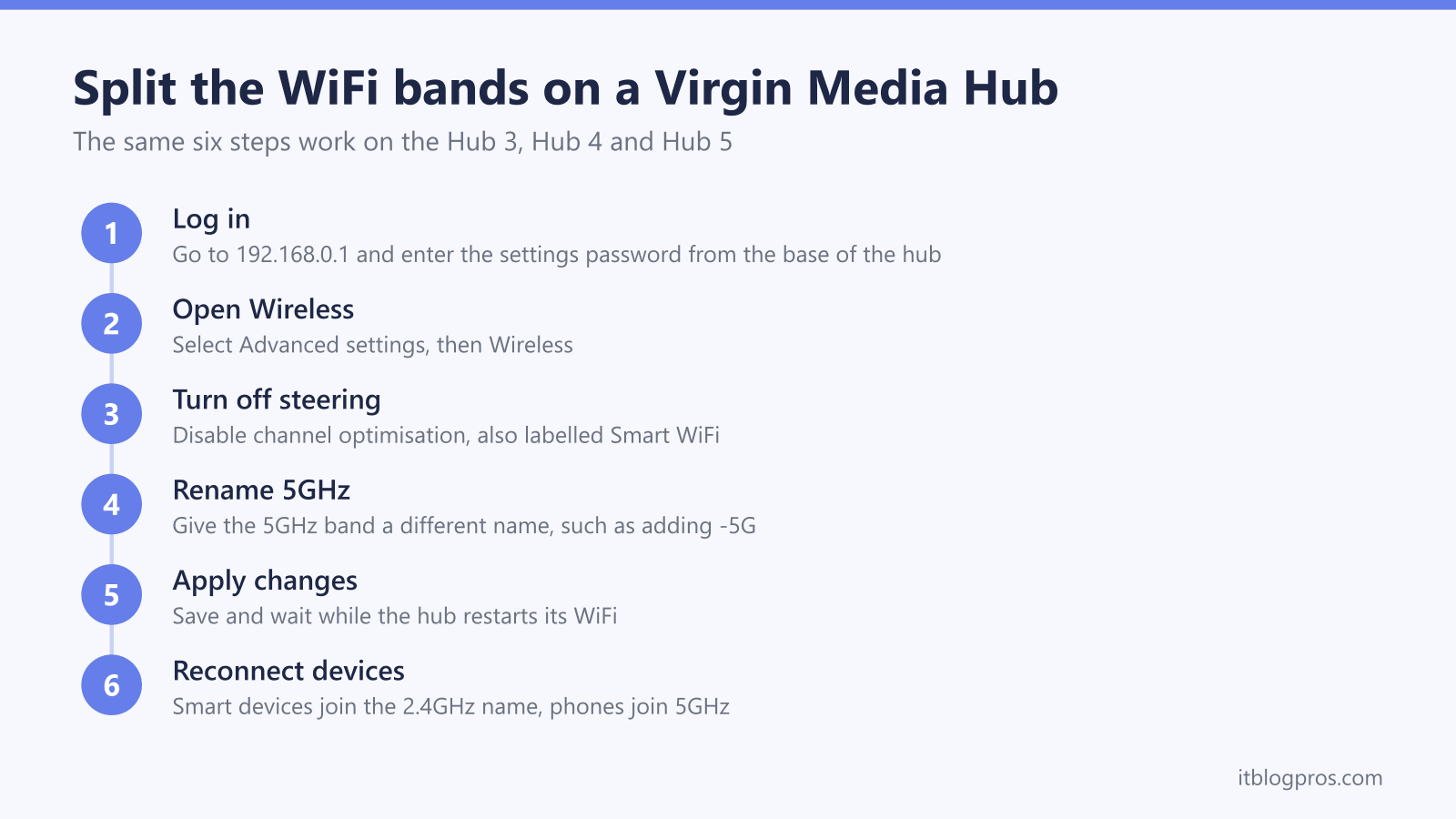
Log in to the hub at 192.168.0.1 with the settings password on the base sticker, open Advanced settings, then Wireless, switch off channel optimisation (Smart WiFi) if your hub shows it, and give the 5GHz band a different name such as adding -5G. Apply the changes, then connect 2.4GHz-only devices to the 2.4GHz name and phones and laptops to the 5GHz name.
Key Takeaways
- Virgin Media Hubs broadcast the 2.4GHz and 5GHz bands under one shared name by default, and the hub decides which band each device uses.
- Splitting the bands means logging in at 192.168.0.1, opening Advanced settings, Wireless and Security, the route Virgin's WiFi name and password guide gives, and renaming the 5GHz network so the two bands appear separately.
- Virgin's help pages do not document a channel optimisation or Smart WiFi switch, so if the Wireless menu shows one and the separate names do not hold, switch it off and rename again.
- Device makers differ: TP-Link says Tapo smart plugs do not support 5 GHz, Ring says some Ring devices only support 2.4 GHz, and Blink says its cameras work on merged networks.
- Virgin's WiFi name and password guide tells you to keep both band names the same and does not cover WiFi Pods with split names, so check any Pods in the Connect app after the change.
What device makers say about one network name and smart device setup
All three current Virgin Media Hubs are dual band. Out of the box the 2.4GHz and 5GHz bands broadcast the same network name, and Virgin's WiFi name and password guide tells you to keep it that way. Virgin's Intelligent WiFi page says one signal connects devices far from the Hub at slower speeds and the other is superfast when you are closer, and that Intelligent WiFi checks devices to see if they need a nudge on to the best WiFi band, which it calls adaptive band steering.
Whether one name gets in the way of smart home setup depends on the device maker. TP-Link's Tapo camera help says to make sure the phone is connected to the router's 2.4 GHz network, on the same network name as the camera, when pairing. Ring's Fixing setup issues page does not name a combined network name as a cause of failed setups, and Blink's WiFi guide says Blink devices only connect to 2.4GHz bands, even when bands are merged on the router. Where a setup fails on the combined name, splitting the names lets you put the phone on the 2.4GHz network deliberately and see whether that makes the difference. The brand-by-brand checks are in our guides to a smart plug that will not connect to WiFi and a Ring doorbell that will not connect to a Virgin Media Hub.
Check which bands a smart device supports
Virgin's guide to 2.4GHz and 5GHz says 2.4GHz has a longer range and better wall penetration, while 5GHz is faster and suits devices such as gaming consoles, smart TVs and computers. Which band a smart device can join is set by its maker, and makers differ: TP-Link's Tapo smart plug help says Tapo devices do not support 5 GHz, while its Tapo camera help says most Tapo Cams require 2.4 GHz but some models support 5 GHz.
Doorbells show why the exact model matters. Ring's UK spec pages list 2.4GHz only for the Video Doorbell (1st Gen) and (2nd Gen), the Video Doorbell 2, the Video Doorbell Wired, the Wired Doorbell 2K, the Battery Video Doorbell and the Battery Video Doorbell Plus, and dual band for the Video Doorbell 3, 3 Plus and 4, the Video Doorbell Pro, the Wired Video Doorbell Pro (formerly Video Doorbell Pro 2), the Wired Doorbell 4K Pro, the Wired Doorbell 2K Plus, the Battery Video Doorbell Pro, the Battery Doorbell 4K Pro and the Battery Doorbell 2K Plus. Check the connectivity line on the maker's spec page for your model before relying on 5GHz. Once the bands carry separate names, you can point a 2.4GHz-only device at the 2.4GHz name.
Logging in at 192.168.0.1 comes first
Every change here happens on the hub settings page. On a device connected to the hub, open the 192.168.0.1 login page and sign in with the settings password printed on the sticker on the base of the hub. That password is not the WiFi password, even though both sit on the same label. The full walkthrough, including what to do when the page refuses to load, is in our Virgin Media Hub login guide.
Two caveats before starting. If the hub runs in modem mode its own WiFi is switched off entirely, so there are no hub bands to split; the equivalent setting lives in whatever router you have plugged into it. And if your household uses Virgin Media WiFi Pods, read the section on the Connect app and Pods further down first, because Virgin's WiFi name and password guide tells you to keep both band names the same.
Splitting the bands on a Hub 3
Sign in at 192.168.0.1, select Advanced settings, then Wireless, then Security, the route Virgin's WiFi name and password guide gives. That guide refers to separate 2.4GHz and 5GHz security settings, each with a network name (SSID). Leave the 2.4GHz name alone so existing devices stay connected, and edit the 5GHz name so it is clearly different, for example by adding -5G to the end. Keep names free of spaces and full stops, because some smart device apps choke on them. Select Apply changes, which the same guide says saves the new name, and then reconnect your devices.
If the Wireless menu on your Hub 3 also shows a Smart WiFi or channel optimisation option, switch it off before renaming. Virgin's help pages do not document that switch, so if the separate names do not hold after Apply changes, it is the first setting to check.
Splitting the bands on a Hub 4
The Hub 4 uses the same address and the same menu route: 192.168.0.1, then Advanced settings, then Wireless, then Security, which Virgin's WiFi name and password guide gives for the Hub 4 as for the Hub 3. If the Wireless menu shows a channel optimisation or Smart WiFi option, switch it off and save before renaming. Then edit the 5GHz network name in the Security section, again by adding something like -5G, and select Apply changes.
Keeping the same password on both bands makes reconnecting devices simpler, and the only thing that needs to differ is the name. Virgin's guide says that when both bands share a name the password is automatically assigned to both, so after the split check that each band shows the password you expect.
Splitting the bands on a Hub 5
On the Hub 5 the route is once more 192.168.0.1, Advanced settings, Wireless, then Security, which Virgin's WiFi name and password guide gives for the Hub 5 as for the Hub 3 and 4. The method is the same as above: check the Wireless menu for a channel optimisation option, then rename the 5GHz band and apply. The honest caveat is that the menus can change: Virgin's slow internet help page says a reboot triggers the Hub to download any software updates or fixes, so what your hub shows may differ from an older guide's screenshots.
If your Hub 5 will not hold separate names, use the temporary 5GHz switch-off described below instead, where your hub allows it. Virgin's Hub spec table lists the newer Hub 5x with the same dual-band 2.4GHz and 5GHz WiFi as the Hub 5 and no 6GHz band, and Virgin's WiFi name and password guide does not list the Hub 5x separately, so check its menus against the steps above.
Reconnecting devices finishes the job
Renaming only the 5GHz band means the 2.4GHz network keeps its original name, so everything previously connected drifts back onto 2.4GHz on its own. That gets you working WiFi immediately, but leaves your fast devices on the slow band. Go round phones, laptops, TVs and consoles and join each one to the new 5GHz name, using the same password if you left it unchanged.
For a smart device that has to be pointed at 2.4GHz, connect your phone to the 2.4GHz name first, then run the device's setup app, which matches TP-Link's Tapo camera help on having the phone and camera on the same 2.4 GHz network when pairing. If setup still fails, Ring's Fixing setup issues page lists a wrong WiFi password, distance from the router and special characters in the network name as causes to check. If the hub's lights do anything unexpected after a settings change, our Virgin Media Hub lights guide for all models decodes every state.
Check the Connect app and WiFi Pods after a split
Virgin's help pages do not say that the Connect app or WiFi Pods merge split names back together, and they do not say Pods need a single name. What Virgin does say is that its WiFi name and password guide tells you to keep the 2.4GHz and 5GHz names the same, that its WiFi Pods help page says Pods pair with a Hub 3, 4, 5 or 5x, and that its Intelligent WiFi page says the Connect app shows how each Pod is doing, including its signal strength and which devices are connected to it. If you rely on Pods, check them in the Connect app after the split, and set the two names back to match if they misbehave, or use the temporary method below for one-off setups instead.
If the bands merge again later, check the names under Advanced settings, Wireless, Security before assuming the change never saved. Virgin's WiFi name and password guide says a hub reset returns the WiFi network name to the default settings, and that the name can also be changed in the My Virgin Media app, so check whether anyone in the house has done either.
Switching off 5GHz temporarily is the fallback
When a hub refuses to hold separate names, or you would rather keep one name for Pods, there is a blunt alternative if your hub's wireless settings let you switch the 5GHz band off on its own; Virgin's help pages do not document that switch. In Advanced settings, then Wireless, look for the option, disable the 5GHz band and apply the change. The hub then broadcasts only 2.4GHz, so your phone and the smart device can only meet on that band. Run the setup app, confirm the device is online, then go back into the settings and re-enable 5GHz.
A device whose maker lists 2.4GHz only has no 5GHz band to move to when it comes back. The drawback is that every 5GHz device in the house drops to the slower band while it is off, so treat it as a setup window rather than a permanent arrangement.
When band splitting cannot reach the far rooms
Separating the bands solves a steering problem, getting the right device onto the right band, but it cannot add coverage the hub was never going to provide. Where the real complaint is dead zones at the edges of the home, no naming trick fixes that, and a mesh system is the durable answer because it places extra units where the signal drops off. A Virgin setup runs mesh either in modem mode or alongside the hub, though Virgin's help page says modem mode is not currently available for the Hub 5x, and the Virgin Media Hub 5 mesh guide lays out both routes.
The TP-Link Deco X50 is the set that suits this page in particular, because it will run in access point mode behind the Hub, leaving the Hub to do the routing while the Deco units carry the WiFi under one network name across the whole house. What a mesh adds is coverage rather than line speed: extra units push the connection into rooms the Hub could never reach, and not one of them raises the speed arriving on the cable. Nor does a mesh retire the band question. TP-Link's Deco FAQ says the 2.4GHz and 5GHz bands on a Deco share the same network name and cannot be separated. TP-Link's Deco smart home setup guide, which lists the Deco X50 among the models it applies to, says a dedicated IoT Network, with its band chosen in the Deco app, keeps a 2.4GHz smart device and the phone on the same 2.4GHz WiFi during setup, doing the job that the split name does here.
If coverage is the problem, here are three Deco sets by home size. TP-Link's Deco FAQ describes Access Point mode for a Deco placed behind an existing router, which is how they sit behind the Hub.
| Product | Best for | Key specs | Price | |
|---|---|---|---|---|
 | TP-Link Deco X50, 3-pack Our pick | Whole-home coverage, behind the hub | WiFi 6 mesh (AX3000), whole-home | Check price → |
 | TP-Link Deco X10, 2-pack Budget | Filling dead spots in smaller-to-mid homes without overspending | AX1500 mesh, WiFi 6 on the 5GHz band | Check price → |
 | TP-Link Deco X60, 3-pack Larger homes | Large homes, busy networks and a spare wired port at every node | WiFi 6 (AX5400) mesh | Check price → |