
Logging in to a Virgin Media Hub takes about a minute once you know the two things that matter: the settings address and the settings password. Virgin Media's help pages give the same address for the Hub 3, Hub 4 and Hub 5 and put the settings password on a label on the base of the hub. From the settings page you can rename your WiFi, change the WiFi password, set up a guest network, see which devices are connected and switch the hub into modem mode so your own router runs the show. This guide gives the exact login steps, explains what each setting does, covers modem mode honestly, and walks through two login problems: the settings page that will not load and the settings password nobody can find.
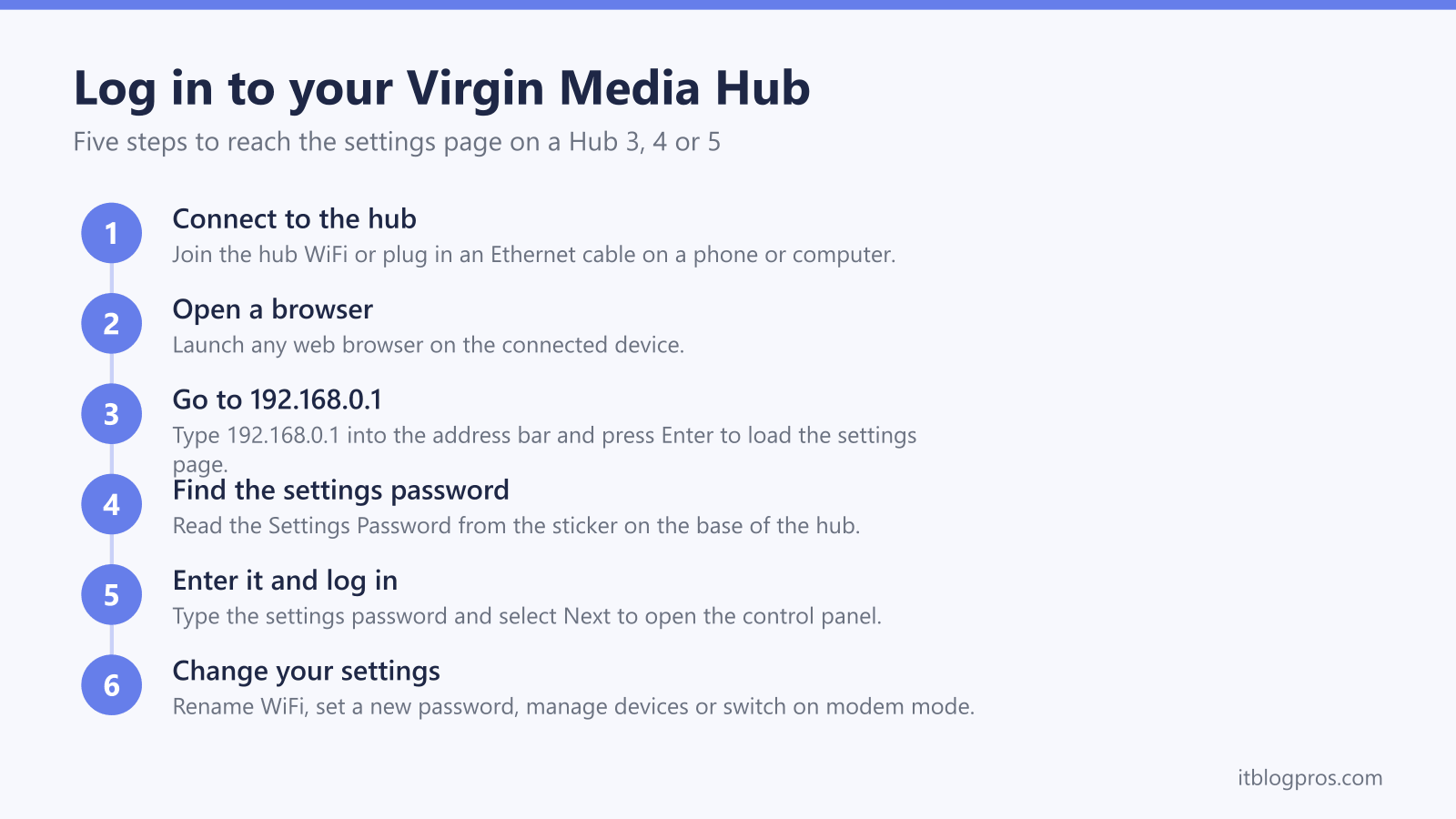
192.168.0.1 is the Virgin Media Hub login address for the Hub 3, Hub 4 and Hub 5. Type it into a browser on a device connected to the hub, then enter the settings password printed on the sticker on the base of the hub. That opens the settings page where you rename WiFi, change the WiFi password, manage devices and turn on modem mode.
Key Takeaways
- The Virgin Media Hub login address is 192.168.0.1 for the Hub 3, Hub 4 and Hub 5, typed into a browser on a device connected to the hub.
- The login uses the settings password printed on a label on the base of the hub, which Virgin says is not the same as the WiFi password.
- Virgin Media's help pages show the settings page is where you change the WiFi name and password, run a guest network and view connected devices.
- Virgin's help page gives modem mode steps for the Hub 3, 4 and 5 but says it is not currently available for the Hub 5x; after enabling it the login address moves to 192.168.100.1.
- If the page will not load, check you are connected to the hub and not in modem mode, and if the password is lost, Virgin says a reset with the Hub's reset button reverts it to the default settings password.
The Virgin Media Hub login address is 192.168.0.1
Virgin Media's broadband set-up help page gives the same login address for every Hub it covers. On a phone, tablet or computer that is connected to the hub by WiFi or an Ethernet cable, open a web browser and type 192.168.0.1 into the address bar, then press Enter. This opens the hub settings page and works the same way on the Hub 3, Hub 4 and Hub 5, as well as the older Super Hubs. Plenty of other brands answer on that same address, and our 192.168.0.1 login guide lists which routers use it and what the sticker details look like on each.
The one exception is if the hub is already in modem mode. Virgin's help page says the login address then changes to 192.168.100.1, so if 192.168.0.1 does nothing it is worth trying that second address. Virgin's steps ask only that you are connected to the Hub, not that the internet is working.
The settings password is printed on the base of the hub
Virgin Media's help pages say the Hub's settings password is printed on a label on the base of the Hub. Tip the hub up and find the settings password on that label. This is the password you enter on the login page.
Virgin's help page on changing the WiFi name and password says the settings password is different from the WiFi password, which is also on the base of the Hub. The WiFi password connects your devices to the network, while the settings password allows you to make changes to the Hub's settings. Select Next and enter the settings password to open the settings, as Virgin's help page describes. If you have changed the settings password yourself in the past, the printed one no longer works and you need the version you set.
How to log in to the Virgin Media Hub step by step
Connect a device to the hub first, either over WiFi using the network name and WiFi password on the sticker, or with an Ethernet cable into one of the hub LAN ports. Virgin Media's help page says to check you are connected to the Hub before following its steps.
Open any web browser and type 192.168.0.1 into the address bar, then press Enter. When the Virgin Media settings page appears, select Next and enter the settings password from the base of the hub. You are now in the control panel. Virgin's broadband set-up help page says to select Apply changes to save a new WiFi name or password, and its WiFi name and password page says you then need to reconnect all your devices to the WiFi.
What you can change from the Virgin Media Hub settings
The settings page is where you tailor the network. Renaming the WiFi and setting a new WiFi password is one job, and Virgin says all your devices then need to reconnect to the WiFi with the new details. Virgin Media's guest network help page says a guest network gives visitors internet access with limited or no access to other connections on your home network, and Virgin's WiFi not working help page says the settings page shows the devices currently connected, so you can spot anything you do not recognise.
Virgin Media's broadband set-up help page says the settings page also lets you run diagnostic tests on the Hub. For other settings, such as port forwarding, check the Advanced settings menu on your own Hub. The headline option for anyone planning to use better hardware is modem mode, which hands routing duties to a router of your choice. If you are mainly chasing better coverage, our guide to the best WiFi router for Virgin Media explains which routers pair well with each hub. For a full rundown of what the status lights are telling you, see our Virgin Media Hub lights guide for all models.
Modem mode lets your own router take over
Virgin Media's reset and modem mode help page describes a Hub as a modem and a router in one, and says modem mode turns the Hub into a cable modem so you can connect your own WiFi kit to it. This is the route people take when the hub WiFi cannot reach the whole house or they want the features of a dedicated router or mesh system.
To enable it, Virgin's steps are to log in at 192.168.0.1, open the Modem Mode section, select Enable Modem Mode and select Apply Changes. Virgin's Hub lights help pages say a Hub 4 or Hub 5 in modem mode shows a solid green light and won't be sharing WiFi. Virgin's modem mode help page does not say which of the Hub's Ethernet ports carries the connection, so if your router gets no internet, move the cable to each of the Hub's other Ethernet ports in turn. The same page says that after the switch the hub login address becomes 192.168.100.1, and that to go back you log in at that address, select Enable Router Mode or Disable Modem Mode and apply the changes, after which the Hub reboots into router mode.
If you are weighing this up, our dedicated walkthrough on Virgin Media Hub 5 modem mode and using your own router covers the wiring and the trade-offs in detail, and the best WiFi router for Virgin Media guide suggests hardware that suits the job. One caveat: Virgin's reset and modem mode help page says modem mode is not currently available for the Hub 5x, which Virgin's Hub 5 upgrade article says is used on full-fibre connections. Virgin's Connect app page says the sticker on the bottom of the Hub or the Connect app shows which Hub you have, so check before buying a router.
Login troubleshooting when the page will not load or the password is lost
If 192.168.0.1 does not open the settings page, work through the simple causes first. Confirm the device is actually connected to the Virgin Media Hub and not to a separate router, mesh node or mobile data. Make sure you typed the address into the browser address bar rather than a search box, and avoid adding www or https. If the hub is in modem mode, use 192.168.100.1 instead, the address Virgin gives for modem mode. Rebooting the device or the hub is also worth a try: Virgin's reset help page says to switch the Hub off at the wall socket, wait 10 seconds, turn it back on and allow 5 to 10 minutes for it to reboot.
When the login is really about weak WiFi
Many people sign into the Virgin Media Hub hoping to fix poor coverage, but the settings cannot add range the hub's own radios do not have. The durable upgrade keeps the Virgin hub in place and switches it to modem mode, then runs a proper router or mesh behind it to handle the WiFi. Virgin's Hub lights help pages say a Hub 4 or Hub 5 in modem mode won't be sharing WiFi, so there is no overlap, and the best WiFi router for Virgin Media guide picks hardware suited to a hub in modem mode. Our default pick for that job is the TP-Link Archer BE550, which TP-Link lists with Router Mode, a dedicated 2.5 Gbps WAN port and four 2.5 Gbps LAN ports.

If the settings password is rejected, check you are not reading the WiFi password by mistake, since Virgin says the two are different. If the password was changed and is now lost, Virgin's help page on changing the WiFi name and password says you need to reset the Hub to revert it to the default settings password. Virgin's reset help page says to switch the Hub on, press the reset button on the back or base with a pen for 10 seconds and give it a few minutes to reboot; it is ready when the white power light at the front is solidly lit. Virgin says a reset also returns other settings to their defaults, including a custom WiFi name and WiFi password, so you will need to set those again. Our guide to resetting a Virgin Media router, including third-party routers behind the hub, covers the process for every model. As a quick alternative for basic changes, Virgin's help page says the My Virgin Media app can change the WiFi name and WiFi password on the Hub 3, 4 and 5 without using the settings page at all.