
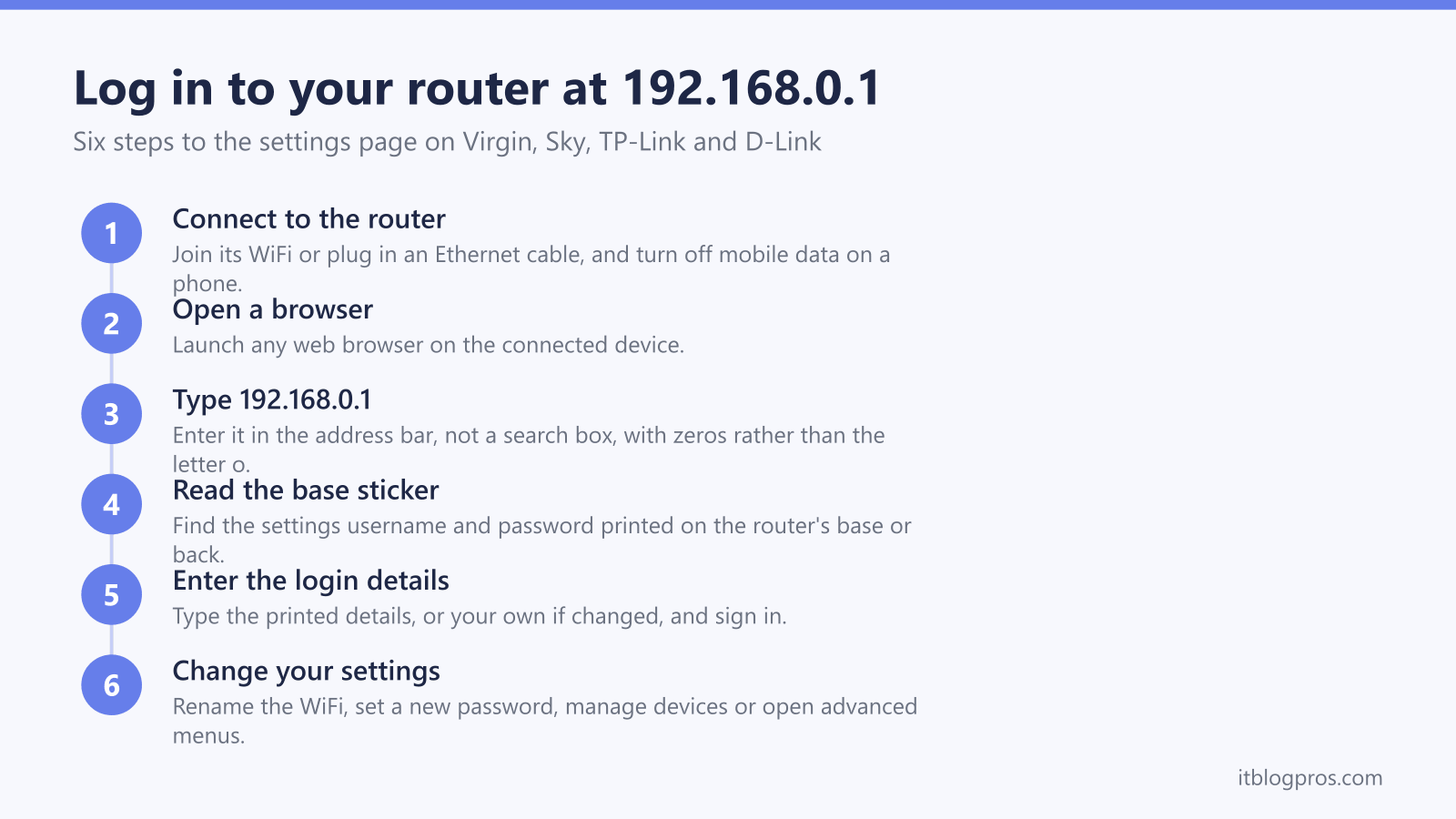
192.168.0.1 is one of the two addresses that open the settings page on most home routers, and in the UK it is the one that matters for Virgin Media and Sky customers as well as anyone running a TP-Link, D-Link or Three 5G hub. Typed into a browser on a connected device, it brings up the admin page where the WiFi name, password and every deeper setting live. This guide lists exactly which routers and hubs answer at 192.168.0.1, walks through the login step by step, explains where the default username and password are printed, and then works through the full troubleshooting ladder for the days the page refuses to load, including the very common case where the router actually lives at 192.168.1.1 or 192.168.1.254 instead.
192.168.0.1 is the router login address used by Virgin Media Hubs, Sky hubs, Three's ZTE 5G hubs and many TP-Link and D-Link routers. Connect a device to the router, type 192.168.0.1 into the browser's address bar and sign in with the details printed on the base sticker. If the page will not load, the router probably uses 192.168.1.1 or 192.168.1.254 instead.
Key Takeaways
- 192.168.0.1 is the default login address for Virgin Media Hubs, Sky hubs, Three's ZTE 5G hubs and many TP-Link and D-Link routers, typed into the browser's address bar on a connected device.
- Check the label on the base or back of the router for the settings login, and on a Virgin Media Hub, Virgin says the settings password on the base is different from the WiFi password.
- The settings page is served by the router itself, so it loads without an internet connection, but never over mobile data or from a network the device has not joined.
- A page that will not load usually means a typing slip, a search box instead of the address bar, or a router that actually answers at 192.168.1.1 or 192.168.1.254.
- The Default Gateway line from ipconfig on Windows, or the Router field in Mac network settings, reveals the correct login address for any router in seconds.
192.168.0.1 is a private address served by your own router
192.168.0.1 sits inside the private 192.168.x.x range, which means it only exists inside your home network. It is not a website. When you type it into a browser, the request goes to the router itself, and the router replies with its own settings page. Two useful things follow from that. First, the page loads even when your broadband is down, because nothing needs to reach the internet. Second, the device you are typing on must be connected to that specific router, by its WiFi or by an Ethernet cable, or nothing at all will answer.
The same logic explains the single most common mistake: typing 192.168.0.1 into a search box. A search engine cannot find a private address on your network, so you get a page of results about routers rather than your router. The address belongs in the browser's address bar at the top of the screen, on its own, with no www in front.
The Virgin Media Hub login lives at 192.168.0.1
In the UK the biggest name at this address is Virgin Media. Virgin Media's reset and modem mode help page gives 192.168.0.1 as the Hub IP address for the Hub 3, Hub 4 and Hub 5, as well as the older Super Hubs, and its steps ask for no username: you enter the Hub settings password, which Virgin says is on the base of the Hub and is different from your WiFi password. The full menu walkthrough lives in our Virgin Media Hub login guide. One Virgin-specific catch is worth knowing before typing: the same Virgin page says that after switching to modem mode, the Hub's address becomes 192.168.100.1, so if the page has suddenly vanished on a Virgin line, try that address, which the 192.168.100.1 login guide covers.
Sky, Three, TP-Link and D-Link answer at 192.168.0.1 too
Sky uses the address across its range: the older flat Sky Hub, the upright Sky Broadband Hub, the Sky Q Hub and the white Sky Max Hub all answer at 192.168.0.1, covered in detail in our Sky Hub login guide. Three's 5G home broadband hubs made by ZTE, the MC801A, MC888 and MC888AD, also use 192.168.0.1, although the Zyxel NR5103E that Three shipped for a period uses 192.168.1.1 instead. Among router brands you buy yourself, D-Link uses 192.168.0.1 as its standard address, TP-Link uses it on many models alongside the tplinkwifi.net shortcut, and Netgear routers answer at either 192.168.0.1 or 192.168.1.1 depending on the model, with routerlogin.net reaching the same page. When in doubt, the sticker on the router prints the exact address for your unit, and the sticker beats any generic list.
How to log in at 192.168.0.1 step by step
-
Connect the device you are using to the router, either over its WiFi or with an Ethernet cable into one of the LAN ports. On a phone, turn off mobile data first so the browser cannot quietly route the request out through 4G or 5G.
-
Open any web browser, such as Chrome, Edge, Safari or Firefox.
-
Type 192.168.0.1 into the address bar at the top of the screen and press Enter. Use zeros, not the letter o, and leave off www and any extra full stops.
-
Read the login details from the sticker on the base or back of the router. Look for the line marked settings, admin or web login rather than the WiFi password.
-
Enter the details and sign in. If you changed the admin password yourself in the past, the printed one no longer works and you need the version you set.
-
Make your change and save it. Wireless changes briefly drop the WiFi while the router applies them, so reconnect with the new details afterwards.
The default login details live on the base sticker
Every brand hides the keys in roughly the same place, but the exact wording differs, and reading the wrong line off the label gets a login rejected. Our guide on how to find the router admin password lists the label wording and the brand defaults side by side if yours is not obvious. On a Virgin Media Hub, Virgin's steps ask for no username, only the Hub settings password, which Virgin's help pages say is on the base of the Hub and is different from the WiFi password. On Sky hubs the username is admin, and the password is the word sky on the older flat black hub, or the default WiFi password printed on the hub for the newer Sky Broadband Hub and Sky Max Hub.
Among the router brands, older TP-Link models use admin for both username and password, while newer ones skip defaults entirely and ask you to create an admin password the first time you open the page. Older D-Link routers use admin with the password left blank, and units sold from 2017 onwards print a unique password on the bottom of the router near the serial number. Netgear historically used admin and password, with current models printing the details on the label. Virgin's help page says a reset reverts a Virgin Media Hub to the default settings password on the base; for other brands, check the maker's manual before relying on a reset to do the same.
The settings you can change once you are logged in
The settings page is where the network stops being whatever the ISP decided and starts being yours. The most used options are the WiFi name and password, which is also the fastest way to throw unknown devices off your network, and the list of connected devices, which shows everything currently using your broadband. Most routers add a guest network, parental controls, band and channel settings for busy WiFi neighbourhoods, and port forwarding for gaming, home servers and camera systems.
The deeper options depend on the hardware. Virgin Media's reset and modem mode help page gives modem mode steps for the Hub 3, 4 and 5, turning the Hub into a cable modem so you can connect your own WiFi kit, and says modem mode is not currently available for the Hub 5x; our Virgin Media Hub 5 modem mode guide covers that job end to end. A Sky hub may offer no equivalent, and the white Sky Max Hub keeps WiFi name and password changes in the My Sky app rather than the web page, which is where Sky's help page says those settings are managed. Those caveats matter before spending money, so open your own settings page and confirm the option is there before planning an upgrade around it.
The troubleshooting ladder when the page will not load
Work down the ladder in order, simplest checks first. Start with the connection: the device must be joined to the router you are trying to reach, not a neighbour's WiFi, not a WiFi extender broadcasting its own network, and on phones not mobile data. Turning off mobile data for a minute removes that doubt entirely, and an Ethernet cable is the most reliable connection of all.
Next, check what you actually typed and where. The address must go into the address bar, not a search box, and the classic slips are the letter o instead of a zero, 192.168.01 with a digit missing, and an added www. Type 192.168.0.1 fresh rather than trusting an autocomplete suggestion, because browsers happily remember old mistakes.
If the address is right and the connection is right, reboot both ends. Restart the browser, then the device, then pull the router's power for thirty seconds. Routers left running for months sometimes stop serving their own settings page even though the broadband still works, and a power cycle brings it back.
HTTPS warnings and browser problems have quick fixes
Modern browsers prefer secure https connections, and most router settings pages are plain http served from inside your own home. That mismatch produces two different symptoms. Sometimes the browser silently upgrades the address to https and the page never loads, which is fixed by typing http://192.168.0.1 in full so the browser stops guessing. Sometimes the page loads but the browser shows a warning that the connection is not private, because the router signs its own security certificate rather than paying a public authority to do it. Netgear and TP-Link both document this warning as expected behaviour for a home router. On your own network, on your own router, select Advanced and continue to the page.
If the page half loads, shows an old cached version or throws errors after a firmware update, open a private or incognito window, which ignores the cache, or clear the browser's cached files for the site. Trying a second browser or a different device is the quickest way to prove whether the problem is the router or the machine you are typing on.
Your router may live at a different address entirely
When everything above checks out and 192.168.0.1 still returns nothing, the strong likelihood is that your router never used it in the first place. BT and EE hubs answer at 192.168.1.254, and our BT Hub Manager guide covers that address and its pull-out card login. Vodafone hubs, ASUS routers, many Netgear models and Three's Zyxel hub use 192.168.1.1, which has its own dedicated guide covering every brand at that address. Virgin's modem mode help page says a Virgin Media Hub in modem mode moves to 192.168.100.1, so if modem mode was set up a while ago and forgotten, try that address.
Finding the true address takes seconds. On Windows, open Command Prompt, type ipconfig and press Enter, then read the Default Gateway line: that is your router's login address. On a Mac, open System Settings, select WiFi, click Details next to the connected network and read the Router field. Whatever address appears there is the one your browser needs, and the sticker on the router itself usually prints the same thing.
Running your own router moves the login address
For tinkerers the address question has one more twist: once you put your own router in charge, 192.168.0.1 opens whatever that router decides, not what the old hub used. A TP-Link router behind a Virgin hub in modem mode serves its own page at its own default, and the hub retreats to 192.168.100.1 in the background. Anyone running two routers without modem or bridge mode should also read our guide to double NAT, because two devices both handing out 192.168.x.x addresses is where slow speeds and unreachable settings pages come from.
If that is the direction you are heading, our guide to using your own router with any UK ISP explains which providers make it easy and which lock you in, and the best WiFi router for Virgin Media guide picks hardware that suits a hub in modem mode. The login habit stays the same either way: find the gateway address, read the sticker, and the settings page is never more than a minute away.
When the login is really about weak WiFi
Plenty of people reach for the router login because the WiFi is weak, but no setting fixes a signal that physically cannot cross the home. What that means in practice depends on which box you have just logged into. On a Virgin Media Hub, modem mode hands the routing to kit of your choosing, so a mesh set can take over the WiFi outright while the hub steps back to 192.168.100.1; Virgin's help page says modem mode is not currently available for the Hub 5x, so on that Hub the mesh goes behind the Hub instead. On a Sky hub, a Three ZTE hub, or a TP-Link, D-Link or Netgear router you would rather keep, the mesh sits behind it instead: turn the existing wireless off in the settings page you already have open, then wire the first mesh unit into a LAN port and place the rest in the rooms that drop out. A TP-Link Deco X50 three-pack covers a typical house either way. The limit is the same in both setups and is worth stating plainly. Mesh spreads coverage, it does not raise line speed, so the number to trust is a wired speed test taken at the hub itself: if that one is already slow, the fault is on the line or in the package, and no mesh laid on top of it will move the figure. The budget mesh guide weighs the sensible options before spending more than the job needs.
