
The Sky Hub login lives at 192.168.0.1, and it is where you go to check your broadband settings, see connected devices and, on most hubs, change your WiFi name and password. The exact credentials and what you can edit depend on which hub Sky sent you, and the newer white Sky Max Hub behaves quite differently from the older black hubs. This guide covers the login address, the default username and password, where to find them on the hub, what you can actually change, and the honest reality of running your own router on Sky, where no hub has a documented bridge mode.
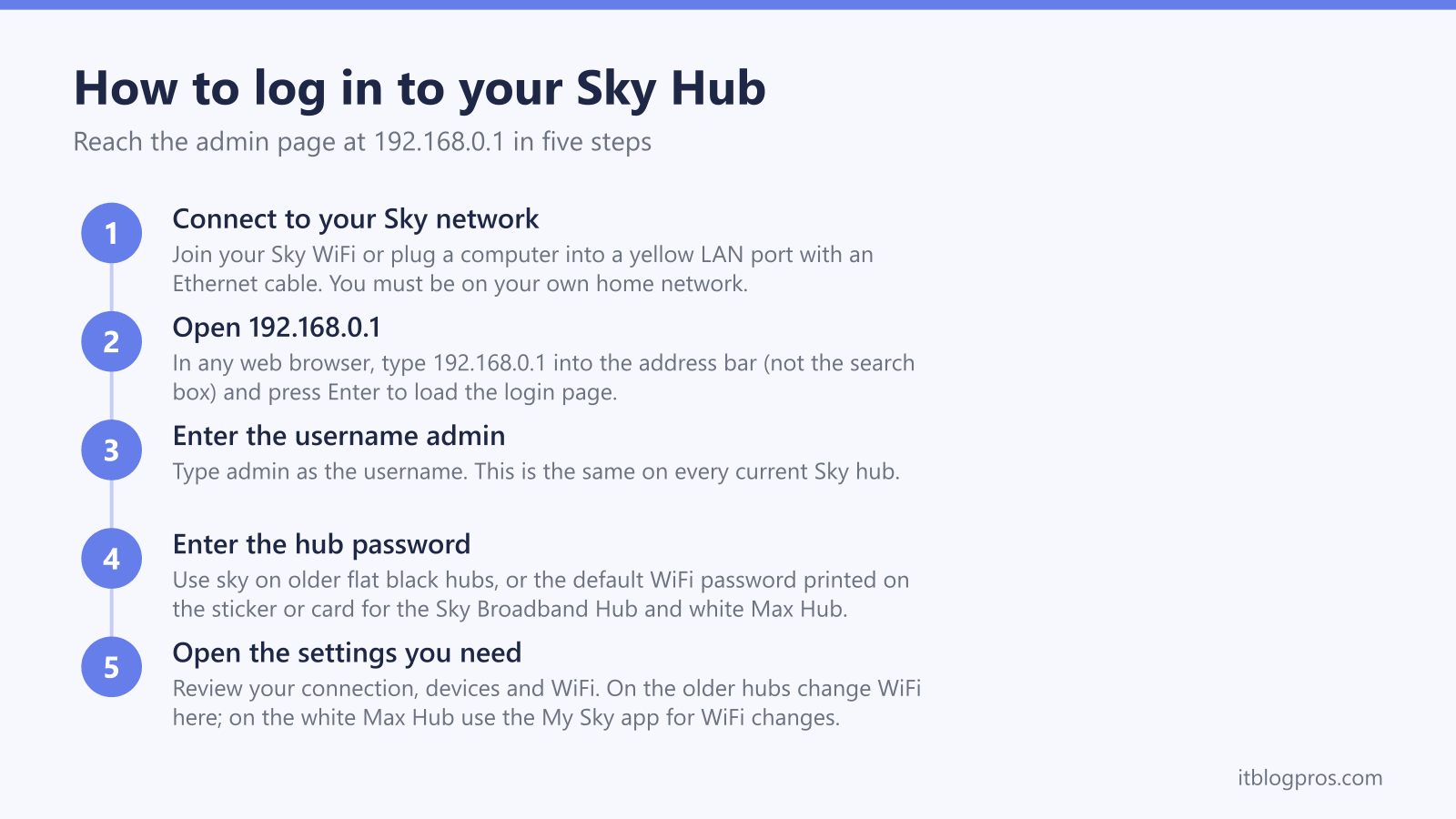
192.168.0.1 is the Sky Hub login address. Open a browser on a device connected to your Sky broadband, type 192.168.0.1 into the address bar and press Enter. The username is admin. The password is sky on older flat black hubs, or the default WiFi password printed on the hub on the newer Sky Broadband Hub and white Sky Max Hub. The Max Hub moves WiFi changes into the My Sky app.
Key Takeaways
- The Sky Hub admin address is 192.168.0.1, reached from any device already connected to your Sky broadband over WiFi or Ethernet.
- The default username is admin. The password is sky on older flat black hubs, or the default WiFi password on the label for the Sky Broadband Hub and white Sky Max Hub.
- The admin password is printed on a sticker on the back of the upright hub or the base of the white Max Hub, and often on a supplied setup card.
- The white Sky Max Hub is locked down: visiting 192.168.0.1 shows status only, and WiFi name and password changes happen in the My Sky app.
- Sky documents no bridge or modem mode on its hubs, so running your own router means double NAT behind the hub, or on full fibre replacing the hub and wiring your router to the ONT.
The Sky Hub and Sky router login address is 192.168.0.1
Every current Sky hub uses the same admin address: 192.168.0.1. Plenty of non-Sky routers sit on it too, and our 192.168.0.1 login guide covers those. This is the default gateway for Sky broadband, so it works whether you have the older flat black Sky Hub, the upright black Sky Broadband Hub, the Sky Q Hub or the white Sky Max Hub.
To reach it, you need to be on your own home network. Connect a phone, tablet or computer to your Sky WiFi, or plug a computer into one of the hub's yellow LAN ports with an Ethernet cable. You cannot reach the admin page over mobile data or from outside the home.
Open any web browser, click into the address bar at the top, type 192.168.0.1 and press Enter. Type it into the address bar, not the search box, or you will get search results instead of the login screen. The hub then presents a login prompt asking for a username and password.
The Sky router admin username is admin and the password is on the hub
The default username on every Sky hub is admin. The password depends on which hub you have, and this is where most people get stuck. If you are unsure which password the box is even asking for, our guide on how to find the router admin password explains how it differs from the WiFi key.
On the older flat black Sky Hub the default admin password is simply sky, all lower case. On the newer upright black Sky Broadband Hub (model SR203) and the white Sky Max Hub (model SR213) the admin password is the default WiFi password printed on the hub. Importantly, this admin password is a separate field that does not change when you change your WiFi password, so even if you have set your own WiFi key, the admin login still uses the original printed one.
Look for the password on a sticker on the back of the upright Sky Broadband Hub, or on the base of the white Sky Max Hub. Sky also supplies a small card with the details printed on it, which is handy if the sticker is hard to read. Enter admin as the username and the matching password, and you are in.
What you can change in the Sky Hub settings
Once you are logged in to the Sky Broadband Hub admin page you can review and adjust the core settings for your home network. The typical options include your WiFi network name (SSID) and WiFi password, the broadband connection status, a list of connected devices, port forwarding and DMZ settings, and the firewall.
The white Sky Max Hub is the exception, and an important one. It is far more locked down than the older hubs. When you visit 192.168.0.1 on the Max Hub you see a status and diagnostics page, but if you try to edit the WiFi network name or password the hub tells you to download the My Sky app. On the Max Hub, WiFi changes are made in the My Sky app under the broadband or WiFi settings, by signing in with the Sky ID linked to your account and using the edit (pencil) icon. The web page is read-only for the settings most people want.
If you only want to change your WiFi password, that is the single most common reason people log in, and on the older hubs you can do it directly in the admin panel. On the Max Hub, use the My Sky app.
Sky documents no bridge mode, so plan your own router setup carefully
The honest position is this: Sky publishes nothing about a bridge or modem mode, not on its hub settings help pages and not in the setup guides for its current hubs. Plan on the Sky Hub staying a router. Sky publishes nothing about what a replacement router needs on its lines either, so treat a swap as something to test rather than something documented: start the new router on plain automatic DHCP and see whether it picks up an address.
That leaves two realistic routes. The first is to run your own router behind the Sky Hub by plugging it into one of the hub's LAN ports. This works, but it creates a double NAT (two routers each handing out addresses), which can upset some games, VPNs and remote access. You can reduce the friction by putting your own router in the Sky Hub's DMZ, which passes traffic straight through the hub's firewall.
The second route is to replace the Sky Hub entirely with a third party router. On UK full fibre (FTTP) you connect that router straight to the ONT on the wall and try plain automatic DHCP first, because Sky documents no client ID for its lines. If the router never gets an address, that is the point to try a DHCP Option 61 client ID. Not every router offers the field, so the model matters if your line turns out to need it: ASUS documents an Option 61 setting in its firmware, while Netgear's published list of models with it is an ageing one worth checking against the exact model you are buying. For a hub that handles Sky's quirks and is worth running behind or instead of the Sky Hub, see our guide to the best router for Sky Broadband. Keep the Sky Hub in a drawer, because Sky's diagnostics need it connected if you ever report a fault.
Login troubleshooting when 192.168.0.1 will not let you in
If 192.168.0.1 does not load at all, first confirm you are connected to your own Sky network and not a neighbour's WiFi or a guest network. Try the address in a different browser, or use a private or incognito window to rule out a cached page. If a computer is plugged in by Ethernet, that connection is the most reliable for reaching the admin page.
If the page loads but admin and your password are rejected, double check which hub you have. Try sky on the older flat black hub, and the default WiFi password from the sticker or card on the newer Sky Broadband Hub and white Max Hub. Remember that the admin password on those newer hubs is the original printed WiFi password, not any WiFi password you set yourself later.
If nothing works, a factory reset restores the defaults, and the button depends on which hub you have. On the black Sky Broadband Hub (SR203), Sky's SR203UK guide says to hold Reset on the back until the power light flashes green, about 10 seconds, while Sky's phone help page gives 30 seconds or until the front lights blink. On the white Max Hub (SR213), Sky's guide holds the WPS button on the side for 30 seconds, and Sky's flashing green light page says its Reset button factory resets the hub when held for more than 12 seconds. Sky's help pages say a reset clears all the hub's settings, including your WiFi password, so expect to set a custom WiFi name and password again afterwards. For a full walkthrough including third party Sky routers, see our guide on how to reset a Sky Broadband router. To make sense of the indicator lights before and after, see our guide to the Sky Broadband Hub lights.
When the login is really about weak WiFi
A good number of Sky hub logins are attempts to fix poor coverage, and no setting on the hub adds range to rooms it cannot reach. A full router swap takes extra setup on the replacement router, so the simpler route is to leave the Sky Hub in place and run a mesh system behind it, which needs no account changes. Several units spread the signal across the whole home, and a TP-Link Deco X50 three-pack is the usual size for that job, with the first unit wired into one of the hub's yellow LAN ports and the other two placed in the rooms that fade. Coverage is the only thing it fixes, which is worth saying plainly before any money changes hands. It will not raise the speed Sky delivers to the line and it will not clear a fault on that line, so a wired speed test at the hub that comes in low, or a connection that keeps dropping while wired, belongs with Sky rather than with new hardware. The best router for Sky broadband guide covers both mesh behind the hub and the fuller replacement options.
