
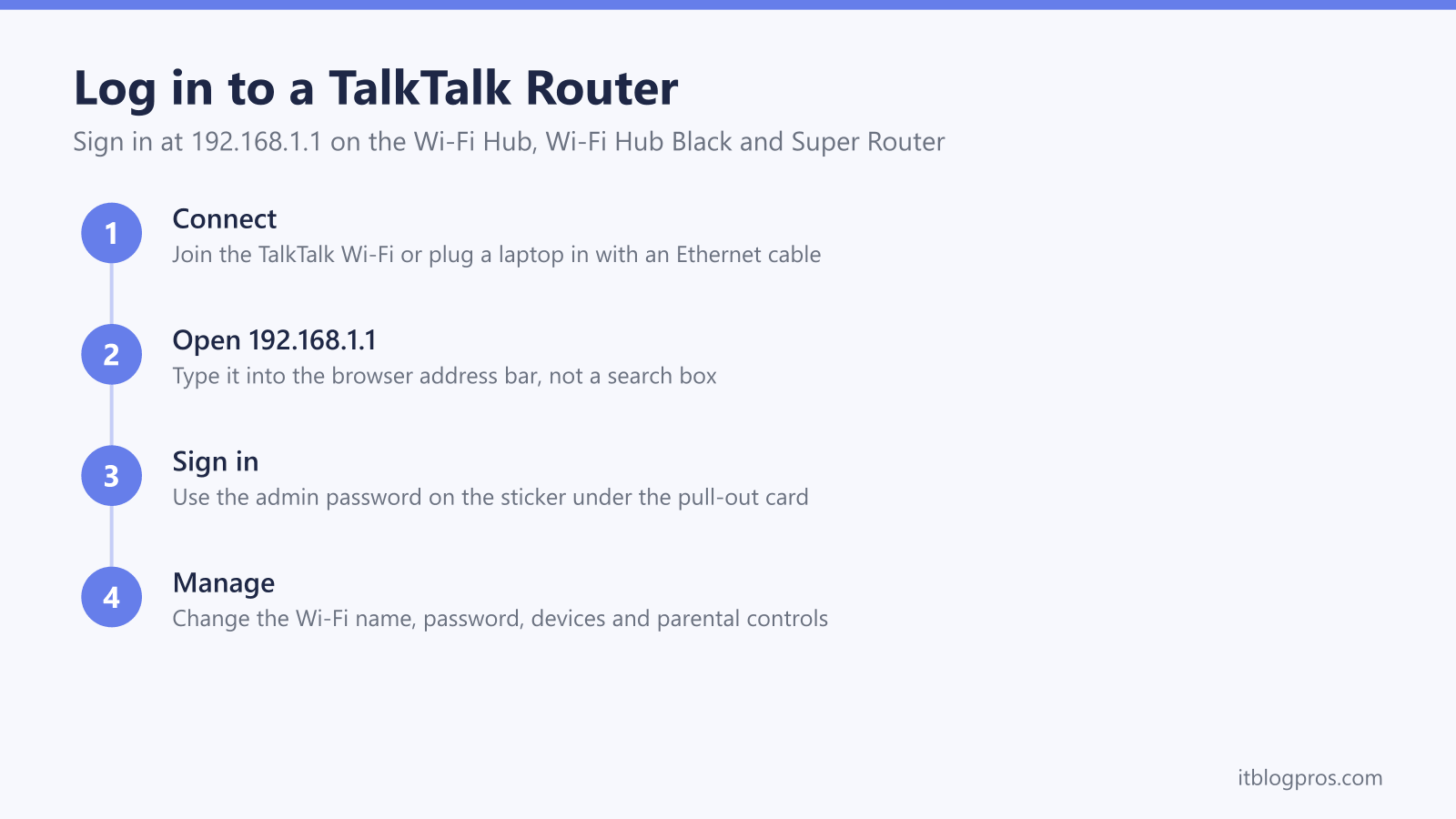
Logging into a TalkTalk router is the way to rename the Wi-Fi, set a new password, check what is connected and turn on parental controls. The steps are the same across the current Wi-Fi Hub and Wi-Fi Hub Black and the older Super Router: connect to the hub, open 192.168.1.1 in a browser, and sign in with the admin password from the sticker. This guide walks through each step, the two things that trip people up, and what to do when a login cannot fix the real problem.
Connect a phone or laptop to your TalkTalk network, open a browser and type 192.168.1.1 into the address bar. Sign in with the admin username and password printed on the sticker under the pull-out card on the back of the hub. Older Super Routers often use admin as the username. This is the router password, not your Wi-Fi password.
Key Takeaways
- TalkTalk Wi-Fi Hubs and Super Routers open their settings at 192.168.1.1, typed into the browser address bar rather than a search box.
- The admin password is printed on a sticker under the pull-out card on the back of the hub, and it is not the same as your Wi-Fi password.
- Older Super Routers commonly used admin as the username, with the password shown on the label.
- Once signed in you can rename the Wi-Fi, change its password, view connected devices and set parental controls.
- Router settings cannot add coverage, so weak Wi-Fi in far rooms is fixed by a mesh system working alongside the hub, not by logging in.
Get your device onto the TalkTalk network first
The router settings page only opens on a device that is connected to the hub. Join the TalkTalk Wi-Fi network on a phone or laptop, or plug a laptop straight into one of the Ethernet ports on the back with a network cable. Mobile data will not reach the hub, so turn Wi-Fi on and mobile data off on a phone to be sure the browser talks to the router and not the wider internet. This applies to every model, from the older Super Router to the current Wi-Fi Hub and Wi-Fi Hub Black. For the login basics on any brand of router, the general router login guide covers the same steps.
The TalkTalk login address is 192.168.1.1
Every TalkTalk hub uses the same settings address. Open a web browser, type 192.168.1.1 into the address bar at the top and press Enter. Type it into the address bar, not the search box, because a search box sends the numbers to a search engine instead of the router. The Wi-Fi Hub, Wi-Fi Hub Black and the older Super Router all answer on 192.168.1.1. If the page will not open there, it is almost always because the device is not connected to the hub, or the address went into a search box. A small number of setups, such as a customer's own router used in place of the TalkTalk hub, sit on 192.168.0.1 instead. The way to tell is to read the settings address printed on the router's own sticker, or to look up the default gateway of the connected device in its network settings, which shows the exact address to type.
The admin password is on the sticker under the pull-out card
TalkTalk hubs ship with a unique admin password printed on the device, not a shared default. On the Wi-Fi Hub and Wi-Fi Hub Black, slide out the small settings card on the back of the hub and read the sticker underneath. There are usually two sets of details, one for the wireless network and one for the router admin, so use the admin line to sign in. Older Super Routers (the Huawei HG633 and HG635) commonly used admin as the username with the password shown on the label, and if a very old unit has no sticker the default was often admin and admin. Whatever the model, the admin password is not the same as your Wi-Fi password. More on telling the two apart is in the router admin password guide.
What you can change once you are signed in
The dashboard opens on a status page. Select the Wi-Fi settings to rename the network (the 2.4 GHz and 5 GHz SSID boxes) or set a new password, and remember that every device drops off and has to reconnect with the new details once you save. The same area lists the devices currently connected, which is useful for spotting anything unfamiliar, and holds the parental control options for limiting younger users. One caveat: if your TalkTalk package came with an eero mesh instead of a Wi-Fi Hub, those controls live in the eero app on your phone rather than at 192.168.1.1, and you manage profiles and devices there.
When the login page will not load
Three checks clear most cases. First, confirm the device is actually on the TalkTalk network and not mobile data or a neighbour's Wi-Fi. Second, make sure 192.168.1.1 went into the address bar rather than a search box. Third, in Microsoft Edge specifically, typing https:// in front of the address (https://192.168.1.1) often forces the page to load when a bare address is redirected to a search. If it still refuses, restart the hub, wait two to three minutes for the lights to settle, and try again. Wider connection problems are covered in the TalkTalk Wi-Fi not working guide.
When the admin password is rejected
A rejected password is nearly always the Wi-Fi password being entered where the admin password belongs. Go back to the sticker under the pull-out card and use the router admin line, typing it exactly as shown because it is case-sensitive. If someone changed the admin password in the past and no one remembers it, there is no way to recover it from the login page, and a factory reset is the only route back in.
A factory reset is the last resort
Resetting wipes every custom setting, so treat it as a final step. Find the recessed Reset pinhole on the back of the hub, press and hold it with a straightened paperclip for about ten seconds until the lights blink, and let the hub restart. It will usually pull its broadband configuration back automatically. After a reset the Wi-Fi name and password return to the values printed on the label, so any custom names revert and every device needs reconnecting with the original details.
A login will not add Wi-Fi range
Opening the settings can rename the network or change a password, but it cannot push the signal further through the walls. Where the real problem is weak coverage in a back bedroom, garden office or upstairs, the fix is a mesh system working alongside the hub rather than anything in the admin page. A two-pack like the TP-Link Deco X50 spreads one Wi-Fi name across the house, and connecting the first unit to the TalkTalk hub by Ethernet keeps things stable. For more options at different budgets, see the best budget mesh Wi-Fi picks.
The router login guide lists the login address and password for every other UK hub and router brand.