
192.168.1.1 is typed into more browsers than any other private IP address, and it opens the admin login page on millions of routers, including Vodafone and TalkTalk hubs, Three's Zyxel 5G hub and most ASUS, Netgear, Linksys and Zyxel models. It is also the wrong address for several of the UK's biggest providers, which is why so many login attempts stall on a blank page. This guide names the routers that genuinely use 192.168.1.1, walks through the login step by step, shows where the admin password is printed, and features the one universal trick worth memorising: reading the default gateway from your own device, which reveals the correct address for any router ever made. The http and https quirks that block otherwise healthy login pages get untangled along the way.
Type http://192.168.1.1 into the address bar of a browser on a device connected to the router, then sign in with the admin password printed on the router's sticker. Vodafone and TalkTalk hubs, Three's Zyxel 5G hub and most ASUS, Netgear, Linksys and Zyxel routers use this address. If it fails, your router almost certainly uses a different one, and the default gateway trick finds it in seconds.
Key Takeaways
- 192.168.1.1 opens the admin login page on Vodafone and TalkTalk hubs, Three's Zyxel NR5103E 5G hub, and most ASUS, Netgear, Linksys and Zyxel routers.
- The address goes into the browser's address bar as http://192.168.1.1 on a device already connected to the router, and the admin password is printed on the router's sticker.
- BT and EE Smart Hubs and Plusnet hubs answer at 192.168.1.254, while Sky, Virgin Media and Three's ZTE hubs use 192.168.0.1, so 192.168.1.1 fails on those by design.
- The default gateway trick finds the correct address for any router: ipconfig in Command Prompt on Windows, or the Router field in the WiFi details on a Mac or iPhone.
- Browsers set to HTTPS-only mode and combined search bars are the two software quirks that block an otherwise working router login page, and typing the full http:// prefix sidesteps both.
Routers that use 192.168.1.1 as the login address
192.168.1.1 is a private IP address, which means it only exists inside your home network and every household can use the same one. Router makers adopted it as a convention decades ago, and it remains the most common default admin address in home networking, but it is far from universal, and typing it into a browser only works when the router in front of you actually lives there.
Among UK providers, Vodafone uses it across the current range, from the WiFi Hub (THG3000) through the Power Hub to the Ultra Hub, with the admin password printed on the base sticker; the Vodafone hub login guide covers every step. TalkTalk's Wi-Fi Hub answers at the same address with the username admin and a password on its label, although the eero hubs TalkTalk now supplies on Full Fibre are app-managed and have no web login page at all. Three's Zyxel NR5103E 5G hub uses 192.168.1.1 too, while Three's ZTE hubs sit at 192.168.0.1, and the Three 5G Hub login guide separates the models. On the retail side, most ASUS routers default to 192.168.1.1 or 192.168.50.1 (router.asus.com also works), Netgear uses 192.168.1.1 or 192.168.0.1 behind routerlogin.net, and Linksys and Zyxel units generally sit at 192.168.1.1 as well.
| Router or hub | Default login address |
|---|---|
| Vodafone WiFi Hub, Power Hub, Ultra Hub | 192.168.1.1 |
| TalkTalk Wi-Fi Hub | 192.168.1.1 |
| Three Zyxel NR5103E (and V2) | 192.168.1.1 |
| Most ASUS, Netgear, Linksys and Zyxel routers | 192.168.1.1 |
| BT Smart Hub, EE Smart Hub, Plusnet Hub | 192.168.1.254 |
| Sky hubs, Virgin Media hubs, Three ZTE hubs | 192.168.0.1 |
The absences matter as much as the entries. BT Smart Hubs, current EE Smart Hubs and Plusnet hubs all answer at 192.168.1.254, covered in the BT Hub Manager guide and the EE Smart Hub login guide, while Sky and Virgin Media hubs live at 192.168.0.1, covered in the 192.168.0.1 login guide. EE's older Bright Box routers did use 192.168.1.1, which still catches out long-time EE customers who moved up to a Smart Hub.
Logging in at 192.168.1.1 step by step
The login itself takes about a minute once the right details are to hand.
-
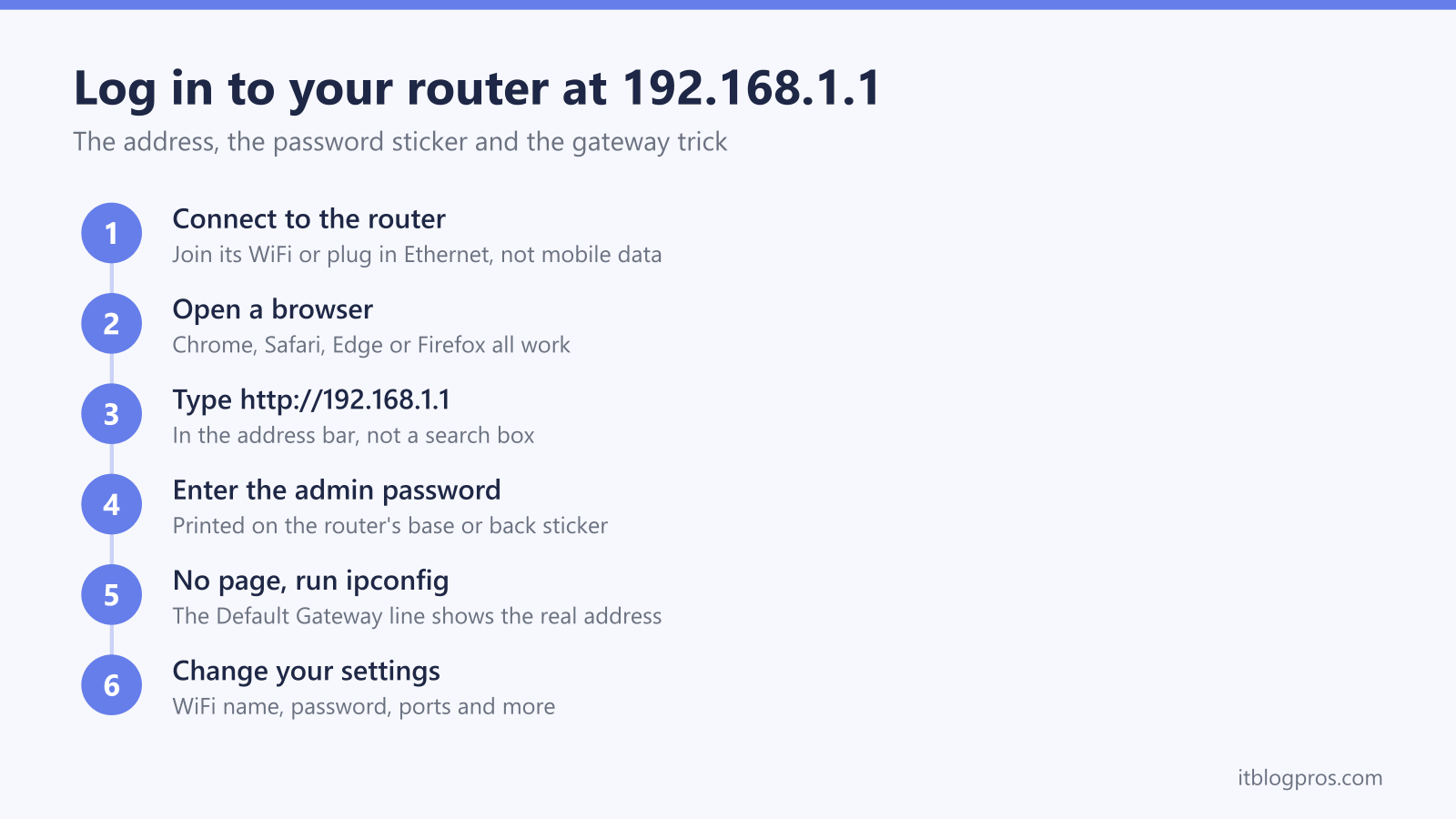
Connect the device you are using to the router, either over its WiFi or with an Ethernet cable. The settings page only exists inside the network, so a phone on mobile data cannot reach it; turning WiFi on and mobile data off removes any doubt.
-
Open any web browser, such as Chrome, Safari, Edge or Firefox.
-
Type http://192.168.1.1 into the address bar and press Enter. It must go in the address bar rather than a search box, and the http:// prefix sidesteps the two browser quirks covered later in this guide.
-
Read the login details from the sticker on the router, usually on the base or the back. The username is often admin or simply left blank, and the password on the sticker is unique to your unit on all current hubs.
-
Enter the admin password and sign in. This is a different code from the WiFi password, even though both usually sit on the same label.
-
Make your change and save it. Wireless changes can drop the WiFi for a few seconds while the router applies them.
No internet connection is needed for any of this. The settings page loads even when the broadband is down, which makes the login a useful diagnostic when the connection itself has failed.
The admin password is printed on the router, not published online
There is no universal password for 192.168.1.1, and web pages listing hundreds of supposed defaults are mostly outdated guesswork. Every current UK hub ships with a unique admin password printed on the unit itself. Vodafone prints it on the base sticker next to the WiFi details, TalkTalk puts it on the label behind the pull-out settings card, and Three's Zyxel NR5103E prints its web login password on the back with admin as the username.
Retail routers vary by age. Older Netgear models shipped with the username admin and the password password, and older ASUS models used admin for both, but recent models from both brands make you set your own credentials during first-time setup, so there is nothing printed to fall back on.
The classic mistake is entering the WiFi password instead of the admin one. Both codes sit close together on the same sticker, so the wording decides it: the wireless key or WiFi password joins devices to the network, while the code labelled admin, settings or web login opens the admin page. If the admin password was changed at some point and is now forgotten, the only route back is a factory reset with the recessed pinhole button, held for roughly ten to thirty seconds depending on the model, which restores the printed defaults and wipes any custom settings.
The default gateway trick finds the right address for any router
Every connected device already knows the router's real address, because it is the gateway all internet traffic passes through. Reading that value beats guessing addresses one by one, and it works on any router from any provider in any decade.
On Windows, right-click the Start button, choose Terminal (or search for cmd), type ipconfig and press Enter. The line labelled Default Gateway under your active WiFi or Ethernet adapter shows the router's address, for example 192.168.1.254 on a BT-family hub.
On a Mac, open System Settings, click Wi-Fi, then click Details next to the connected network, and the address sits in the Router field. Terminal users get the same answer from netstat -nr | grep default or route -n get default.
On an iPhone, open Settings, tap Wi-Fi, tap the i icon next to the network, and read the Router entry. Android phones show the same value as Gateway inside the WiFi network details, with the exact path varying by manufacturer.
Whatever address appears is the one to type into the browser. A gateway of 192.168.1.254 means a BT, EE or Plusnet hub, and 192.168.0.1 points at Sky, Virgin Media or a Three ZTE hub, each covered by its own login guide. No gateway listed at all means the device is not actually connected to the router, which moves the problem from the address to the connection itself.
The http and https quirks that block the login page
Two browser behaviours break more router logins than the routers do.
The first is the combined search-and-address bar. A bare 192.168.1.1 can be treated as a search query rather than an address, which sends the digits to a search engine and returns a page of results instead of the router. Typing the full http://192.168.1.1 forces the browser to navigate.
The second is automatic https upgrading. Most hubs serve their settings page over plain http, but a browser with an HTTPS-only setting switched on, called HTTPS-Only Mode in Firefox and Always use secure connections in Chrome, silently rewrites the address to https://192.168.1.1, and the connection then fails or times out because the router has nothing listening there. The fix is to type the http:// prefix explicitly, accept the browser's offer to continue to the http version, or turn the setting off briefly.
The reverse quirk exists too. Some recent routers, notably Netgear models on current firmware, force https and present a self-signed certificate, so the browser warns that the connection is not private. Netgear's own support pages confirm the warning is expected, because a router is not a public website and cannot carry a publicly signed certificate. On your own home network it is safe to choose Advanced and proceed; the same warning on a real internet site should never be waved through. If an old redirect seems cached, a private browsing window gives a clean attempt.
The rest of the ladder when the page still will not load
With the address confirmed and the browser quirks ruled out, work down this list in order.
Confirm the device is on the right network. A laptop clinging to a neighbour's WiFi, a phone hotspot or the guest network cannot reach the admin page, and guest networks often block it deliberately. Disconnect any VPN next, because a VPN intercepts traffic to private addresses like 192.168.1.1 and quietly swallows it.
Try a second device or a private window to rule out a misbehaving extension or cached page. If wireless attempts keep failing, plug in with an Ethernet cable, which removes the WiFi from the equation entirely. Check the network adapter is set to obtain an IP address automatically, because a leftover static IP on the wrong range makes the router unreachable even though the WiFi shows as connected. A restart of the router clears the rare case where its web server has hung.
If the page loads but the password is rejected, the usual culprits are the WiFi password entered instead of the admin one, or an easily confused character, since zero and the letter O, and lower-case l and capital I, look alike on stickers. When the admin password is genuinely lost, a pinhole factory reset restores the printed defaults, at the cost of wiping the WiFi name, password and every custom setting, so it belongs at the bottom of the ladder.