
Logging into an EE Smart Hub or Smart Hub Plus takes about a minute once you know the address and where the password is printed. The EE Hub Manager is the built-in control panel for your hub, and it is where you change the WiFi name and password, set up Guest WiFi, restart the hub, and reach the advanced wireless settings. Almost everything you need is printed on the hub itself, so there is nothing to look up or guess. This guide gives the exact login address, shows where EE prints the admin password, walks through opening the settings, and covers the honest bridge-mode reality if you plan to run your own router behind the hub.
The EE Smart Hub login address is 192.168.1.254, typed into a browser while connected to the hub. The admin password is printed on the card and on the back of the hub, not the same as the WiFi password. Enter it to reach the Hub Manager, where you can change the WiFi name and password, restart the hub, and open Advanced Settings for wireless options.
Key Takeaways
- The EE Smart Hub login address is 192.168.1.254, entered in a browser on a device connected to the hub by WiFi or Ethernet.
- The admin password is printed on the back of the hub and on the settings card that came with it, and it is separate from the WiFi password.
- The Hub Manager lets you change the WiFi name and password, set up Guest WiFi, restart the hub, and reach Advanced Settings for wireless.
- Bridge mode depends on which hub EE sent, so to use your own router you either disable the hub WiFi or, on full fibre, connect your router straight to the ONT over PPPoE.
- If the login page will not open or the admin password is rejected, check you are on the EE network, try the EE app, or factory reset the hub as a last resort.
The EE Smart Hub login address and password
The login address for every current EE Smart Hub and Smart Hub Plus is 192.168.1.254, which is also the address that opens BT Hub Manager on BT and Plusnet hubs. You type that into the address bar of a normal web browser, not into a search box, while your phone, tablet or computer is connected to the hub. This opens the EE Hub Manager, the built-in settings page for the hub.
To make any change you need the admin password. This is printed on the back of the hub and on the settings card that came in the box, and the guide on how to find your router admin password covers where every other UK provider prints theirs. It is a separate password from the one you use to join the WiFi, and on most hubs both are printed together on the same card, so it is easy to mix them up. Use the one labelled as the admin or Hub Manager password to log in. The default WiFi name and WiFi password are printed alongside it for reference.
There is no separate username to remember. The EE Hub Manager only asks for the admin password, so once you have that from the back of the hub you are ready to sign in.
How to log into the EE Hub Manager step by step
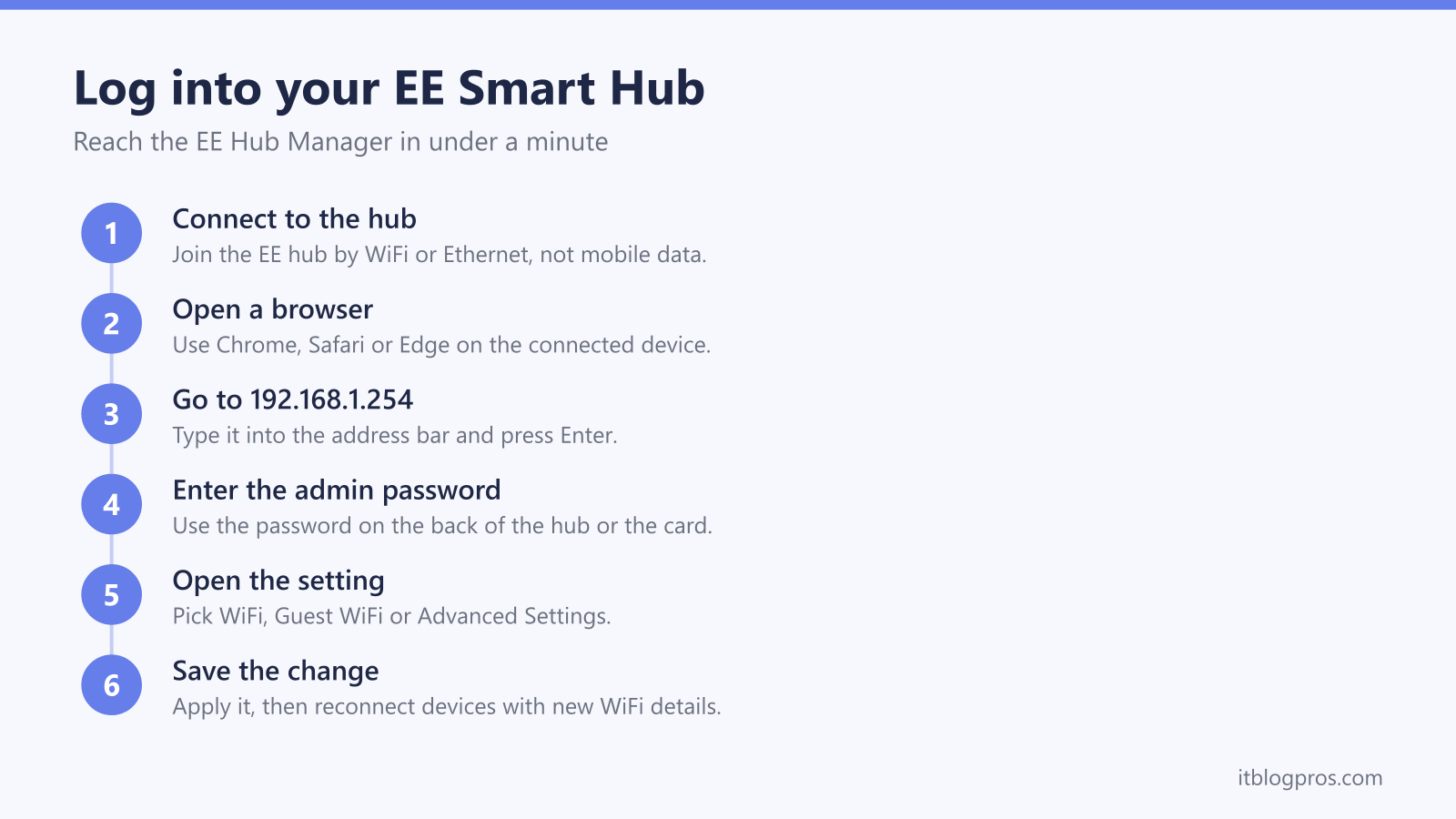
Logging in is quick once you are connected to the hub. Follow these steps in order.
-
Connect the device you are using to the EE hub, either over WiFi or with an Ethernet cable. You cannot reach the Hub Manager from mobile data alone.
-
Open a web browser such as Chrome, Safari or Edge.
-
Type 192.168.1.254 into the address bar and press Enter. The EE Hub Manager home page loads.
-
Find the setting you want to change. Basic actions like restarting the hub are on the front page.
-
When prompted, enter the admin password printed on the back of the hub or on the settings card.
-
Make your change and save it. The hub applies the change and, for wireless changes, may briefly drop the WiFi while it updates.
If you would rather not type the address, the EE app does the same job from your phone. Sign in to the app, then go to Manage, Broadband, and the Smart Hub tile to reach the same settings without the admin password.
What you can change in the EE Hub Manager
The Hub Manager covers the everyday settings most people ever need. From the main page you can restart the hub and run a connection test without entering the admin password.
With the admin password entered, you can do more. Under Advanced Settings, Wireless you can change the WiFi network name and the WiFi password, which is the most common reason people log in. The same area lets you turn the wireless on or off and adjust the wireless options. Under Advanced Settings, System you can change the admin password itself to something you will remember.
The Hub Manager also handles Guest WiFi, Compatibility WiFi for older devices, and LED brightness, so you can dim the light at night. After changing the WiFi name or password, every device in the house needs the new details before it will reconnect, so it is worth changing it at a time when that is easy to do.
For a fuller picture of which settings affect what, and what each indicator on the front of the hub is telling you, the guide to what the lights on your EE router mean walks through every colour and the fix for each warning state.
Bridge mode on the EE Smart Hub and using your own router
The honest answer on bridge mode depends on which hub EE sent, and no EE page settles it. The Smart Hub Plus, models SH31B and SH32B, is built on the same platform as the BT Smart Hub 3, and BT Business states in writing that modem-only or bridge mode is not supported on that hub, which is the closest thing to a documented answer anywhere. The older Smart Hub SH20A is a different case: EE's own declaration of conformity gives it the same model number as the BT Smart Hub 2, and BT Business publishes steps for putting that box into modem-only mode, so any difference sits in the firmware rather than the hardware. For the Smart Hub 7 Plus and Smart Hub 7 Pro nothing is established either way. EE sales staff have told customers bridge mode is supported, so treat a confident promise in either direction with caution and plan around one of the two setups below.
There are two practical ways to run your own router on EE broadband. The first keeps the EE hub in place: log into the Hub Manager, turn off the EE wireless, and let your own router or mesh system handle the WiFi over a wired link. The second, and cleanest on full fibre, is to skip the EE hub entirely. EE allows third-party routers, and its own connection guidance is unambiguous about what they need: the router must support PPPoE, on every EE broadband type. The username is [email protected], the password is BT or can be left blank, authentication is CHAP and DNS is automatic. On full fibre you connect your own router's Ethernet WAN port directly to the ONT on the wall with no VLAN tagging, while a part fibre line needs VLAN 101 with priority 0. EE will not provide support for setting up a non-EE router, so you are on your own for that part. One caveat decides it for some houses: EE states that third-party routers are not compatible with EE Digital Home Phone, EE TV, the EE WiFi Extender, Connectivity Backup or WiFi Optimiser, all of which need an EE or BT hub as the main router.
If you are weighing up which router to put behind the hub or in place of it, the guide to the best router for EE broadband covers the models that work well on EE, full fibre and part fibre, and walks through the exact PPPoE and VLAN setup.
What to do when the EE Smart Hub login will not work
If 192.168.1.254 does not load, the usual cause is that your device is not actually on the EE network. Check you are connected to the hub by WiFi or cable rather than mobile data or a neighbour's network, then try the address again. Typing it into a search box instead of the address bar is another common trip-up, so make sure it goes in as a web address.
If the page loads but the admin password is rejected, you are most likely entering the WiFi password by mistake, or someone has changed the admin password from the printed default. Double-check the card on the back of the hub and look specifically for the admin or Hub Manager password rather than the WiFi password. The EE app is a reliable fallback here, as it lets you change WiFi and admin settings without typing the admin password at all.
When the login is really about weak WiFi
A fair share of EE hub logins begin with disappointing coverage rather than a lost password, and no setting on the hub adds range to rooms the signal struggles to reach. The practical route on EE is the one set out above: leave the Smart Hub in place as the router, turn the EE wireless off in the Hub Manager, and let a mesh system carry the WiFi over a wired link from a hub LAN port. Keeping the hub matters more on EE than on some networks, because EE lists EE TV, the EE WiFi Extender, Connectivity Backup and WiFi Optimiser as services that only work with an EE or BT hub, and says EE Digital Home Phone needs an EE or BT hub as the main router. A TP-Link Deco X50 three-pack suits a typical house, with one unit wired to the hub and the other two placed in the rooms that drop out. Be clear about the limit, though. Mesh fixes coverage and nothing else, so it will not raise the speed EE delivers to the line, and if a wired speed test at the hub itself already comes in low that is a line fault to raise with EE rather than something more hardware will change. The best router for EE broadband guide explains where mesh earns its place over a single router.

When nothing else works and the admin password is genuinely lost, a factory reset restores the printed defaults. EE's own hub guide says to press the recessed reset button on the back of the powered-on hub with a paperclip and hold it for 20 seconds, so treat 20 seconds as the minimum and keep holding past it if nothing changes. That same EE page gives a flush button variant held for 5 seconds, so check which of the two your hub has before you start counting. EE's sign that it has worked is the hub lights turning aqua or blue, and it says that can take up to 5 minutes. A reset wipes your custom WiFi name and password, Guest WiFi, Compatibility WiFi and LED brightness, reverts the network to the card on the hub, and means any WiFi Extenders need re-pairing. The full walkthrough, including the difference between a reboot and a factory reset, is in the guide on how to reset an EE broadband router.