
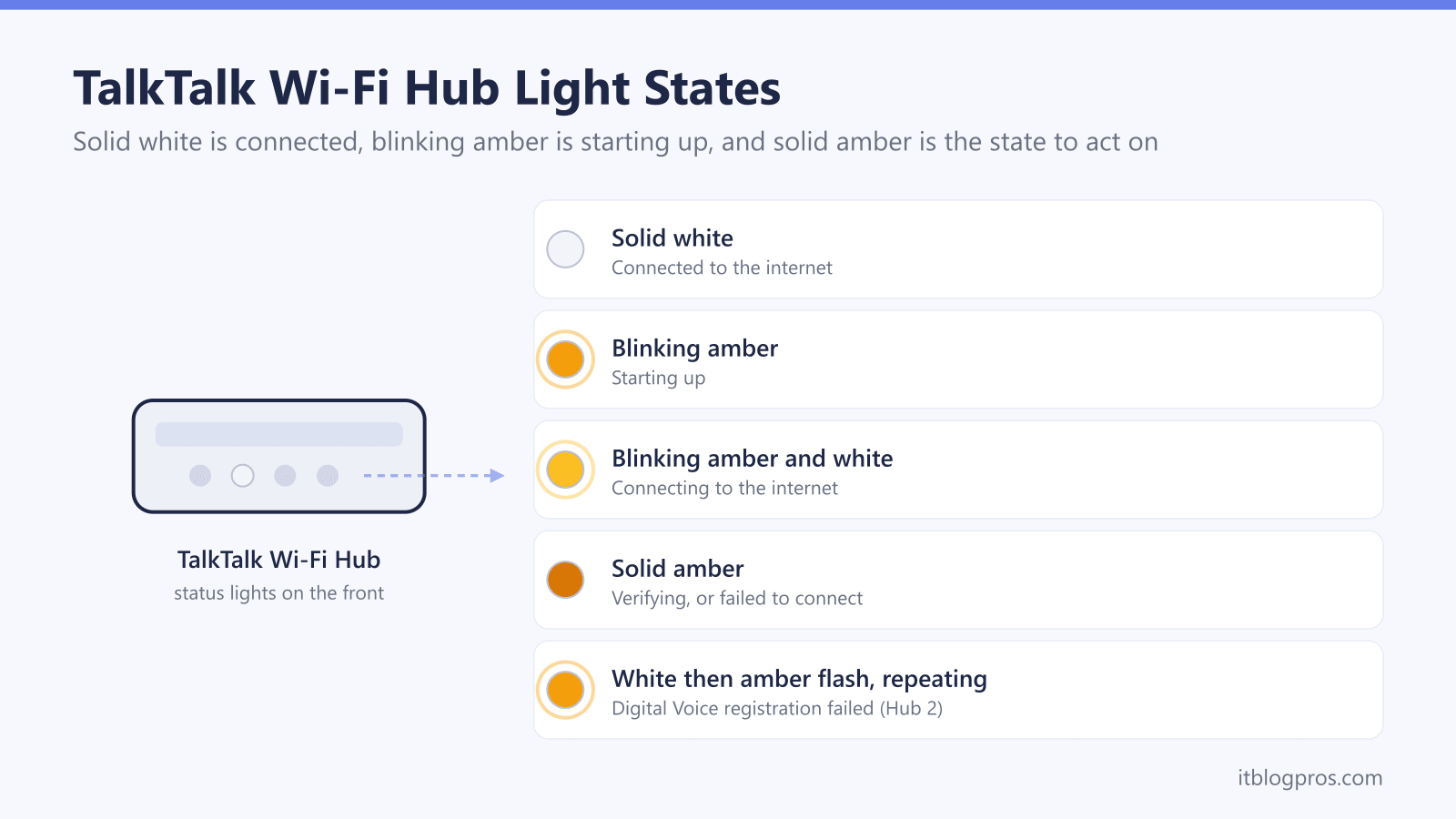
A TalkTalk Wi-Fi Hub says almost everything through one light on the front. There is no row of labelled indicators for power, broadband and Wi-Fi, so that single LED has to carry the whole story through colour and flash pattern. It is fast to read once the states are known and genuinely confusing when they are not. TalkTalk has shipped four hubs that share this design: the Wi-Fi Hub, the Wi-Fi Hub Black, the Wi-Fi Hub 2 and the Wi-Fi Hub 3. The meanings are nearly identical across them, with one important exception on the Hub 3 that changes how urgently you should react. Some Full Fibre customers are supplied with an Amazon eero instead, which uses a completely different colour scheme. Every state below is taken from TalkTalk's own help centre rather than carried over from another provider.
On every current TalkTalk Wi-Fi Hub, solid white means you are connected to the internet and nothing needs fixing. Blinking amber means the hub is starting up, and blinking amber and white means it is connecting. Solid amber is the state to act on: the hub is verifying or has failed to connect, and TalkTalk asks you to get in touch if it holds for more than 15 minutes.
Key Takeaways
- Solid white is the healthy state on the Wi-Fi Hub, Wi-Fi Hub Black, Wi-Fi Hub 2 and Wi-Fi Hub 3, and it means the hub is connected to the internet.
- Blinking amber means the hub is starting up and blinking amber with white means it is connecting to the internet, so both are normal for the first few minutes after power on.
- Solid amber is the state that needs attention, and its documented meaning differs by model: verifying the connection on the earlier hubs, and a failed internet connection on the Wi-Fi Hub 3.
- TalkTalk's own threshold is 15 minutes, so a light that has not settled to solid white by then points at a network, line or hardware fault rather than a slow boot.
- A factory reset is a 30-second hold on the rear pinhole button, and it wipes every changed setting including any custom Wi-Fi name and password.
TalkTalk Wi-Fi Hub light meanings at a glance
| Light | What it means | What to do |
|---|---|---|
| Solid white | You are connected to the internet. | Nothing to do. If a device still cannot get online, the fault is on the device rather than the hub. |
| Blinking amber | The hub is starting up. On the Wi-Fi Hub 3 this covers starting up and reaching the fibre connection box. | Wait. Do not power the hub off while it boots. |
| Blinking amber and white | The hub is connecting to the internet. | Wait for it to settle to solid white. Allow up to 15 minutes after a restart or an outage. |
| Solid amber (Wi-Fi Hub, Hub Black, Hub 2) | The hub is verifying your connection. | On fibre, wait a few minutes. Without fibre, or if it holds past 15 minutes, contact TalkTalk. |
| Solid amber (Wi-Fi Hub 3) | The hub has failed to connect to the internet. | Work through the checks below. If it stays solid amber for more than 15 minutes, contact TalkTalk. |
| Solid white 30 seconds, amber flash 3 seconds, repeating (Wi-Fi Hub 2) | SIP registration has failed, so Digital Voice is not registered. | Broadband is usually fine. Restart the hub, then treat it as a Digital Voice fault rather than a broadband one. |
How to tell which TalkTalk hub you have
The light meanings are close enough across the range that most people can act without checking, but the solid amber state genuinely differs on the newest hub, so it is worth 30 seconds to confirm the model. TalkTalk's own advice is to look at the pattern on the front and the sticker on the back.
- Wi-Fi Hub. The front has a bronze or copper hollowed-out dotted pattern, and the sticker on the back reads either Sagemcom F@st 5364 or Wi-Fi Hub. This is the Sagemcom-built model that TalkTalk shipped most widely on standard broadband and part-fibre packages such as Fibre 35 and Fibre 65.
- Wi-Fi Hub Black. Same shape and same single front LED, but the hollowed-out dotted pattern on the front is black rather than copper. The only other published difference is the port layout, since the red WAN port sits on the left-hand side of the Ethernet ports.
- Wi-Fi Hub 2. The front pattern is bronze or copper, exactly like the original Wi-Fi Hub, so the front alone will not separate them. The giveaway is on the back: the Wi-Fi Hub 2 has a green port, which may be hidden under a sticker. This is the hub that introduced the Digital Voice light pattern described further down.
- Wi-Fi Hub 3. The front either has the hollowed-out dotted pattern or a smooth flat surface, and the sticker reads Wi-Fi Hub 3. It is the Full Fibre hub, and it is the one where solid amber means a failed connection rather than a verification step.
If your setup uses an Amazon eero rather than a hub with a copper or black front panel, none of the amber states apply to you, and there is a separate section on eero below. To check the model from the settings pages instead of the sticker, the walkthrough in how to log in to a TalkTalk router covers getting into the hub's admin interface.
Solid white is the state you are aiming for
Solid white on the front LED means the same thing on all four hubs: the hub has reached TalkTalk and the internet connection is up. There is no action to take and no benefit to restarting.
That matters because a solid white light is a useful diagnostic in its own right. If the hub shows solid white and a laptop, phone or console still cannot get online, the broadband service itself is working and the problem sits between that device and the hub. The usual causes are a wrong or recently changed Wi-Fi password, a device stuck on a saved network it can no longer reach, a device too far from the hub, or a single website or app being down rather than the connection. Restarting the hub in that situation almost never helps and takes everyone else offline while it reboots. The device-side checks are set out in TalkTalk Wi-Fi not working.
One caveat worth stating plainly: TalkTalk uses the words amber and orange interchangeably across its help pages. The setup guides say amber and the troubleshooting page says orange. They describe the same LED, so a page telling you about a flashing orange light and a page telling you about a blinking amber light are talking about the same state.
Blinking amber and blinking amber with white are normal start-up states
These two states are stages in the same sequence rather than fault codes, and both are expected every time the hub powers on.
Blinking amber means the hub is starting up. On the Wi-Fi Hub 3, TalkTalk describes this stage as starting up and connecting to the fibre connection box, so it covers both powering on and finding the ONT on the wall. Expect it for the first minute or two after plugging in.
Blinking amber and white means the hub is connecting to the internet. This is the stage after boot, where the hub authenticates and pulls a connection. It is the state you will see after a power cut, after a restart, and after a short outage while service comes back.
TalkTalk also notes that the light can move to solid or blinking orange because the router is applying an update or because there has been a temporary outage on the service. Neither needs intervention while it is happening, and powering the hub off mid-update is the one thing genuinely worth avoiding.
The rule that turns these into a decision is TalkTalk's own 15-minute threshold. A hub that is still blinking, or that has gone solid amber, more than 15 minutes after it was powered on has not simply been slow. At that point it is a fault to investigate rather than a boot to wait out.
Solid amber means something different on the Wi-Fi Hub 3
This is the one genuine inconsistency across the range, and it is the reason it is worth knowing which hub is on your shelf.
On the Wi-Fi Hub, Wi-Fi Hub Black and Wi-Fi Hub 2, TalkTalk documents solid amber as the hub verifying your connection. Its guidance is that fibre customers should wait a few minutes, because verification legitimately takes longer on a fibre line. If you are not on fibre, or the light stays solid amber for more than 15 minutes, TalkTalk asks you to contact it.
On the Wi-Fi Hub 3, TalkTalk documents solid amber as a failed connection to the internet, with the same instruction to make contact if it holds past 15 minutes. Same colour, blunter meaning. A solid amber Hub 3 has already tried and failed rather than still being mid-check.
In practice the action is identical either way once the clock runs out, so nobody should be paralysed by the distinction. What changes is how much patience is reasonable at the start. A few minutes of solid amber on a Wi-Fi Hub 2 on fibre is documented behaviour. A few minutes of solid amber on a Wi-Fi Hub 3 is already a failure that will not clear itself, so there is no reason to wait the full 15 minutes before starting the checks below.
Fixes to work through in order when the light will not turn white
TalkTalk publishes a specific order for this, and following it in sequence is worthwhile because the first two steps can tell you the hub is blameless before you go crawling behind furniture.
- Check for a network issue first. Look at the TalkTalk Service Status page. If an icon shows orange, open it for details. Where planned maintenance or a known incident is running, the hub is supposed to reconnect on its own once the work finishes, so there is nothing to fix at your end. Only restart the hub if it has not reconnected after the work completes.
- Run TalkTalk's connection test. Sign in and use the My Connection page, then select Run a connection test and follow the prompts. This tests the line itself and creates the record TalkTalk will want if the problem turns into a fault. One safety note from TalkTalk: skip line tests if a medical or monitoring device is connected to your phone line, because a line test can interrupt it.
- Check the equipment in your home. Undo any configuration change made just before the problem started, because a settings change is a far more common cause than hardware failure. Make sure every cable is firmly seated at both ends. Plug the hub into the main phone socket rather than an extension lead or a secondary socket. Confirm anything else sharing the line is using a microfilter. Then reconnect devices one at a time and watch the hub's light after each one, which is how you catch a single faulty device dragging the connection down.
- Restart, then reset if needed. Power the hub off and back on. If that does not clear it, do the full factory reset described in the next section. Either way, leave the hub switched on for 15 minutes afterwards so it has time to fully reconnect before you judge the result.
For the wider picture of what colours mean on hubs from other UK providers, the cross-provider reference in the router lights guide covers the same logic applied to Sky, BT, Virgin Media and Vodafone kit.
A repeating white and amber pattern on the Wi-Fi Hub 2 points at Digital Voice
There is one state that trips people up because it looks like a broadband fault and is not.
On the Wi-Fi Hub 2, a light that shows solid white for about 30 seconds, then flashes amber for about three seconds, then returns to solid white and repeats the cycle indefinitely, means SIP registration has failed. SIP is the protocol behind TalkTalk's Digital Voice landline service, so this pattern is telling you the phone service has not registered.
The important part is what it does not mean. Because the light spends most of its cycle on solid white, the broadband connection itself is generally up and working normally. Web browsing, streaming and everything else can be perfectly healthy while this pattern runs. The failure is confined to the voice service, and the symptom you would notice is a dead handset or an inability to make and receive calls.
A hub restart is the first thing to try, since registration often succeeds on the retry after a clean boot. If the pattern returns, treat it as a voice fault. The handset must be plugged into the correct green phone port on the hub rather than a wall socket, and the account side of Digital Voice needs to be active. The full sequence is in TalkTalk Digital Voice not working.
eero setups and the fibre connection box use a different scheme entirely
TalkTalk supplies Amazon eero hardware on some Full Fibre packages, including Fibre 900 PLUS, and an eero shares nothing with the Wi-Fi Hub light scheme. There is no amber state at all, so do not try to map the table above onto it.
TalkTalk's own guidance for eero covers the states that matter. A light that is off or solid red means the eero is offline, and the fix is to reboot it and wait a few minutes, with resetting through the eero app as the next step. A solid white light means the eero is working correctly, so if a device still cannot connect while the eero is solid white, reboot the device rather than the eero. eero itself documents a flashing blue light as the unit searching for an internet connection, which is normal during setup and after a soft reset.
Separately, the fibre connection box on the wall, also called the ONT, has its own lights and they are worth checking before blaming the hub. All lights off means the box has no power. A flashing green light means it is switched on and connecting. A solid green light means it is connected. On the black fibre box, an amber light means it is starting up or updating. A red light on the fibre connection box means a fault, and that fault is on the fibre service rather than inside your house, so it goes straight to TalkTalk. A hub showing solid amber while the fibre connection box shows red is a line problem, not a router problem, and no amount of resetting the hub will change it.
What a factory reset does and how long to hold the button
A factory reset is the last self-service step, and it is worth understanding the cost before doing it rather than after.
The procedure is a pinhole button, not a press-and-release. Find the reset pinhole on the back or the side of the hub, push a pin or a straightened paperclip in until you feel a click, and hold it for 30 seconds. The lights on the front turn off and come back on again, which is how you know it took. Once the hub has fully booted and the light is on, reconnect your devices.
What it wipes is every setting you have changed. TalkTalk is explicit that a full reset clears the hub's existing settings, so a custom Wi-Fi name, a custom Wi-Fi password, port forwarding rules, static IP reservations, parental control schedules and guest network configuration all revert to factory defaults. After the reset, your Wi-Fi is back to the name and password printed on the sticker, and every device in the house needs rejoining. That is the reason to try a plain power cycle first: a restart costs you a couple of minutes, and a factory reset costs you an evening of reconnecting devices.
What it does not do is fix anything on the line or on your account. If the connection is failing outside your house, a reset changes nothing. The step-by-step for every major UK provider, including the hold times that differ between them, is collected in how to reset your router for every UK ISP, and the settings you may want to restore afterwards are covered in the TalkTalk router login guide.
When only TalkTalk can fix it
There is a clean line between what you can resolve and what needs an engineer or an account change, and TalkTalk draws it at the 15-minute mark.
If the light on your Wi-Fi Hub stays solid amber for more than 15 minutes, TalkTalk's published position is that the router may be faulty and you need to get in touch so it can be investigated. On the older Super Router, the equivalent signal is a red power light. In both cases the hardware has failed its own checks, and repeating the reset will not change the outcome. The escalation route is the My Connection page, which raises the fault with the diagnostic history already attached.
The other states that are outside your control are worth naming so no one wastes an afternoon on them. A red light on the fibre connection box is a fibre fault on the network side. A confirmed incident or planned maintenance on the Service Status page means the fix is already in progress and the hub will reconnect by itself. A connection that fails immediately after a house move, an upgrade or a provider switch is usually an activation that has not completed, which is an account matter rather than a hardware one.
One practical note before calling. Have the model name ready, taken from the sticker on the back, along with the exact light state and how long it has held. The difference between solid amber on a Wi-Fi Hub 2 and solid amber on a Wi-Fi Hub 3 is a real distinction in TalkTalk's own documentation, and leading with it saves the first ten minutes of any support call.