
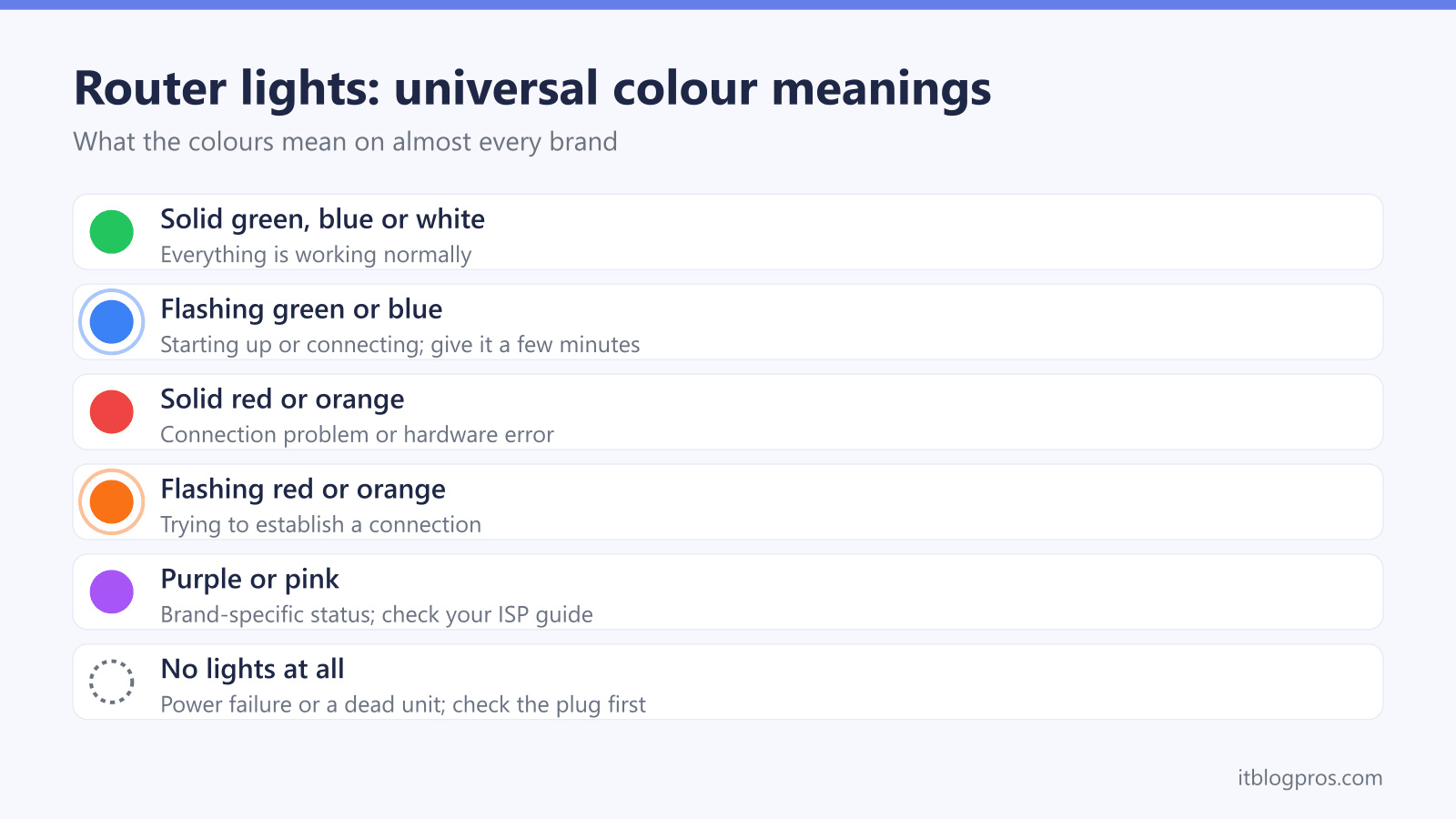
This is the cross-ISP router lights hub. Whatever broadband provider you have in the UK, the colour and pattern of your hub's status light tells you what is happening with your connection, but only once you read it against the right key. Below we show why a single cross-brand colour chart cannot work, map the healthy "connected" colour for every major UK ISP as that provider documents it, and link down to the full deep-dive guide for your specific hub.
Every meaning quoted on this page comes from the provider's own light documentation, checked against BT, Virgin Media, Vodafone, Sky and EE in September 2026. Where a provider does not publish a meaning for a state, this guide says so rather than filling the gap.
There is no universal router light code, so the healthy colour has to come from your own provider. Virgin Media gives solid white, BT gives blue, EE gives aqua, Sky gives white on the Max Hub and a green internet light on the older Broadband Hub, and Vodafone gives white on the Ultra Hub front light. Purple is not automatically a fault: on a BT Smart Hub 2 it means a working mobile backup.
Key Takeaways
- You'll see why a single cross-brand colour chart cannot work, with the cases where the same colour means opposite things on two hubs sitting in neighbouring houses.
- We map the healthy "connected" colour for every major UK ISP as that provider documents it, including the two where it changes between models.
- You'll get the three colours most often written up backwards: BT's solid purple, Virgin Media's solid green, and Vodafone's flashing white and solid amber.
- We show you which states carry a factory reset in the provider's own instructions and which do not, because resetting the wrong colour drops a connection that is working.
- You'll find the deep-dive guide for your exact hub, plus replacement routers and modem-mode steps for when the honest answer is coverage rather than a fault.
There Is No Universal Router Light Code
The single most useful thing to know about router lights is that the colours are not standardised. Each provider writes its own key, and the same colour routinely carries opposite meanings on two hubs. A chart that promises one answer per colour will be wrong for most readers most of the time.
Four examples make the point, and all four are taken from the providers' own light pages rather than from each other:
- Green is healthy on one hub and a warning on the next. Virgin Media's key for the Hub 4 and Hub 5 gives solid green as modem mode being on, which means the hub is broadcasting no WiFi at all. BT gives green as the hub starting up. Sky's black Broadband Hub gives a green internet light as connected and ready.
- Purple is not automatically a fault colour. BT gives solid purple on the Smart Hub 2 as the hub being connected to the EE mobile network via Hybrid Connect, which is a working connection. Virgin Media gives a solid purple power light on the Hub 3 as modem mode. Flashing purple on that same BT hub is a different matter, and means the broadband cable is not connected.
- White means the opposite things two providers along. Virgin Media and Sky's Max Hub both give solid white as healthy. BT's Smart Hub 3 gives solid white as the hub running on mobile through Hybrid Connect, so the fixed line is down.
- Flashing does not mean starting up. Virgin Media gives a slow green flash as a software update downloading. Vodafone gives flashing white on the Ultra Hub and Power Hub as running through a backup module.
So the workable method is not to decode the colour, it is to identify the hub first and then read that manufacturer's key. The table below is the shortcut for the one state everybody wants, and the deep-dive guides that follow carry the rest.
What Colour Your Router Light Should Be When Connected
The single fastest check is knowing the colour your hub shows when it is fully connected and healthy. That target colour differs by provider and, on Sky and Vodafone, between models from the same provider. Each row below is what that provider publishes on its own light pages.
| ISP | Hub / model | Healthy "connected" light | What the provider says |
|---|---|---|---|
| Virgin Media | Hub 3, Hub 4, Hub 5 | Solid white, shown as a dimmed white on the Hub 4 | Virgin Media's light key gives solid white as everything being okay. It publishes no light key at all for the Hub 5x |
| BT | Smart Hub 2, Smart Hub 3 | Blue | BT's wording is that the Hub is connected to your broadband OK. On the Smart Hub 3, solid white means the opposite, that the hub is on mobile via Hybrid Connect |
| EE | Smart Hub 7 Plus, Smart Hub 7 Pro, Smart Hub 6 Plus | Solid aqua | EE gives aqua as connected to broadband and green as starting up. Its Smart Hub 2023 uses solid blue for the same healthy state |
| Sky | Sky Max Hub (SR213) | Solid white | Sky's Max Hub key gives white as set up and connected to the internet. Sky lists no solid blue state on it at all |
| Sky | Sky Broadband Hub (SR203), Sky Q Hub | Green internet light | On the older black hubs the internet light runs green when connected, not white |
| Vodafone | Ultra Hub | Solid white front light | Vodafone's wording is power up, no issues |
| Vodafone | Power Hub | Solid white front light with a solid green internet light | Vodafone gives the Power Hub's white front light as power is on, which is a claim about power rather than broadband, so the internet light is the one that confirms the connection |
The pattern to take away is that no colour is safe to read on its own. White is healthy on Virgin Media and on Sky's Max Hub, but on BT's Smart Hub 3 it means the fixed line has failed over to mobile, and on Vodafone's Power Hub it only means the plug is live. Always confirm against your own provider's key.
Jump To Your ISP Lights Guide
For the full colour-by-colour breakdown, every flashing pattern, and provider-specific fixes, go straight to the deep-dive guide for your hub:
- Virgin Media: Virgin Media Hub lights complete guide (all models)
- EE: What the lights on your EE router mean and how to fix them
- BT: BT Hub flashing pink light explained and fixed
- Vodafone: Vodafone router flashing red: complete troubleshooting guide
- Sky: Sky Broadband Hub lights explained for all models
- NOW Broadband: three green lights is the healthy state, and an amber internet light can mean a billing issue. See the section below.
- Netgear and other own-routers: Netgear router lights on but no internet troubleshooting guide, and for a separately bought cable modem the Motorola modem lights guide
Quick Diagnostic Flowchart
Step 1: Identify Your Router Brand
- BT: Smart Hub, Hub 2, Home Hub
- Virgin Media: Super Hub 3, 4, 5
- Vodafone: Ultra Hub, Power Hub, Vodafone WiFi Hub
- Sky: Sky Max Hub, Sky Broadband Hub, Sky Q Hub
- EE: Smart Hub 7 Plus, Smart Hub 7 Pro, Smart Hub 6 Plus, Smart Hub 2023
Step 2: Match Light Pattern
Use the brand-specific guides below for exact meanings
Step 3: Apply Solutions
Follow troubleshooting steps for your specific light pattern
BT Router Lights (Smart Hub 2, Smart Hub 3, Smart Hub)
Every meaning in this section is taken from BT's own hub lights page. BT publishes a separate table per model, and the differences between them matter more than the similarities.
Normal Operation Lights
Solid Blue (Smart Hub 2): BT's wording is that your Hub is connected to your broadband OK. If a device still cannot get online, BT points at the device rather than the hub.
Solid Blue (Smart Hub 3): BT gives this as the hub working and connected to the internet.
Green: BT gives green as the Hub starting up, on the Smart Hub 2 and Smart Hub 3 alike, and asks for at least three minutes before treating it as stuck. On the older BT Smart Hub, BT puts start-up at about one and a half minutes.
Dimmed steady blue (Home Hub 3 only): BT gives this as auto power save mode on the Home Hub 3. It is not a documented state on the current hubs, so a breathing blue light on a Smart Hub 2 is not something BT publishes a meaning for.
Problem Indicator Lights
Flashing Orange: BT's wording is that your Hub is connecting to broadband. This is the normal connecting state, not a missing signal.
- Fix: BT asks for at least three minutes. The light turns blue when the hub is ready.
Solid Orange: BT's wording is that your Hub is working but isn't connected to the internet.
- Fix: BT's own step is to connect a device to the hub, open a browser and follow the on-screen setup wizard.
Red: BT's wording is that there's a problem somewhere, with no more detail than that.
- Fix: BT says to turn the hub off and on with the power button, and if the light still does not turn blue, to use a paper clip on the factory reset button.
The Two BT Purple Lights, and Why Neither Is a Reset
This is the correction that matters most on this page, because getting it wrong destroys a working connection. BT publishes two purple states on the Smart Hub 2, and neither one is a hardware fault, an overheating warning or an authentication failure.
Solid Purple: BT's wording is that your Hub is connected to the EE mobile network via Hybrid Connect. BT adds that this may be because your broadband connection isn't set up yet, or because there's an issue with your broadband.
Read that carefully. The hub is fine, the household is online, and the traffic is going over EE's mobile network because the fixed line is not carrying it. The correct action is to report the fixed line as down. Do not factory reset a hub showing solid purple. A reset drops the connection that is currently keeping the house online and wipes your WiFi name and password on the way through, and it fixes nothing, because the fault is on the line rather than in the hub. BT gives no reset instruction for this state at all.
The Smart Hub 3 signals the same thing in a different colour: BT gives its solid white light as the hub being connected to mobile using Hybrid Connect, in resilience mode. Same meaning, same advice.
Flashing Purple: BT's wording on the Smart Hub 2 is that your Hub is working but the broadband cable isn't connected. It is a cabling state, not a heat state.
- Fix: BT's instruction depends on your service. On Full Fibre, check the Ethernet cable with the red ends is plugged into the modem's port correctly, then check the other end is in the red WAN port or yellow Ethernet port 4, and confirm the hub is configured in Full Fibre mode. On a fibre connection, check the broadband cable with the grey ends is in correctly, and check the filter if you use one.
On the older BT Smart Hub and Ultrafast Smart Hub, flashing purple carries a different meaning again: BT gives it there as the Hub working but not connected to the internet, with a broadband cable and filter check as the fix.
Overheating is not a BT light meaning. BT's hub lights page does not name heat as a cause of any colour on any model. If you have read that a BT purple light means the hub is too hot, that claim did not come from BT.
When BT Hub Needs Replacement:
- Red lights that come back within days of a clean line test
- Frequent connection drops with the line confirmed healthy
- A hub that needs weekly resets to hold a connection
Purple is deliberately absent from that list, because on a Smart Hub 2 it is a working state rather than a failing one.
Virgin Media Router Lights (Hub 3, 4, 5)
Everything here is taken from Virgin Media's own hub lights help, which carries a separate state list for the Hub 5, Hub 4, Hub 3 and Super Hub 2 or 2ac. There is no entry for the Hub 5x, so no Hub 5x light meaning can be quoted from Virgin Media.
Hub 5 Light Guide
Solid White: Virgin Media's wording is that everything is okay. This is the normal working state. Flashing White: The hub is booting. Virgin Media asks for at least five minutes and suggests checking the cables are pushed in firmly while you wait.
Solid Green Is the One That Catches People Out
Solid Green (Hub 4 and Hub 5): Virgin Media's wording is that the Hub is in modem mode and won't be sharing WiFi. This is exactly the complaint most readers arrive with: the hub looks healthy, and no WiFi network appears anywhere in the house.
- Fix: Virgin Media says you can take the Hub back out of modem mode manually, or press the pinhole factory reset button for 10 seconds with the tip of a pen and leave it 5 to 10 minutes to start up, after which the light turns white. If you put the hub into modem mode on purpose, connect your own router to one of the Hub's Ethernet ports and leave the Hub alone; Virgin's modem mode help page does not say which port carries the connection, so if the router gets no internet, move the cable to each of the Hub's other Ethernet ports in turn.
On the Hub 3, the same state shows as a solid purple power light with solid green internet and phone lights, and Virgin Media gives it the identical meaning and the identical 10 second pinhole reset.
Problem Indicators
Solid Red: Virgin Media's wording is that there might be an issue with the cable connections or that the Hub is too hot.
- Fix: Virgin Media's published sequence is to switch the power off at the wall, stand the hub out in the open with its vents uncovered and away from heat sources, check every cable is undamaged and pushed in firmly, leave it 15 minutes to cool, then switch it back on and allow 5 to 10 minutes. If it is still red and no longer warm, a 10 second pinhole reset is its next step.
Flashing Red: Virgin Media's wording is that the Hub has finished starting up but hasn't been able to register on the Virgin Media network.
- Fix: Reboot at the wall, check the cables while it is off, and allow 5 to 10 minutes. If it is still flashing red, hold the pinhole reset for 10 seconds.
Flashing Green: Virgin Media says a slow green flash means a software update is downloading, and the hub takes a few minutes to reboot once the download has finished.
- Fix: Leave it alone. Do not power the hub off mid-update.
Blue Light: Blue belongs entirely to WPS pairing on the Hub 4 and Hub 5. A slow blue flash is the two-minute pairing window, solid blue for twenty seconds confirms a device paired, and a rapid blue flash means the pairing failed.
Amber or orange: Virgin Media publishes no amber or orange state on the Hub 4 or the Hub 5. On the Hub 3, a solid yellow power light is a healthy state rather than a fault. If you are hunting for an amber Virgin Media light, one of those two is almost certainly what you are looking at.
For every Virgin colour and pattern across the Hub 3, 4 and 5, see our Virgin Media Hub lights complete guide for all models. If you keep losing connection after dark, our guide to why Virgin Media is slow at night and how to fix it covers the most common causes.
Hub Modem Mode Setup (for router upgrade): Virgin Media's reset and modem mode help page gives these steps for the Hub 3, 4 and 5, and says modem mode is not currently available for the Hub 5x.
- Enter
192.168.0.1in your browser's address bar and sign in with the Hub settings password on the base of the Hub; the 192.168.0.1 router login guide covers the login if the page will not open - Select Super Hub, then Modem Mode, then Enable Modem Mode
- Select Apply Changes; Virgin says the Hub is then reached at 192.168.100.1
- Connect the new router to one of the Hub's Ethernet ports; Virgin's page does not say which port carries the connection, so if the router gets no internet, move the cable to each of the Hub's other Ethernet ports in turn
Vodafone Router Lights (Ultra Hub, Power Hub)
Vodafone publishes its light key on a single help page, but it sits behind a JavaScript panel that only fills in once you pick your hub, which is why so many guides to these hubs are wrong. The meanings below are what that page shows for the Ultra Hub and the Power Hub front light.
Normal Operation
Solid White (Ultra Hub): Vodafone's wording is power up, no issues.
Solid White (Power Hub): Vodafone's wording here is only that power is on. Read the separate internet light, where solid green means connected to the internet, before treating the connection as healthy.
Solid Green (Ultra Hub front light): Vodafone gives this as pairing successful.
Problem Indicators
Solid Amber: Vodafone's wording is that the WiFi has been turned off by the user.
- Fix: On the Power Hub, Vodafone's whole instruction is to press the WiFi button to turn it back on. This is the most fixable state on the list, and it is routinely written up as a start-up phase or a limited-connectivity warning, neither of which Vodafone says.
Flashing Red: Vodafone's wording on both hub front lights is that pairing has failed.
- Fix: On the Power Hub, Vodafone says to try pairing your booster again or reboot the Power Hub. On the Ultra Hub, Vodafone routes this state to its Broadband Service Test, which needs a My Vodafone login. Note that this is a failure, not a progress state, so there is something to do rather than something to wait out.
Flashing Purple: Vodafone gives this as pairing being in progress, on both hubs.
- Fix: Nothing. Let it finish. No Vodafone instruction for any purple state involves a factory reset, and Vodafone does not describe purple as an authentication failure anywhere on that page.
Flashing White: Vodafone gives this as connected through a back up module, which on the Power Hub it spells out as a broadband back-up dongle.
- Fix: Treat the fixed line as down and report it. This is not the hub booting. A household told the hub is starting up will not report the outage, and will carry on streaming over a mobile backup that may be metered.
Flashing Red on the separate internet light: this is the genuine no-internet state, given as internet failed on the Ultra Hub and not connected to the internet on the Power Hub.
- Fix: Check the cabling, restart the hub, and report the line if it does not come back.
Solid Red: Vodafone documents no solid red state on the Ultra Hub or Power Hub front light. If a steady red light is what you are looking at, check whether you actually have the VOX 2.5 broadband router, where Vodafone gives a red power light as power being on.
Flashing red is the Vodafone state people search for most, and which light it is on changes the answer completely: on the front light Vodafone gives it as a failed pairing, and on the internet light as no internet. Our Vodafone router flashing red complete troubleshooting guide and the full Vodafone router lights guide work through both.
Sky Router Lights (Max Hub, Sky Broadband Hub)
Sky runs two different light schemes, so the model matters more here than anywhere else. The white Sky Max Hub (SR213) puts everything on one multi-colour indicator. The older black Sky Broadband Hub (SR203), the Sky Q Hub and the original Sky Hub use a row of separate power, internet and wireless lights instead.
Sky Max Hub (SR213)
Sky lists nine states for this hub, and there is no solid blue among them. The full list is off or no light, white, red, flashing green and amber, flashing green, slowly flashing green, flashing blue, amber and flashing amber. If you have read that a Sky hub shows solid blue while it establishes a connection, that state is not on Sky's list.
White: Sky's wording is that you're all set up and the hub is connected to the internet. Amber: Sky's wording is that the hub is powering up, and that the light stops flashing and turns white once it connects. Flashing Amber: Sky's wording is that your hub is authenticating, and that it can take a few minutes before the light stops flashing and turns white. Flashing Blue: WPS pairing is active. Blue on this hub belongs to pairing, not to connecting. Red: Sky's wording is that it looks like there might be a problem, and its own next step is to sign in to Service Checker so Sky can run tests.
Sky Broadband Hub (SR203) and the Older Row-of-Lights Hubs
On these, the healthy internet light is green, not white. A flashing amber internet light means the hub is still trying to connect, usually just after a restart, and Sky's threshold for that is five minutes before you run Service Checker. A solid amber internet light means the line is detected but the hub cannot connect.
Sky Hub Troubleshooting
- Check ethernet cable to the Openreach modem
- Verify line filters on all phone sockets
- Power cycle both hub and Openreach modem
- Use Sky's Service Checker, which is the step Sky itself gives for red and for a stuck amber, or call 03442 414 141
EE Router Lights (Smart Hub 7 Plus, Smart Hub 6 Plus, Smart Hub)
EE publishes a separate light page per hub, and the meanings below are EE's own wording from those pages.
Normal Operation
Solid Aqua: EE's wording is that your hub is connected to broadband. Aqua is the healthy state on the current hubs, not blue. Green: EE's wording is that your hub is starting up. EE asks for three minutes before treating it as stuck.
Problem Indicators
Flashing Orange: EE's wording is that your hub is connecting to broadband. This is a normal state and EE asks for at least three minutes.
- Fix: If it is still flashing past three minutes, EE says to check the broadband cable at the hub and at the filter or Openreach modem.
Solid Orange: EE's wording is that your hub isn't connected to the internet.
- Fix: EE says to restart the hub, confirm your activation date has passed, then check EE service status.
Red: on the Smart Hub 6 Plus and the older hubs EE gives red as there being a problem somewhere. On the Smart Hub 7 Plus and 7 Pro, a flashing red means low power mode, and EE's fix is to restart the hub, confirm the correct power supply is connected securely, stand the hub vertical with its vents unblocked, then reset it if the light persists.
White: EE gives a white light as Connectivity Backup, which it also calls Smart Hybrid Connect, being in use, so the hub is running on the mobile network in resilience mode. Like BT's purple, this is a working state that tells you the fixed line is down. On the older EE Smart Hub 2023 the same state shows as a solid purple light instead, and that hub uses solid blue rather than aqua as its healthy colour.
Flashing Blue: WPS. EE's wording is that the WPS button on your hub has been pressed.
For the full breakdown of every EE colour per model and the fixes for each, see what the lights on your EE router mean and how to fix them.
NOW Broadband Hub Lights (Three Green Lights, Not One)
The NOW Broadband Hub is the one that catches people out, because it does not use a single status light like the current Sky, Virgin Media or EE hubs. NOW's own troubleshooting page asks you to look for three green lights on the front, and that is the healthy state.
Three green lights: everything is working and you can get online. Nothing to fix.
One or two green lights, with no internet light: the connection is not up. NOW's own sequence is to move the Hub closer to the master socket, take out any extension cable, move wireless devices away from the Hub, then restart it and leave it two minutes. If you have a landline, checking for a dial tone separates a line fault from a Hub fault.
Amber internet light: this one is unusual and worth knowing. NOW says it may point to a problem at your local broadband exchange, or to an issue with your NOW account. In other words an amber light can be a billing state rather than a technical one, so check My Account for an overdue payment before you start rewiring anything. After a payment clears NOW asks for up to 24 hours, then a Hub restart.
NOW No Longer Supplies Replacement Hubs
There is a bigger issue behind the lights, and it is worth saying plainly because it changes what a fault actually means for a NOW customer. NOW has confirmed it cannot supply an updated Broadband Hub, and that getting a new one means signing up to a new contract. An existing Hub keeps working and keeps you connected, but it no longer receives service or security updates, and NOW warns that an unsupported device stays exposed to malware and ransomware.
That leaves three routes: move to NOW Powered by Sky and take the current Sky hardware, keep the Hub you have and accept it is unsupported, or leave. If the Hub is old and the lights are misbehaving, the security position is a stronger argument for changing something than the fault itself is.
When Your Router Lights Indicate Replacement Time
Hardware Failure Signs
- Lights don't follow the startup sequence your provider documents
- Colours that do not appear in your provider's own light key at all
- Frequent red or error lights despite a confirmed healthy line
- No lights despite confirmed power
- A case that is hot to the touch, which Virgin Media names as a cause of a solid red light on the Hub 3, Hub 4 and Hub 5
Performance Degradation Signs
- Requiring weekly resets to maintain connection
- Speeds significantly slower than package
- Frequent disconnections across multiple devices
- WiFi dead zones in previously covered areas
Best Router Replacements by Current Router
Upgrading from BT Smart Hub
TP-Link Archer BE550 - Best BT Alternative
This is the swap to make when the Hub itself has become the fault rather than the messenger: a red light that returns within days of a clean line test, or a hub old enough that resets are now routine. Purple is not on that list, because on a Smart Hub 2 BT documents solid purple as a working Hybrid Connect backup and flashing purple as a disconnected broadband cable, and neither is a reason to replace the hardware. The Archer BE550 takes over the routing and WiFi: TP-Link lists it as tri-band WiFi 7 with a dedicated 2.5 Gbps WAN port and four 2.5 Gbps LAN ports, and PPPoE and Tag VLAN are on its spec sheet, so it can sit behind whatever Openreach equipment feeds your line. Its WAN connection is that 2.5 Gbps port rather than a DSL modem, so it connects to your existing modem or ONT rather than replacing it.
A new router fixes coverage and stability. It does not fix a line fault, a problem on BT's side, or an outage, so confirm the line is healthy before you buy.

Upgrading from Virgin Media Hub
TP-Link Archer AX55 - Excellent Virgin Alternative Performance improvements over Virgin hubs:
- WiFi 6 technology delivers fast, reliable wireless speeds
- Four antennas with beamforming spread coverage across the home
- Better device management for smart homes
- Gaming acceleration features
Setup Process:
- Set the Virgin Hub to modem mode, which Virgin's help page says is not currently available for the Hub 5x
- Connect the AX55 to one of the Hub's Ethernet ports, trying each in turn if it gets no internet, as Virgin names no port
- Configure normally

Upgrading from Vodafone Ultra Hub
Vodafone is the exception worth flagging before you buy anything. Vodafone's own help pages state that its router is required on Pro Broadband, on 5G Broadband and on any plan that includes Digital Voice, and that where a third-party router is allowed it has to be one approved by Openreach. Check which of those your plan falls under before you spend, because on several Vodafone plans swapping the hub is not an option at all.
Advanced Router Light Diagnostics
Creating a Router Light Log
Track patterns over time:
- Note exact light colours and sequences
- Record time of day when problems occur
- Document weather correlation (for line faults)
- Track frequency of issues
Use log information to:
- Provide better information to ISP support
- Identify patterns ISPs might miss
- Determine if router replacement is needed
- Correlate issues with external factors
Professional Network Assessment
When to call a technician:
- Multiple routers showing same symptoms
- Suspected internal wiring problems
- Business-critical connectivity requirements
- Complex network topology needs
Router Maintenance to Prevent Light Issues
Monthly Router Care
- Visual inspection for dust buildup or physical damage
- Ventilation check - ensure air vents are clear
- Cable inspection - look for bends, kinks, or damage
- Performance monitoring - speed test and connectivity check
Quarterly Maintenance
- Firmware updates - check for and install latest firmware
- Password updates - change WiFi and admin passwords (how to find the router admin password if you no longer know yours)
- Factory reset - if experiencing regular issues
- Cable replacement - swap any damaged or old cables
ISP Support Contacts and Preparation
Before Calling Support
Information to gather:
- Exact router model number
- Light colours and patterns observed
- Duration of the problem
- Troubleshooting steps already attempted
- Speed test results if internet partially working
ISP Contact Information
BT Support:
- Residential: 0800 800 150
- Business: 0800 400 400
- Best times: Weekday mornings (shorter wait times)
Virgin Media Support:
- Residential: 150 (from Virgin line) or 0345 454 1111
- Have account details and postcode ready
- Check online status page first
Vodafone Support:
- Residential: 191 (from Vodafone line) or 03333 040 191
- Have account number and router serial number ready
Sky Support:
- Residential: 03442 414 141
- Business: 03442 414 142
- Check Sky status page before calling
EE Support:
- Residential: 150 (from EE line) or 0800 956 6000
- Have account details ready
Cost-Benefit Analysis: Repair vs Replace
When Router Repair Makes Sense
- Router under 2 years old
- Single isolated incident
- Simple cable or placement issue
- ISP confirms line is working properly
When Router Replacement is Better
- Router over 3 years old
- Recurring weekly issues requiring resets
- Multiple light error patterns
- Performance significantly below package speeds
- WiFi coverage inadequate for home size
Choosing Your Upgrade
If your hub keeps throwing error colours and a replacement is the honest answer, match the router to how you actually use the home. A standalone router fixes a single weak room, while a mesh system blankets a larger or multi-storey house; our guide to WiFi extender vs mesh and which fixes dead zones explains the trade-off, and our best WiFi mesh systems of 2025 ranked by real user reviews shortlists the strongest options. Virgin Media customers can keep their line and run a better router by following our Virgin Media Hub 5 modem mode guide, though Virgin's help page says modem mode is not currently available for the Hub 5x, where a mesh system behind the Hub is the alternative.
Return on Investment
Quality router investment benefits:
- 3-5 years of reliable service
- Better WiFi coverage eliminates dead zones
- Support for latest devices and technologies
- Improved gaming and streaming performance
- Higher property value for tech-savvy buyers
Frequently Asked Questions
Q: Can I ignore router lights if the internet seems to work? A: Not entirely, but look up the colour before you act on it. Some colours that appear while everything works are documented as normal: BT gives solid purple on the Smart Hub 2 as a working Hybrid Connect mobile backup, and EE gives white as Connectivity Backup doing the same job. Both mean the fixed line has failed and should be reported, even though the household is online. Others, such as Virgin Media's solid green, mean modem mode rather than a fault at all.
Q: Do all router brands use the same light meanings? A: No, and the differences are not small. Virgin Media gives solid green as modem mode while BT gives green as starting up. BT gives solid blue as connected while Sky's Max Hub has no solid blue state at all. Always read your own provider's light key.
Q: How long should I wait for router lights to settle? A: It depends on whose hub it is, and each provider publishes its own figure. BT asks for at least three minutes on a green or flashing orange light. EE asks for three minutes on a green or flashing orange light. Virgin Media asks for at least five minutes on a flashing white light, and 5 to 10 minutes after a reboot or a reset.
Q: Should I reset my router every time I see error lights? A: No, and on some colours a reset actively makes things worse. BT gives no reset instruction for a solid purple light, because that state means the hub is carrying your traffic over EE's mobile network. Vodafone gives no reset instruction for any purple state either. Check what your provider prescribes for that specific colour before reaching for the pinhole.
Q: Can router lights indicate my internet speed? A: No. None of the UK providers publish a light state that reports throughput. Use a speed test for that, and treat the lights as a connection state rather than a performance readout.
Q: Is it normal for router lights to change colours during startup? A: Yes, and the providers document the sequence. Sky says a Max Hub shows amber, flashing amber or flashing green for a few minutes when first switched on. Virgin Media says a hub goes from flashing white to solid white when it has finished. EE and BT both say a green light means starting up and should give way within about three minutes.
Conclusion: Decode Your Router's Health
Router lights are your first line of defence against network problems, but only once you read them against the right key. Understanding these diagnostic signals helps you resolve issues quickly and know when professional help or router replacement is needed.
The modern routers recommended above provide not only better performance but also clearer diagnostic information, making troubleshooting easier and more effective.
In short:
- Identify the hub first, then read that manufacturer's own light key
- Learn the colour your hub shows when it is healthy, because it is not the same across providers
- Check what the provider prescribes for that exact colour before resetting anything
- Invest in a replacement only when the line has been confirmed healthy and the fault keeps returning
Related Guides:
- Best WiFi router for Virgin Media
- WiFi booster or extender not working
- Use your own router with any UK ISP