
We have all had those nights when our home internet is not working, and we are clueless as to what is wrong. We 've all had issues where the router's lights (LEDs) are on but no internet.
The LEDs on our NETGEAR router may be on, and yet there is no internet connection. And that makes us very upset.
If you want to fix NETGEAR router issues then you have come to the right place. Here is a quick tutorial on troubleshooting your NETGEAR router, so that you never have to be frustrated again!
This guide began as a NETGEAR walkthrough, yet the lights-on-but-no-internet pattern is the same on every UK router, whatever badge is on the box. For the colour-by-colour reference across all brands, head up to the router lights guide: what every colour means and the fixes. Then drop back here for the universal causes and the next steps for your own provider.
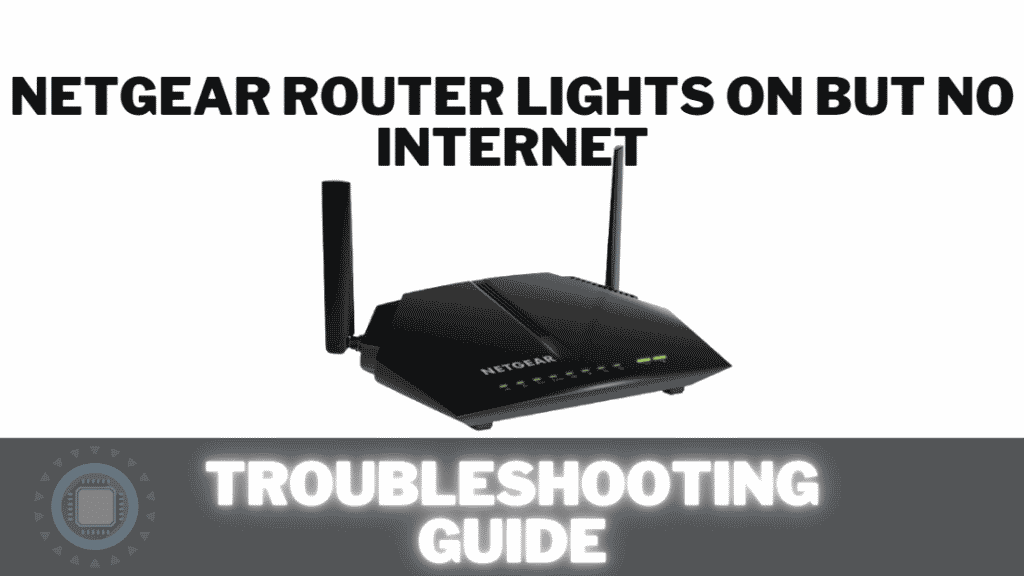 Router Lights on But No Internet" class="wp-image-7812" width="256" height="144"/>
NETGEAR Router Lights on But No Internet
Key Takeaways
- You'll learn what each NETGEAR LED means, from the power and internet lights to the 2.4GHz, 5GHz, USB and Ethernet indicators, so you can read your router at a glance.
- We explain how to diagnose a flashing internet light by its colour; green often signals normal activity or a line quality issue, whilst orange or red usually points to a modem or connection fault.
- You'll work through a connectivity checklist that covers reseating Ethernet cables, confirming the modem has internet and checking that power is actually reaching the unit.
- We cover the core fixes that resolve most cases, including a full network power cycle, a firmware upgrade and contacting your ISP about static IP or PPPoE setup.
- You'll see how to perform a factory reset, either with the rear reset button or through the NETGEAR phone app, and why noting your passwords and reconfiguring extenders beforehand saves time.
Fix NETGEAR Router Issues With Troubleshooting: NETGEAR Router Lights On But No Internet
If your lights are on, then check and see what the picture or label is next to each one. The light indicator will correspond with each of the picture or indicator symbols on the router. Each router manufacturer and model will have varying indicators for specific features, so you will need to confirm what each one means.
We have a NETGEAR example further down in the article for you to look at.
When troubleshooting, the first step is to verify connectivity. Simply put this means that you need to check that all of the necessary cables are plugged in. In the case of Ethernet, you will see a connectivity light that is ether green, orange or both.
If you only have a single router or modem then you might not have an Ethernet cable plugged in unless you physically connect to the internet via an Ethernet cable. If you have a router and a modem, then the chances are good that you have an Ethernet cable plugged in from one to the other.
Here is a basic NETGEAR Router checklist for you to follow:
1. Is your router’s light blinking?
2. Is the router power on?
3. Is the router connected to a cable modem or wireless access point?
4. Does the cable modem have internet connectivity?
5. Check the ethernet cable that connects the router to the modem. Is it plugged in all the way?
6. If you don’t have a wireless network, check the cables that connect your router to other devices. Is your wireless network adapter powered on?
Why is there No Internet But NETGEAR Router Lights Flashing?
If you have a series of flashing LEDs then we will go through the most common reasons why this could be happening. Most NETGEAR routers have the following router lights:
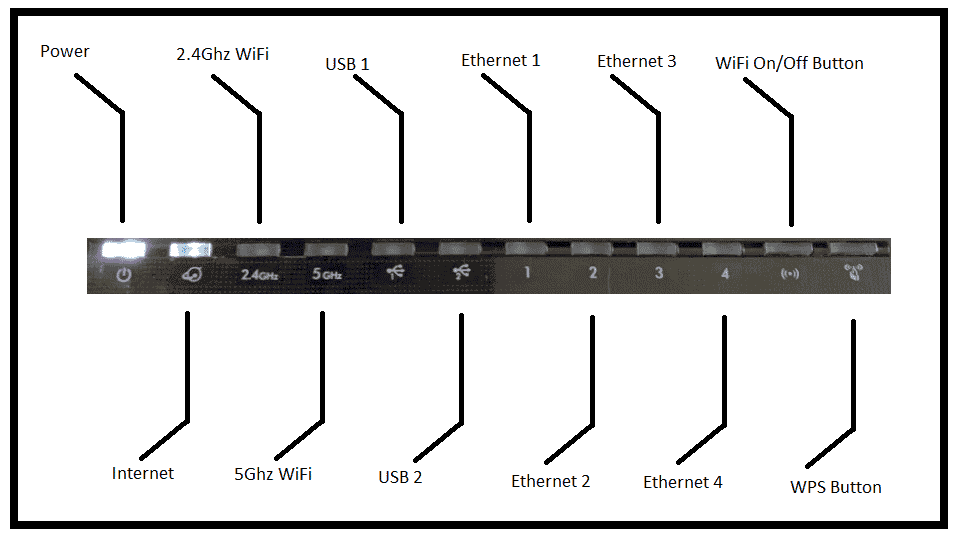
NETGEAR LED lights troubleshooting
Power Light
The easiest way to diagnose a bad internet connection is to look at your router's power light. If it is off, then you are probably dealing with a very quick fix.
Simply check why your router is not receiving power by checking your power plug is in, the power button on your router is on, the power supply is plugged in, and that your wall socket is on and receiving power.
Internet Light
If you have no internet light on, then you will need to contact your ISP right away as there is probably an issue with your connection, or an issue in your area.
2.4GHz
This is the WiFi signal light indicator for the 2.4GHz WiFi range. This is for older devices such as security cameras, older gaming consoles and smart phones.
Most modern devices are backwards compatible with this older WiFi standard, and it is still often used thanks to its stability and increased range. It is slower than the 5GHz band of your WiFi network.
5GHz
This LED shows that your 5GHz WiFi signal is active. This segment of your wireless network will be responsible for giving your newer devices internet access, which we alluded to earlier. WiFi is much faster on the 5GHz segment of your WiFi network.
USB 1 & USB 2
Some models of NETGEAR routers allow for USB peripherals to be attached such as USB storage or backup USB Cellular modems. The LEDs indicate activity on these ports.
Ethernet 1 - 4
These are the lights that we mentioned in our introduction: they let you know if there is any network traffic being transmitted between computers, switches, routers and laptops that are attached to these ports via an Ethernet connection.
WiFi On/Off
Most modern routers allow you to switch off the WiFi via a switch or button on the back. This is a secure way to switch off WiFi access when you do not want it being broadcast in your home. For parents it is also a handy way to get everyone to come to the dinner table if their calls have been going unanswered.
WPS Button
WPS allows your router to enroll a device onto the WiFi with the touch of a button. Simply activate the WPS mode on your NETGEAR router, and then do the same on the device you wish to connect to the WiFi. You will be walked through a very simple pairing process, and in most cases this will all happen automatically.
Why can't I connect to the internet with my NETGEAR Nighthawk?
If you receive an "Internet not connected" message when using Nighthawk or Orbi, try power cycling your wireless network.
If you are having trouble connecting to the internet then you will need to start with the basics, such as restarting your router.
Try installing the Nighthawk app on your smartphone in order to properly diagnose where the fault lies with your internet connection.
You might find that your ISP has specific configuration needs in order to connect to the internet.
Static IP
Your ISP's static IP address is obtained from that provider. This address does not change, so you will need to contact your ISP if you do not know the static IP address for your router.
PPPoE
This connection type requires a user name and password that are provided by your Internet service provider in order to access the Internet.
Different ISPs may require different types of connections, so some basic setup might be required. From the "Internet is not connected" screen, tap Advanced Setup. A screen titled Advanced Network Setup appears, and from here you can enter in more details.
Your ISP will require you to select a specific connection type. For details on your connection, contact your ISP if you are not sure which connection is right for you.
ReadyNAS Network Storage Setup
If you are wanting to take advantage of ReadyNAS Network Storage features for your home network then you need to know the IP address of your ReadyNAS server.
Download and install the ReadyCloud App to have access to all your files over the internet. In order to setup your ReadyNAS you will need to log into it via an internet browser.
- Set up.
- Advanced Set up.
- Network Set up.
- Storage.
- Select the IP address of your ReadyNAS server.
- Save.
The ReadyNAS server IP address is the IP address of your ReadyNAS server.
If you don't have a ReadyNAS unit but still want to have access to all of your files and data, then you can simply plug in a USB storage device into one of your NETGEAR router's USB ports.
You will need to create a ReadyCLOUD account, which can be created on the ReadCLOUD's website.
After you have connected the USB device to your router, then you will need to log into your router. NETGEAR recommends that you enter in the following URL into your web browser http://routerlogin.net, and the Netgear router login guide covers the steps and the fixes when it will not load.
This assumes that you are on the same network as your router. If that doesn't work, then you will need to find and enter in your WiFi router's IP address.
Once you have logged into the router, navigate to the ReadySHARE tab. From there, you will need to choose the ReadyCLOUD selection, followed by the ReadyCLOUD credentials that you have just configured.
You will now be able to connect to your files from anywhere, giving you the convenience of cloud storage without the worry of losing access to your data.
Common NETGEAR Router Issues and Symptoms
We want to cover some common topics that users often run into when they are troubleshooting a NETGEAR router, including WiFi issues.
Our Internet Light Flashes Green Constantly
This will vary in color, intensity and flashing frequency depending on the model of router you have, and the LED light label. This means that simply noticing that your internet light is flashing green constantly could mean several different things.
For example, if your internet light is constantly flashing green, it could mean that your internet is working fine, but that you are having problems with your line or the quality of your connection. It could also mean that there is nothing wrong with your router at all, and that the blinking and flashing is just an activity light.
Each model router is different so be sure to check your router's manual for the specific flashing or blinking that your router is doing.
If you are unsure what the flashing or blinking means, then you should contact your internet service provider or call the technical support number on your router's manual.
Our Internet Light Flashes Orange Constantly
An orange internet light normally means that there is a problem with your line or your router. If your internet light is constantly flashing orange, then it could mean that there is a problem with the modem itself.
If you are not having any issues and your internet light is flashing orange then it could be a
problem with your router.
If you are not sure what the flashing or blinking means, then you should contact your internet service provider or call the technical support number on your router's manual.
Our Internet Light Flashes Red Constantly
A red internet light normally means that there is a problem with your line or your router. If your internet light is constantly flashing red, then it could mean that there is a problem with the modem itself.
Your NETGEAR router may not be getting an IP address from your ISP. If you are having issues getting an IP address, then it is likely that you are not connected to the internet. You can confirm this by accessing the router's IP address.
If you have a static IP address, then it is likely that you are not connected to the internet. You can confirm this by accessing the router's IP address.
Be Sure To Check The Cables And Connectors
This seems like a really basic thing to look at, but it is very often the cause of internet and router issues. Don't be afraid to unplug your Ethernet cables very carefully, and make a note of where they plug into.
Reseat these cables back into the Ethernet port and make sure that it clicks back into its socket. Once it is connected you should see an Ethernet activity light come on.
Perform a Network Restart
This might sound difficult, but it really isn't a problem to perform a network restart. This will reboot your router and re-establish your network. All you need to do is unplug the power plug from the router or modem, wait for a few seconds, then plug it back in. Wait for a few minutes and then test your internet connection again.
If you are having issues with your internet connection then this should help to resolve the problem.
I Am Seeing No Lights At All On My Router
This can often mean that there is a power related issue with your router or its power supply. Make sure that your power supply is plugged into a power outlet that is turned on, and that the outlet is working properly.
If you have confirmed that you have power and the router is still not displaying any LEDs then you will need to check that there isn't a power button or switch that hasn't been switched off.
If there is no button, and there is definitely power coming from the outlet, then your power supply or router could be faulty and will need to be taken in for an assessment or repairs.
Try To Upgrade Your NETGEAR Router Firmware
Sometimes it is difficult to diagnose the exact fault on a NETGEAR router if you are having internet issues, especially if they are internittent faults.
In cases where there are router updates in the form of firware packages it is often advisable to perform an upgrade. This is low level software that the manufacturer updates to close up security holes and fix bugs.
If you are having issues with your internet connection then you should check to see if there is an update available for your router. This will often resolve the issue.
NETGEAR Router Lights
How Do You Fix Connectivity Issues with your NETGEAR Router?
This will depend entirely on which lights are on. If your Ethernet and Power lights are on, but your internet light is off, then you will have some LEDs on but no internet.
Look at the illustration earlier in our article and look at which LEDs are illuminated on your router and what they mean. The next step to restoring your internet connection might be a NETGEAR router reset.
Try To Revert The Router To Default Factory Settings
If you have tried everything so far but no internet is available still, then a factory reset might be just the ticket.
This is might seem like an extreme remedy, but it isn't really that complicated to perform a factory reset. When you perform this procedure, you reset your router back to its original state that it was in when it left the factory, giving you a "new" router.
You will need to follow these steps to perform a factory reset:
- Press the reset button on the back of your router with a paper clip.
- Wait for a few seconds.
- Wait for the router to reboot.
You will now have a "new" router. Be sure to make a note of all of your IP addresses, usernames and passwords as well as your account details for your internet connection before you do a factory reset.
This will save you time once the reset has completed. If you are concerned that someone possibly had unauthorized access to your WiFi then it might be a good idea to set a new WiFi password.
Also remember that if you have a NETGEAR WiFi extender then you will need to reconfigure that extender device in order to expand your network's reach.
Try Factory Resetting With NETGEAR App On Your Phone
If you can't physically access the router but you need to perform a factory reset, then you can use the NETGEAR app on your phone to perform a factory reset.
If you have the NETGEAR app installed on your phone, you will need to open the app and select the option to perform a factory reset. This will be found on the menu on the left side of the app. You should have WiFi access to your NETGEAR router in order to carry this out.
You will then need to tap on the "Reset to factory defaults" button. Wait for the factory reset to complete and then you are done. Also remember to reconfigure your extender units if you have any installed on your WiFi network.
NETGEAR Router Issues
Why Factory Reset Your Router?
A factory reset will revert all of the configuration settings back to its original state. This means that your settings will be the same as they were when you first set up your router.
It is often the case that the configuration settings of a router are changed to be more secure, which will cause issues when you try to access your router. An example is when you forget the administrator password on your router.
A factory reset will set all of your settings back to the way they were when you first set up your router. This is often a good way to start over if you are having issues accessing your router as the username and password will reset back to the default credentials.
Router Light On But No Internet: The Universal Causes
The brand on the case changes, the failure modes do not. When a router shows power and even WiFi, yet nothing loads, the fault almost always sits in one of five places. Work down the list in order, because the cheapest fixes live near the top.
The Line Has Not Synced (DSL Or Fibre Not Locked)
On a DSL or fibre connection, the modem first has to lock onto the signal coming in from the street before any internet can flow. That handshake is the broadband or DSL light. While it is dark, or flashing red, the modem is hearing nothing from your provider's equipment, so an IP address never gets a chance to arrive. A solid broadband light is the green flag; a flashing one means the sync is still being negotiated, and a dark one means no signal is reaching the unit at all. Give it five minutes after a restart, since the lock can take that long to settle on some lines.
Your Provider Is Having An Outage
Plenty of dead connections have nothing to do with your kit. Before reaching for a paper clip, rule out a fault in your area. Most UK providers publish a live service-status checker, and independent trackers such as istheservicedown.co.uk and downdetector.co.uk show spikes of reports street by street. If the map lights up around your postcode, the fix is patience and a cuppa, not a reset.
A Cable Is Loose Or In The Wrong Port
This is the dull one that catches everybody. A WAN or broadband cable that has crept half a millimetre out of its socket reads exactly like a dead line. Reseat every cable until it clicks, and double-check that the lead from the wall is in the WAN, DSL or broadband port rather than one of the numbered LAN ports next to it. A wrong-port lead gives you working WiFi between your devices and still no path out to the internet.
No IP Address Has Been Issued (DHCP)
Once the line is up, your router has to be handed a public IP address by the provider before it can pass traffic on. That lease is DHCP doing its job. When the line syncs but the internet light stays amber or orange, the usual culprit is a lease that never completed, or a PPPoE username and password the router is not sending. A full power cycle clears the stale lease and forces a fresh request, which is why it resolves so many cases on its own. If it keeps failing, the provider may need to re-provision the line at their end.
DNS Is Failing
The sneaky one. The line is up, an IP is issued, raw connectivity works, and yet pages still will not load because the name lookups are dead. That is DNS falling over. Swapping the router's DNS servers to a public resolver such as 1.1.1.1 or 8.8.8.8, then rebooting, brings sites back without touching anything else. A power cycle also flushes the cached entries, so it is worth trying first.
By Provider: Still No Internet
The causes above are universal, but the exact light pattern and the reset routine differ from one UK provider to the next. Jump to the hub for your own kit, read your specific colour, and follow the steps written for that hardware.
- EE. The colour codes on EE's hubs have their own logic; the full breakdown lives in what the lights on an EE router mean and how to fix them.
- Virgin Media. Virgin's Hub lights run differently across the Hub 3, 4 and 5; match yours in the Virgin Media Hub lights complete guide for all models.
- BT. A pink or purple light on a BT Smart Hub has a specific meaning and fix, covered in BT Hub flashing pink light.
- Vodafone. A red light on a Vodafone router points at the line or the broadband service; walk through it with the Vodafone router flashing red complete troubleshooting guide.
- Sky. Every Sky Broadband Hub model gets its own colour chart in Sky Broadband Hub lights explained for all models.
- A reset for any provider. When a power cycle is not enough and a clean factory reset is the next move, follow the provider-by-provider steps in how to reset your router for every UK ISP.
If the internet comes back but the signal is patchy once it does, that is a coverage problem rather than a connectivity one. The fixes there are different again: start with how to fix a weak WiFi signal and speed up your internet or the quick WiFi only showing 2 bars fix in five minutes, and for dead zones weigh up WiFi extender vs mesh and which one fixes dead zones.
Wrapping up
We hope you have found this NETGEAR router information useful if you are having internet access issues, even though the lights on the unit appear to be working as expected. We have gone over a lot of information in this article, so we should have covered your issue if you are experiencing difficulties.
Having no internet is tough, and if you are still having problems then it is worth checking to see if there are any updates available for your router. If there are updates available, then it is recommended that you install them as they may resolve your issues.
Thanks for stopping by.