
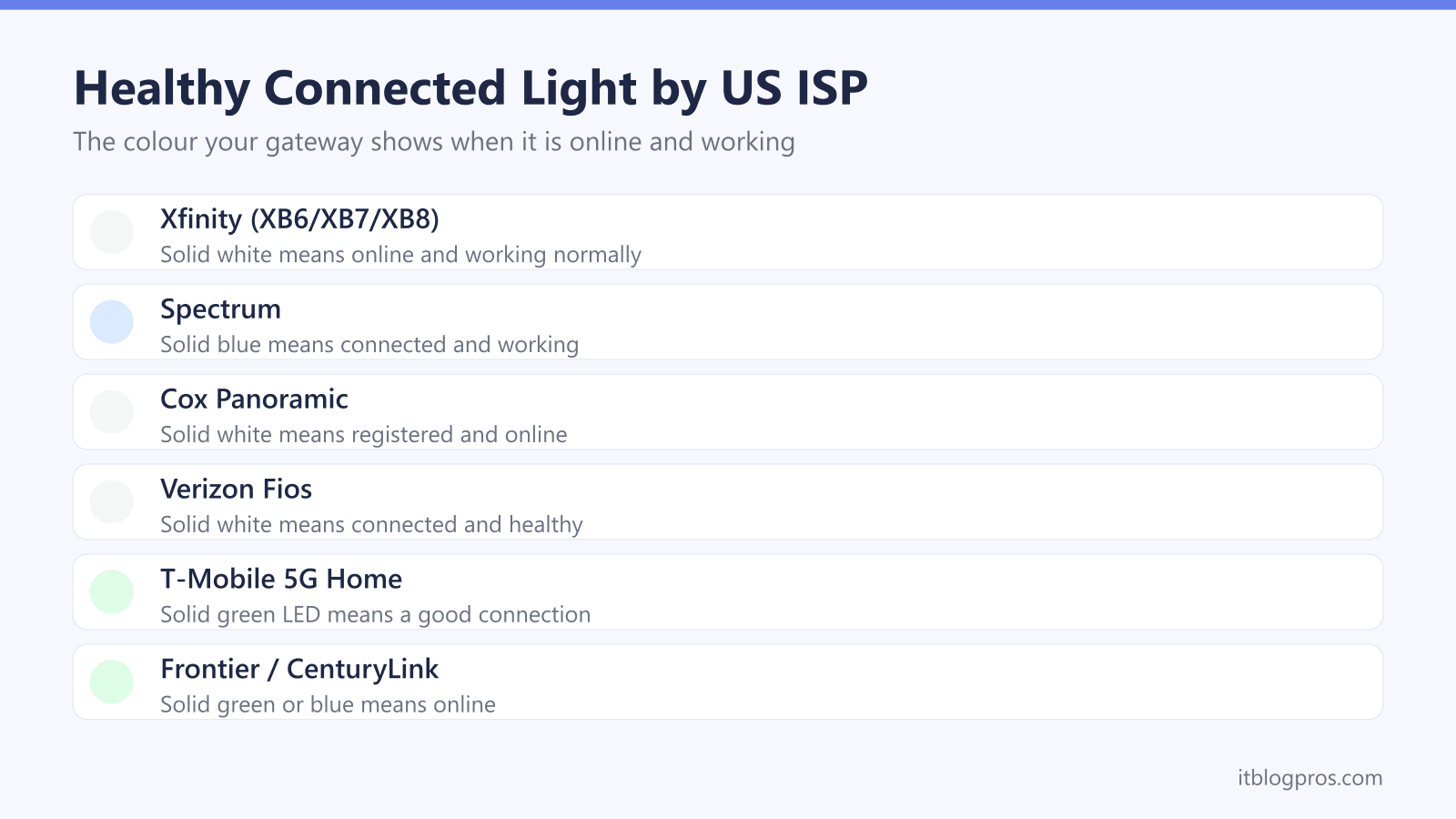
This is the cross-ISP gateway lights hub for the United States. Whatever provider supplies your internet, the colour and pattern of the status light on your modem or gateway tells you exactly what is happening with your connection. The catch is that the same colour does not mean the same thing on every box. Solid white is healthy on an Xfinity gateway, but solid blue is the healthy colour on a Spectrum router, and solid green is the one you want on a CenturyLink or T-Mobile unit.
Below is the universal logic that holds across brands, a per-ISP comparison table of the healthy "connected" colour and the most common warning colour for each major US provider, and direct links down to the deep-dive fix guides for the providers people search for most.
Gateway light colours mean different things on each US ISP. Solid white is the healthy "online" colour on Xfinity, Cox and Verizon Fios, solid blue is healthy on Spectrum, and solid green is healthy on T-Mobile 5G, Frontier and CenturyLink. The most common warning colour is amber or orange on cable gateways and red on fibre and 5G units, which usually signals a lost connection.
Key Takeaways
- The same colour means different things per provider, so a solid white light is healthy on Xfinity, Cox and Fios but solid blue is the healthy state on Spectrum and solid green is healthy on T-Mobile, Frontier and CenturyLink.
- Steady almost always means healthy and blinking almost always means the gateway is still trying to connect, so a flashing light usually just needs a few minutes before you start troubleshooting.
- Amber or orange is the typical warning colour on cable gateways such as Xfinity and Cox, while red is the typical warning colour on fibre and 5G units such as Fios, Frontier, CenturyLink and T-Mobile.
- A blinking white light on a new Xfinity gateway means activation is not finished rather than a fault, so it needs completing in the Xfinity app, not a service call.
- No legitimate ISP sends a pop-up, text or call saying your modem is compromised, so treat any unsolicited support number or scary light warning that arrives outside your own router screen as a scam.
Gateway Light Logic Is Universal but the Colours Are Not
Before the per-ISP detail, it helps to know the pattern logic that holds across almost every brand. The colour varies, but the behaviour rarely does.
- Steady light: the gateway has finished what it was doing and the channel is stable. This is the state you want.
- Blinking or pulsing light: the gateway is working on something, usually searching for signal, registering on the network or applying a firmware update. A blink right after a reboot is normal and often clears within a few minutes.
- Warning colour (amber, orange or red): the gateway has power but cannot complete the connection. This is where troubleshooting starts.
- No light at all: no power reaching the unit. Check the adaptor, the outlet and any switch before assuming the box is dead.
For a full colour-by-colour breakdown that is not tied to a single provider, the universal router lights guide walks through every pattern and what it points to.
Healthy and Warning Colours for Every Major US ISP
The fastest single check is knowing the colour your specific gateway shows when it is fully connected. That target colour differs by provider, so it is mapped across the major US ISPs below. If your gateway matches the healthy colour in this table, the line is up; anything else points you to the relevant fix guide.
| ISP | Typical gateway | Healthy "connected" colour | Most common warning colour |
|---|---|---|---|
| Xfinity (Comcast) | XB6, XB7, XB8 | Solid white | Blinking orange/amber (connecting or failing); blinking white means activation not finished |
| Spectrum | Spectrum router / advanced WiFi | Solid blue | Red (blinking = no internet, solid = unresolved error) |
| Cox | Panoramic WiFi Gateway | Solid white | Blinking or solid orange (registering or no stable connection) |
| Verizon Fios | Fios Router CR1000A, G3100 | Solid white | Yellow (internet issue), red (hardware fault) |
| T-Mobile 5G Home | Nokia FastMile / Sercomm gateway | Solid green LED | Red (poor signal or no 4G/5G connection) |
| Optimum (Altice) | Smart Router / Gateway 6 | Solid white | Blinking white (connecting); red on some models |
| Frontier | FiberOptic / Arris gateway | Solid green (power) and solid blue or white internet globe | Red (no IP / authentication failed) |
| CenturyLink | C4000 (GreenWave) | Solid green | Red (connection error), amber (activation needed) |
Notice the split: solid white is the healthy colour on Xfinity, Cox, Verizon Fios and Optimum; solid blue is healthy on Spectrum; and solid green is healthy on T-Mobile 5G, Frontier and CenturyLink. The same colour can carry the opposite message on a different box, so always confirm against your own provider rather than assuming.
Cable, Fibre and 5G Gateways Warn in Different Colours
The provider table makes more sense once you group the gateways by how they reach you, because the warning colours follow the technology.
Cable (Xfinity, Spectrum, Cox, Optimum): these gateways talk to the network over the coaxial line using DOCSIS. The classic warning is amber or orange while the gateway hunts for a downstream signal, often after a power cut or a line issue in the area. Spectrum is the outlier here, using red rather than orange for a lost connection.
Fibre (Verizon Fios, Frontier, CenturyLink fibre): these reach a healthy state faster because fibre is less prone to signal noise. When they do fault, the warning skews to red or yellow, which usually points at the optical line, the ONT or an account activation step rather than a passing glitch.
Fixed wireless 5G (T-Mobile, and 5G plans on other carriers): these gateways depend on cellular signal strength. A green LED means a good connection, yellow means fair and red means poor or no signal, so the fix is often about gateway placement near a window rather than cables at all.
Knowing the family your gateway belongs to tells you whether a warning light points at a cable, a fibre line or simply where the box is sitting in the room.
The Xfinity Light States People Search for Most
Xfinity is the largest US cable provider, so its light states generate the most questions. The XB6, XB7 and XB8 gateways all share the same core logic.
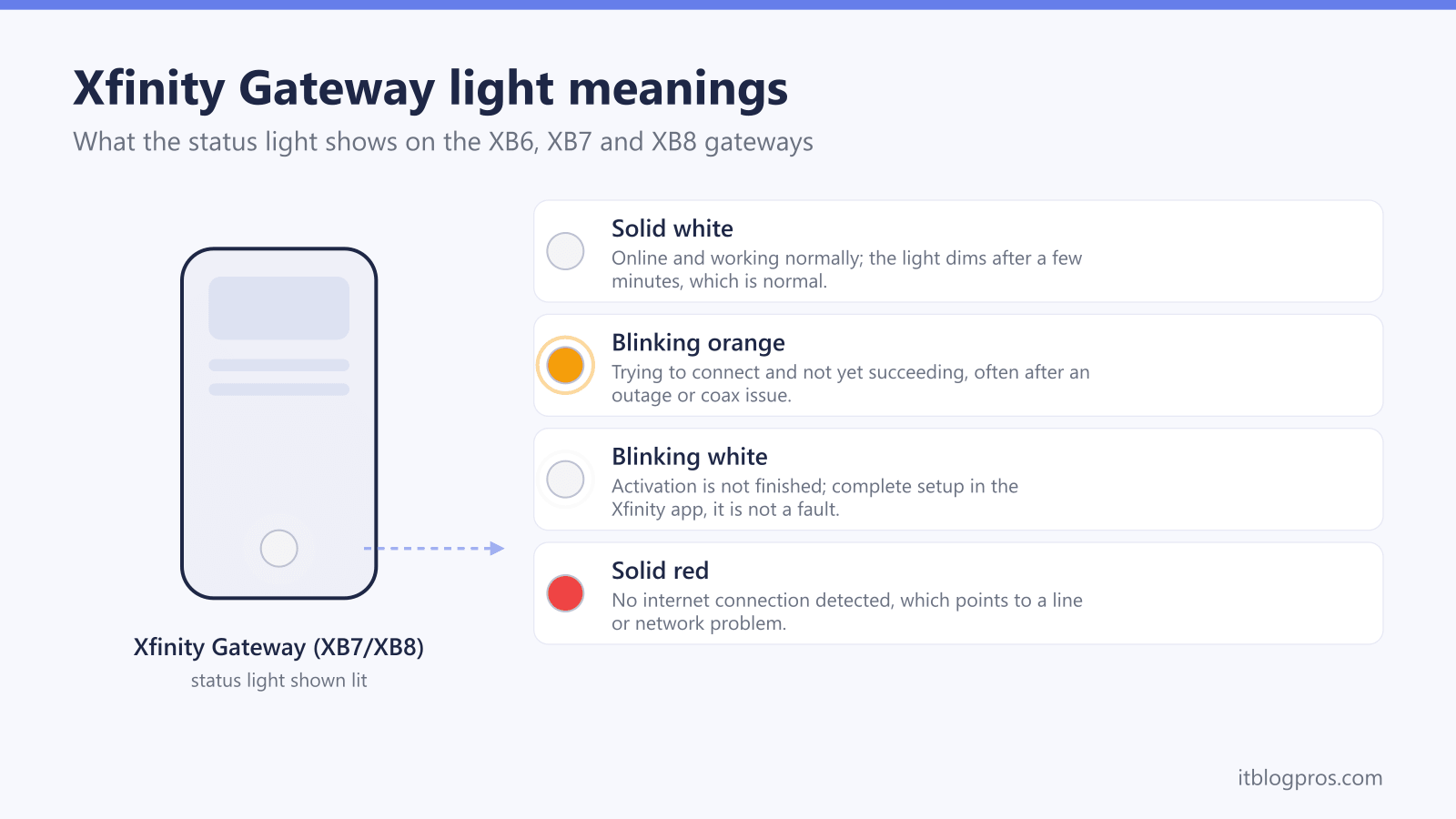
- Solid white: online and working normally. This is the target state and usually dims after a few minutes of inactivity, which is also normal.
- Blinking orange or amber: the gateway is trying to connect to the Xfinity network and not yet succeeding, often after an outage or a coax issue. A power cycle and a check of the coaxial connection are the first steps.
- Blinking white: activation is not finished. This is not a fault. The gateway needs setting up in the Xfinity app rather than a service call.
- Solid red: no internet connection detected, which points to a line or network problem.
Two of these have full fix walkthroughs: see Xfinity router blinking orange light fix and Xfinity router blinking white, no internet. If your XB6 or XB7 is misbehaving more generally, four fast things to try before calling support covers the quick wins, and the XB6 vs XB7 comparison helps if you are weighing an upgrade.
When a Light Means a Reset and When It Means Something Deeper
Most light warnings clear with a single proper reboot, and most people do it wrong by killing the power for two seconds. The reliable method is the same across nearly every US gateway.
- Unplug the gateway at the wall, not just the standby button.
- Wait a full 60 seconds so the capacitors discharge and the network registers the box as offline.
- Plug it back in and leave it completely alone for up to 10 to 15 minutes while it re-establishes signal and, sometimes, applies a firmware update.
- Only when the light returns to the healthy colour in the table above should you start testing devices.
A reboot will not help, and a factory reset will not either, when the warning light points at something outside the box. Repeated red or amber lights that survive a clean reboot usually mean a line fault, an outage in your area, a loose or damaged coax or fibre connection, or an account or activation issue on the provider side. A gateway that overheats, drops out daily, or shows a warning light that flickers even with the cable unplugged is more likely failing hardware. If the colour will not go healthy after one careful reboot and a cable check, the next step is the provider, not another reset. For the wider pattern where the gateway looks fine but devices still cannot reach the internet, see why your WiFi says no internet and, for households running their own router behind the gateway, what double NAT is and how to fix it.
No Light Warning Comes From a Pop-Up, Text or Phone Call
A genuine status light only ever appears on the gateway itself. It does not arrive as a browser pop-up, a text message or a phone call. Scammers know that a scary light or a "your modem is compromised" warning sends people looking for a support number, so they seed fake numbers into search results and send unsolicited messages claiming your equipment is hacked, infected or about to be disconnected.
Protect yourself with a few habits:
- No legitimate ISP proactively calls, texts or pops up a message saying your modem is compromised. Treat any such contact as a scam.
- Never call a support number from a pop-up, a text or the top of a search result. Type the provider's address yourself or use the number printed on a real bill or the official app.
- No real ISP technician needs remote-access software, a gift-card payment or your full account password to fix a light. Those requests are the scam.
- If you are unsure, hang up and call back on the official number. A real provider will not object.
The light on your own gateway, checked against the table above, is the only status indicator you should trust.
Jump to the Fix Guide for Your Gateway
For the full colour-by-colour breakdown and provider-specific fixes, go straight to the deep-dive guide for your situation:
- Xfinity blinking orange: Xfinity router blinking orange light fix
- Xfinity blinking white, no internet: Xfinity router blinking white, no internet
- Spectrum red light: Spectrum router red light fix
- Tired of the rental fee: stop renting your Xfinity gateway and buy your own modem
- Any brand, every colour: universal router lights guide
If your provider is not listed above, the universal guide covers the shared patterns, and the table on this page gives you the one fact that solves most cases: the colour your gateway should be when it is healthy.