
A blinking green light on an Xfinity router or modem almost always means the same thing: the device is trying to lock onto a signal and has not finished yet. It is the connecting state, the moment between power-on and full service, and it appears most often right after a reboot, a brief outage, or a firmware update that Comcast pushed in the background. Left alone for a minute or two, it normally settles to a steady light and the internet comes up.
The problem is only when it never settles. A green light that keeps blinking past a few minutes means the gateway is stuck part-way through that handshake, usually because of an outage, a loose coaxial cable, a dead wall outlet, or a signal-sapping splitter. This guide explains exactly what blinking green means on both the newer xFi gateways and older standalone modems, how to tell a normal start-up from a genuine fault using nothing but a clock, and a fix ladder that ends the stall without a support call. It also flags the fake "modem compromised" scams that target Comcast customers searching for help.
A blinking green light on an Xfinity router means the device is searching for and trying to lock a signal, which is normal for a minute or two after a reboot, outage, or firmware update. If it clears to a steady light you are fine. If green keeps blinking past about five minutes with no internet, the gateway is stuck, so check for an outage, reseat the coaxial cable, then power cycle it.
Key Takeaways
- Blinking green is the connecting state, the device acquiring and locking its signal, and it is normal for roughly one to two minutes after a reboot, brief outage, or firmware update.
- Timing decides everything. Green that settles to a steady light within a few minutes was a normal start-up, while green that keeps blinking past about five minutes points to a connection fault that needs the fix ladder.
- On newer xFi gateways green appears during bring-up before the LED turns solid white, while older standalone Comcast modems use separate downstream and upstream lights that blink green while ranging, then go solid.
- The fix order is check for a Comcast outage, reseat the coaxial cable and try another active outlet, remove any splitter, then power cycle for 60 seconds before any factory reset.
- Comcast never calls or texts unsolicited to say your modem is compromised, so treat any green-light support number you did not dial yourself as a scam.
What a Blinking Green Light Means on an Xfinity Router
A blinking green light tells you the device is in the middle of connecting. It has power, it is talking to the Comcast network, and it is working through the handshake that brings the line into service, but it has not finished. Engineers call this stage ranging or syncing: the modem is acquiring the downstream channels coming from Comcast and trying to lock an upstream channel back. While that is happening the light blinks green, and once the connection is steady it stops blinking.
This state shows up most often in three harmless situations:
- Right after a power cycle or reboot. Every time the gateway restarts, it blinks green while it re-registers with the network. This is expected.
- After a brief outage clears. When Comcast service returns, the gateway has to re-acquire its signal, and it blinks green during that recovery.
- During or just after a firmware update. Comcast pushes firmware without warning. The gateway can blink green as it comes back up afterwards, and you should not unplug it mid-update.
The single most useful fact is that blinking green is normal for only a short window, usually a minute or two at power-on before the connection goes steady. Xfinity does not publish a duration for that stage, so treat the timings on this page as a working guide rather than a specification, and judge it with the clock and the outage check instead of a fixed number. The trouble starts only when it never steadies, which the next section settles.
How to Tell a Normal Start-Up From a Stuck Connection
The colour alone does not tell you whether you have a problem. The clock does. Note the time, leave the device completely alone, and watch what the light does over the next few minutes.
| What you see | Most likely cause | What to do |
|---|---|---|
| Green blinks then settles within about 1 to 2 minutes | Normal connecting after a reboot or outage | Nothing, it is working as intended |
| Green keeps blinking past about 5 minutes, outage confirmed | Comcast area outage | Wait and monitor the outage page |
| Green keeps blinking past about 5 minutes, no outage reported | Cable, outlet, splitter, or signal fault | Work the fix ladder below |
| Green never appears and the light is off | No power | Check the adapter and the wall outlet |
A reliable rule of thumb from field reports is that green blinking for more than a couple of minutes after a clean reboot, and certainly more than five minutes, has stopped being a normal start-up and become a stuck connection. If it is still blinking green well past that window with no internet, the gateway has the downstream signal in sight but cannot complete the handshake, and that is a fault you can fix.
Before checking anything else, confirm there is no outage. Open the Xfinity app on mobile data rather than the WiFi that is down, and look at the Status or Outage section. A confirmed outage means the only fix is to wait, because no reset will restore a signal Comcast is not sending.
Blinking Green on Newer Gateways Versus Older Modems
What the green light looks like depends on which hardware Comcast gave you, and reading it correctly avoids chasing the wrong fix.
Newer xFi gateways (XB6, XB7, XB8, XB10) use a single multi-colour LED on the front. On these, green is a bring-up colour rather than a normal-operation colour. You may see green flicker during the connecting stage before the LED settles, and the healthy online state is solid white, not green. If your gateway sits on a steady green and never reaches solid white, treat it the same as a persistent blinking green, because it has not finished coming online.
Older standalone Comcast modems (for example Arris or Netgear cable modems supplied before the all-in-one gateways) use a row of separate labelled lights such as Power, Downstream (DS), Upstream (US), and Online. On these, the downstream and upstream lights blink green while the modem is ranging and locking channels, then go solid green or solid blue once the connection is established. A downstream or upstream light that keeps blinking green is the modem failing to lock that channel, which is the same connection fault in a different layout.
Either way, blinking green means the same underlying thing: signal acquisition in progress. If you are decoding a colour that is not green, the cross-ISP router lights guide and the pillar guide to router and gateway lights by ISP map every state.
The Fix Ladder for a Persistent Blinking Green Light
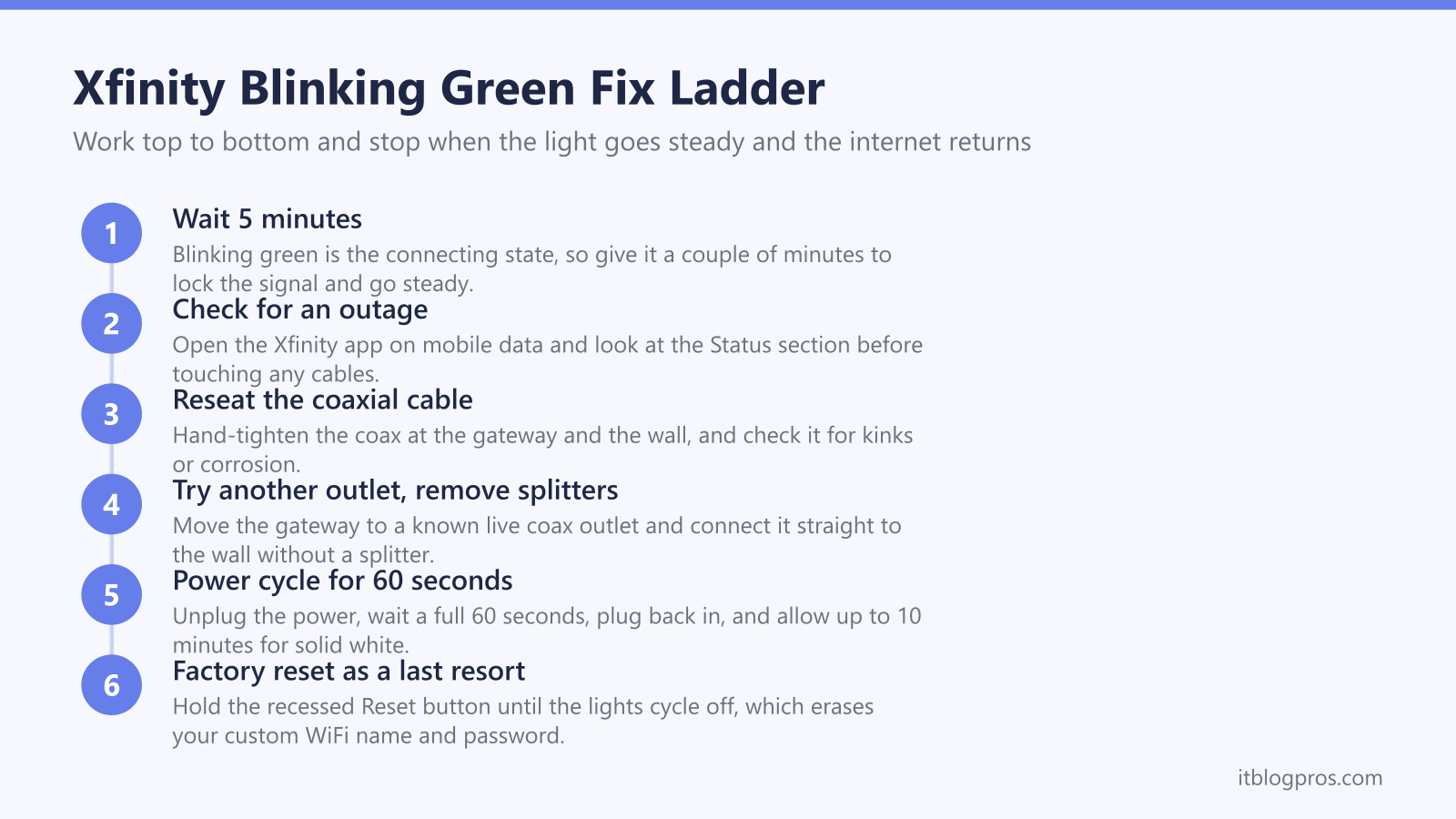
If the light has blinked green for more than about five minutes and there is no reported outage, work these steps in order and stop the moment the light goes steady and the internet returns. Each step is more disruptive than the last, so there is no need to skip ahead.
- Confirm no outage. Re-check the Xfinity app Status section on mobile data. An area outage is the most common cause and needs nothing but patience.
- Reseat the coaxial cable. Hand-tighten the coax connector at both the gateway and the wall plate. A finger-loose connector is enough to stop the modem locking a signal. Check the cable for kinks, crushed sections, or corrosion.
- Try a different wall outlet. Not every coax outlet in a home is live. If you can, move the gateway to another active outlet and watch whether it locks on, which rules out a dead jack.
- Remove any coaxial splitter. Splitters drop the signal power reaching the modem, and a marginal line can leave it stuck blinking green. Connect the gateway straight to the wall to test.
- Power cycle the gateway. Unplug the power cord, wait a full 60 seconds, then plug it back in and allow up to 10 minutes for the boot sequence to finish on solid white. A power cycle keeps all your settings, WiFi name, and password.
- Restart from the Xfinity app. Under WiFi then Troubleshoot, the app can run the same reboot remotely if you prefer a guided option.
If the light reaches solid white but devices still say connected with no internet, the fault has moved past the gateway. The WiFi says no internet guide and the note on double NAT cover what to check next.
When and How to Factory Reset the Gateway
A factory reset is the last resort, not a routine step, because it wipes every customisation. Only use it if green keeps blinking after the full fix ladder and there is no outage.
A power cycle and a factory reset are not the same thing. A power cycle, unplugging for 60 seconds, keeps your WiFi name, password, and all settings. A factory reset returns the gateway to defaults, so your custom WiFi name and password, any port-forwarding rules, and other settings are erased and must be set up again.
To factory reset an Xfinity gateway, first work out which control it actually has, because the pinhole instruction that circulates for every model is really the instruction for two of them. Xfinity's article Factory reset an Xfinity Gateway (XB2 or XB3) tells those owners to hold a paperclip in the small hole on the back for 30 seconds, and Xfinity publishes no equivalent article for the newer gateways. A Comcast employee answering on Xfinity's forum describes the XB6 as resetting through its pinhole, and the XB7 as resetting from the WPS button held 15 seconds or more. On the XB8, forum answers describe the unit as having no reset hole at all, which leaves that same WPS button as the only thing to press. Because Xfinity documents none of that for the newer models, hold until the lights cycle off rather than trusting a count, then release and wait several minutes for the gateway to rebuild and return on solid white. After a reset you reconnect every device with the default credentials printed on the gateway label, then optionally rename the network in the Xfinity app.
For the XB6 specifically, the four fast things to try before calling support walks the same ground with model-specific notes.
Watch for the Fake Modem Compromised Scam
A gateway stuck on a blinking light is exactly the moment scammers prey on, because a frustrated customer searching for help is easy to redirect. Search results for Xfinity faults are often seeded with fake support numbers, and a separate wave of unsolicited calls and texts claims your modem has been compromised.
- Comcast does not call or text unsolicited to say your modem is hacked, that strangers are connected to it, or that you are owed a refund that needs your bank details. These scripts are designed to create panic.
- Caller ID can be spoofed, so an incoming call showing a Comcast-style 800 number proves nothing. If in doubt, hang up and dial the number on your bill or at xfinity.com yourself.
- No legitimate fix ever involves a gift card, prepaid card, Zelle, a wire transfer, or installing remote-access software so an agent can connect to your computer.
- When you need a support number, type xfinity.com directly rather than calling a number from a search snippet or a pop-up.
A blinking green light is a connection status indicator, never a security alert. Treat any message that frames it as a hacking emergency as fraud.
When a Recurring Green Light Means the Hardware Is the Problem
If the green light keeps returning across multiple power cycles, the coax tests clean, you have tried another outlet, and there is no outage, the rented gateway may be failing or the line into the home may need an Xfinity technician. At that point it is worth a longer-term decision rather than another reset.
Renting the Xfinity gateway costs roughly $15 a month, and a rented unit that throws repeated faults is one you cannot swap on your own schedule. Buying your own Xfinity-approved DOCSIS 3.1 modem removes that rental line from the bill and puts hardware replacement in your hands, which sidesteps the all-in-one gateway faults that produce mystery light errors. The stop renting your Xfinity gateway guide covers the approved modem list and the real savings.
If your gateway is more often showing a different colour, the fix differs. See Xfinity router blinking orange light fix for the amber signal and Xfinity router blinking white with no internet for the white one, both of which share the same gateway light panel as this guide.