
Double NAT is one of those phrases your console flashes up, or a forum throws at you, with no real explanation. It sounds like a fault, but it describes a setup: two routers in a row both doing the same job, and it may go unnoticed until you try to game online or host something.
We have untangled this on Virgin, Sky, BT and EE lines, so here is the plain-English version: what NAT actually is, how a second layer sneaks in, the symptoms that give it away, how to read your WAN IP to tell true double NAT apart from CGNAT, and the cleanest fix for each.
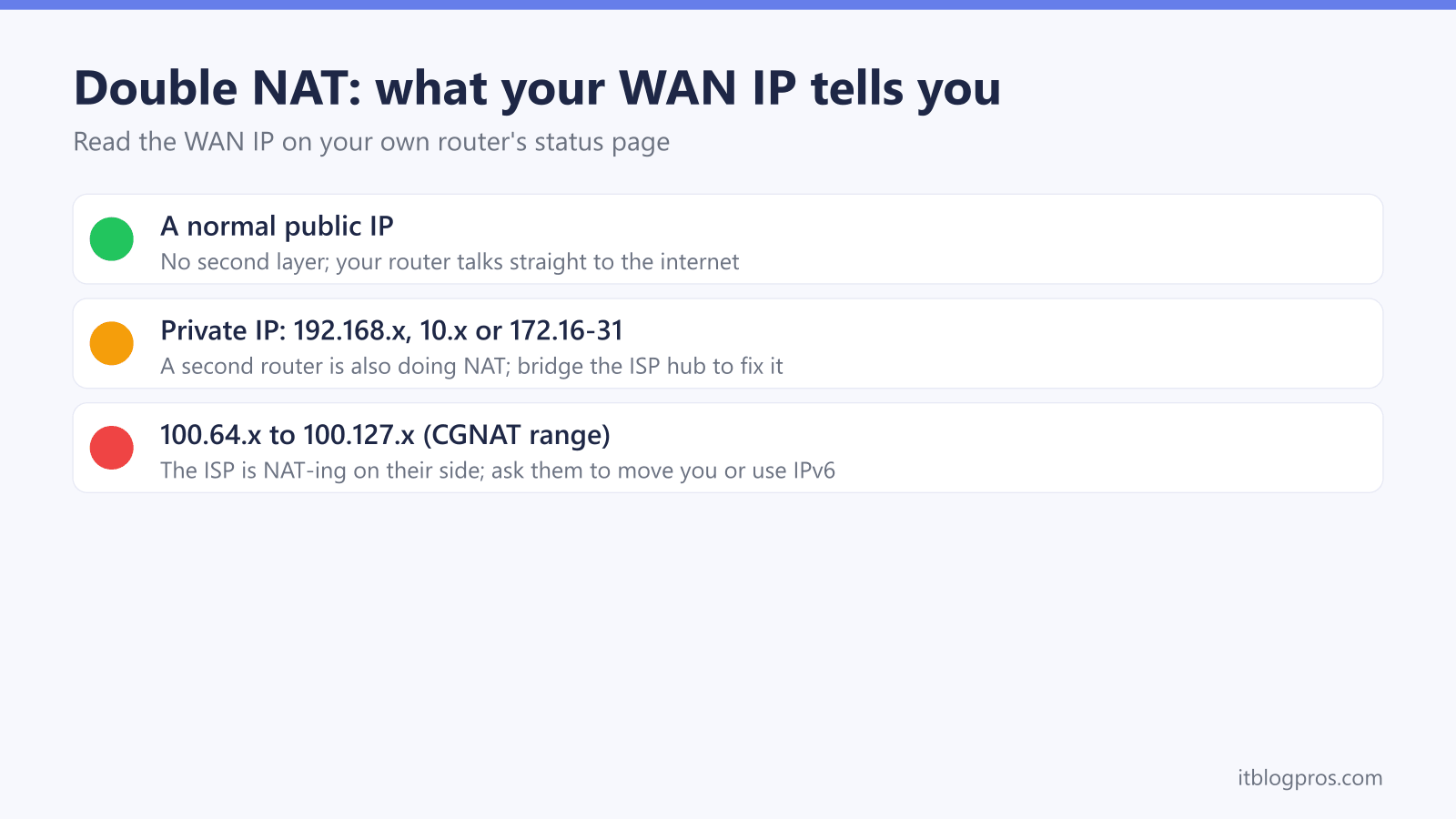
Double NAT means two routers are both performing NAT, such as your own router behind the ISP hub. Xbox Support says it can show a Double NAT detected error and cause trouble joining games and parties, and NETGEAR says port forwarding might have problems. Read your router's WAN IP: a private address behind a second router is fixable double NAT, while a 100.64.x address (RFC 6598) is carrier-grade NAT on the ISP's side.
Key Takeaways
- Double NAT means two devices on your line both act as routers, so your traffic gets translated twice before it reaches the internet.
- Xbox Support says a gateway and a router can both be performing NAT, as when an ISP hub is left in router mode with your own router plugged in behind it.
- Xbox Support says double NAT can show a Double NAT detected error and cause trouble hosting or joining games and parties, and NETGEAR's double NAT article adds possible problems with VPN connections and port forwarding.
- Xbox Support's double NAT steps compare your router's WAN IP with your public IP; a private 10.x, 172.16 to 172.31.x or 192.168.x address on the router means something upstream is doing NAT too.
- The IETF's RFC 6598 reserves 100.64.0.0/10 (100.64.x to 100.127.x) for carrier-grade NAT, so a WAN IP in that range is on the ISP's side, and Xbox Support's step for an ISP-supplied private address is to contact the ISP.
NAT in plain English, and what makes it double
NAT, network address translation, is the quiet bit of plumbing every home router does. Your ISP gives you one public IP address, and all your devices share it. The router keeps a list of which device asked for what, swaps your private home address (something like 192.168.0.42) for the public one on the way out, and swaps it back on the way in. One layer of this is completely normal and invisible. Every router does it, and games, apps and websites all expect it.
Double NAT is simply that same trick happening twice in a row. Your traffic leaves your device, gets translated by your router, then gets translated again by a second router sitting upstream, and only then reaches the internet. Two wrappers instead of one.
A letter analogy helps. Single NAT is posting a letter in one sealed, addressed envelope; the reply finds its way back fine. Double NAT is sealing that envelope inside a second envelope before posting. It still gets there, but a reply trying to reach the original sender has two layers to peel back, and it often gets confused about who actually sent it. That confusion is the whole problem, and it shows up in the things Xbox Support and NETGEAR name: multiplayer games, party chat, VPN connections and port forwarding.
How double NAT actually happens on a UK line
The classic setup is the one a lot of people build without realising. The ISP hub (Virgin, Sky, BT, EE, Vodafone) is left in its normal router mode, and you plug your own router's WAN port into one of the hub's LAN ports for better WiFi or more control. Now both boxes route, and both run their own DHCP server handing out addresses, often both on 192.168.x. That is two NAT layers stacked on top of each other.
A few other things trigger it. A mesh node left in router mode instead of access-point or bridge mode does the same. So does a 4G or 5G home broadband box sitting in front of a second router. The pattern is always the same: two devices in your home both insisting on being the router.
There is one important lookalike to flag now, because it changes the fix entirely. CGNAT, carrier-grade NAT, is a second layer of NAT done by the ISP inside their own network, not by a second box in your house. It produces identical symptoms but it is not yours to fix; we come back to telling them apart below.
One last point, on speed. Neither Xbox Support nor NETGEAR's double NAT article lists slower line speed among the problems, so to check your own line, run a speed test on a device wired to the ISP hub, then on one wired to your own router, and compare the two.
The real-world symptoms double NAT causes
A games console is one place it shows up. Xbox Support says an Xbox can display a Double NAT detected error under Current Network Status, and that when a gateway and a router are both performing NAT you may have trouble hosting or joining multiplayer games and parties, or hearing other players. Xbox Support also says a Strict NAT type limits you to multiplayer games with people who have an Open NAT and means you can't be chosen as host. Sony's PS4 User's Guide says that with NAT Type 3, communication with other PS4 systems might be impossible or network features might be limited.
Port forwarding is the next clue. NETGEAR's article on double NAT says each NAT layer splits your home into a separate private network and lists port forwarding and triggering among the things that might have problems. If a rule set up on your own router still shows the port closed from outside, check whether the hub in front of it is also routing before changing the rule.
Self-hosting can run into the same wall, because a game server, a security camera you want to view away from home, remote desktop or a NAS you need to reach from outside all rely on inbound connections getting through. NETGEAR's list of double NAT problems also names VPN connections and secure websites that use SSL.
How to detect double NAT by reading your WAN IP
Here is the test that tells you exactly what you are dealing with, and it takes two minutes. Log into your own router and find its WAN, internet or status page; it shows the IP address the router was handed by whatever sits upstream.
Read that WAN IP and check which range it falls in:
- A private address (10.0.0.0 to 10.255.255.255, 172.16.x to 172.31.x, or 192.168.x.x, the ranges Xbox Support lists as private) means a device upstream is also doing NAT. If that upstream device is a second router in your home, it is double NAT and it is yours to fix. An ISP can also supply a private address itself (Xbox Support's double NAT steps cover that case), so confirm there really is a second box in the chain before assuming it is.
- An address from 100.64.0.0 to 100.127.255.255 falls in the Shared Address Space that the IETF's RFC 6598 sets aside for ISPs' carrier-grade NAT. That is the ISP doing a second NAT on their side, and no amount of bridging your own kit will clear it.
- A normal public IP means there is no second layer; your router is talking straight to the internet and double NAT is not your issue.
Cross-check it to be sure. Compare your router's WAN IP with the public IP shown on any "what is my IP" site. If the two differ, something between you and the internet is translating again; Xbox Support's double NAT steps use the same comparison.
The rule of thumb is worth memorising. A private WAN IP plus a confirmed second router in your home equals fixable double NAT. A private WAN IP with only the single ISP hub in the chain may still be ISP-side NAT, so check there genuinely is a second box first. A 100.64 WAN IP equals a phone call to the ISP. Knowing which one you have before you start saves you an evening of applying the wrong fix.
How to fix double NAT, best fix first
The cleanest fix is to remove a routing layer, and the best way to do that is to put the ISP hub into modem mode, also called bridge or passthrough mode. The hub stops routing and hands the connection straight to your router, and Xbox Support's first step for a Double NAT detected error is to put the gateway into bridge mode. Afterwards, run the console's NAT test again: Xbox Support says that if your router's WAN IP does not match your public IP, the ISP is supplying a private address and open NAT will not be possible under that setup. We have the exact Virgin steps in our guide to put the Virgin Media Hub 5 into modem mode, and a separate walkthrough to set your Sky Hub to bridge mode. For the wider per-ISP picture, our hub on how to use your own router with any UK ISP covers BT, EE and the rest, and full-fibre users can check whether they can skip the hub by reading how to connect your own router to an Openreach ONT.
When modem mode is not available (Virgin Media's reset and modem mode help page says it is not currently available for the Hub 5x), NETGEAR's double NAT fix article gives another route for its Orbi and Nighthawk routers: turn the gateway's WiFi off and put your own router in access point mode, noting that some router features are disabled in AP mode. A DMZ or exposed-host feature on the hub is a second fallback. Virgin's WiFi security help page describes a DMZ feature on the Hub 3 and Super Hubs, but the Virgin pages do not mention one on the Hub 5x, so confirm it is there before relying on it. Xbox Support lists the perimeter network (DMZ) setting as a NAT troubleshooting step, says it is critical that the console uses a static IP address set with the router's DHCP reservation function where available, and says not to combine it with port forwarding or UPnP. Xbox Support does not describe putting a second router in a hub's DMZ, so treat that as a workaround rather than a clean fix and rerun the console's NAT test afterwards. Virgin's WiFi security page warns that a device in the DMZ bypasses all firewall settings, so keep your router's own firewall on.
If a mesh node is the culprit, the fix is simpler still. Set that node to access-point or bridge mode instead of router mode, so only one box in the house does NAT.
And if your WAN IP turned out to be 100.64.x, none of the above applies. CGNAT lives on the ISP side, so your only real options are to ask the ISP to move you off it or sell you a static public IPv4 address, or to lean on IPv6 where the service you need supports it.
Picking a router that plays nicely once you have bridged
The whole point of bridging is to let one capable router do all the routing, so the router you choose actually matters now. Keep it proportionate, though; you do not need to overspend.
On a gigabit UK line, such as Virgin Gig1 or Gig2, favour a router with a true 2.5G WAN port so the link itself is not the bottleneck. The TP-Link Archer BE550 is the all-rounder pick here: TP-Link lists a dedicated 2.5 Gbps WAN port, four 2.5 Gbps LAN ports and Router Mode, which is the mode you want once the ISP hub is bridged.

On a sub-gigabit package a 2.5G WAN buys you nothing, so a value WiFi 6 router like the TP-Link Archer AX73 is plenty for a normal house.
If the real problem is dead zones rather than a weak router, do not over-buy a single box; coverage is a different job, and our comparison of WiFi extender vs mesh: which fixes dead zones lays out the choice. And if you landed here from a strict-NAT console headache, our roundup of the best router for gaming in the UK is the natural next stop, alongside the best routers to replace your Virgin Media Hub.