
People use "reset" to mean three very different things, and reaching for the wrong one is how a five-minute fix turns into an evening of reconnecting every device in the house. Most slow or flaky-broadband problems clear with the gentlest option, so this guide sorts the three actions out first, then walks the universal method, then sends you to the exact steps for your gateway.
This is the model-agnostic version. Every US ISP gateway has its own reset button location, hold time and light behaviour, so once you know which action you need, jump to your provider further down for the precise details. It is the troubleshooting companion to the wider US gateway cluster, linking up to the by-ISP lights pillar and across to the light-fix spokes for anyone reading a warning colour before they reset.
A reboot keeps every setting, a power cycle clears volatile memory by unplugging for 60 seconds, and a factory reset wipes the gateway back to its label defaults. The universal fix is a power cycle first, an in-app or in-browser restart second, and a physical reset only as a last resort. Each US ISP gateway needs its own button and hold time, so the by-provider block below routes you to the exact steps.
Key Takeaways
- A reboot keeps every setting, a power cycle clears volatile memory by unplugging for 60 seconds, and a factory reset wipes the gateway back to its label defaults.
- A factory reset returns your WiFi name, passwords, port forwards and parental controls to default, but it does not touch your internet account, which re-authenticates on its own.
- The universal fix escalates from a power cycle, to an in-app or in-browser restart, to a physical reset button only as a last resort.
- Each US ISP gateway needs its own hold time and button, so the by-provider block below covers the exact steps for Xfinity, Spectrum, Cox, Verizon and T-Mobile.
- A reset cannot fix a line fault, an area outage or dying hardware, and needing a reset every few days usually points to a failing rented gateway rather than a bug.
Reboot, power cycle and factory reset are three different actions
Getting the words straight matters, because picking the gentlest fix that works saves a lot of bother.
- Reboot (or restart): a software restart that keeps every setting exactly as it was. Nothing is lost; the gateway just clears its head.
- Power cycle: you unplug it at the wall, wait 60 seconds, then plug it back in. That fully clears the gateway's volatile memory, which a quick reboot does not always manage.
- Factory reset: the big one. This wipes all your customisation and drops the gateway back to the defaults printed on its label.
A simple rule covers most situations. For dropouts, freezes and sluggish WiFi, try a reboot or power cycle first. Reserve the factory reset for the awkward cases: a lost admin login, a gateway you can no longer reach, returning the unit, or a configuration so tangled that a restart will not shift it.
Worth saying once: "reboot" and "reset" are loose everyday terms, and plenty of people swap them around. That is exactly why this page splits them precisely, so you do not wipe your settings when a 60-second power cycle would have done the job.
What a factory reset wipes and what it does not
A factory reset is not a tidy little restart. It returns your custom WiFi network name (SSID) and password, the admin password, any guest WiFi, your port forwards, parental controls and any band or LED tweaks all the way back to the printed defaults on the base of the unit.
In practice that means every wireless device in the house needs reconnecting with the original details on the label, and any mesh nodes or extenders, including Xfinity xFi Pods, usually need re-pairing from scratch. It is the reconnecting, not the reset itself, that eats the time.
Here is the reassuring part. A factory reset does not wipe your internet account. US ISP gateways re-authenticate automatically, so the line normally comes back on its own without a phone call. On Verizon Fios and other models the gateway reboots to the SSID and password printed on the label, so check there before you start reconnecting devices.
Before you commit, jot down any custom settings you care about. Noting them now is far quicker than reverse-engineering them later, once the SSID has reverted and half your gadgets have dropped off the network.
The universal reset method that works on any US gateway
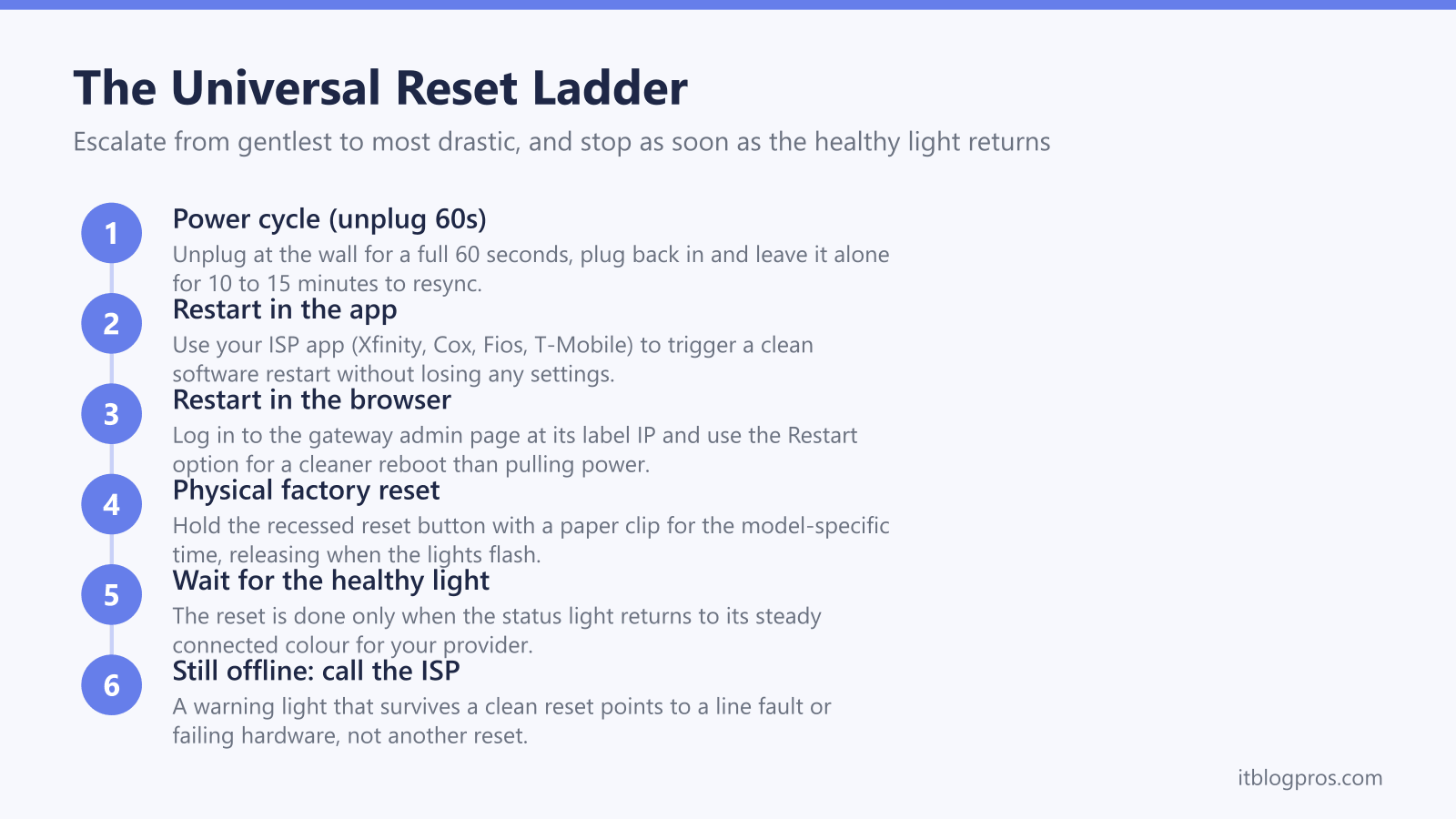
These three steps escalate from gentlest to most drastic. Start at step 1 and only move down if you need to.
- Power cycle (the safe first move). Unplug the gateway at the wall, not just the standby button, and wait a full 60 seconds so the capacitors discharge and the network registers the box as offline. Plug it back in, then leave it completely alone for up to 10 to 15 minutes while it resyncs and sometimes applies a firmware update. Pulling the plug for only two seconds and declaring it broken is the most common mistake here.
- In-app or in-browser restart. Most US ISPs offer a software restart that is cleaner than yanking the power. The Xfinity app, the Cox Panoramic WiFi app, the My Fios app and the T-Mobile Internet app all have a restart option. To reach the admin page instead, find the gateway IP printed on the label, commonly
192.168.0.1,192.168.1.1or10.0.0.1; if it is not on the label, the Windows commandtracert 8.8.8.8reveals it as the first hop. - Physical factory reset. Look at the back of the unit before you press anything, because the control is not a pinhole on every gateway. Many cable gateways do use a recessed pinhole you push with a straightened paper clip, but some, including Xfinity's XB7 and XB8, have no pinhole at all and use the WPS button instead. With the gateway powered on, hold the right control until the lights change, then release and wait while it reboots. Do not pull the power mid-reset; interrupting it can leave the gateway in a worse state than you started.
A reset is only finished when the front status light returns to its steady, connected colour, not the moment the lights stop flashing. If you are not sure which colour that should be, the US gateway lights by ISP pillar and the universal router lights guide confirm the healthy state for your model.
Find your ISP below for the exact reset steps
This is the part that matters. Pick your provider, note the control and the hold time, and remember the gateway is reset only when the healthy light returns. Every figure below says where it comes from, because the control changes between models within a single brand, and several of the hold times in wide circulation online trace back to a forum post rather than to the provider.
| ISP | Gateway | Reset control | Hold time | Where the figure comes from |
|---|---|---|---|---|
| Xfinity (Comcast) | XB2, XB3 | Recessed pinhole on the back | 30 seconds | Xfinity's article "Factory reset an Xfinity Gateway (XB2 or XB3)", which covers these two models and no others |
| Xfinity (Comcast) | XB6 | Recessed pinhole | Not published by Xfinity | A Comcast employee on Xfinity's forum, who describes the XB6 as resetting through its pinhole |
| Xfinity (Comcast) | XB7, XB8 | WPS button on the back rather than a pinhole | 15 seconds or more on the XB7 | The same Comcast employee's forum answer, not Xfinity's documentation; hold until the lights go off |
| Spectrum | WiFi 5, WiFi 6 and 6E routers | Reset button, on the side panel of the WiFi 6 router and the back panel of the 6E and the WiFi 5 Wave 2 | 15 seconds or more; under 15 seconds is only a reboot | Spectrum's own user guides, which give the same threshold on every generation |
| Cox | Panoramic WiFi Gateway (CGM4141, CGM4981) | WPS button on the back, above the phone ports | Cox publishes no hold time | A Cox Community contributor, not Cox; Cox itself documents only a power cycle |
| Verizon Fios | G3100, CR1000A | Reset button on the back | 15 seconds, and hold past it rather than releasing on the count | Verizon's factory reset support page |
| T-Mobile 5G Home | Sagemcom and Nokia 5G21 gateways | Recessed reset port | 5 seconds on the Sagemcom, 5 to 10 seconds on the Nokia 5G21 | T-Mobile's own device tutorials for each model |
Three of those rows deserve spelling out, because they are where the widely repeated advice is wrong.
Xfinity depends entirely on which box you have. Xfinity's factory reset article is titled for the XB2 and XB3, and the pinhole-and-30-seconds instruction everywhere online is that article's, applied to gateways it never covered. On the XB7 and XB8 the control is the WPS button rather than a pinhole, and forum answers describe the XB8 in particular as having no reset hole at all. A Comcast employee answering on Xfinity's own forum put the XB7 case plainly, saying that on the XB7 you hold the WPS button down for 15 or more seconds to reset it, which is what the XB6 does with its reset pinhole. Xfinity does not publish that anywhere, so treat it as a staff answer on a forum rather than documentation, and hold until the lights go off instead of counting to a number.
Spectrum has no generation split. The Spectrum WiFi 5, WiFi 6 and WiFi 6E user guides all set the same boundary: hold 15 seconds or more for a factory reset, and 4 to 14 seconds for a reboot that keeps your settings. That boundary is the reason to hold well past 15 rather than aiming at it, since releasing at 13 gets a restart and the impression that the reset failed. The button sits on the side panel of the WiFi 6 router and on the back panel of the 6E and the WiFi 5 Wave 2.
Cox does not publish a hold time. Cox's own material for the Panoramic gateway documents a power cycle, telling you to unplug the power cord from the wall, wait about 10 seconds and plug it back in. The 60-second figure attached to these gateways all over the web comes from a single Cox Community contributor, a volunteer rather than Cox staff, and that post says to hold the WPS button on the back above the phone ports. Anything repeating the 60 seconds while pointing you at a recessed pinhole has garbled it, since a pinhole cannot double as WPS. Start with the power cycle Cox actually documents, and if you go on to the WPS route, know that you are following a community answer.
AT&T fibre and DSL customers can follow the same logic: on the BGW210 and BGW320 gateways, a short press restarts, while pressing the recessed reset with a paper clip for 15 to 20 seconds performs a full factory reset. For the older walk-through there is a dedicated AT&T router reset guide.
Per-gateway full walk-throughs and light meanings
For the deep-dive on a specific provider, including the full light behaviour during and after the reset, go straight to the relevant guide.
- Xfinity. Restart from the Xfinity app first, and reach for the hardware only if that fails. Check which control your model has before you do: the pinhole belongs to the XB2 and XB3 that Xfinity's reset article covers, while the XB7 and XB8 reset from the WPS button instead. Full steps live in the reset Xfinity router guide, and if a warning colour is showing first, see Xfinity router blinking orange light fix and Xfinity router blinking white, no internet.
- Spectrum. If the box is showing a fault colour rather than just needing a routine reset, the Spectrum router red light fix walks through it before you wipe any settings.
- Verizon. The reset Verizon router guide covers the G3100 and older models step by step.
- Every US provider. The US gateway lights by ISP pillar maps the healthy and warning colour for Xfinity, Spectrum, Cox, Fios, T-Mobile and more, so you can confirm the box is genuinely faulty before resetting it.
The single most useful fact before any reset is the colour your gateway should show when it is healthy. Confirm that first; a box that is already showing the healthy colour rarely needs a reset at all.
When a reset will not fix it
A reset only ever clears problems inside the gateway. It cannot mend anything on the line or upstream, so it pays to diagnose before you wipe your settings and start reconnecting devices.
Read the front light first. A flashing or solid warning colour, amber or orange on cable gateways and red on fibre and 5G units, usually means the box is still trying to reach the network, which is a line or authentication issue, not a software hiccup. Resetting in that state just restarts a connection the gateway still cannot make. The US gateway lights pillar decodes the state across providers.
Next, rule out the things a reset can never touch. Check for a provider outage in your area, reseat the coax or fibre cables at both ends, and on cable gateways check the splitter before you blame the box at all. A loose connection mimics a gateway fault surprisingly well. For the wider pattern where the gateway looks fine but devices still say offline, see why your WiFi says no internet, and for households running their own router behind the gateway, what double NAT is and how to fix it explains a common cause of trouble that no reset will clear.
A brief security note belongs here. A genuine status light only ever appears on the gateway itself; it never arrives as a pop-up, a text or a phone call. Scammers seed fake "support" numbers into search results and send messages claiming your modem is compromised or about to be disconnected, because a scary warning sends people hunting for a number to call. No legitimate ISP proactively calls or texts to say your modem is hacked, and no real technician needs remote-access software, a gift-card payment or your full account password to fix a light. If unsure, hang up and call the number printed on a real bill.
Resetting every few days can mean a failing rented gateway
A one-off glitch is normal and nothing to worry about. A habit of resetting is different. When you find yourself reaching for the plug every few days, the cause is usually a tired rented ISP gateway straining to blanket the whole home, or hardware that is quietly failing, and another reset will not fix either of those.
Some symptoms point at failing hardware rather than a software glitch: needing a reset every few days, a gateway that runs hot, random reboots, ports that have stopped working, or a unit that never finishes booting. Those signs mean replacement, not another reset.
On cable providers there is a money angle too. Most ISP gateways are rented at roughly $15 a month, so a unit that needs constant resetting is costing about $180 a year for hardware that is both unreliable and never becomes yours. Replacing it with an owned, approved DOCSIS 3.1 modem ends the rental fee and often the reset cycle at the same time. The full case, including the two modems worth buying, is in the guide on how to stop renting the Xfinity gateway and buy your own modem.
Be clear about the limit, though. A new modem or more coverage will improve reliability and reach across the house; neither raises the line speed the ISP actually delivers to the property. If the resets stop once the rented gateway is gone, the hardware was the bottleneck all along.