
A laptop that drops WiFi every few minutes while the phones, tablets and TVs in the same house stay online is telling you something useful: the broadband is fine, and the fault lives on the laptop. That narrows the search to a handful of laptop-specific causes, almost all of them fixable inside Windows without buying anything. The usual culprits are power saving switching the adapter off, a buggy driver, a weak 5GHz signal the laptop refuses to let go of, and over-eager roaming settings. This guide works through them in order, from the quickest software fix to the point where a failing card or a dead-spot room needs hardware.
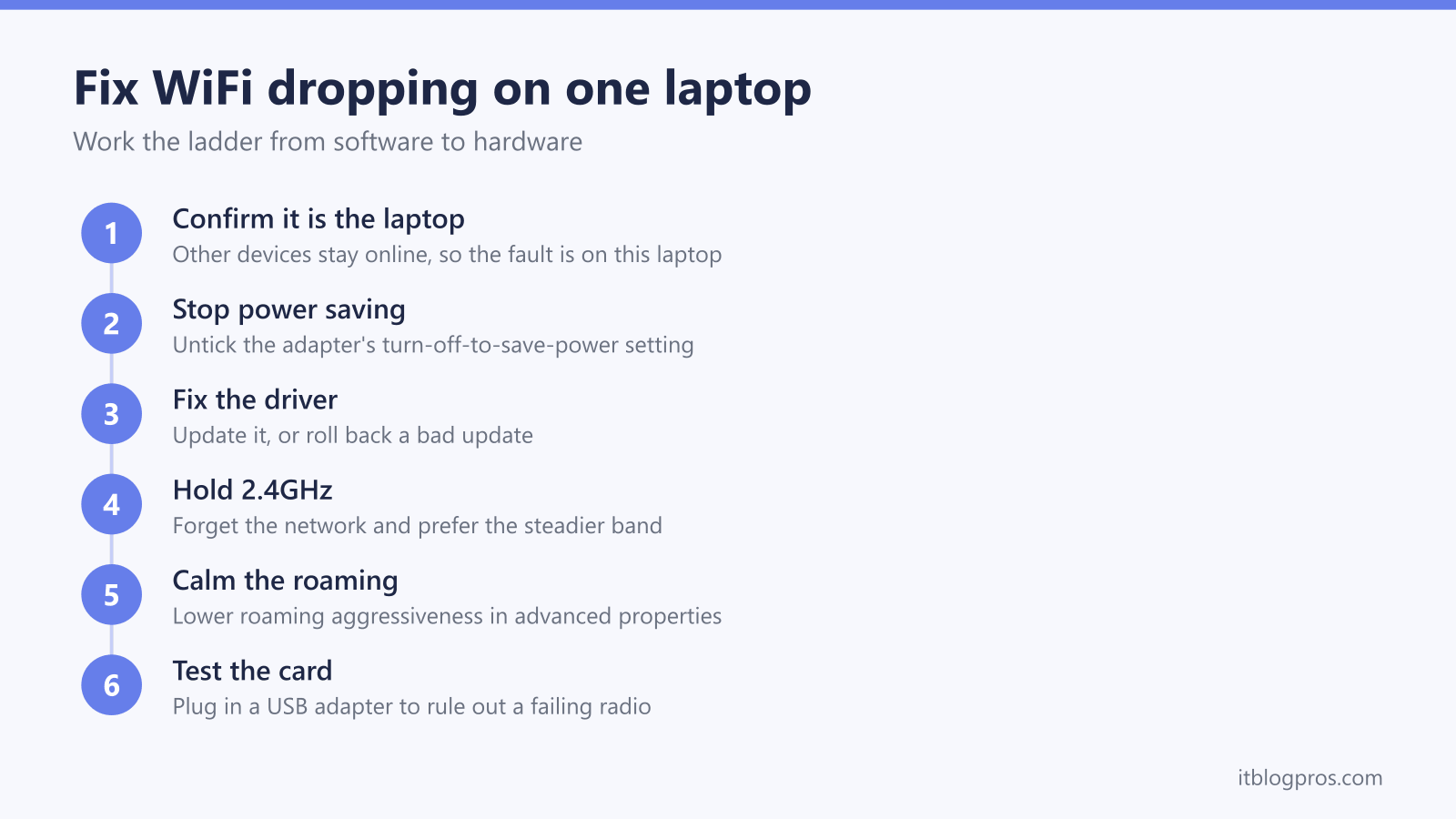
When WiFi keeps dropping on one laptop while every other device stays online, the fault sits on that laptop, not the broadband. Work the fixes in order: stop Windows switching the adapter off to save power, update or roll back the WiFi driver, hold the steadier 2.4GHz band, ease off roaming aggressiveness, then test with a USB adapter if the internal card is failing.
Key Takeaways
- If every device drops WiFi at the same time it is the network, not the laptop, so start with the main dropping guide before touching any laptop settings.
- Windows switching the WiFi adapter off to save power is the most common one-laptop cause, fixed in Device Manager on the adapter's Power Management tab.
- A buggy or outdated WiFi driver drops the connection, so update it from the laptop or adapter maker, or roll the driver back if the trouble began after an update.
- A laptop clinging to a weak 5GHz signal drops more than it would on 2.4GHz, so forgetting the network or preferring 2.4GHz holds the link at range.
- When software fixes fail, a USB WiFi adapter tests for a failing internal card, and an extender or mesh unit fixes a room the laptop simply cannot reach.
Every device dropping means the network, not the laptop
Before changing a single Windows setting, check what else drops. If phones, tablets, a smart TV and other laptops all lose WiFi at the same moment, the problem is the router, the broadband line or interference, and nothing on this one laptop will fix it. That case belongs in the general guide to WiFi that keeps dropping across the whole house, and Virgin Media customers seeing hub-wide drops should start with Virgin Media WiFi that keeps dropping.
The rest of this page assumes the opposite: every other device stays connected, and only one laptop keeps falling off. When that is true, the fault is the laptop's adapter, its driver, its power settings or its saved network profile, so those are what to work through, in that order.
Windows switches the adapter off to save power
The single most common reason one laptop drops WiFi is Windows powering the wireless adapter down to save battery, then failing to bring it back cleanly. Open Device Manager, expand Network adapters, right-click the wireless adapter and choose Properties. On the Power Management tab, untick Allow the computer to turn off this device to save power, then select OK. That one change settles a large share of random one-laptop drops.
Some modern laptops that support Connected Standby hide the Power Management tab by design, so if it is missing the equivalent lives in the power plan instead. Open Control Panel, then Power Options, then Change plan settings, then Change advanced power settings, expand Wireless Adapter Settings and set Power Saving Mode to Maximum Performance for both On battery and Plugged in.
A bad or outdated driver drops the connection
If power saving was not the cause, the WiFi driver is the next suspect. A driver that is out of date, or a recent update that does not agree with your specific adapter, produces exactly the pattern of a laptop that connects and then drops minutes later. In Device Manager, right-click the wireless adapter, choose Update driver, then Search automatically for drivers, and let Windows install anything newer. For the most reliable version, download the driver directly from the laptop maker's support page or the adapter maker, such as Intel, Realtek or Qualcomm, matched to the model number.
When the drops started straight after a Windows or driver update, do the opposite. On the adapter's Properties, open the Driver tab and select Roll Back Driver to return to the previous version. Plenty of laptops find the newest driver is the one causing trouble, and stepping back a version settles it. If Roll Back Driver is greyed out, uninstall the adapter, tick the option to remove the driver software, and reboot so Windows reinstalls a clean copy.
A weak 5GHz signal drops more than 2.4GHz would
The 5GHz band is faster but has shorter range and is weakened far more by walls and floors, while 2.4GHz travels further and holds steadier at a distance. A laptop a few rooms from the router can cling to a fading 5GHz signal and drop repeatedly when it would sit rock-solid on 2.4GHz. The quickest test is to forget the network in Windows WiFi settings and reconnect, which clears the saved preference and lets the laptop choose again.
For a laptop that lives at the far end of the house, force the steadier band. In Device Manager, open the adapter's Properties, go to the Advanced tab and set the Preferred Band value to 2.4GHz, or split the router's two bands into separate names and join the 2.4GHz one deliberately. Splitting is done on the router, and the method for a Virgin Media Hub is covered in splitting the 2.4GHz and 5GHz bands. The trade-off is speed, so keep a nearby laptop on 5GHz and only push a distant one down to 2.4GHz.
Aggressive roaming makes the adapter keep hunting
Intel and some other wireless adapters carry a Roaming Aggressiveness setting that decides how eagerly the radio goes looking for a stronger access point. Set high, the adapter starts scanning while the current signal is still perfectly usable, and each scan can show up as a brief drop. That is especially pointless in a house with a single router, where there is nothing better to roam to.
Open the adapter's Properties in Device Manager, go to the Advanced tab, select Roaming Aggressiveness and set it to Lowest, or Medium-Low if Lowest is not offered. Medium is the default, so anything above it is worth turning down on a laptop that drops. The Preferred Band setting sits on the same Advanced tab, so both can be changed in one visit.
A VPN or antivirus can drop the connection too
When the WiFi icon stays connected but the internet cuts out, or the laptop drops only while working, suspect the security software rather than the adapter. A VPN with a kill switch deliberately cuts all traffic the instant the VPN tunnel wobbles, which looks like a WiFi drop but is not one. Aggressive antivirus tools and third-party firewalls can also interrupt the connection by mistaking ordinary traffic for a threat.
Test by temporarily closing the VPN and pausing the antivirus, then watch whether the drops stop. If they do, add the VPN as an exception in the security software or switch the kill switch off, rather than leaving protection disabled for good.
A failing card or a dead-spot room needs hardware
If every software fix above changes nothing, test the hardware. Plug a USB WiFi adapter into the laptop, disable the internal adapter in Device Manager, and use the USB one for a while. If the connection holds on the USB adapter while the internal radio kept dropping, the internal card or its tiny built-in antenna is failing, and a USB adapter is a cheap permanent workaround while an internal card swap is the tidy repair. If the laptop drops on every network it tries, including a phone hotspot, that also points at the laptop rather than any one router.
Sometimes the laptop is simply too far from the router, in a room the signal never reaches properly, and no setting fixes distance. A WiFi 6 extender placed in or near that room gives the laptop a strong local signal to hold onto, and the TP-Link RE705X suits a single problem room. Where several rooms are weak, a mesh system such as the TP-Link Deco X50 replaces the coverage rather than patching one spot. The choice between the two is set out in the guide to extenders versus mesh for dead zones.