
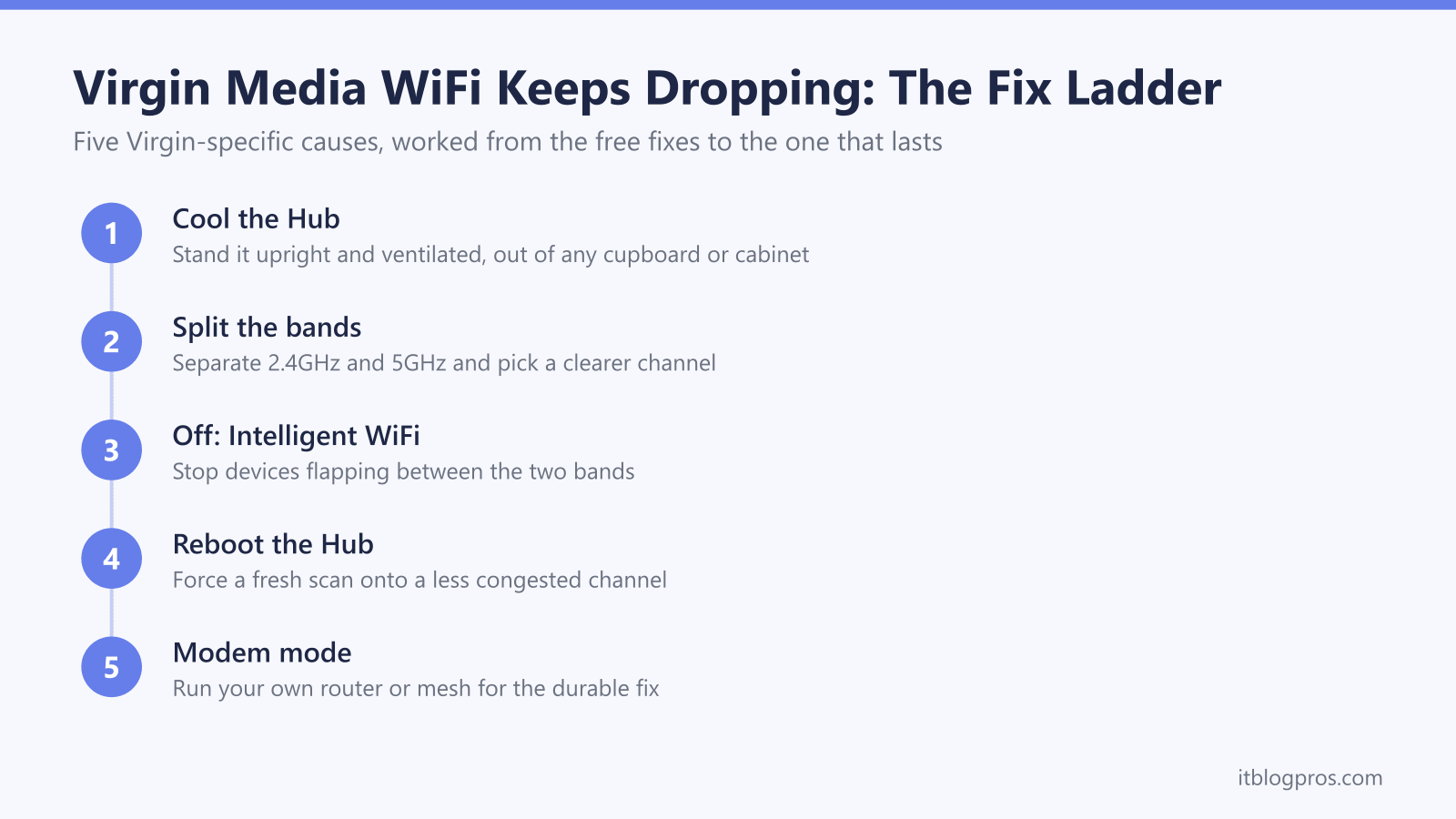
When Virgin Media WiFi keeps cutting out, Virgin's own help pages and guides point to specific checks. A Hub that keeps dropping the connection may be too hot, may be picking up interference from nearby networks or household devices, may be moving a device between bands, may have WiFi Pods in the wrong spot, or may be an older model struggling to cover the house. Each has a targeted check, and they stack into a ladder that runs from free tweaks up to modem mode, which hands the WiFi to your own kit.
When Virgin Media WiFi keeps dropping, check five things: the Hub overheating in a cupboard, interference on the 2.4GHz band, Intelligent WiFi moving devices between bands, WiFi Pods in the wrong spot, or an older Hub struggling. Stand the Hub upright in the open, test a struggling device on one band, place Pods as Virgin describes, then reboot. Modem mode, not available on the Hub 5x, hands the WiFi to your own kit.
Key Takeaways
- Virgin's Hub lights help pages say a solid red light can mean the Hub is too hot, and their fix is to stand it upright in the open with its vents uncovered, away from heat sources, and let it cool for 15 minutes.
- Virgin's Intelligent WiFi page says channel optimisation moves devices onto the quietest channel automatically, and Virgin's slow internet help page says that if only one device is struggling, it could be an issue with that device.
- Virgin's Intelligent WiFi page says it nudges devices on to the best WiFi band, and Virgin's WiFi name guides say to keep one network name on both bands, so treat a band split as a short test for one device.
- Virgin's WiFi Pods help page says to place a Pod halfway between the Hub and the area of poor coverage and give it up to 24 hours to settle each time it moves, so change one Pod at a time.
- Modem mode hands the WiFi to your own router or mesh, and Virgin's help page says it pauses Plume Pod compatibility and Intelligent WiFi and is not currently available for the Hub 5x.
Cool the Hub first, because Virgin links a solid red light to heat
Virgin's Hub lights help pages tie a solid red light to heat. On the Hub 3 they say a solid red power light usually means the Hub is too hot, and on the Hub 4 and Hub 5 they say a solid red light might mean an issue with the cable connections or that the Hub is too hot. A Hub shut inside a cupboard, wedged behind the sofa or sitting in direct sunlight has nowhere to dump its heat, so if the light is red, check the placement and the cables together.
The fix costs nothing. Virgin's red light pages say to switch the Hub off at the wall, place it out in the open with its vents uncovered, upright and away from heat sources, check that every cable is undamaged and pushed in firmly, leave it for 15 minutes to cool, then switch it back on and allow 5 to 10 minutes to start up. Virgin's slow internet help page adds that the Hub should be at least one metre away from electronic devices. If the red light is still showing and the Hub is not warm to the touch, the same red light pages say to factory reset it by pressing the pinhole button for 10 seconds, then test your broadband service. Where the connection has gone completely rather than just dropping, work through the full Virgin Media WiFi not working guide first, because a total outage points at the line or the Hub rather than the WiFi.
Test a struggling device on one band
The Hub manages its channels itself: Virgin's Intelligent WiFi page says its channel optimisation puts devices on the quietest channel and makes over 300,000 tweaks a day. Virgin's WiFi signal guide says nearby networks on the same channel can interfere and that some routers switch channel automatically, and Virgin's slow internet help page says that if only one device is struggling, it could be an issue with that device, so note whether the drops follow one device or every device before changing anything.
Virgin's article on WiFi that keeps disconnecting says household devices such as cordless phones, baby monitors and microwaves can interfere, especially on the 2.4 GHz band, and suggests switching to the 5 GHz band if your router supports it. On the Hub 3, 4 and 5, Virgin's guides to changing the WiFi name put the 2.4GHz and 5GHz settings under Advanced settings, Wireless and Security at 192.168.0.1, and say to make sure both bands use the same network name. Giving the bands separate names for a short test lets you point a struggling device at one band, so set the names back to match once the test is done. The Virgin Media Hub login guide covers getting in, and the step-by-step band split for the Hub 3, 4 and 5 walks through the exact screens.
Check whether Intelligent WiFi band steering suits every device
Intelligent WiFi is Virgin Media's band-steering feature: Virgin's Intelligent WiFi page says it checks devices to see if they need a nudge on to the best WiFi band. Virgin does not say how individual devices respond to that nudge, so watch for the pattern instead: a video call freezes, a smart plug falls offline, or a laptop loses the network for a second while other devices stay connected. For a single struggling device, Virgin's slow internet help page says to make sure it has the latest software installed.
Where a particular device still flaps, the band test above lets you choose the band it sits on. The Virgin help pages do not describe a setting that turns Intelligent WiFi off, so check the Hub's Wireless menus for one rather than assuming it is there. For smart-home kit, check the maker's own help first: Ring's setup help says some Ring devices only support 2.4 GHz networks, while Blink's troubleshooting guide says Blink supports merged networks with a single SSID but only communicates on the 2.4 GHz band. Leave the Hub's wireless settings alone if every device in the house is already behaving.
Place Virgin WiFi Pods the way Virgin describes
Virgin Media's WiFi Pods, powered by Plume, build a mesh network with the Hub to fill dead spots. Virgin's WiFi Pods help page says each Pod is designed to work with the Hub to offer better coverage, and Virgin's Intelligent WiFi page says the Pods choose the best connection for each device and change settings to stop interference automatically. Virgin does not describe Pods causing drops, so if the dropping started after the Pods went in, check their placement against Virgin's guidance before anything else.
Virgin's WiFi Pods help page says to place a Pod halfway between the Hub and where coverage is poor, and to give it up to 24 hours to settle each time it is moved, so change one Pod at a time and wait that long before judging the result. The same page says the Connect app shows each Pod's health, signal strength and speeds, and points to Virgin's online WiFi Pod troubleshooting guide for fixing an issue. If the drops carry on, the modem mode section below covers handing the WiFi to your own kit and what that means for Pods.
Reboot the Hub the way Virgin describes
Virgin's slow internet help page says you'll most likely find a reboot can improve the WiFi connection, and Virgin's other slow internet help page says rebooting triggers the Hub to download any software updates or fixes.
Virgin's reset page says to switch the Hub off at the wall socket, wait 10 seconds, turn it back on and wait 5 to 10 minutes, and that it is ready when the white power light at the front is solidly lit. Virgin's Connect app page says you can also reboot the Hub from the app. Leave the pinhole reset button alone unless you mean it: Virgin's reset page says it restores factory settings, so changes such as a new WiFi password have to be made again. If the drops come back after a reboot, note when they happen and which devices they hit, then work through the band test above.
Modem mode hands the WiFi to your own router or mesh
If the drops carry on after the fixes above, the remaining option is to stop relying on the Hub's WiFi at all. Virgin Media's reset and modem mode help page says modem mode turns the Hub into a cable modem, letting you connect your own WiFi kit, so a router or mesh runs the wireless network.
The trade-offs are worth stating plainly before spending anything. Virgin's Hub lights help pages say a Hub 4 or Hub 5 in modem mode won't be sharing WiFi, so the new router or mesh has to cover the whole house on its own. Virgin Media's reset and modem mode help page says modem mode temporarily disables Cisco monitoring and the SamKnows speed test, Plume Pod compatibility, Intelligent WiFi and Connect app features (Homescan, Hub Management, WiFi Diagnostics), which matters if you rely on the WiFi Pods covered above, though the 21CV phone service still works. The same page says the Hub's admin page moves from 192.168.0.1 to 192.168.100.1 once the switch is made, and that modem mode is not currently available for the Hub 5x. The Hub 5 modem mode walkthrough covers the exact steps, which Virgin's page gives for the Hub 3 and 4 as well.
For a flat or a small-to-mid house, a single strong router is the simplest upgrade. The TP-Link Archer BE550 is a tri-band WiFi 7 router, and TP-Link lists Router Mode, Access Point Mode and a dedicated 2.5 Gbps WAN port, so it can take over the network once the Hub is in modem mode, or sit behind a Hub 5x in access point mode, where Virgin says modem mode is not currently available; it is among the picks in the best routers for Virgin Media round-up. For a larger or awkwardly shaped home where one box does not reach every room, a mesh system is the better answer, and the TP-Link Deco X50 spreads a single seamless WiFi 6 network across several nodes, each with gigabit ports to wire devices in. Either one, driven by a Hub in modem mode, takes over all of the WiFi, so test the rooms where the drops happened before and after the switch. For the general, non-Virgin causes behind any connection that keeps cutting out, the WiFi keeps dropping guide covers the wider picture.