
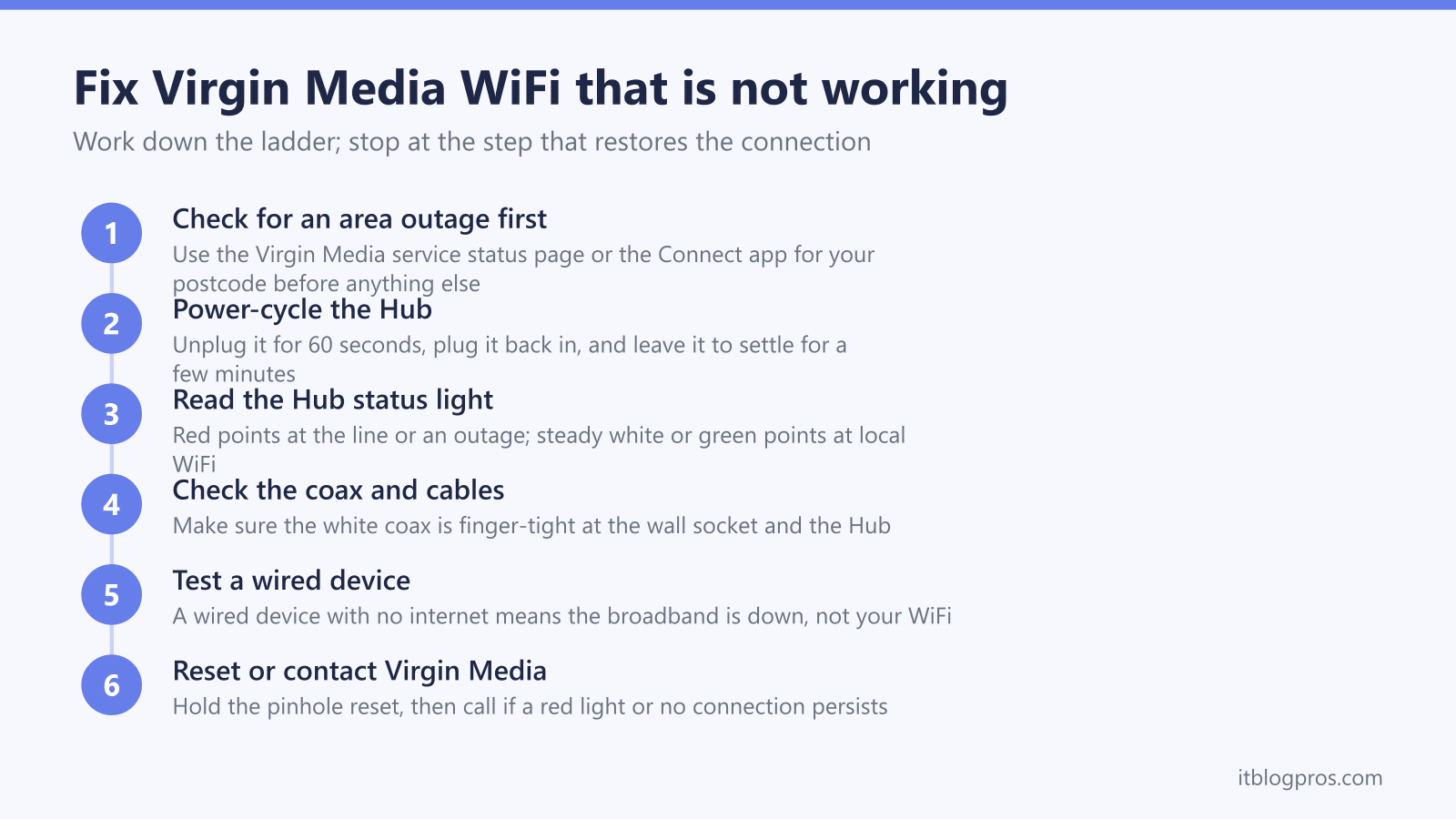
If your Virgin Media WiFi has stopped working, first check for an area outage with Virgin Media's service status tool, then restart the Hub: Virgin's reset page says to switch it off at the wall, wait 10 seconds, switch it back on and allow 5 to 10 minutes. The same page says the Hub is ready when the white power light at the front is solidly lit.
This guide walks you through every step to get your Virgin Media internet back online quickly, from reading the Hub lights to power-cycling and checking for an outage.
Key Takeaways
- You'll learn how to read the status lights on Virgin Media Hub 3, Hub 4 and Hub 5 so you can pinpoint the fault instantly.
- Virgin's slow internet help page says you'll most likely find a reboot can improve the WiFi connection, and its reset page gives the sequence: off at the wall, wait 10 seconds, back on, then allow 5 to 10 minutes.
- Virgin's WiFi not working help page points to its service status tool for outages in your postcode, so check it before you spend time troubleshooting your own kit.
- Targeted fixes are covered for the common scenarios; a red light, a hidden network, and being connected with no internet.
- Optimising channels, band steering and placement, plus mesh or extender upgrades, gives you better whole-home coverage and tells you when to call Virgin Media support.
The Quick 5-Minute Fix
Step 1: Check Your Virgin Media Hub Lights
Virgin Media's Hub lights help pages give these meanings:
Virgin Media Hub 3 Lights:
- White power light steady = Everything is okay
- White power light flashing = Hub is starting up, then turns solid white
- Red power light steady = Usually means the Hub is too hot
Virgin Media Hub 4 Lights:
- White light steady = Normal for the first minute or so after you turn the Hub on
- Red light steady = Might mean a cable connection issue or that the Hub is too hot
- Red light flashing = Might mean the Hub started up but could not register on the Virgin Media network
- Blue light = WPS pairing: slow flashing while it pairs, solid for 20 seconds when it works, rapid flashing when it failed
Virgin Media Hub 5 Lights:
- White light steady = Everything is okay
- Red light steady = Might mean a cable connection issue or that the Hub is too hot
- White light flashing = Hub is booting up (wait at least 5 minutes)
- No light = Hub is off; check the power supply, the wall socket and the Hub's power button
Step 2: Power Cycle Your Virgin Media Hub
Virgin's slow internet help page says you'll most likely find a reboot can improve the WiFi connection, and Virgin's reset page gives these steps:
- Switch the Hub off at the wall socket
- Wait 10 seconds
- Switch it back on
- Wait 5 to 10 minutes for the Hub to reboot
- Check the lights - Virgin says it is ready when the white power light at the front is solidly lit
Step 3: Check Virgin Media Service Status
Before troubleshooting further, check if Virgin Media has an outage:
- Visit: https://www.virginmedia.com/help/service-status
- Enter your postcode to check local outages
- Check Virgin Media's Twitter @virginmedia for updates
Advanced Virgin Media WiFi Troubleshooting
Problem: Virgin Media Hub Shows Red Light
What it means: Virgin's Hub lights help pages say a solid red light on the Hub 4 or Hub 5 might mean an issue with the cable connections or that the Hub is too hot, and a solid red power light on the Hub 3 usually means it is too hot
Solutions:
- Check all cable connections - ensure coax cable is tight
- Inspect cables for damage - look for bends, cuts, or pet damage
- Try a different coax outlet if you have multiple
- Let the Hub cool - Virgin says switch it off at the wall, stand it upright in the open with its vents uncovered, leave it 15 minutes, then switch it on and allow 5 to 10 minutes
- Reset, then contact Virgin Media - if it is still red and not warm to the touch, Virgin says press the pinhole factory reset button for 10 seconds with the tip of a pen; if it stays red after that, test your broadband service or contact Virgin Media
Problem: WiFi Network Not Showing Up
Quick fixes:
- Press the WiFi button on your Virgin hub (may be disabled)
- Check 2.4GHz vs 5GHz - your device might only see one band
- Move closer to the hub - weak signal might hide the network
- Restart your device - phone/laptop WiFi might be stuck
Problem: Connected to WiFi But No Internet
Step-by-step fix:
- Forget and reconnect to your WiFi network
- Reset network settings on your device
- Try a different device - this shows whether the fault is device-specific
- Check DNS settings - try Google DNS (8.8.8.8)
Virgin Media WiFi Password and Settings
Default Virgin Media WiFi Details
Your WiFi details are on a sticker on your Virgin Media hub:
- Network name (SSID): Usually "VM" followed by numbers
- Password: 8-digit number on the hub sticker
- Admin password: Usually printed separately on sticker; if the sticker has worn off, how to find your router admin password covers the other places it hides
How to Access Virgin Media Hub Settings
The Virgin Media Hub settings live at 192.168.0.1, and the 192.168.0.1 login guide covers the same address on Sky, Three and TP-Link kit if you have swapped hardware.
- Connect to your Virgin Media WiFi
- Open a web browser
- Go to:
192.168.0.1 - Username:
admin - Password: (check sticker on hub)
Optimize Your Virgin Media WiFi Settings
For Better Performance:
-
Change WiFi Channel:
- Log into hub settings (192.168.0.1)
- Go to WiFi settings
- Change 2.4GHz to channel 1, 6, or 11
- Change 5GHz to channel 36, 44, 149, or 157
-
Enable Band Steering:
- Combines 2.4GHz and 5GHz into one network name
- Devices automatically connect to the best band
- Found in Advanced WiFi settings
-
Update Firmware:
- Check for hub updates in settings
- Virgin Media pushes updates automatically
- Restart hub after any updates
When Virgin Media WiFi Keeps Cutting Out
Common Causes and Fixes
Overheating Hub:
- Move hub to open area with ventilation
- Clean dust from vents with compressed air
- Don't stack other devices on top
WiFi Interference:
- Move hub away from microwaves, baby monitors
- Try different WiFi channels (1, 6, 11 for 2.4GHz)
- Use 5GHz band when possible (less congested)
Too Many Connected Devices:
- Virgin hubs support 50+ devices but performance degrades
- Disconnect unused devices
- Consider upgrading to mesh WiFi system
Upgrade Your Virgin Media WiFi Performance
Best WiFi Extenders for Virgin Media
If your Virgin Media hub doesn't cover your whole home:
An extender is the cheapest patch, and it rebroadcasts a weak signal rather than removing the dead zone. For anything more than one awkward room, the mesh picks below are the better buy.
Best Mesh WiFi Systems for Virgin Media
For whole-home coverage that's better than extenders:
Best Overall: Amazon eero Pro 6E Mesh System
This is the one to reach for when the Hub holds a solid white light and a wired device gets full speed, but the WiFi thins out across a larger or multi-storey house: the eero takes over the wireless while the Virgin Hub, which has to stay in the chain, keeps handling the connection.

Budget Mesh: TP-Link Deco X10 (2-pack)
The cheaper way to do the same job, and TP-Link lists access-point mode alongside router mode, which is the setting that lets the Deco spread WiFi behind the Virgin Hub without creating a second layer of routing. TP-Link rates the 2-pack at up to 3,900 sq ft (360 m²) and positions it for 2-4 bedroom houses.

Neither of these clears a red light on the Hub, a coax fault or an area outage. All three of those are connection problems rather than coverage problems, and a mesh only spreads a connection that is already arriving.
Virgin Media Hub Models Comparison
Virgin Media Hub 3 (Older Model)
- WiFi: AC1750 (802.11ac)
- Ports: 4x Gigabit Ethernet
- Coverage: The weakest of the three; the first to struggle in a multi-storey home
- Best for: Small homes, basic internet use
Virgin Media Hub 4 (Current Standard)
- WiFi: AC2600 (802.11ac)
- Ports: 4x Gigabit Ethernet + 1x USB
- Coverage: Better than the Hub 3; Virgin Media cites four built-in antennas
- Best for: Most homes, multiple devices
Virgin Media Hub 5 (Latest Premium)
- WiFi: WiFi 6, dual band 2.4GHz and 5GHz (Virgin's Hub spec table)
- Ports: 1x 2.5Gbps and 3x 1Gbps Ethernet (Virgin's Hub spec table)
- Coverage: The strongest of the three, helped by WiFi 6
- Best for: Large homes, many connected devices
Contact Virgin Media Support
When to Call Virgin Media
Call Virgin Media (150 from Virgin Mobile, 0345 454 1111 from other phones) if:
- Red light persists after power cycling
- Service status shows no outages but you have no internet
- Physical damage to cables or hub
- Speed is consistently much slower than your package
Before You Call
Have ready:
- Your Virgin Media account number
- Hub model number (on sticker)
- Description of the lights showing
- When the problem started
- What you've already tried
Virgin Media Online Support
- Virgin Media Connect app - Virgin's Connect app page says you can reboot the Hub from the app; for outages, use the service status tool
- Online chat - available from Virgin's help pages on virginmedia.com
- Twitter - @virginmedia responds quickly to issues
Frequently Asked Questions
Q: Why does my Virgin Media WiFi keep disconnecting? A: Usually caused by overheating hub, WiFi interference, or too many connected devices. Try moving the hub to a ventilated area and disconnecting unused devices.
Q: How do I make my Virgin Media WiFi faster? A: Use 5GHz band when possible, optimize WiFi channels, update hub firmware, and consider a mesh system for larger homes.
Q: Can I use my own router with Virgin Media? A: Yes. Virgin Media's reset and modem mode help page gives modem mode steps for the Hub 3, 4 and 5, but says modem mode is not currently available for the Hub 5x. The other route is a router or mesh in access-point mode behind the Hub.
Q: What's the range of Virgin Media WiFi? A: Virgin Media does not publish square-footage figures for its Hubs. Each generation reaches further than the last, but walls, interference and the number of connected devices matter far more than the model.
Q: Why is Virgin Media WiFi slow at night? A: Network congestion during peak hours (7-11 PM). This is normal and should improve after 11 PM. Consider upgrading to a higher speed package if consistently slow.
Video Guide: Virgin Media WiFi Troubleshooting
For visual learners, watch our complete Virgin Media troubleshooting guide where we demonstrate each step with real Virgin Media hubs.
📺 Watch: Virgin Media WiFi Fix Guide
See exactly how to troubleshoot Virgin Media hubs with step-by-step demonstrations for Hub 3, 4, and 5 models.
Watch the Full Video Guide →Summary: Virgin Media WiFi Quick Fixes
- Check hub lights - tells you exactly what's wrong
- Power cycle hub - Virgin's reset page says switch off at the wall, wait 10 seconds, then allow 5 to 10 minutes
- Check Virgin Media service status - rule out outages
- Optimize WiFi settings - channels, band steering, placement
- Consider mesh upgrade - for whole-home coverage
Virgin's slow internet help page says you'll most likely find a reboot can improve the WiFi connection. If issues persist, run Virgin's broadband test and check the service status tool before changing your own equipment. If the Hub's own WiFi is the weak point, Virgin Media's reset and modem mode help page says modem mode lets you connect your own WiFi kit, though it is not currently available for the Hub 5x, where a router or mesh in access-point mode behind the Hub is the other route: our best router for Virgin Media and best mesh for the Virgin Media Hub 5 guides cover the picks.
Having Virgin Media issues? Need help choosing WiFi equipment? Email us at [email protected] and we'll help you get connected.