
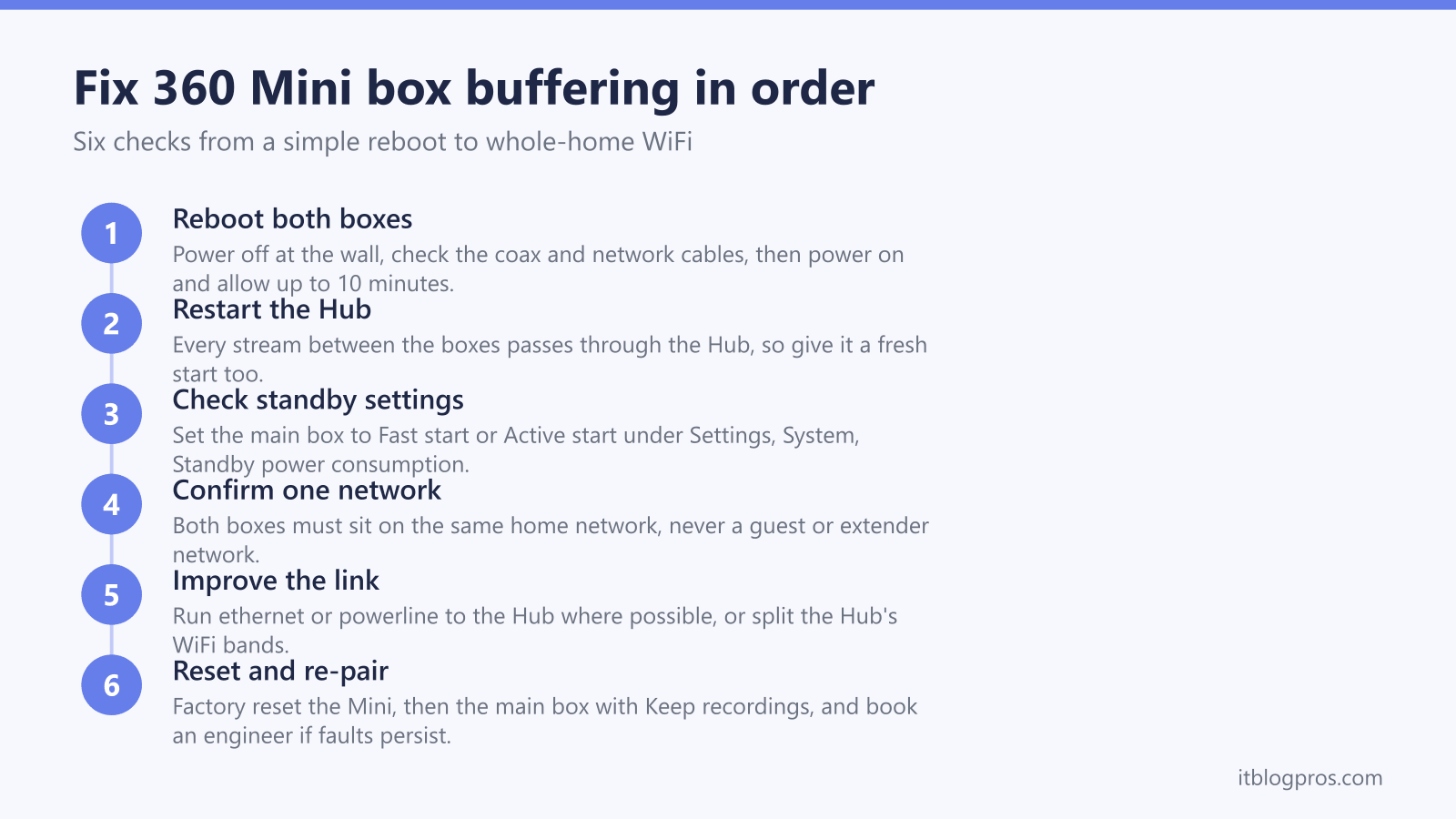
The Virgin TV 360 Mini box is the second-room half of Virgin's multiroom setup, and it fails in a very particular way: live channels play perfectly while recordings stutter, On Demand buffers, or the whole recordings list vanishes from the menu. The pattern makes sense once the box's plumbing is clear. The Mini box takes live TV from the coax socket on the wall but pulls everything else, including every recording stored on the main 360 box, across your home network, usually over WiFi. That makes far-room buffering a network problem wearing a TV disguise. This guide explains exactly how the Mini box connects, why the furthest room always suffers first, the official reboot and standby checks, the factory reset that re-pairs a stubborn box, and the honest ladder of connection upgrades that ends the problem permanently.
The Virgin TV 360 Mini box takes live channels from the coax wall socket but streams recordings, On Demand and apps over your home network, so buffering usually means a weak WiFi link between the Mini box and the Hub. Reboot both boxes at the wall, set the main box standby to Fast start or Active start, keep both boxes on the same network, and wire or strengthen the far-room connection if buffering persists.
Key Takeaways
- The 360 Mini box uses two connections at once: a coax cable from the Virgin Media wall socket for live channels, and WiFi or ethernet to the Hub for recordings, On Demand and apps.
- Buffering on recordings and On Demand points at the home network link, while pixelation or breakup on live channels points at the coax cable and its connections.
- Multiroom only works when both boxes sit on the same home network and the main 360 box standby is set to Fast start or Active start, never Eco.
- A power-off reboot of both boxes at the wall socket clears most one-off faults, and a factory reset with Keep recordings selected is the deeper re-pair tool.
- Persistent far-room buffering is a WiFi coverage problem, fixed by an ethernet cable, Virgin's WiFi Max Pods or a mesh system that carries both boxes on one network.
The 360 Mini box runs on two connections at once
The Mini box is not a purely wireless streamer. Virgin's own installation guide has it connected two ways. First, a white isolator cable runs from the Virgin Media socket on the wall into the box's COAX IN port, and that coax feed carries the live channels. Second, the box joins your home network, either through its ethernet port with a cable to the Hub, which Virgin describes as the best connection, or over WiFi, which is what most second rooms end up using because the Hub is rarely nearby.
That network link matters because the Mini box has no hard drive of its own. It is essentially a main 360 box with the recording drive removed. Every recording lives on the main 360 box, and when a recording plays in the second room it is being streamed across the house from the main box, through the Hub, to the Mini. On Demand, apps and the synced watchlist all ride the same network connection.
Virgin began supplying Stream boxes instead of 360 Minis for new multiroom orders in late 2024, and the Stream box drops the coax requirement entirely, but every 360 Mini already installed still depends on both connections working.
Far rooms buffer because every recording is streamed across the house
Play a recording on the Mini box and the data takes the long way round: off the main box's hard drive, across the network to the Hub, then over WiFi to the far room. If either box connects wirelessly, that path includes one or two WiFi hops, and the Mini box usually sits exactly where home WiFi is weakest, in a back bedroom two or three walls from the Hub. The result is a stream that starts, stalls, and spins.
The confusing part is that live channels keep playing beautifully through all of it, because they arrive down the coax cable and never touch the network. That contrast is actually the most useful diagnostic on this page. Buffering wheels on recordings, On Demand or apps mean the network side is struggling. Pixelation, breakup or missing channels on live TV mean the coax side is at fault, typically a loose isolator cable at the wall or the back of the box.
Anything that weakens WiFi in that room makes the buffering worse: a Hub tucked in a cupboard or behind the TV, thick or foil-lined walls, interference from neighbouring networks, and busy evenings when every device in the house is online at once.
A wall-socket reboot of both boxes clears most one-off faults
Virgin's official fix for box glitches is a full power cycle, and for multiroom it needs to happen on both boxes, not just the one misbehaving. Turn the Mini box off at the wall socket, then do the same for the main 360 box. While they are off, check every cable is firmly seated at both ends: the coax isolator at the wall socket and at each box, the HDMI lead, and the ethernet cable if either box uses one. Then switch the power back on and leave the boxes alone, because a full restart can take up to ten minutes and interrupting it makes things worse.
It is worth restarting the Hub at the same time, since every stream between the boxes passes through it. Unplug the Hub, wait a minute, plug it back in and give it several minutes to settle.
Owners on Virgin's own community forum regularly report that rebooting both boxes together is what finally stops the additional box buffering, and a restart also prompts the boxes to pull down any waiting software updates. If a reboot fixes things for a day or two and the buffering creeps back, the underlying cause is the connection itself, and the later sections deal with that properly.
Multiroom breaks when the main box drops off the network
When the Mini box plays live TV fine but the recordings list is empty or shows an error, the usual culprit is the main 360 box going quiet on the network. Virgin's multiroom requirements are specific: both boxes must be connected to the same home network, and the standby setting on the main 360 box must be Fast start or Active start. The third option, Eco, powers the box down so far in standby that it effectively leaves the network, and the Mini box then has nothing to stream from.
Check it on the main box under Settings, then System, then Standby power consumption. Fast start keeps the box ready instantly at the cost of a little more electricity, Active start balances the two, and Eco is the one that silently breaks multiroom. Pick Fast start or Active start.
The same-network rule catches people too. A Mini box that has ended up on a guest network, on an old extender's separate WiFi name, or on any network other than the one the main box uses will not see recordings at all. Both boxes need to sit on the Hub's own network, or on the same mesh network. After a reboot or a settings change, give the boxes a few minutes for the recordings list to repopulate.
A factory reset is the re-pair tool when recordings refuse to appear
When reboots and standby checks change nothing, the 360 platform's factory reset acts as the re-pair procedure, forcing a box to rebuild its network connection and its link to your account. On either box, open Settings from the cog icon at the end of the Home menu, choose System, then Factory Reset.
Start with the Mini box, since it holds nothing you can lose. The reset runs the first-time setup again: the box looks for an ethernet connection to the Hub first, and if it cannot find one it offers the WiFi screen, where you select WiFi with the remote, pick your network from the list and enter the password. Once it is back online it re-links to the main box, and recordings should reappear within a few minutes.
If the fault survives that, reset the main 360 box and choose the Keep recordings option, which preserves recordings, planned recordings and series links. Be aware that even a Keep recordings reset signs the box out of apps such as BBC iPlayer, Netflix, Prime Video and ITVX, so have those passwords ready. A box that is stuck mid-restart rather than misbehaving after one is a different fault, covered in the guide to a Virgin box stuck on starting up.
Virgin's own service checks come before an engineer visit
Not every multiroom fault starts inside your house. Before assuming the WiFi is to blame, run Virgin's online service test from your account or the My Virgin Media app. It checks the TV service on your line, flags any known fault in your area, and can book an engineer if it finds a problem it cannot fix remotely.
The Hub deserves a glance too, because a Hub that is rebooting itself or struggling with its WiFi radio will produce exactly the same symptoms as a weak signal. A quick read of the Hub's light against the Virgin Media Hub lights guide confirms whether it is healthy before any more time goes into the TV boxes.
Hardware does occasionally fail outright. Community threads include Mini boxes that misreport the main box's recordings or buffer constantly on a strong connection, and in those cases Virgin's support team can swap the box. Persistent faults after a factory reset on a wired connection are the strongest sign the box itself, rather than the network, is the problem, and that evidence is worth mentioning when you call.
Wired and split-band connections beat repeated reboots
If buffering keeps returning, stop treating the symptom and upgrade the link. The Mini box has an ethernet port, and a cable to the Hub is the best connection it can have, removing WiFi from the recording path entirely. Virgin's own multiroom guidance also accepts a powerline kit, which sends the network signal through the mains wiring, as a way to get a box wired when the Hub is on the other side of the house. Powerline performance depends on the state of the wiring, so treat it as a strong maybe rather than a guarantee.
If the Mini box has to stay on WiFi, take control of which band it uses. Virgin Hubs broadcast the 2.4GHz and 5GHz bands under one name by default, leaving the box to guess. Sign in to the Hub at 192.168.0.1 with the settings password printed on its base, give each band its own name, then reconnect the Mini box to the band that actually performs in that room: 5GHz for speed when the Hub is reasonably close, 2.4GHz for reach through multiple walls. The full walkthrough lives in the guide to splitting WiFi bands on a Virgin Media Hub.
Whole-home WiFi ends far-room buffering for good
When the honest answer is that WiFi simply does not reach the room the Mini box lives in, the fix is coverage, not another reboot. One important caveat comes first: whatever you add must leave both TV boxes on the same network. A Mini box left on the old Hub WiFi while the main box joins a new mesh counts as two different networks, and multiroom will break. After any upgrade, reconnect both boxes to the new network name.
Virgin's in-house option is WiFi Max, which costs £8 a month, comes at no extra cost on Gig1 and Volt packages, and sends up to three WiFi Pods that extend the Hub's own network under the same name, so the boxes follow it automatically. It carries a guarantee of at least 30Mbps in every room or £100 of bill credit, and because Pods extend the existing network they are the lowest-friction fix for a multiroom household.
A third-party mesh system reaches further and stays with you if you leave Virgin, and pairs especially well with a Hub running in modem mode; the guide to the best mesh systems for the Virgin Media Hub 5 covers the setups that work. Households replacing boxes entirely should note the newer Stream box runs without coax, and the Stream box ethernet versus WiFi guide explains its connection trade-offs.