
The Virgin Media Stream box pulls every channel, app and on-demand show over your broadband connection, so when playback stutters the box is usually the messenger rather than the culprit. Virgin Media's own support guidance points squarely at a weak or unstable broadband feed as the likely cause of Stream box buffering. This guide works through the fixes in order of speed: a proper double restart, the wired connection most owners never plug in, Hub placement, peak-time congestion checks and the point at which extending your WiFi beats yet another reboot.
The Virgin Media Stream box buffers when its broadband feed falters, not because the box itself has failed. Restart the Hub and the Stream box at the wall, move the Hub upright into open space, and disconnect idle devices. For a lasting fix, plug the ethernet cable supplied with the Stream box straight into the back of the Hub, because a wired feed removes WiFi dropouts entirely.
Key Takeaways
- The Stream box delivers everything, including live channels, over broadband, so any WiFi weakness shows up on screen as buffering.
- A double restart of the Hub and the Stream box at the wall socket clears the majority of buffering complaints within ten minutes.
- The ethernet cable supplied in the Stream box packaging gives a wired connection that ends WiFi-related buffering outright.
- Virgin Media's official guidance names Hub placement, connected-device load and data-heavy downloads as the main buffering triggers.
- Buffering that only appears between roughly 6pm and 9pm points to peak-time congestion rather than a fault inside the home.
The Stream box lives or dies by your broadband connection
The Stream box is Virgin Media's compact 4K streaming box, offered to its broadband customers for a one-off £35 activation fee rather than a monthly box rental. Unlike the Virgin TV 360 box, which receives live channels through the coaxial cable network, the Stream box has no tuner at all. Live TV, catch-up and every app arrive over the internet, which is exactly why it buffers the moment your connection wobbles.
Virgin Media's own help page on Stream buffering states that slow loading or buffering means you are "likely experiencing a weak or unstable broadband connection". That framing matters because it tells you where to spend your effort. Swapping HDMI cables, reinstalling apps or blaming the TV rarely helps. The connection between the Hub and the box is where almost every buffering case is won or lost.
Speed itself is rarely the bottleneck on paper. Virgin Media's guidance puts 4K streaming at roughly 25 to 50Mbps, and the Stream box is sold alongside Virgin's M50 tier and above, so even the entry packages carry headroom. The problem is what actually reaches the box after walls, distance and a house full of competing devices have taken their share.
A double restart clears the majority of buffering complaints
Restarting only the Stream box treats half the problem. Virgin Media Community advice that consistently resolves buffering threads is to reboot both the Hub and the box, and users report that a Hub left running for more than 20 days often benefits most from a full power cycle.
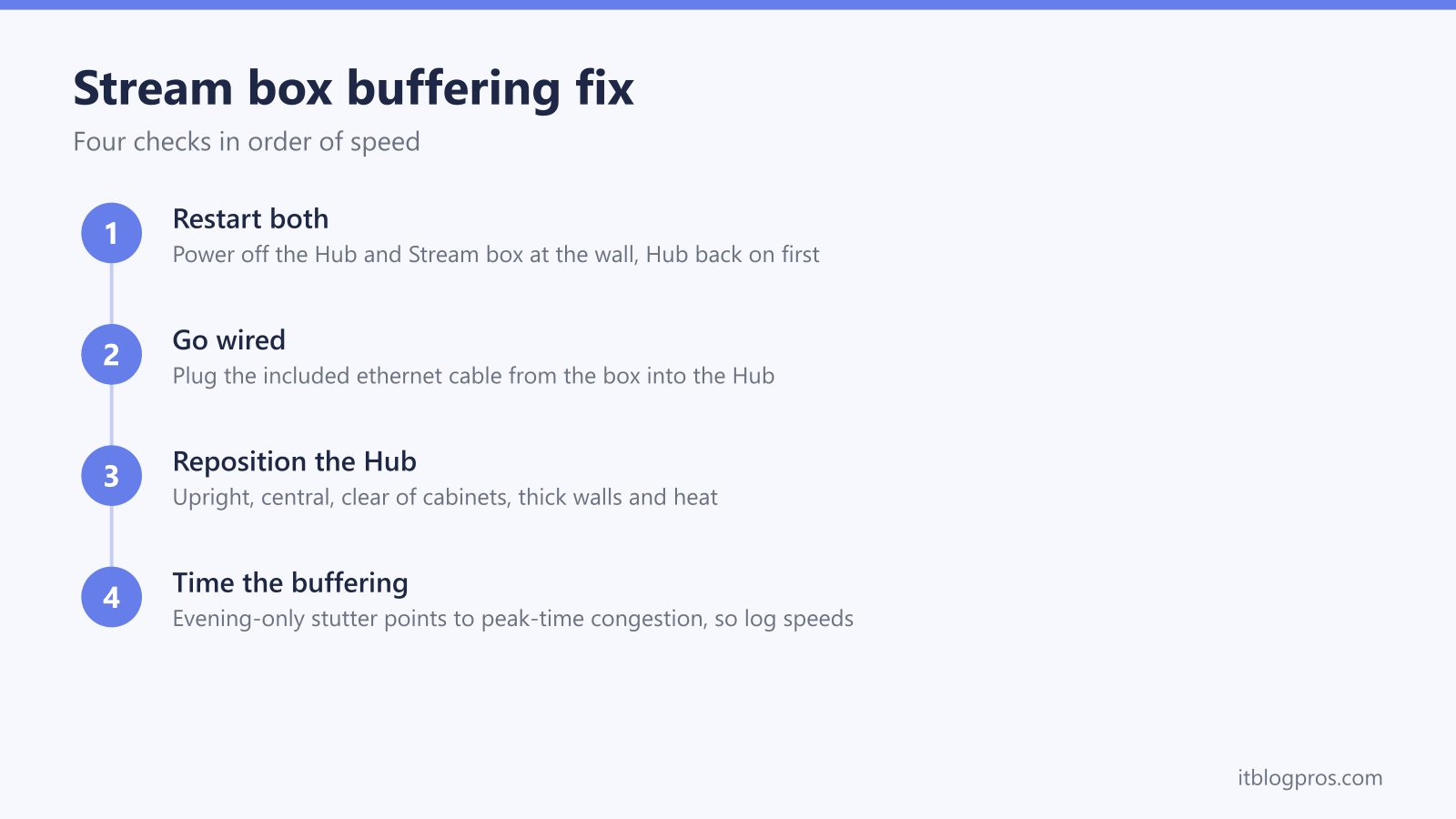
Work through it in this order:
- Unplug the Hub at the wall and leave it off for two full minutes.
- While the Hub is off, unplug the Stream box power cable too.
- Plug the Hub back in first and wait for its status light to settle. The Virgin Media Hub lights guide decodes what a steady versus flashing light means on every Hub model.
- Power the Stream box back on and check all cables are seated firmly, as Virgin's reboot guidance advises.
- Give the box time. Virgin Media says a TV box can take up to 10 minutes to start up fully, so resist the urge to pull the plug again early.
If the box hangs on its startup screen rather than reaching the home screen, that is a different fault with its own fix path, covered in the guide to a Virgin box stuck on starting up.
The ethernet cable in the box is the strongest fix available
Virgin Media ships an ethernet cable in the Stream box packaging, and its official buffering advice is blunt about using it: plug the cable from the Stream box directly into the back of the Hub for "a stronger, more stable connection". A wired link bypasses every WiFi variable at once. Thick walls, microwave interference, band congestion and the evening scrum of phones and laptops all stop mattering the moment the box has its own dedicated cable.
The honest caveat is placement. The cable only works if the Stream box and the Hub live within reach of each other, and trailing a long ethernet run across a hallway is not a fix most households will accept. Where the two sit in different rooms, Virgin Media's own suggestion is a pair of powerline adapters, which carry the network signal through your electrical wiring instead.
The full trade-offs, including what a wired connection does for 4K streams and app loading times, are covered in the dedicated comparison of the Stream box on ethernet versus WiFi. The short version: if the cable can reach, use it, and most buffering guides for this box end right there.
Hub placement and household load decide what WiFi the box receives
If a wired connection is not practical, the WiFi path needs attention. Virgin Media's placement advice for the Hub is specific: keep it upright, centrally positioned, unobstructed, and away from cabinets, thick walls and heat sources, all of which interfere with the signal. A Hub lying flat behind the TV or shut inside a media unit is one of the most common causes of a Stream box that buffers in an otherwise healthy home.
Household load matters just as much. Virgin's guidance notes that multiple devices online at once can slow things down, and that data-heavy activity such as online gaming or large downloads can directly cause buffering on the Stream box. Before assuming a fault, pause the console download, disconnect devices that do not need to be online, and test playback again.
If the WiFi itself is misbehaving beyond the Stream box, with phones and laptops dropping out too, the problem is upstream of the TV entirely. The step-by-step guide to fixing Virgin Media WiFi not working covers channel interference, Hub settings and the checks Virgin's support team will ask for.
Evening-only buffering points to congestion rather than your equipment
Buffering that follows a timetable is a diagnosis in itself. Virgin Media's own explanation of network congestion says that problems appearing mostly at busy times, such as evenings when many people are online, are a classic congestion sign. Community threads back this up, with users reporting Stream buffering concentrated between roughly 6pm and 9pm while daytime playback stays flawless.
No amount of restarting fixes congestion, because the bottleneck sits outside your home. What helps is evidence. Run a speed test on a device close to the Hub at midday and again during the evening slowdown, and note the difference. Check Virgin Media's service status checker for reported faults in your area while you are at it.
If evening speeds collapse to a fraction of the daytime figure over several days, raise it with Virgin Media with the timed results in hand. A documented pattern moves the conversation from generic reboot advice to a network investigation far faster than "the TV keeps buffering" ever will.
A re-setup and Virgin Media support close out the stubborn cases
When the double restart, a wired test and placement changes all fail, follow Virgin Media's fuller reboot procedure before escalating: power the box off at the wall socket, check every cable connects firmly into both the box and the TV, confirm the power switch is on, and allow the box up to 10 minutes to start. Overheating counts too, so give the box breathing space and clear anything stacked on top of it.
Beyond that, a full re-setup of the Stream box ties back to your Virgin Media account activation, so the cleanest route is through Virgin Media itself. Call 150 from a Virgin Media landline or Virgin Mobile, or 0345 454 1111 from any other phone, and the team can re-provision the box remotely or arrange a replacement if the hardware has genuinely failed.
One useful rule separates box faults from connection faults: if other devices in the same room also struggle to stream, the box is innocent and the connection is guilty. If the Stream box alone buffers while a phone beside it streams perfectly over the same WiFi, hardware or provisioning moves up the suspect list.
Extending the WiFi beats endless fixing in larger homes
Some homes simply cannot deliver a stable signal to the room where the Stream box lives, and no sequence of restarts changes the physics. If the box sits two floors and three brick walls from the Hub, the honest answer is more coverage, not more troubleshooting.
Virgin Media's in-house option is WiFi Max, an £8 a month add-on that comes included with Gig1, Gig2 and Volt packages. It carries a guarantee of at least 30Mbps in every room, backed by up to three WiFi Pods and a one-off £100 bill credit if the Pods still cannot deliver. For a Stream box household, 30Mbps in the TV room comfortably covers Virgin's own 4K guidance.
The alternative is a one-off purchase of a mesh WiFi system, which avoids the rolling monthly fee and typically outperforms single-Hub WiFi across larger properties. Mesh brings its own setup decisions with a Virgin Hub, including whether to run the Hub in modem mode, and the full walkthrough with recommended systems lives in the guide to the best WiFi mesh for the Virgin Media Hub 5.