
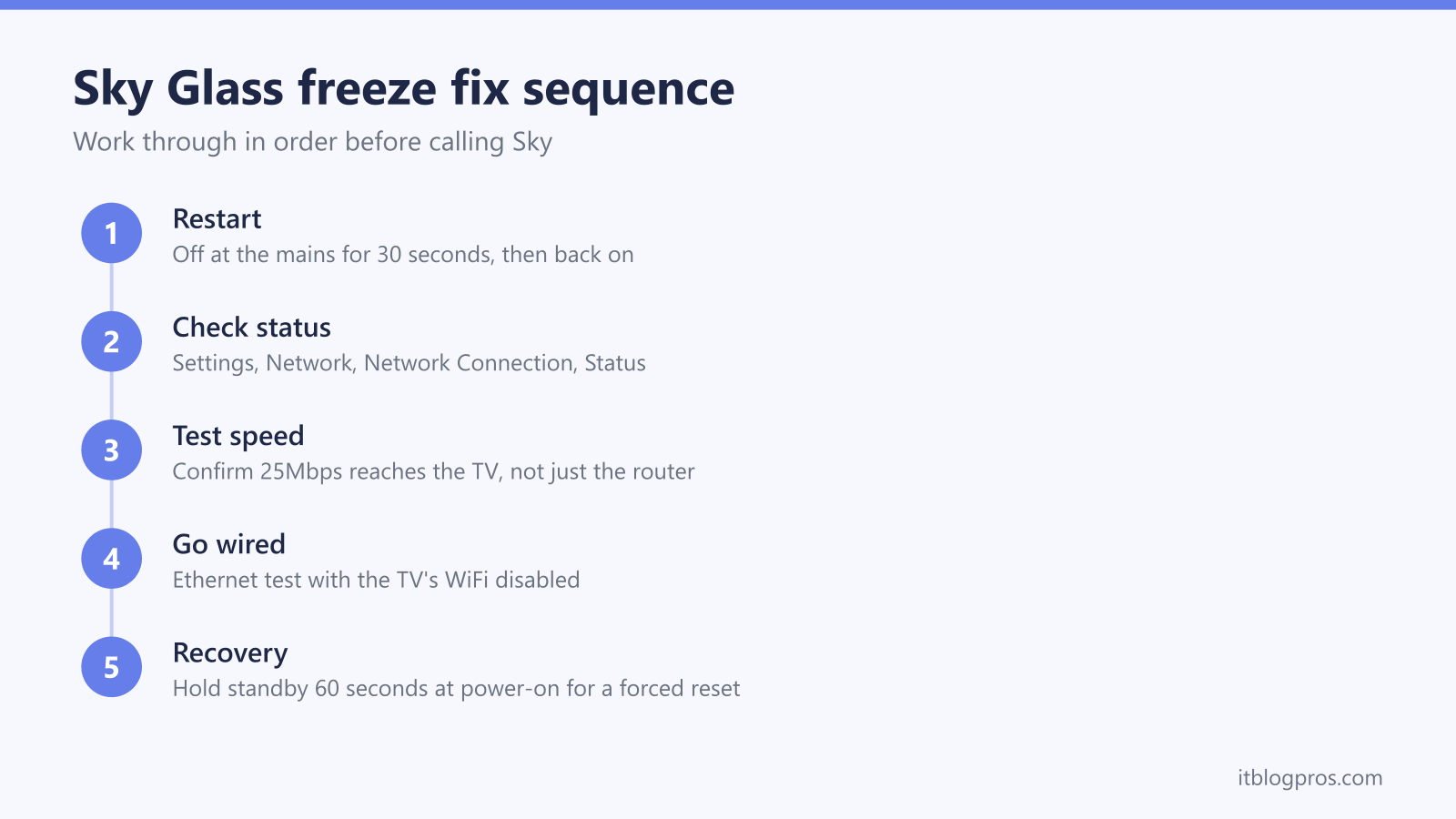
Sky Glass has no dish and no aerial, so every live channel, playlist recording and app arrives over your broadband. That design makes the TV brilliant when the connection is solid and miserable when it is not, and it is why freezing and buffering are the two complaints that dominate Sky's own community forum. The fixes below follow the same order Sky's advisers use: restart first, measure the connection second, and only then look at hardware faults the warranty should cover.
Sky Glass freezing and buffering is almost always caused by a weak or unstable WiFi link between the router and the TV, because every channel arrives over broadband. Restart the TV from the mains, check Settings then Network for connection status, and confirm at least 25Mbps reaches the TV itself. If the picture freezes while the sound carries on, the fault sits with the TV, and Sky's two-year warranty applies.
Key Takeaways
- Sky Glass streams every channel over broadband, so most freezing and buffering traces back to weak WiFi at the TV rather than a faulty set.
- A 30-second mains power cycle clears most one-off freezes, and the forced recovery restart with the standby button held for 60 seconds fixes deeper software glitches.
- Sky now specifies a minimum of 25Mbps for Sky Glass even in HD, rising to 30Mbps for UHD or when more than one Sky streaming device runs at once.
- Picture freezing while the sound carries on is a known Sky Glass fault reported widely on Sky's forum, and repeated episodes justify a call to Sky within the 24-month warranty.
- Connecting the TV by Ethernet and disabling its WiFi proves in one evening whether the wireless link or the broadband line is at fault.
Sky Glass streams everything, so the connection takes the strain
Sky Glass is Sky's all-streaming television. There is no satellite dish, no aerial socket in use and no separate box: live channels, on-demand shows, your playlist and every app reach the screen through your home internet. Three models exist, and all behave the same way when the connection struggles. The original Sky Glass launched in 2021, Sky Glass Gen 2 arrived in February 2025 with WiFi 6 and a brighter panel, and the cheaper Sky Glass Air followed later in 2025. Every model also carries a 10/100 Ethernet port for a wired connection.
Sky's own requirements have tightened over time. At launch the company quoted 10Mbps as the minimum, but Sky now specifies at least 25Mbps for Sky Glass and Sky Stream even for HD viewing, and recommends 30Mbps for UHD or for households running more than one Sky streaming device at the same time. The figure that matters is not the headline speed on your bill but the speed that actually reaches the TV through walls, floors and interference. A 500Mbps fibre line can still deliver a stuttering 8Mbps to a Glass set three rooms from the router, and that gap is where most freezing and buffering lives.
Run the restart ladder before touching any settings
Sky's advisers start every freezing case the same way, and it clears a surprising share of them.
The gentlest option is the built-in restart: open Settings on the TV and choose the restart option. This reboots the software without cutting power.
The more thorough option is a full mains power cycle. Put the TV into standby, switch it off at the wall or unplug it, wait a full 30 seconds so the internals fully discharge, then power it back on and let it reconnect. Sky Community regulars report this as the single most reliable way to clear a frozen picture, a stuck stream or a TV that has drifted into a bad state after days of standby.
Restart the router at the same time if buffering affects other devices too. Power the router off for 30 seconds, let it fully come back online, and only then restart the TV, so the Glass reconnects to a fresh network rather than a half-recovered one.
The forced recovery restart clears stubborn software faults
When an ordinary restart stops working, or the TV freezes again within hours, Sky Glass has a deeper recovery procedure. Treat it as a last resort before calling Sky, because it returns the TV to a fresh state and you will need to sign back in afterwards.
Switch the TV off at the mains, but leave the cable plugged in. Press and hold the standby button on the TV itself. On the original 2021 Sky Glass this button sits on the right-hand side of the set, below the mute control; on Gen 2 and Glass Air, use the button marked standby among the side controls. Keep holding it while you switch the power back on at the mains, and keep holding until the LEDs in the middle of the TV flash, which takes around 20 seconds. The TV then runs its recovery process, which can take up to 15 minutes on slower connections. Once it finishes, follow the on-screen setup, sign back into your Sky account and re-enter passwords for apps such as Netflix.
If the freezing returns even after a recovery restart, the software is unlikely to be the cause, and the connection tests below decide what happens next.
The connection status screen shows what the TV actually sees
Sky Glass reports its own view of your network, which is more useful than any speed test run on a phone. Open Settings, go to Network, then Network Connection, then Status. This screen shows whether the TV is on WiFi or Ethernet and whether the connection is healthy, and it offers a reset option that rebuilds the network connection without a full restart.
To measure real throughput at the TV, use the check built into the Netflix app: open Netflix, choose Get Help, then Check your Network. The result is the speed the TV itself receives, and if it falls below Sky's 25Mbps minimum while your router speed test looks fine, the WiFi link between router and TV is the bottleneck.
One more setting is worth checking. In Settings under Start up and standby, make sure networked standby is switched on. Community members report that with it off, Glass can drop its network connection in standby and wake into exactly the frozen, buffering state this guide exists to fix.
Picture freezing while the sound carries on points at the TV
A distinctive Sky Glass fault fills thread after thread on Sky's community forum: the picture freezes or goes blurry while the audio carries on playing normally, then either recovers by itself or stays stuck until a restart. Because the sound continues, the stream is still arriving, which means the broadband is not the culprit. The fault sits in the TV's video pipeline.
A mains power cycle restores the picture, but on affected sets the fault tends to come back. Sky has addressed variants of this through software updates, so first confirm your set is up to date using the section below. If the freeze keeps returning on current software, gather evidence: note the dates and times it happens and film a short clip on your phone showing frozen video with live audio.
Then contact Sky rather than buying anything. Sky Glass carries a 24-month warranty, and forum advisers routinely point owners with this recurring fault towards a repair or replacement. A replacement set remains covered for the remainder of the original 24-month period rather than starting a fresh term, so it costs nothing to pursue while the TV is within its first two years.
HDMI, eARC and soundbar quirks masquerade as freezing
A Glass set that only misbehaves with a soundbar or console attached usually has an HDMI handshake problem rather than a streaming one. Sky's streaming platform is known to be fussy over eARC and HDMI-CEC, the control system that lets one remote drive several devices, and every manufacturer implements CEC slightly differently. The symptoms include a frozen or black picture when switching sources, a soundbar that stops responding, and audio dropouts that look like buffering.
Re-seat the handshake first. Switch the TV, the soundbar and anything else on HDMI off at the wall for a minute. Power the TV on first, let it fully boot, then bring the other devices back one at a time so each negotiates a clean connection.
If audio glitches persist through an eARC soundbar, look in Settings under Picture and sound and change the digital audio output from the automatic setting to Dolby Digital. Some soundbars handle Dolby Digital Plus, the default, poorly, and the fixed format is far more stable. If devices keep fighting over inputs or waking each other, turning HDMI control off on the offending device ends the argument at the cost of some remote convenience.
Software updates arrive automatically and in batches
Sky Glass updates itself. Updates download and install automatically, they roll out in waves across the country, and there is no menu option to force one, so a fix Sky has announced can take days or weeks to reach a particular set. To see the current version, open Settings, then System management, then System info, and read the software version listed there.
The practical job is making sure the TV can receive updates. That means a stable connection, and it means letting the TV sit in networked standby overnight rather than cutting it off at a switch, because overnight standby is when updates typically land. A set that gets unplugged at the wall every evening can sit on old, buggy software for months while everyone else has the fix.
If a visible update sticks at 0 per cent, the connection is nearly always the cause. Run the mains restart on both the router and the TV, move the router closer or use Ethernet for the duration of the update, and allow up to 30 minutes for it to complete.
Proving whether the TV or the broadband is at fault
Before blaming either Sky or your internet provider, three quick tests settle it.
First, compare speeds. Run the Netflix network check on the TV, then a speed test on a phone stood next to the router. A healthy result at the router with a poor result at the TV means the WiFi link is the problem, not the broadband line. Poor results in both places point at the line or the ISP, and the fixes in Sky WiFi problems and solutions apply.
Second, watch the pattern. Buffering that appears every evening between 8pm and 10pm on every device suggests network congestion or a struggling router. Freezing that strikes at random times, only on the Glass, while phones in the same room stream perfectly, points at the TV.
Third, run the wired test. Connect the TV to the router with an Ethernet cable, then disable WiFi in the TV's network settings so it cannot silently fall back to wireless. Every Glass model, including Gen 2 and Glass Air, has a 10/100 Ethernet port, and 100Mbps comfortably exceeds the roughly 30Mbps a UHD stream demands. A week of flawless wired viewing convicts the WiFi. Freezing that continues on Ethernet convicts the TV, and the warranty route above applies. If the problem is the TV repeatedly losing the network rather than buffering mid-stream, the separate guide to Sky Glass dropping its WiFi connection covers that failure mode.
Upgrading the WiFi beats another restart when the wired test passes
Be honest about the order here. If Ethernet is practical, run the cable: it is cheaper than any WiFi upgrade and more stable than the best mesh system. And if the TV froze even during the wired test, no router, mesh kit or booster will help, because the fault is in the set and Sky's warranty is the answer.
Upgrading the wireless only makes sense when the evidence fits: the wired test was clean, the Netflix check shows the TV receiving well under 25Mbps over WiFi, and the set sits rooms away from the router with no realistic cable route. In that situation a mesh WiFi system that places a node in or next to the TV room is the fix that lasts, because it gives the Glass a strong local signal instead of a long, wall-battered one. The tested options, including what works alongside Sky's own routers and hubs, are covered in the guide to the best mesh WiFi for Sky Glass and Sky Stream.