
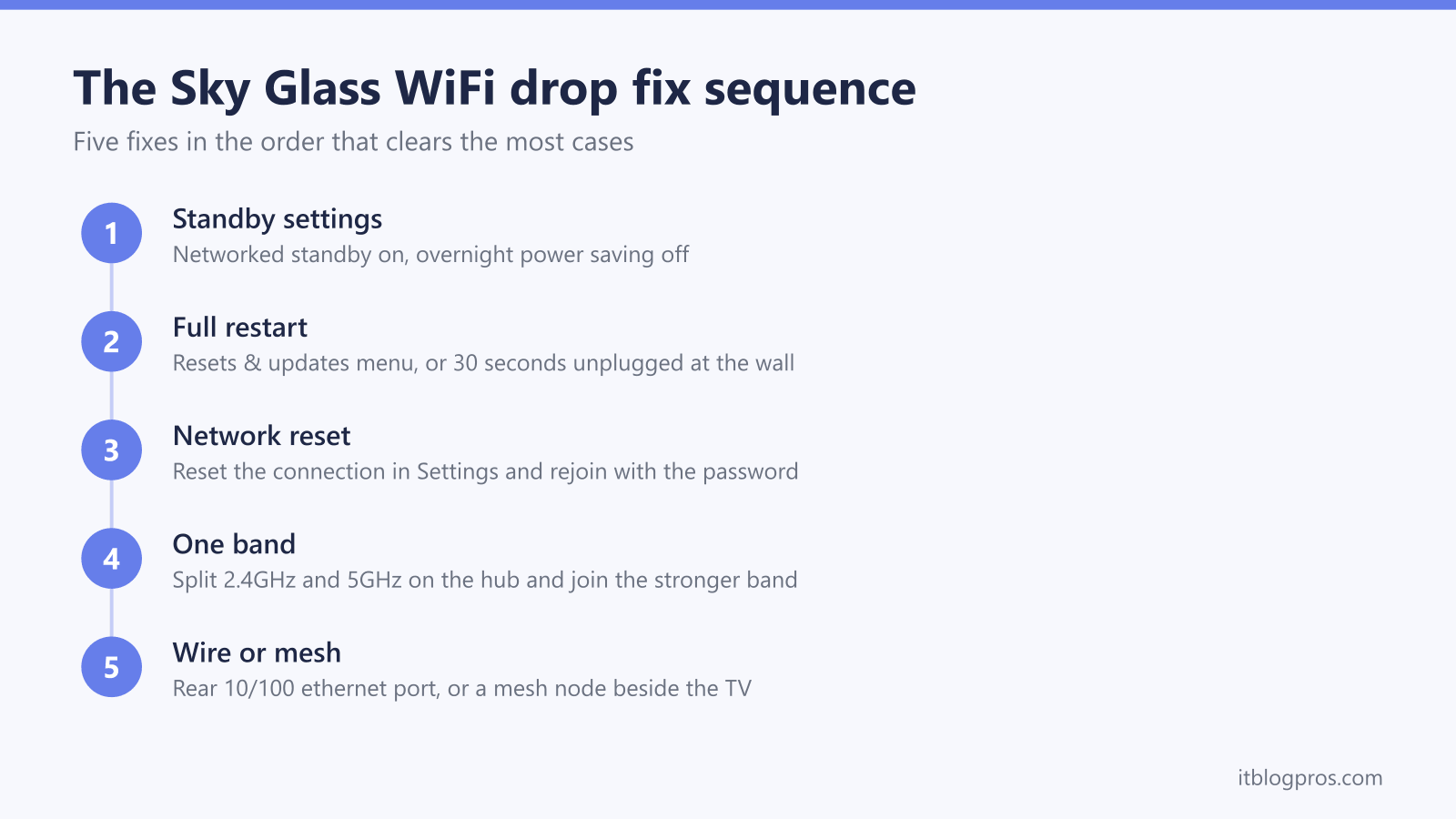
A Sky Glass that drops its WiFi connection every evening turns a streaming-only TV into a very expensive mirror. There is no dish and no recording box to fall back on: the entire Sky service arrives over the internet, so every network blip lands on screen as buffering, a "no internet connection" banner, or a set that quietly rejoins the network after a restart. The pattern is heavily documented on Sky's own community forum across Gen 1 and Gen 2, and the fixes fall into a clear order, from a two-minute standby setting through to the honest admission that some homes simply need a stronger network at the TV.
Sky Glass drops WiFi for three main reasons: overnight power saving cutting the network in standby, band steering bouncing the TV between 2.4GHz and 5GHz, and weak signal at the TV position. Turn networked standby on, switch overnight power saving off, restart the set, then reset the network connection and rejoin. If drops continue, use the rear 10/100 ethernet port or put a mesh node in the same room.
Key Takeaways
- Overnight and standby drops usually trace to power saving: networked standby needs to be on and overnight power saving off, followed by a restart of the set.
- The network Reset in Settings acts as the forget-and-rejoin step, and it is required after any router swap, network name change, or password update.
- Sky hubs broadcast one network name across both bands, and band steering can bounce Sky Glass between 2.4GHz and 5GHz; splitting the bands pins the TV to one stable connection.
- Sky Glass Gen 1, Gen 2 and Glass Air all carry a 10/100 ethernet port on the rear panel, and a wired connection ends WiFi drops outright.
- Sky's own minimums are 25Mbps for HD and 30Mbps for UHD measured at the TV, so a weak signal at the set needs a stronger network rather than more settings changes.
The drop and rejoin pattern points at the TV, not the broadband
The classic complaint on the Sky Community forum runs the same way every time: phones, laptops and other tellies stay online, but Sky Glass alone loses the network, often overnight or when waking from standby, and often rejoins by itself after a restart. Threads titled along the lines of "Sky Glass keeps disconnecting from WiFi" and "Sky Glass Gen 2 WiFi dropping each night" describe exactly this behaviour on both generations of the set.
That pattern matters because it rules things out. If every device in the house loses the internet at the same moment, the fault sits with the router or the line, and no amount of TV fiddling helps. When only Sky Glass drops, the cause is almost always one of three things: the TV's own power-saving behaviour in standby, the hub's band steering shunting the set between WiFi bands, or a signal that is merely adequate at the TV position and collapses whenever conditions change. The fixes below work through those causes in order, cheapest and fastest first.
Standby power saving is the first setting to check
Sky Glass never fully switches off from the remote; it sits in standby, and what it does with its network connection during standby is controlled by two settings. When overnight power saving is enabled, the set can shut its network interface down during the small hours and then fail to rejoin cleanly, which is why so many owners find the WiFi "gone" every morning.
The fix recommended repeatedly by Sky Community regulars, including for the Gen 2 nightly drop pattern, is to open Settings, find the startup and standby options, and set Networked standby mode to on and Overnight power saving to off. Then restart the set properly so the change takes: go to Settings, then System management, then Resets & updates, and choose Restart device. Networked standby uses a little more electricity, but it keeps the TV's connection alive in standby instead of forcing a fresh, and sometimes failed, reconnection every time the screen wakes.
A full restart clears a stuck WiFi session on both ends
Because the remote's standby button never truly powers the set down, a Sky Glass can carry a broken WiFi session around for days. A genuine restart forces the WiFi hardware to renegotiate with the router from scratch. Use Settings, System management, Resets & updates, Restart device, or simply pull the plug from the wall, wait 30 seconds, and plug back in.
Restart the router at the same time. Switch the Sky Hub (or whichever router is in use) off at the mains for 30 seconds, power it back up, and let it settle for a few minutes before judging the result. Restarting both ends together clears stale device entries on the hub side as well as the stuck session on the TV side. A restart is not a cure for a structural problem, but when a drop is a one-off glitch rather than a nightly ritual, this is usually all it takes.
Resetting the network connection is the forget and rejoin step
Sky Glass does not offer a classic "forget this network" button; the equivalent is the network Reset. Press Home, open Settings, then Network connection, and choose Reset. The TV checks the network, asks for confirmation, and then presents the list of available networks so the correct one can be selected and the password entered fresh. Have the WiFi password to hand before starting.
This step is essential, not optional, after any change to the network itself: a new router from a provider switch, a renamed network, or a changed password. Sky's own help pages cover the set getting stuck on the Network setup screen in exactly these situations, and the reset is the way out. It also fixes the subtler case where the saved connection details have simply corrupted over time, which shows up as a set that sees the network, claims to join it, and then drops within minutes.
Band steering on the Sky hub genuinely confuses the TV
Sky's hubs broadcast a single network name across both the 2.4GHz and 5GHz bands and steer each device to whichever band the hub judges best. For a TV sitting at the edge of good 5GHz coverage, that judgement changes constantly: 5GHz for speed when the signal is strong, a nudge to 2.4GHz when it dips, then back again. Each handover can register on Sky Glass as a brief drop, and Sky Community threads are full of owners describing devices that "keep wanting to switch between frequencies" until the bands are separated.
The fix is to split the bands into two separately named networks and connect Sky Glass to whichever one is strong and stable at the TV position: 5GHz when the router is in the same room, 2.4GHz when the signal has to cross walls. The full hub-by-hub procedure is in the guide to splitting WiFi bands on a Sky hub. One honest caveat: the white Sky Max Hub, supplied with the WiFi Max add-on, is managed through the My Sky app and does not allow the bands to be split; the only lever there is temporarily switching one band off, which is a workaround rather than a solution.
Distance and walls decide whether any setting change works
Sky's stated minimums for Glass, revised in April 2023, are 25Mbps for HD streaming and 30Mbps for UHD, with roughly another 5Mbps needed for each additional Sky Stream puck running at the same time. The figure that matters is not the package headline speed but the speed actually arriving at the TV. A 500Mbps full-fibre line delivers nothing useful if two brick walls reduce the WiFi at the set to a fluctuating 15Mbps.
Test at the TV position: run a speed test on a phone while standing next to the set, or use the speed check inside the Netflix app on the TV itself. If the result routinely lands below Sky's minimums, or swings wildly between tests, while a test next to the router looks healthy, the problem is signal rather than software, and no standby setting or network reset will fix it. The remaining options are physical: shorten the distance, run a cable, or bring the network to the TV with mesh.
The ethernet port ends WiFi drops on every Sky Glass generation
Every Sky Glass model has a wired option. Sky Glass Gen 1 (2021), Sky Glass Gen 2 (2025) and Sky Glass Air (2025) all carry an RJ45 ethernet port on the rear connections panel, alongside the HDMI sockets; on Gen 1 the cables route through the slot in the stand. Sky has confirmed on its community forum that the port is 10/100 Fast Ethernet on both Glass generations, and Glass Air carries the same 10/100 spec.
A 100Mbps port sounds dated next to a gigabit broadband package, but Sky Glass tops out at roughly 30Mbps of demand even for UHD, so the port has more than three times the headroom the service can use. The benefit of the wire is consistency, not speed. Any Cat 5e or better cable works, including flat ones that tuck under skirting. After connecting the cable, switch WiFi off on the TV in the network settings so the set cannot wander back onto the wireless path. Households running Stream pucks face the same choice, covered in Sky Stream puck ethernet versus WiFi.
A stronger network beats endless tweaking at some point
Settings cannot manufacture signal. When Sky Glass sits a floor or several walls away from the hub, the speed at the set fails Sky's minimums, and splitting the bands has already been tried, the network is the fault and the TV is the messenger. Running an ethernet cable across the house is the cheapest permanent answer where the route allows it. Where it does not, a mesh WiFi system with a node placed in the same room as the TV gives Sky Glass the strong, steady 5GHz signal it was designed for, and the picks in the best mesh WiFi for Sky Glass and Sky Stream are chosen for exactly this job.
One final honest check before spending anything: if the network is demonstrably strong, other devices stream 4K happily in the same room, and Sky Glass still drops even on a wired connection, the set itself may be at fault. Sky Community advisers point owners in that position to Sky support, since sets within their warranty period are replaced when Sky agrees there is a hardware fault.