
Splitting the 2.4GHz and 5GHz WiFi bands on a Sky hub gives a smart plug, camera or bulb that only supports 2.4GHz a network name of its own to join, and whether you can do it depends entirely on which hub Sky sent you. The black Sky Broadband Hub has a proper split option buried in its settings, while Sky's help pages give no split steps for the white Sky Max Hub or the newer Gigafast+ Hub. This guide covers the exact steps for the hubs that can split, the honest truth about the hubs that cannot, and the workarounds to try when a smart device will not connect.
The black Sky Broadband Hub (SR203) can split its WiFi bands: log in at 192.168.0.1, untick Synchronise 2.4GHz and 5GHz settings under Wireless, rename the 5GHz network and apply. Sky documents no split for the white Sky Max Hub (SR213) or Gigafast+ Hub. On those, if a 2.4GHz-only device will not set up, switch off the 5GHz band in the My Sky app, as Sky's help describes, then switch it back on.
Key Takeaways
- The Sky Broadband Hub (SR203) splits its bands properly: untick Synchronise 2.4GHz and 5GHz settings at 192.168.0.1, then give the 5GHz network its own name.
- Sky's help pages give no split steps for the white Sky Max Hub (SR213) or the Gigafast+ Hub, and Sky says the Max Hub's WiFi settings are managed in the My Sky app.
- On the Max Hub, Sky's advanced settings help shows how to switch the 5GHz band off in the My Sky app, and Sky warns that switching off a band can disconnect some devices.
- Sky's older devices help says some older devices, such as smart speakers or doorbells, are not compatible with WPA3, and to switch from the default WPA3-T to WPA2 if one cannot connect.
- A 2.4GHz-only device stays on 2.4GHz once connected, so re-enabling the 5GHz band after setup does not knock it back off the network.
Band splitting on a Sky hub depends entirely on the model
Sky has shipped five main hubs, and they sit in three camps. The old flat black Sky Hubs (SR101 and SR102) broadcast on 2.4GHz only, so there is nothing to split and every smart device already lands on the right band. The black dual band hubs, the Sky Q Hub (ER110 and ER115) and the upright Sky Broadband Hub (SR203), can split their bands through the admin pages at 192.168.0.1. The app-managed hubs, the white Sky Max Hub (SR213, WiFi 6) and the Gigafast+ Hub (WiFi 7, supplied on Sky's CityFibre multi-gigabit packages), have no split option in Sky's own instructions.
The reason anyone cares is smart home kit. Some smart devices only support 2.4GHz, and makers differ on whether one name for both bands gets in the way. Blink's WiFi guide says Blink supports merged networks with a single SSID and still connects on 2.4GHz, while Meross's HomeKit setup FAQ says to put the iPhone or iPad on a 2.4GHz network and, if pairing fails, to turn off the router's 5GHz WiFi temporarily. Check the device's own setup guide for the bands it supports. If its setup keeps failing on the combined name, splitting the bands gives the 2.4GHz network its own name so you can choose it deliberately. If your device still refuses after that, work through our guide to a smart plug that will not connect to WiFi, because the cause can be the device rather than the hub.
The Sky Broadband Hub splits its bands at 192.168.0.1
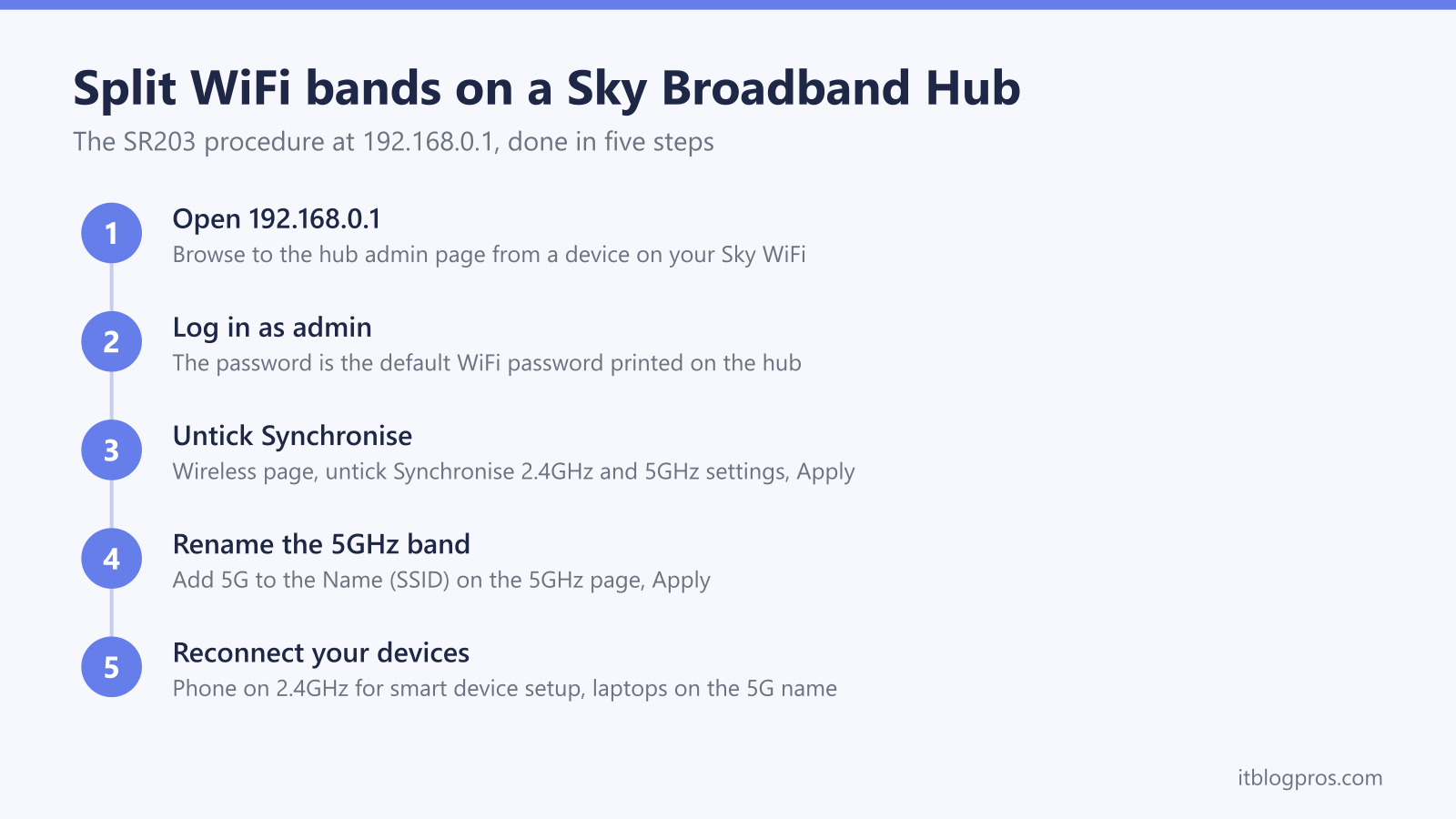
On the Sky Broadband Hub (SR203) the whole job takes about ten minutes:
- Connect a phone or computer to your Sky WiFi, or plug into a LAN port with an Ethernet cable.
- Type 192.168.0.1 into the browser address bar and press Enter.
- Log in with the username admin. The password is the default WiFi password printed on the sticker on the back of the hub, and it stays the original printed one even if you have changed your WiFi password since. Full credential details are in our Sky Hub login guide.
- Select Wireless from the navigation bar.
- Scroll down, untick Synchronise 2.4GHz and 5GHz settings, then scroll to the bottom and select Apply.
- When the page reloads, open the 5GHz settings page that now appears, find the Name (SSID) box and add something like 5G to the end of the name, then Apply again.
You now have two networks: the original name on 2.4GHz and the new 5G-suffixed name on 5GHz. Choose the 2.4GHz name when a 2.4GHz-only device's app asks which network to join, and put your phone on it too if the device's setup guide asks for that. Devices that were on 5GHz need reconnecting to the renamed network once. The hub's WiFi restarts briefly when you apply changes, which is normal; if the hub's LEDs look wrong afterwards, decode them with our Sky Broadband Hub lights guide. The Sky Q Hub offers the same Synchronise tickbox in its wireless pages, with sky as the default admin password, and you can leave the bands split permanently on either hub with no penalty.
Sky documents no band split for the Max Hub or Gigafast+ Hub
The honest answer for the white Sky Max Hub (SR213) is that Sky documents no way to split its bands. Sky's help pages give it no Synchronise tickbox, no separate SSID fields and no manual channel selection, and Sky says the Max Hub's WiFi settings are managed in the My Sky app, which shows no split option. The same goes for the newer Gigafast+ Hub. Check the My Sky app on your own hub before planning a smart home around a split.
Sky does not explain why. Its pages describe one network name for the Max Hub and offer no separation setting, so treat any page describing a Max Hub split option as worth checking against Sky's own guide first. If a permanently separate 2.4GHz network name is a hard requirement for your smart home, the Max Hub and Gigafast+ Hub will not provide it, and the realistic choices are the workarounds below or different hardware, with the caveats that come with replacing a Sky hub that has no documented bridge mode.
The workarounds that get smart devices onto 2.4GHz on the newer hubs
Four approaches are worth trying for a stuck device on a Max Hub or Gigafast+ Hub:
- Temporarily disable the 5GHz band. Sky's advanced settings help gives the route in the My Sky app: tap Broadband, then WiFi Settings, Advanced settings and Disable WiFi, tap GATEWAY and turn 5GHz off. Sky warns that switching off a band can reduce WiFi coverage and disconnect some devices, so warn the household first. Meross's HomeKit setup FAQ suggests turning off 5GHz temporarily when pairing fails, so run the device setup while the band is off, then switch 5GHz back on once setup finishes.
- Drop the WiFi security to WPA2. Sky's help page on connecting older devices to a Sky Max or Gigafast+ Hub covers this. It says some older devices are not compatible with WPA3, especially ones that no longer get software updates from their maker, such as older WiFi printers, smart speakers or doorbells. The hubs are set to WPA3-T as standard, and for a device that cannot use WPA3-T or WPA3, Sky's steps are Broadband, WiFi Settings, Advanced settings, WiFi security level, then WPA2 and Save changes. Sky then says to forget the WiFi network on the device, turn it off and on, and reconnect it, and it suggests updating the device's software as another fix.
- Use distance to force 2.4GHz. TP-Link's FAQ on the differences between 2.4GHz and 5GHz says 2.4GHz reaches farther than 5GHz, so 5GHz is the band that fades first at the far end of the house or garden. Running the pairing there sometimes works, but it is hit and miss and best treated as a last resort rather than a plan.
- Use the device's AP pairing mode. Some smart plugs and cameras offer an AP or hotspot pairing mode where your phone joins the device's own temporary network instead, so check the device's setup guide for one. The steps are in our smart plug connection guide.
Life after setup stays simple because 2.4GHz devices hold their band
The part that worries people most turns out fine: a 2.4GHz-only device physically has no 5GHz radio, so once it has joined the network it stays on 2.4GHz forever, even after you switch the 5GHz band back on. If you use the temporary toggle on the Max Hub, it is a setup-time step, repeated for each new device that needs it.
Two settings are worth thinking about afterwards. If WPA2 got a device connected, Sky's older devices help says to change back to the default setting once the lower security level is no longer needed, or if it did not help, so test that device again after any change back to WPA3-T. And on a Sky Broadband Hub, a split done once can stay split permanently; phones and laptops simply join the 5G-suffixed name for speed while the smart home lives on the 2.4GHz name.
If the workarounds still fail, the problem may sit with the device or the app rather than the band, so check the smart plug troubleshooting steps before blaming the hub. Replacing the hub with your own router is the nuclear option, and it comes with real caveats on Sky: no hub has a documented bridge mode, and UK residential lines authenticate over ordinary DHCP rather than PPPoE, with some of them wanting an Option 61 client ID as well, all covered honestly in our Sky Hub login and settings guide.