
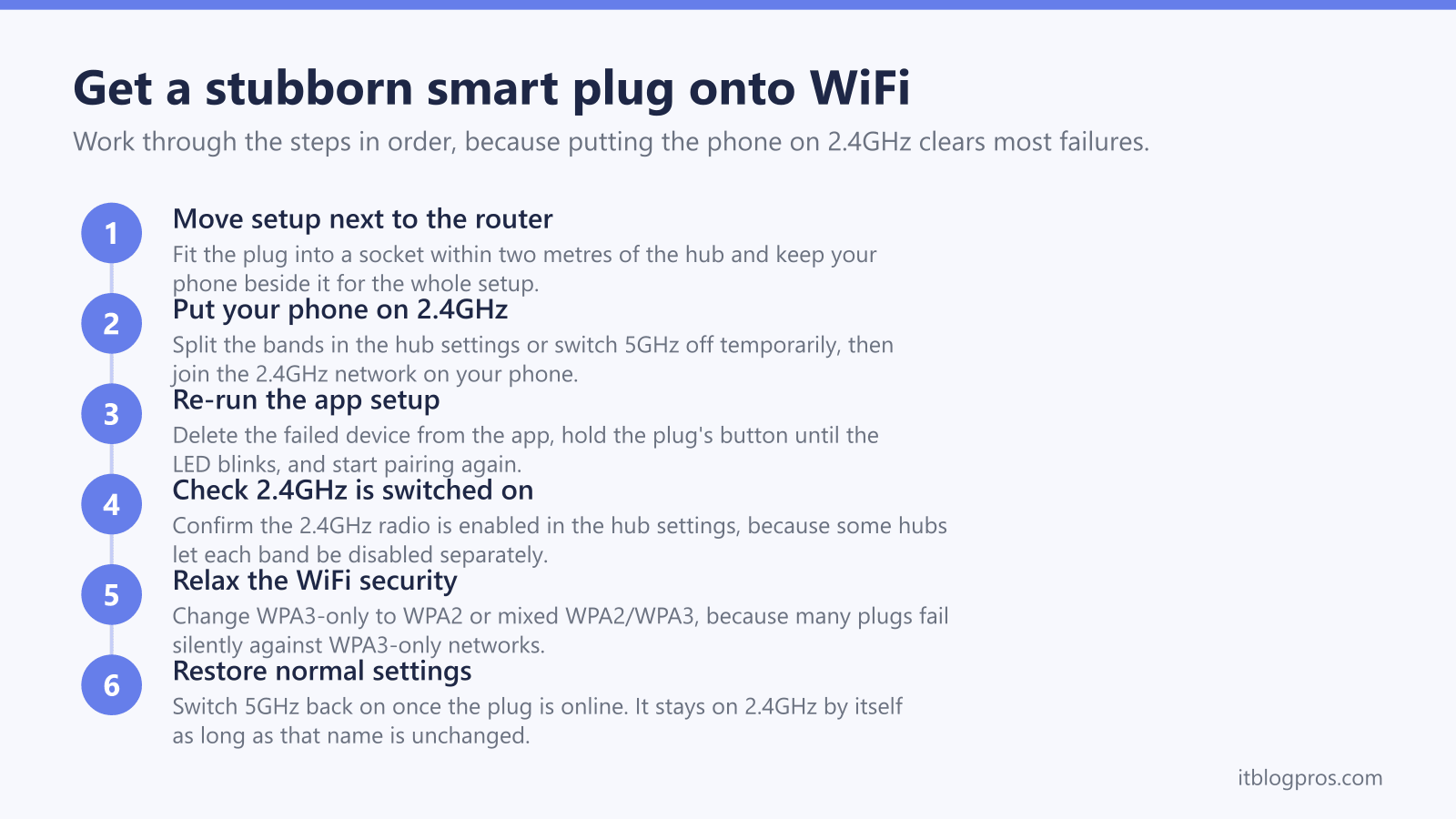
A smart plug that sails through the first half of setup and then fails at the last step is one of the most common smart home complaints in the UK, and the cause is almost never the plug itself. Nearly every WiFi smart plug on sale, including the TP-Link Tapo and Kasa ranges, Meross and Amazon's own plugs, only works on the 2.4GHz band. Modern UK hubs from Virgin Media, BT, Sky and EE broadcast 2.4GHz and 5GHz under a single network name and quietly steer your phone onto 5GHz, so the setup app tries to hand the plug a network it cannot even see. This guide explains the fault properly, walks through a fix ladder that works for any brand of plug, and covers the exact band-splitting settings for each major UK hub, including the honest caveats for the hubs whose makers give no clear split steps.
Almost every smart plug, including Tapo, Kasa, Meross and Amazon models, only works on 2.4GHz WiFi. UK hubs broadcast both bands under one name and steer your phone onto 5GHz, so setup fails at the final step. Run setup within two metres of the router, split the bands or switch 5GHz off where the hub offers that control, then re-run the app setup. The plug stays connected on 2.4GHz afterwards.
Key Takeaways
- Nearly all smart plugs, including Tapo, Kasa, Meross and Amazon models, are 2.4GHz-only and cannot see a 5GHz network at all.
- UK hubs combine both bands under one WiFi name by default, and band steering parks your phone on 5GHz, which is what breaks the app setup.
- The reliable fix is to run setup within two metres of the router with the bands split or with 5GHz temporarily switched off.
- BT's pages disagree on whether the Smart Hub 2 can split its bands, so check its 5GHz section for Sync with 2.4GHz, while Sky's Max Hub help pages give no split steps but do give a 5GHz switch-off in the My Sky app.
- WPA3-only security also blocks many plugs, so set the hub to WPA2 or mixed WPA2/WPA3 before blaming the hardware.
Nearly every smart plug only speaks 2.4GHz
The spec sheets are unambiguous. TP-Link states that Tapo plugs support 2.4GHz WiFi and do not support 5GHz, and its official Kasa troubleshooting guide says the same for that range. Meross setup documentation requires your phone to be on a 2.4GHz network before pairing even starts, and Amazon's listings for its own-brand plugs specify 2.4GHz WiFi only. This is a deliberate design choice, not a corner cut: 2.4GHz travels further and passes through walls better than 5GHz, the radio chips cost pennies, and a plug only ever sends a few bytes of on-off data, so 5GHz speed would buy it nothing.
The practical consequence matters more than the engineering reason. A 2.4GHz-only plug cannot fall back to 5GHz, cannot be coaxed onto 5GHz, and will never appear on a 5GHz network under any circumstances. If the only signal it can negotiate with is 5GHz, it is offline, full stop. Every fix on this page flows from that single fact.
Band steering on a single network name is the real culprit
Virgin Media, BT, Sky and EE hubs all ship with both WiFi bands merged under one network name. The hub then uses band steering, sometimes labelled Smart WiFi or channel optimisation, to push capable devices onto the faster 5GHz band. Your phone is a capable device, so during smart plug setup it is almost certainly sitting on 5GHz.
That wrecks the pairing handshake. The app reads the network name from your phone, passes the credentials to the plug, and the plug then scans for that name on 2.4GHz. If the phone hops bands mid-setup, or the plug ends up talking to a different radio than the phone, the process times out. The classic symptoms are a progress bar that stalls near the end, a 'device not found' error after a long spinner, or a plug whose LED just keeps blinking in pairing mode. TP-Link's own fix for this is exactly what this guide covers: give the 5GHz band a different name, or temporarily turn 5GHz off.
The universal fix ladder for any brand of plug
Work through these in order, because the early steps are free and fix most cases.
First, move the setup next to the router. Plug the smart plug into a socket within two metres of the hub and keep your phone beside it. Weak signal during pairing causes failures that look identical to the band problem. Once the plug is online you can move it back to its real socket, because it remembers the network.
Second, get your phone onto 2.4GHz. Either split the bands in the hub settings so each band has its own name, or switch the 5GHz band off while you pair, where the hub offers that control. Keep the 2.4GHz name and password unchanged so nothing else in the house drops off. If you cannot touch the hub settings at all, there is a cruder trick from TP-Link's own support pages: walk towards the edge of your WiFi range, because 5GHz runs out of reach before 2.4GHz does and the phone falls back to the band the plug needs.
Third, reset the plug and start clean. Delete the failed device from the app, hold the plug's button until the LED blinks rapidly to put it back into pairing mode, and switch off mobile data on your phone so the app cannot wander off the WiFi network mid-setup.
Fourth, confirm 2.4GHz is actually switched on. Some hubs allow each radio to be disabled separately, and a previous owner or a well-meaning speed tweak may have turned 2.4GHz off entirely.
Fifth, relax the security setting. Kasa products officially support WEP, WPA and WPA2, and Meross warns that WPA3-only networks cause setup failure. Set the hub to WPA2 or mixed WPA2/WPA3, never WPA3-only, while smart devices are pairing.
Finally, restore your normal settings. Switch 5GHz back on once the plug is connected. Because the 2.4GHz network name never changed, the plug stays online.
Band splitting on Virgin Media, BT and Sky hubs
Each ISP hub handles this differently, and for two popular hubs, BT's Smart Hub 2 and Sky's Max Hub, the makers' help pages give no clear split steps, so the per-hub position is worth knowing before you start digging through menus.
On a Virgin Media Hub 3, 4 or 5, browse to 192.168.0.1 and sign in with the settings password printed on the base of the hub. Under the advanced wireless settings, disable the Smart WiFi or channel optimisation option, then give the 5GHz band its own name in the security page while leaving the 2.4GHz name untouched. One important caveat: Virgin's WiFi Pods need the hub's out-of-the-box settings, so split names will stop Pods working. The full walkthrough with screenshots is in the Virgin Media band splitting guide.
On BT, BT's split help page gives steps for the original Smart Hub: sign in at 192.168.1.254, open Advanced Settings, then Wireless, and turn the Separate bands switch on. For the older Home Hub 4 and 5, the same page sets Sync with 2.4GHz to No on the 5GHz Wireless page instead. The Smart Hub 2 is the awkward one, because BT's help pages disagree: BT's split help page says it does not have that capability because it is designed for use with Complete Wi-Fi, while BT's dual-band troubleshooting page includes it in steps that set Sync with 2.4GHz to No on the 5GHz page. Check the 5GHz section under Advanced Settings, then Wireless, for that setting. BT documents no separate 5GHz on and off control for the Smart Hub 2, since its page on turning Wi-Fi on and off gives settings for each band only on the Home Hub 4 and Hub 5. What to check on each model is covered in the BT Smart Hub band splitting guide.
On Sky, the Sky Q Hub and Sky Broadband Hub allow a split: sign in at 192.168.0.1, open the wireless settings, untick 'Synchronise 2.4GHz and 5GHz settings', then rename the 5GHz network. Sky's help pages for the newer white Sky Max Hub give no band-split steps and put its WiFi settings in the My Sky app. Sky's advanced settings page for the Max and Gigafast+ Hubs gives the workaround there: in My Sky, tap Broadband, then WiFi Settings, then Advanced settings, then Disable WiFi, choose GATEWAY and turn 5GHz off, which Sky warns can disconnect some devices. Sky's page on connecting older devices to these hubs says to change the WiFi security level to WPA2 in the same Advanced settings menu if a device is not compatible with WPA3-T or WPA3. Details for every Sky hub generation are in the Sky hub band splitting guide.
Extra checks when the band split does not cure it
A stubborn plug after a clean 2.4GHz setup usually falls to one of these.
Security mode is the biggest one. WPA3-only blocks a huge number of smart devices, so set mixed WPA2/WPA3 or plain WPA2. Next, fix the 2.4GHz channel rather than leaving it on auto: Meross specifically recommends channel 1, 6 or 11, and a hub that hops channels can strand a plug that connected happily an hour earlier.
Check the network name and password for unusual characters. Some plug firmware chokes on emoji, quotation marks or very long passphrases. Check that you joined the plug to the main network rather than a guest network, because guest networks often isolate devices from each other, which stops the app reaching the plug even when the plug itself is online. Access control and MAC filtering lists have the same effect and are worth a look if the hub was ever tuned by a previous occupant.
Finally, think about congestion and distance. In a block of flats the 2.4GHz band can be carrying thirty visible networks, and a plug behind a metal consumer unit or a fish tank may simply have no usable signal. Moving the plug one socket along fixes more of these cases than any settings change.
Cameras and doorbells follow their own 2.4GHz rules
Smart plugs are not the only devices with 2.4GHz rules, but the rules differ by brand. Blink's WiFi Information and Troubleshooting Guide says Blink supports mesh and merged networks with a single SSID, and that Blink devices only connect to 2.4GHz bands, even when bands are merged on the router. Ring's setup help says some Ring devices only support 2.4GHz networks, but Ring's UK spec pages list 5GHz as well as 2.4GHz for battery doorbells such as the Video Doorbell 3 and 4 and the Battery Doorbell 4K Pro, not just wired models, so check the spec page for the exact model. When a Ring doorbell drops offline after a router swap or an ISP settings push, Ring's Fixing offline devices page suggests trying a 2.4GHz network instead of 5GHz, and a separately named 2.4GHz network makes that choice possible.
Each device family has its own reset routine and its own quirks, which are covered in the dedicated guides to a Ring doorbell that shows offline and a Blink camera that has gone offline. A separately named 2.4GHz network at the hub helps every device that has to be pointed at 2.4GHz by name.
Plugs that behave once the network is right
An honest note before any recommendation: no mainstream smart plug avoids the 2.4GHz setup dance, because nearly all of them use the same single-band radio. Buying a different brand does not fix band steering, so sort the hub settings first. Replacing hardware only makes sense when a cheap no-name plug keeps falling offline after every power cut or router reboot, which is a genuine and common fault of bargain-bin plugs with flaky firmware.
In that situation the TP-Link Tapo P110 is the pick that has earned its reputation. It reconnects reliably after power cuts and hub reboots, the Tapo app is mature and does not demand an account dance every month, and it adds proper energy monitoring so you can see exactly what a tumble dryer or an old fridge costs to run. It is rated at 13A and 2990W, so it handles heaters and kettles that trip lesser plugs, and it works with Alexa and Google Home with no separate hub. It is still 2.4GHz-only, like nearly everything else, so pair it using the ladder above and it will then sit on the network for years.
