
A Ring doorbell that shows offline in the app has stopped recording, stopped sending motion alerts and stopped answering the door, and it will not always come back on its own. The good news is that the causes are predictable: a broadband wobble, a changed WiFi password or new router, a battery too flat to hold a connection, a WiFi band the model cannot use, or simply a front door sitting too far from the router. This guide works through each cause in turn, explains the RSSI number in Device Health against Ring's own scale, and walks through Ring's official reconnect and setup mode procedure.
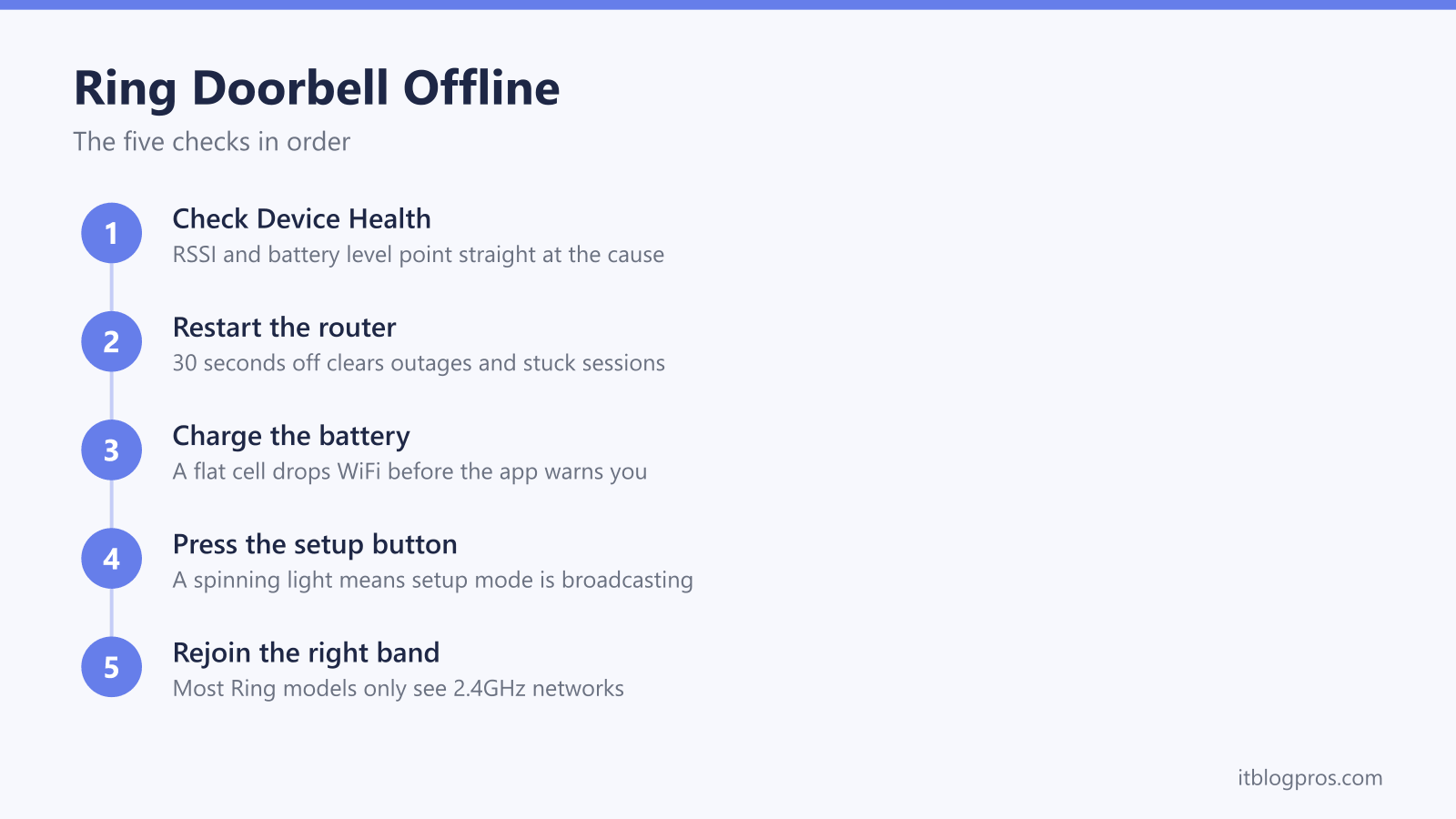
A Ring doorbell goes offline when the WiFi drops, the password changes, the battery runs flat or the signal at the door is too weak. Check Device Health first: Ring rates an RSSI worse than -60 as improvable and worse than -70 as poor. Restart the router, charge the battery fully, then tap Reconnect and press the setup button when the app asks for setup mode.
Key Takeaways
- Five causes to check when a Ring doorbell shows offline are a broadband outage, a changed WiFi password or new router, weak signal at the door, a flat battery, and a WiFi band the model cannot use.
- Device Health in the Ring app shows the RSSI, and Ring's wifi recommendations page rates 0 to -60 as great, -60 to -70 as okay, -70 to -80 as poor with possible delays and interruptions, and -80 or worse as very poor.
- Ring says to make sure a battery doorbell has a strong battery, and if one will not turn on after the battery drains, to charge it on a USB wall charger for 30 minutes.
- Ring's Fixing offline devices page says to tap Reconnect or Change Network in Device Health and follow the prompts, and Ring's light pattern guide says a white spinning light means setup mode.
- For a device far from the router, Ring suggests moving it closer, adding a wifi extender such as Chime Pro, or using a mesh router, since reconnecting does not change the signal.
Ring Doorbells Go Offline for Five Predictable Reasons
Ring's Fixing offline devices page says an offline device cannot show live video, send alerts or record events, so it is worth fixing quickly rather than hoping it sorts itself out. The causes to check are:
- The WiFi itself went down or changed. A broadband outage, a router reboot, a new router from your provider or a changed WiFi password all knock the doorbell off. Ring's Fixing offline devices page does not say whether a doorbell rejoins by itself when an unchanged network returns, so check its Status in Device Health. If the network name or password changed, it needs the reconnect procedure below.
- The signal at the door is too weak. Ring's wifi recommendations page says signals get weaker the farther a device is from the router, and that walls made of brick, stucco or metal weaken them further. Ring rates an RSSI of -70 to -80 as poor, with possible delays and interruptions in service.
- The battery is too low. Ring's Fixing offline devices page says to make sure a battery-powered device is powered on and has a strong battery.
- The model cannot see the network it is being pointed at. Ring's setup help says some Ring devices only support 2.4GHz networks, and that in the UK Ring devices cannot use 5GHz channels 36 to 64.
- Router settings are getting in the way. Ring's Fixing offline devices page suggests lowering the router firewall setting, and says having more than one wifi router can cause connection problems.
The sections below deal with each one, and Device Health is the shortcut that tells you which section you need.
Device Health Shows the Signal and Battery Readings
Before touching a ladder or a screwdriver, open the Ring app, tap the menu (the three lines), tap Devices, choose the doorbell, then tap the Device Health tile. Ring's Device Health article says this screen shows the power source, the battery level, whether the device is online or offline, and the Signal Strength of the wifi reaching it, which Ring's wifi recommendations page says is measured as RSSI.
RSSI is a negative number, and closer to zero is better. Ring's Understanding wifi recommendations for Ring devices page rates it like this:
- 0 to -60: great. Ring describes the performance as strong.
- -60 to -70: okay. Ring says it could be improved.
- -70 to -80: poor. Ring warns of possible delays and interruptions in service.
- -80 or worse: very poor. Ring warns of intermittent service or falling offline.
Ring's wifi recommendations page gives these ratings as numbers, not colours, so go by the number against that scale. A doorbell showing -72 at the front door sits in the range Ring rates as poor, which points to the weak-signal section later in this guide.
Ring's Device Health article says the Last Health Check entry shows when the information on the screen was last updated, so if the doorbell is offline, check that time before trusting the RSSI shown.
Bandwidth matters too. Ring's wifi recommendations page lists the upload speed each device needs by video resolution: 2 Mbps for 1080p, 2.5 Mbps for 1536p, 10 Mbps for 2K and 15 Mbps for 4K. It says a device needs at least 1 Mbps to work and that the figures add together when there is more than one Ring device, and Ring's Fixing offline devices page suggests a speed test for a device that keeps disconnecting.
Check the WiFi Itself and Any Changed Passwords First
Ring's Fixing offline devices page includes checking the network itself. If phones and laptops have no internet either, the doorbell is a symptom, not the patient. Ring's page says to turn off the wifi router and modem by unplugging them for 30 seconds. That page does not say whether, or how quickly, a doorbell rejoins once the same network name and password come back, so check its Status in Device Health once the WiFi is working again.
The situation changes completely if anything about the network changed. A new router from your provider, a switch to a different ISP, a renamed network or a changed WiFi password all leave the doorbell searching for credentials that no longer exist, and it stays offline until it is given the new details. That needs the manual reconnect procedure covered below.
Some people try one shortcut when a router is replaced: setting the new router's WiFi name and password to match the old ones. Ring's Fixing offline devices page does not say this works, so check each Ring device's Status in Device Health afterwards and use Change Network on any that are still offline. Not every provider hub allows this cleanly, and Virgin Media's hubs have their own quirks with combined bands and smart WiFi features. The dedicated Ring doorbell and Virgin Media Hub guide covers those hub-specific settings in detail, and BT customers have an equivalent guide for a Ring doorbell that will not connect to a BT Smart Hub.
A Low Battery Is One of Ring's First Offline Checks
Ring's Fixing offline devices page puts a strong battery first on its list for a device that keeps disconnecting, and Ring's battery troubleshooting page says a weak wifi connection can make a doorbell keep losing connection and reconnecting, which runs the battery down faster. Check the battery level on the same Device Health screen as the RSSI before assuming a network fault.
A completely drained battery adds a trap of its own. For a doorbell that will not turn on after the battery drains, Ring's Fixing offline devices page says to charge it for 30 minutes on a USB wall charger plugged into a wall socket, and if that does not resolve it, to hold the front doorbell button for 30 seconds as part of a factory reset, with the doorbell off the charger. A dead unit that ignores the setup button is not necessarily broken. Ring's setup guide says to fully charge a battery doorbell before setup, and Ring's charging article says a full charge can take up to 10 hours.
Cold weather makes this worse. Ring's extreme temperatures article says battery life is shorter when the temperature drops to around freezing, and that its devices are designed to stop charging below freezing, so a doorbell may need bringing inside to charge with a USB cable.
Hardwired setups are not immune either. Ring's charging article says hardwiring a battery doorbell to existing doorbell wiring or a low voltage transformer gives the battery a trickle charge, and Ring's battery troubleshooting page says more motion events, Live Views and linked events mean recharging more often. Wired models without a battery still have a power check of their own: Ring's Fixing offline devices page says to confirm a hardwired device is connected to the correct transformer or power source, and Ring's light pattern guide says a red light flashing at the bottom means a wired doorbell that is not battery-powered does not have enough power.
The Reconnect Procedure Starts in Device Health
With the router working and the battery charged, the official reconnect path lives in the same place as the diagnosis. In the Ring app go to Devices, pick the doorbell, open Device Health, and under Network tap Reconnect or Change Network and follow the prompts, as Ring's Fixing offline devices page describes. Ring's Device Health article describes Change Network as the tool for changing the wifi network, and says to be near the device with the wifi password to hand. If the app asks for setup mode, use the setup button.
Ring's reset and power cycle article gives the setup button's general location by doorbell type:
- Models with an internal battery: on the back of the doorbell. Ring's charging article names the Video Doorbell (1st and 2nd Generations) and the Battery Video Doorbell as built-in battery models.
- Models with a removable battery: under the faceplate, on the front. Ring's charging article says the faceplate comes off after removing the security screws on the bottom of the doorbell.
- Wired models: under the faceplate, on the right side. Ring's Video Doorbell Pro setup mode page says to press and release the small button on the right side of that doorbell.
Ring's light pattern guide says a white light spinning in a circle means the doorbell is in setup mode, and that the pattern times out after 10 minutes. Ring's setup guide says the doorbell creates a temporary wifi network named Ring- or Ring Setup followed by letters and numbers, and the app connects your phone to it to finish setup. Keep your phone close to the doorbell during this, as Ring's guide says, follow the prompts, choose the correct network and enter the password carefully. Ring's Video Doorbell Pro setup mode page says the temporary network stops broadcasting once setup is complete.
If setup keeps failing, Ring's Fixing setup issues page suggests moving the Ring device closer to the router, so take a battery model off its bracket and run the process next to the router, then remount it. That separates signal problems from procedure problems. As a last resort, Ring's reset and power cycle article says to hold a doorbell's setup button for 20 seconds, then release, to factory reset it, after which it might need setting up again with Set Up a Device in the app.
WiFi Band Support Varies by Ring Model
Pointing a doorbell at a network it cannot see makes a reconnect fail, and Ring's setup help says some Ring devices only support 2.4GHz networks. Ring's UK spec pages show which ones.
2.4GHz only, on Ring's UK spec pages:
- Video Doorbell (1st Gen) and Video Doorbell (2nd Gen)
- Video Doorbell 2
- Video Doorbell Wired and Wired Doorbell 2K (formerly Wired Video Doorbell (2nd Gen))
- Battery Video Doorbell and Battery Video Doorbell Plus, which are not the 2nd Gen battery models Ring renamed in August 2026
Dual band, 2.4GHz and 5GHz, on Ring's UK spec pages:
- Video Doorbell 3 and 3 Plus
- Video Doorbell 4, which Ring's Video Doorbell 4 help article says connects to 5GHz on channels 100 and above, with channels 36 to 64 not available
- Video Doorbell Pro, Wired Video Doorbell Pro (formerly Video Doorbell Pro 2), Wired Doorbell 4K Pro (formerly Wired Video Doorbell Pro (3rd Gen)) and Wired Doorbell 2K Plus (formerly Wired Video Doorbell Plus (2nd Gen))
- Battery Video Doorbell Pro, Battery Doorbell 4K Pro (formerly Battery Video Doorbell Pro (2nd Gen)) and Battery Doorbell 2K Plus (formerly Battery Video Doorbell Plus (2nd Gen))
Ring's product name changes article says the new names show in the Ring app, and Ring's guide to finding a device model puts the Product Name under Device Details in Device Health, so check the name there before using these lists. A Battery Video Doorbell Plus is on the 2.4GHz-only list, while a Battery Doorbell 2K Plus is dual band.
Ring contradicts itself on the Battery Doorbell 2K, formerly the Battery Video Doorbell (2nd Gen). Its UK product page says "WiFi 4, 2.4Ghz Single Band WiFi", while its UK support spec page says "Dual Band 2.4 GHz and 5 GHz". Ring's FAQ says all Ring devices are compatible with 2.4GHz networks, so set it up on the 2.4GHz network, or check whether a separately named 5GHz network appears in the list of networks the Ring app shows during setup.
The channel catch is not limited to the Video Doorbell 4. Ring's Fixing setup issues page says that in the UK, Ring devices cannot use 5GHz channels 36 to 64 and may not find a 5GHz router on a restricted channel during setup, and it recommends setting the router to channels between 100 and 165.
The Video Doorbell Elite is powered over Ethernet, and its UK spec page lists an Ethernet connection as well as WiFi at 2.4GHz and 5GHz, so WiFi troubleshooting applies to it when it is on WiFi. Ring's UK spec page for the Wired Doorbell 4K Elite lists a 100mbit Ethernet connection and WiFi at 2.4GHz and 5GHz, and says PoE+ may be used for power only, with wifi for connectivity.
A router that broadcasts both bands under one combined name is a separate question. Ring's Fixing setup issues page does not name a combined network name as a cause of failed setups; it says that if you have separate 2.4GHz and 5GHz networks and the 5GHz one is not appearing, connect to the 2.4GHz network instead. Ring's Video Doorbell 4 article points the other way, recommending changing the router's channel or combining the 2.4GHz and 5GHz networks if that doorbell has trouble connecting. If setup fails on a combined name, splitting the names lets you choose the 2.4GHz network deliberately and see whether that makes the difference. The smart plug WiFi guide explains band steering and splitting the bands on UK hubs.
A few router settings deserve a look on stubborn cases, and they match Ring's own advice on its Fixing offline devices page: try a 2.4GHz network instead of 5GHz, lower the router firewall setting, and if two routers are running, keep just one or ask the provider or router maker about bridge mode, because Ring says more than one router can cause connection problems. Ring's FAQ says Ring devices support WPA2, WPA and WEP, recommends WPA2, and does not mention WPA3, so if setup fails after a router security change, try WPA2 and watch the doorbell's light: Ring's light pattern guide says a white light flashing on top means setup failed because of an issue with the wifi password.
Weak Signal at the Front Door and What Ring Suggests
The last cause on this page is distance and building materials. The router lives in the lounge or under the stairs, and the signal crosses internal walls on its way to the front door. Ring's wifi recommendations page says wifi signals get weaker the farther a device is from the router, and names walls made of brick, stucco or metal, big objects like fridges or ovens, electronics and mirrors as things that weaken them further. A front door with a metal frame adds one more.
That is how a doorbell can pass setup next to the router and still struggle once mounted. Ring rates an RSSI of -70 to -80 as poor, with possible delays and interruptions in service rather than a constant failure, and Ring's wifi extenders article lists a neighbour's wifi signal overlapping yours among the things that distort or weaken wifi.
No amount of reconnecting fixes a signal problem, but the first fix is still free. Ring's own advice for improving wifi strength starts with moving the device closer to the router, and since a doorbell is fixed to the door frame, that means moving the router closer to the hallway wherever the broadband socket allows. Ring's wifi extenders article also says to move a router that sits behind a sofa or in a cupboard. Beyond that the options are hardware: Ring's wifi recommendations page names a Chime Pro or an eero mesh router, and its setup help mentions wifi extenders and mesh routers generally.
Ring's support article on wifi extenders and mesh networks sets out when an extender is the right tool. It says extenders work best with one or two devices that always stay in the same place, which describes a doorbell exactly, that the best position is halfway between the router and the device, and that the extender needs to be within about 6 metres of the router at most to work effectively. The same article is candid that an extender stretches a wifi signal rather than strengthening it, and says a mesh network may be a better solution in larger homes, and is more likely than an extender to overcome obstacles when signals travel between floors. Where those conditions fit, a dual-band extender such as the TP-Link RE315 broadcasts on the 2.4GHz band that the 2.4GHz-only doorbells listed above depend on, according to TP-Link's specification. If the extender uses its own network name, move the doorbell onto it with Change Network in Device Health, then check the RSSI has actually improved. The best WiFi extender for Ring doorbell guide compares the options that actually move the RSSI number, and getting from -75 to -55 at the door moves a doorbell from the range Ring rates as poor into the range it rates as great.