
A Ring doorbell that refuses to connect to a Virgin Media Hub is worth checking against the hub's settings before it is written off as faulty. The Hub 3, Hub 4 and Hub 5 all ship with both WiFi bands broadcast under a single network name, and Virgin's Intelligent WiFi page says the hub checks devices to see if they need a nudge on to the best WiFi band. Ring's own setup help does not name a combined network name as a cause of failed setups, but Ring's spec pages list several doorbells as 2.4GHz only, and Ring's setup help says to connect to the 2.4GHz network when a separate 5GHz network does not appear. This guide sets out what Ring's help pages say, gives the exact band-splitting steps for each hub model, and covers the channel, channel width and WPS checks for the remaining cases.
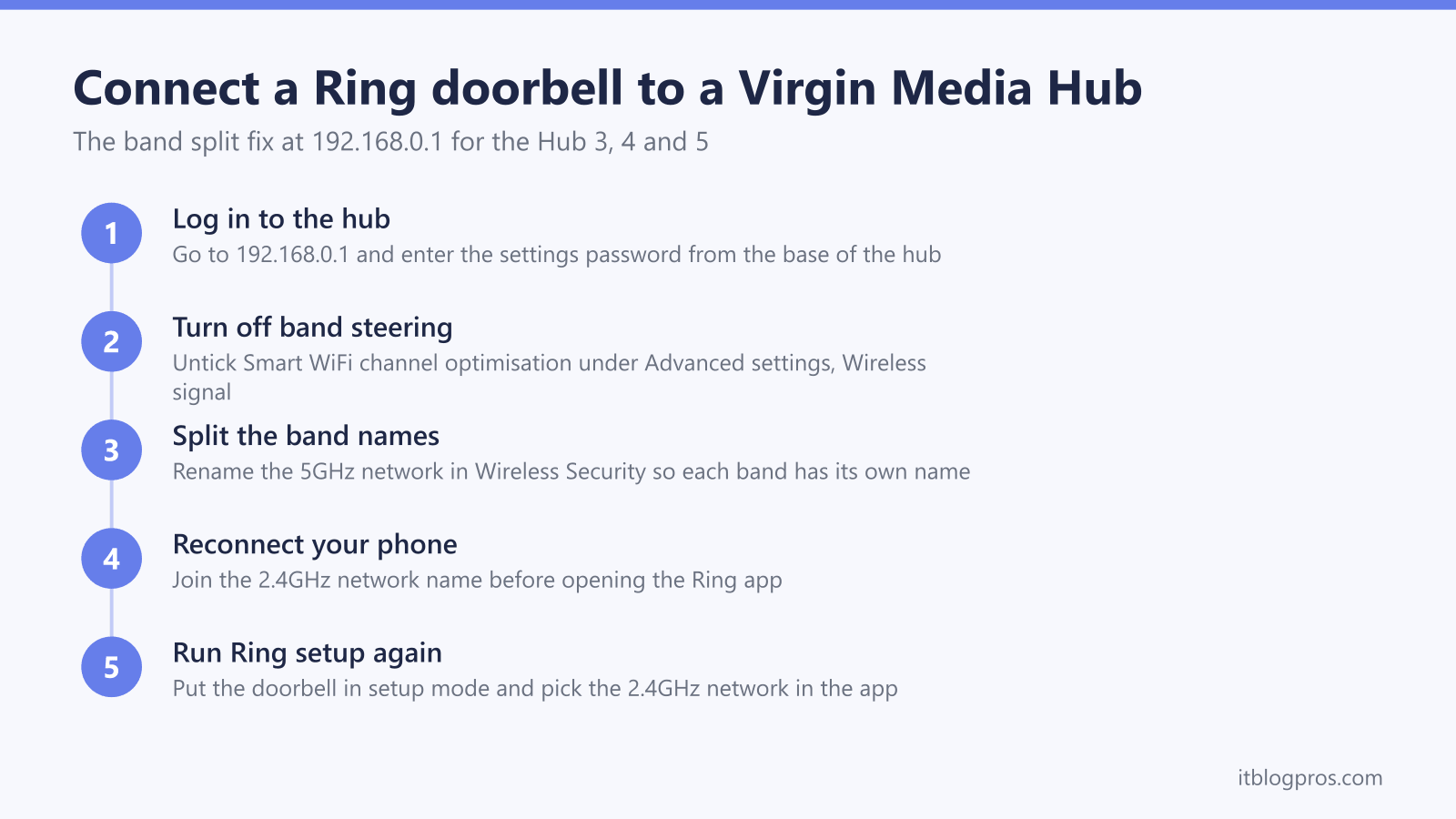
A Virgin Media Hub broadcasts both WiFi bands under one name, and Ring's spec pages list several doorbells as 2.4GHz only. Log in at 192.168.0.1, switch off channel optimisation if shown, give the two bands different names, reconnect your phone to the 2.4GHz name and rerun Ring setup. If setup still fails, Ring's setup help names a wrong WiFi password, distance from the router or special characters in the network name.
Key Takeaways
- The Virgin Media Hub 3, 4 and 5 broadcast both WiFi bands under one combined name, and Virgin's Intelligent WiFi page says the hub nudges devices on to the best WiFi band, while Ring's spec pages list several Ring doorbells as 2.4GHz only.
- Splitting the bands into separately named 2.4GHz and 5GHz networks at 192.168.0.1 lets Ring setup be pointed at the 2.4GHz network, which Ring's setup help advises using when a separate 5GHz network does not appear.
- Where the hub's wireless settings let the 5GHz band be switched off on its own, a temporary switch-off leaves only the 2.4GHz network to choose during Ring setup, without a permanent split.
- Ring's spec pages list the Video Doorbell 3, 3 Plus, 4, Pro and Elite, the Wired Video Doorbell Pro, the Battery Video Doorbell Pro, the Battery Doorbell 2K Plus, the Battery Doorbell 4K Pro and the Wired Doorbell 2K Plus as dual-band, and Ring says its devices in the UK cannot use 5GHz channels 36 to 64.
- Virgin's WiFi name and password guide says to keep both band names the same and does not cover WiFi Pods with split names, so check any Pods in the Connect app afterwards, and a weak signal at the front door needs repositioning or an extender rather than more settings changes.
What Ring says about combined and separate network names
Out of the box, a Virgin Media Hub 3, 4 or 5 broadcasts its 2.4GHz and 5GHz WiFi under one shared network name, and Virgin's WiFi name and password guide tells you to keep the two band names the same. Virgin's Intelligent WiFi page says the hub then checks devices to see if they need a nudge on to the best WiFi band, which it calls adaptive band steering, and it does not say which band a given device will be nudged to.
Ring's current Fixing setup issues page does not name a combined network name as a cause of failed setups. It lists a wrong WiFi password, distance from the router, special characters in the network name and problems reaching the internet, and for a network that does not appear during setup it says that if you have separate 2.4GHz and 5GHz networks and the 5GHz one is missing, connect to the 2.4GHz network instead, because some Ring devices only support 2.4GHz. For two dual-band models Ring points the other way: its help articles for the Video Doorbell 4 and the Wired Video Doorbell Pro recommend changing the router's channel or combining the 2.4GHz and 5GHz networks when those doorbells have trouble connecting. The practical check is the network list during Ring setup: if setup fails on the combined name, splitting the names lets you choose the 2.4GHz network deliberately and see whether that makes the difference.
The second version of the complaint is a doorbell that sets up fine and then drops offline. Ring's Fixing offline devices page suggests moving the device closer to the router and trying a 2.4GHz network instead of 5GHz, and a separately named 2.4GHz network makes that choice possible on a Virgin Media hub.
Ring's spec pages divide doorbells into 2.4GHz-only and dual-band models
Ring's spec pages list 2.4GHz on every doorbell model named in this guide, and 5GHz only on some, so the model on the wall decides how much the hub's behaviour matters.
Ring's UK spec pages list 2.4GHz only for the Ring Video Doorbell (1st and 2nd generation), the Video Doorbell 2, the Video Doorbell Wired, the Wired Doorbell 2K (formerly Wired Video Doorbell (2nd Gen)), the Battery Video Doorbell and the Battery Video Doorbell Plus, so these cannot join a 5GHz network, whatever the hub does. The last two are not the 2nd Gen battery models Ring renamed in August 2026.
The same spec pages list dual-band WiFi for the Video Doorbell 3, 3 Plus and 4, the Video Doorbell Pro, the Wired Video Doorbell Pro (previously sold as the Video Doorbell Pro 2), the Battery Video Doorbell Pro, the Battery Doorbell 2K Plus (formerly Battery Video Doorbell Plus (2nd Gen)), the Battery Doorbell 4K Pro (formerly Battery Video Doorbell Pro (2nd Gen)) and the Wired Doorbell 2K Plus. These can use either band. The Video Doorbell Elite is powered over Ethernet, and its spec page lists an Ethernet connection as well as WiFi at 2.4GHz and 5GHz. For any model not listed here, check the connectivity line on Ring's tech specs page, using the Product Name that Device Health shows in the Ring app, but Ring's pages do not always agree: the Battery Doorbell 2K, formerly the Battery Video Doorbell (2nd Gen), has a UK product page listing single-band 2.4GHz WiFi while its support spec page lists dual band 2.4GHz and 5GHz. Ring's FAQ says all Ring devices are compatible with 2.4GHz networks, so 2.4GHz is the safe choice for an unknown or disputed model.
Even the dual-band list carries a UK-specific catch, covered in detail further down. Ring's Fixing setup issues page says Ring devices in the UK cannot use 5GHz channels 36 to 64 and recommends router channels between 100 and 165 for 5GHz, so check the hub's 5GHz channel before relying on that band, as the channel section below explains.
Splitting the bands at 192.168.0.1 on the Hub 3, 4 and 5
Log in first. On a phone or laptop connected to the hub, browse to 192.168.0.1 and enter the settings password printed on the sticker on the base of the hub. The Virgin Media Hub login guide covers the address, the password and what to do when the page refuses to load.
Virgin's WiFi name and password guide gives the same route for the Hub 3, Hub 4 and Hub 5: select Advanced settings, then Wireless, then Security, where the guide refers to separate 2.4GHz and 5GHz security settings. Give the 5GHz network a new name, for example the existing name with 5G on the end. Leaving the 2.4GHz name and password unchanged keeps existing devices connected. Select Apply changes. The same guide says devices then need reconnecting with the new details, and that when both bands share a name the password is automatically assigned to both, so check that each band shows the password you expect.
Virgin's help pages do not document a Smart WiFi or channel optimisation switch in the hub settings. If the Wireless menu on your hub shows one, switch it off as well, because Virgin's Intelligent WiFi page says Intelligent WiFi nudges devices on to the best WiFi band, then check after applying that the two names have stayed separate.
Avoid spaces and special characters in the new names. Ring's setup guidance flags special characters in network names as a cause of failed setups, and plain letters and numbers keep other smart devices happy too.
Two honest caveats before changing anything. Virgin's WiFi name and password guide tells you to keep both band names the same, and Virgin's help pages do not say how WiFi Pods behave with split names, so households with Pods should check them in the Connect app afterwards, which Virgin's Intelligent WiFi page says shows each Pod's signal strength and connected devices, or use the temporary 5GHz switch-off in the next section instead. And any device that was on the renamed 5GHz band needs reconnecting once. The full walkthrough for each hub lives in the guide to splitting the WiFi bands on a Virgin Media Hub.
With the bands split, connect your phone to the 2.4GHz name, open the Ring app, put the doorbell into setup mode and choose the 2.4GHz network when asked. Every doorbell model named in this guide lists 2.4GHz on Ring's spec pages, so that is the network to pick when setup has failed on the combined name.
Turning off 5GHz temporarily during a stubborn setup
When a permanent split feels like too much surgery, a temporary 5GHz switch-off does the same job while setup runs, if your hub allows it. Virgin's help pages do not document switching off one band, so log in at 192.168.0.1, open Advanced settings, then Wireless, and look for an option to disable the 5GHz band on its own. Save the change. Devices in the house, including your phone, can then only join the 2.4GHz band, so the 2.4GHz network is the only one left to choose during Ring setup. Run the doorbell setup in the Ring app, confirm it connects and streams video, then return to the settings and re-enable 5GHz.
A doorbell that Ring's spec pages list as 2.4GHz only has no 5GHz band to move to when the band returns. Dual-band models are different: Ring's help articles for the Video Doorbell 4 and the Wired Video Doorbell Pro recommend changing the router's channel or combining the 2.4GHz and 5GHz networks if they have trouble connecting, so if one drops offline after the band comes back, test the permanent split above against the combined name rather than assuming either one fixes it.
Channel, channel width and WPS checks for the leftover failures
Virgin's Intelligent WiFi page says channel optimisation puts devices on the quietest channel, and Virgin's Hub 3 guide says a hub switched off and on again picks up the least congested channels. Ring's help pages give no 2.4GHz channel number for a doorbell, so if you set the 2.4GHz channel by hand, change one setting at a time and compare the Signal Strength figure in the doorbell's Device Health before and after.
Channel width is the same story: neither Ring's nor Virgin's help pages give a 2.4GHz channel width for a doorbell. If your hub's settings offer one, change it on its own and run a speed test at the door afterwards, because Ring's wifi recommendations page lists 10 Mbps upload for a 2K doorbell and 15 Mbps for 4K.
The WPS button on the hub is not part of Ring's setup steps. Ring's doorbell setup guide does not mention WPS; it runs setup through the Ring app and the temporary wifi network the doorbell creates when its setup button is pressed, so follow those app steps instead.
Dual-band Ring models only use 5GHz channels 100 and above in the UK
The dual-band models come with a catch that Ring documents on its Fixing setup issues page. In the UK and Europe, Ring devices cannot use 5GHz channels 36 to 64 to comply with wifi regulations, and Ring recommends configuring the router to use channels between 100 and 165. Ring says a device may not find a 5GHz router that is on a restricted channel during setup, even though a Wired Video Doorbell Pro supports the band on paper. Which 5GHz channel a Virgin Media hub picks on automatic selection is not something to assume, so check it before relying on 5GHz.
To run a dual-band model on 5GHz, set the 5GHz channel manually in the hub's wireless settings and pick a channel of 100 or above where the hub's list offers one. For a doorbell that keeps disconnecting, Ring's Fixing offline devices page suggests trying a 2.4GHz network instead of 5GHz, and TP-Link's FAQ on the differences between the two bands says 2.4GHz reaches farther than 5GHz. Check the upload figure for the model as well, because Ring's wifi recommendations page lists 2 Mbps for 1080p video but 10 Mbps for 2K and 15 Mbps for 4K.
A weak signal at the door is the point where hardware beats settings
When the doorbell connects happily indoors next to the hub but fails once mounted, the problem is signal rather than settings. Open the Ring app, choose the doorbell, then Device Health, and read the Signal Strength figure. Ring's Understanding wifi recommendations for Ring devices page rates RSSI values from 0 to -60 as great (strong), -60 to -70 as okay (could be improved), -70 to -80 as poor (possible delays and interruptions in service), and -80 or worse as very poor (intermittent service or falling offline).
Hubs in the UK often live where the coax enters the house, behind the TV or under the stairs, with a brick wall or two between them and the front door. Virgin Media's WiFi signal tips say to keep the hub out in the open rather than in a cabinet, but when the layout cannot change, an extender or mesh node can lift the doorbell's reading towards the range Ring rates as great without touching the hub settings again. Ring's wifi extenders article says the best place for an extender is halfway between the router and the device. The guide to the best WiFi extender for a Ring doorbell covers options that pair well with Virgin Media hubs. And once the doorbell is connected but keeps dropping off the network days later, the separate Ring doorbell offline guide works through the disconnection causes in the same fix-ladder style.