
Some smart-home kit works on 2.4GHz only: Ring's setup help says some Ring devices only support 2.4 GHz networks. BT's dual-band help page says its hubs use one network name for both Wi-Fi bands by default, and that some devices do not handle a single network name for both bands well and may not connect wirelessly to the hub. Whether you can properly split the bands depends entirely on which BT hub you own: the original Smart Hub has a genuine Separate bands toggle, BT's own help pages disagree about the Smart Hub 2, and the newer Smart Hub 3 solves it a third way with a feature BT calls Compatible Wi-Fi. This guide gives BT's documented steps for each model through Hub Manager at 192.168.1.254, plus what to look for on a Smart Hub 2 before trying a temporary 5GHz switch-off.
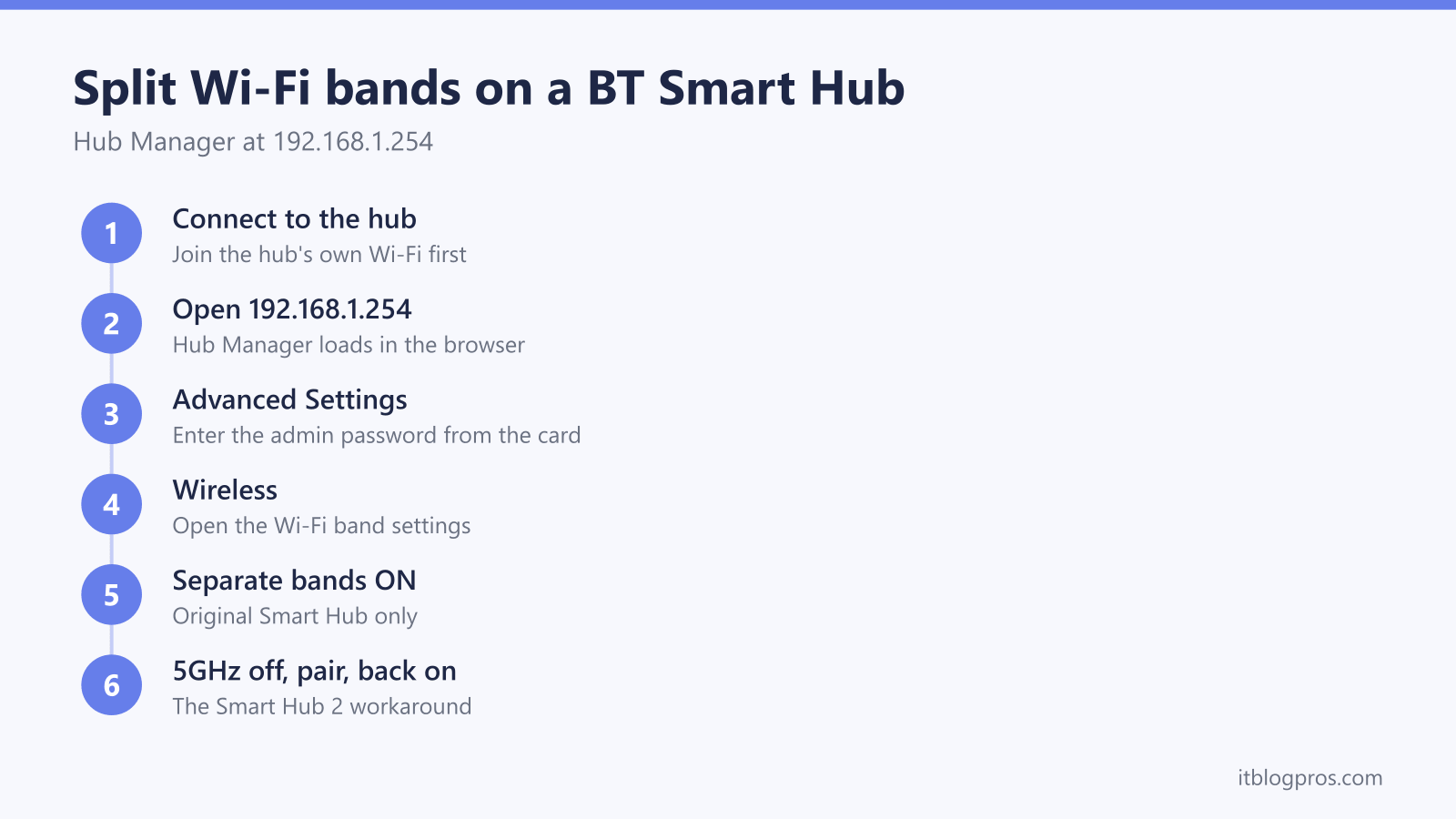
The original BT Smart Hub splits its Wi-Fi bands: BT's help page says to log in at 192.168.1.254, open Advanced Settings, then Wireless, and switch Separate bands to ON. For the Smart Hub 2, BT's split page says it cannot split its bands, while BT's dual-band troubleshooting page includes it in steps that set Sync with 2.4GHz to No, so check the 5GHz section of the same Wireless menu before pairing a 2.4GHz smart device.
Key Takeaways
- BT's help page says the original BT Smart Hub splits the bands with the Separate bands toggle under Advanced Settings, then Wireless, in Hub Manager at 192.168.1.254.
- BT's split help page says the Smart Hub 2 cannot split its bands because it is designed for Complete Wi-Fi, but BT's dual-band troubleshooting page includes it in steps built around a Sync with 2.4GHz setting.
- BT documents no separate 5GHz on and off control for the Smart Hub 2, so check the 5GHz section in Hub Manager for Sync with 2.4GHz or a control for that band alone before pairing.
- BT's dual-band help page says a typical device switches bands automatically on the shared network name, so check the smart device's setup guide for which band the phone needs during pairing.
- BT's help pages say Home Hub 4 and 5 split through the Sync with 2.4GHz setting, while the newer Smart Hub 3 adds a separate 2.4GHz network called Compatible Wi-Fi.
Band splitting on a BT hub depends entirely on the model
BT's hub comparison lists the Home Hub 4, Home Hub 5, Smart Hub, Smart Hub 2 and Smart Hub 3 as dual band. BT's split help page says 2.4GHz gives the best coverage around the home, while 5GHz gives the fastest speeds in the same room or one room away from the hub. By default the hub gives both bands one shared network name, and BT's dual-band help page says a typical 5GHz-capable device switches between them automatically. Some smart-home kit has 2.4GHz hardware only, and the same BT page says a device that does not handle one name for both bands may not connect wirelessly to the hub.
Splitting the bands gives each one its own name, so you can deliberately join the 2.4GHz network during setup. Whether your hub allows that depends on the model, and BT's Different types of BT Hub help page shows a photo of each model, so compare your hub with those first. The original BT Smart Hub splits cleanly with a single toggle. The older Home Hub 4 and Home Hub 5 also split, through a slightly different menu. BT's own help pages disagree about whether the Smart Hub 2 can split, and the newer Smart Hub 3 takes a separate route. Each model gets its own section below, with the honest limitations first.
The original BT Smart Hub splits bands with the Separate bands toggle
On the original Smart Hub, from a phone or computer connected to the hub, type 192.168.1.254 into the browser address bar. If the login itself gives you trouble, the BT Smart Hub login guide covers the address, the HTTPS prompt and the password card in detail. Select Advanced Settings, enter the admin password from the pull-out card on the back of the hub, then select Wireless.
On the Wireless page, set the Separate bands switch to ON. The hub automatically creates a new network name for the 5GHz band, and you can edit that name as long as it contains no spaces. Click Save and let the hub apply the change.
BT's split help page warns that devices may lose connection after the split, because the network they knew has effectively been renamed into two. Reconnect each device to the band that suits it: phones and laptops to the 5GHz name for speed, and smart-home devices to the 2.4GHz name. Once split, pairing new smart devices becomes trivial, since you simply join your phone to the 2.4GHz network before running the setup app.
Home Hub 4 and Home Hub 5 split through the 5GHz sync setting
The older Home Hub 4 and Home Hub 5 also allow a proper split, just with different wording. Log in at 192.168.1.254, go to Advanced Settings and continue past the warning, then open the Wireless tab and select the 5GHz Wireless option.
Set Sync with 2.4GHz to No. That unlocks the 5GHz band's own settings, so change the Wireless SSID field to a new name, and BT recommends simply adding 5GHz to the end of your existing network name so both stay recognisable. Click Apply.
After a few minutes two network names appear in the Wi-Fi list on your devices. Everything you own carries on using the original name, which remains the 2.4GHz network, so smart devices already connected stay connected. Anything you want on the faster band needs joining to the new 5GHz name manually. For smart-device setup the behaviour is ideal: join the phone to the original 2.4GHz name, run the app, and the device pairs without a fight.
BT's help pages disagree on whether the Smart Hub 2 can split its bands
This is the part that needs care, so here it is plainly. BT's own help page on splitting the hub SSID gives steps for the original Smart Hub and the Home Hub 4 and 5, and says the Smart Hub 2 does not have that capability because it is designed for use with Complete Wi-Fi. BT's separate troubleshooting page for dual-band connection problems, however, names the Smart Hub 2 alongside the Home Hub 4, Hub 5 and Smart Hub 3, then gives one set of steps for all of them: open Advanced Settings, then Wireless, then 5GHz, change Sync with 2.4GHz to No, give the Wireless SSID a new name and select Apply. The two BT pages pull in different directions, so the reliable test is the hub itself. Log in to Hub Manager, open Advanced Settings, then Wireless, and check the 5GHz section. If Sync with 2.4GHz appears, set it to No, rename the 5GHz band and apply, and BT's dual-band page says devices carry on connecting to the original name, which becomes the 2.4GHz network.
One warning about confusing search results. BT Business's guide to changing the wireless settings on its Smart Hub 2 mentions a Separate Bands setting, so business guides look tantalisingly relevant, but that guide is written for the BT Business hub, and BT's home broadband split page above still says the Smart Hub 2 lacks the capability. Where the 5GHz section shows no Sync with 2.4GHz setting, the options are the temporary 5GHz switch-off below, if the hub offers that control, or replacing the Wi-Fi side of the hub with your own equipment.
Switching off 5GHz temporarily, where a Smart Hub 2 offers that control
The workaround rests on the shared network name. BT's dual-band help page says a typical 5GHz-capable device on that single name switches between 2.4GHz and 5GHz automatically, and lists some Apple devices, including the iPhone 5, and some Android mobiles among the devices known to have problems with it. Check the smart device's own setup guide for which band the phone needs during pairing. Take 5GHz away for a few minutes and 2.4GHz is the only band left for the phone and the device to join.
Open 192.168.1.254 from a connected device, select Advanced Settings, then Wireless, and enter the admin password from the pull-out card. BT documents no separate on and off control for the Smart Hub 2's 5GHz band: BT's page on turning Wi-Fi on and off gives separate settings for each band only on the Home Hub 4 and Hub 5, and has no Smart Hub 2 section. So look in the 5GHz section for an on and off control for that band alone. Where one exists, switch it off and save. Leave any main Wireless switch alone, since on the original Smart Hub BT says that switch turns Wi-Fi off on both bands. Where no such control exists, this workaround is not available on that hub.
Now run the smart device's setup app while standing near the hub. With 5GHz gone, the phone and the device share the 2.4GHz band for the pairing. Once the device shows as online, go back into Advanced Settings, then Wireless, and switch 5GHz on again. If the device still refuses even with 5GHz off, the smart plug will not connect guide works through the other causes to check.
Complete Wi-Fi discs and re-enabling 5GHz afterwards
Two snags catch people out. First, if Complete Wi-Fi discs are in the house, do the pairing close to the hub itself, and if it still misbehaves, unplug the discs for the few minutes the setup takes, then power them back up afterwards.
Second, people worry the paired device will vanish when 5GHz comes back. It will not. The smart device stays on 2.4GHz permanently because its hardware supports nothing else, and it does not care what the other band is doing. For phones, laptops and tablets, BT's dual-band help page says a typical 5GHz-capable device on the shared name switches between the bands automatically, and any that has not reconnected after the change can be rejoined from its Wi-Fi list. If the hub's light does anything unexpected while settings apply or after a restart, the BT Smart Hub lights guide decodes every colour so you can tell a routine blip from a real fault.
The Smart Hub 3 takes a different route with Compatible Wi-Fi
BT's newer Smart Hub 3 handles 2.4GHz-only devices with a purpose-made feature rather than a traditional split. BT's Compatible Wi-Fi help page describes it as an additional network on the Smart Hub 3 that uses 2.4GHz and runs alongside your main Wi-Fi, with its own name and password. BT says the networks are linked, so your phone's apps can still control the smart devices regardless of which network each one uses. EE's hub comparison lists the same SH31B and SH32B model numbers that BT's Smart Hub 3 guide gives, under the name Smart Hub 6 Plus, and EE spells the feature Compatible WiFi.
BT's steps turn it on in Hub Manager: open 192.168.1.254, accept the secure connection warning, select Advanced Settings and enter the admin password, then select Wireless, then Compatible Wi-Fi, switch it on, keep or change the network name, create a password and select Save. BT warns that Wi-Fi briefly disconnects while Compatible Wi-Fi sets up. BT's Smart Hub 3 guide lists the extra networks as available with select models and software, and BT's troubleshooting page for Compatible Wi-Fi says to restart the hub and try again if the option does not appear. BT's pages do not mention a 5GHz option, but EE's Compatible WiFi help page describes a Hub Manager option to enable the 5GHz band on that network and warns it may cause connectivity problems for devices without 5GHz, so leave it off for 2.4GHz-only smart devices. Then join each smart device to the Compatible Wi-Fi name.