
Your BT hub tells you almost everything about your broadband through one front light. A single glance shows whether the line is healthy, still booting, quietly updating or genuinely down, and reading that light correctly saves a lot of pointless restarts and support calls. The catch is that BT has shipped several hubs over the years and the light scheme is not identical across all of them. The current single-light Smart Hub, Smart Hub 2 and Smart Hub 3 use one front LED that changes colour, while the older Home Hub 3, 4 and 5 carried a row of separate labelled lights for power, broadband and wireless. This guide decodes every colour and state across that line-up, covering solid blue, green, flashing orange, solid orange, the flashing purple "no broadband" state, red and off, plus the WPS flashing blue and the Hybrid Connect purple. You look at the light, you find it here, and you know exactly what to do next.
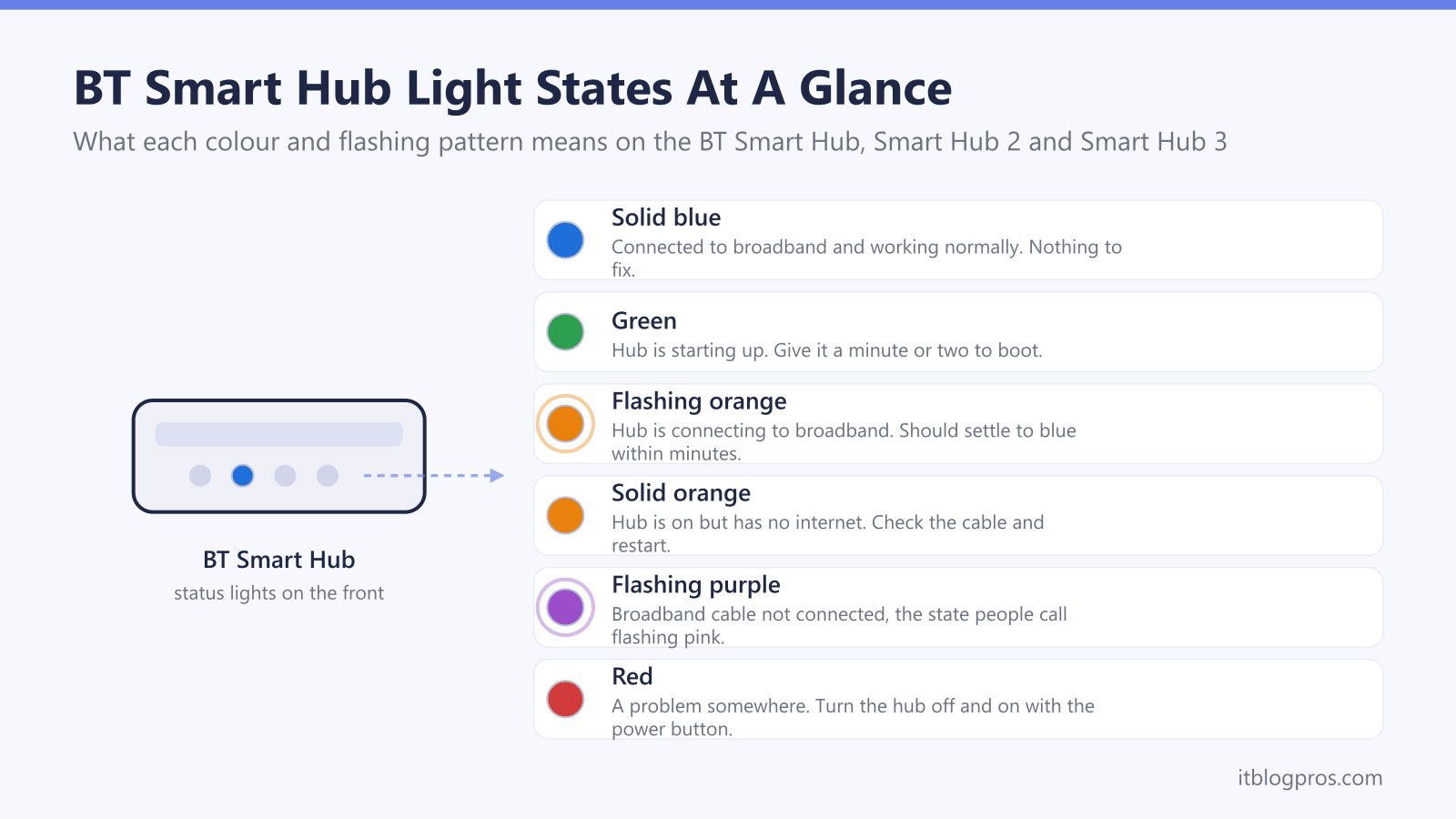
A solid blue light on a BT Smart Hub means broadband is connected and working. Green means the hub is starting up, flashing orange means it is connecting, and solid orange means it is on but has no internet. Flashing purple means the broadband cable is not connected, red means a problem somewhere, and no light means the power or the lights are off.
Key Takeaways
- Solid blue is the healthy state on the Smart Hub, Smart Hub 2 and Smart Hub 3, confirming the hub is connected to broadband and working normally.
- Green means the hub is starting up and flashing orange means it is connecting, so both are normal short-lived states to wait out after a restart.
- Flashing purple means the hub is working but the broadband cable is not connected, which is the state people search for as a flashing pink light.
- Solid orange means the hub is on but has no internet, and red means there is a problem somewhere, both of which call for a cable check and a power-button restart.
- The older Home Hub 3, 4 and 5 use separate power, broadband and wireless lights rather than one front LED, so their colours read differently to the Smart Hubs.
BT Smart Hub and BT router light colours at a glance
| Light | What it means | What to do |
|---|---|---|
| Solid blue | Connected to broadband and working normally. | Nothing to fix. |
| Green | The hub is starting up. | Give it a minute or two to boot. |
| Flashing orange | The hub is connecting to broadband. | Wait; it should settle to solid blue within a few minutes. |
| Solid orange | The hub is on but has no internet. | Check the broadband cable and restart the hub. |
| Flashing purple (pink) | The broadband cable is not connected. This is the state people call flashing pink. | Reseat the broadband cable. See the BT hub flashing pink guide for the full fix. |
| Red | A problem somewhere on the hub. | Turn the hub off and on with the power button. |
BT uses several hubs and the light scheme changed between them
Knowing which hub you have makes the lights far easier to read, because BT has not used one fixed design. The current generation keeps it simple: the BT Smart Hub, the Smart Hub 2 (the most widely supplied model) and the newer Wi-Fi 6 Smart Hub 3 all rely on a single front status light that changes colour and flashing pattern. There is no separate consumer "Smart Hub Plus" in BT's home line-up, so if a friend mentions one they are likely thinking of an EE hub. The older Home Hub 3, 4 and 5 work differently, carrying a row of separate labelled lights for power, broadband and wireless rather than one combined LED. So if you see a single light on the front changing colour, you have a Smart Hub, and the main part of this guide is written around that. If you see a column of distinct lights, you have a Home Hub, and the colours read differently, which is covered further down.
Solid blue means broadband is connected and working
Solid blue is the all-clear on every current BT Smart Hub. On the Smart Hub, Smart Hub 2 and Smart Hub 3, a steady blue front light tells you the hub has power, has reached BT's network and is serving broadband normally. There is nothing to do when you see it. On the Smart Hub 2, BT's own wording is that the hub is "connected to your broadband OK". If your devices still cannot get online while the light is solid blue, the hub itself is fine and the problem usually sits elsewhere, such as the device's own WiFi, a wrong WiFi password, or a single site or service being down. In that situation a hub restart rarely helps, and the faster fix is to check the device rather than the router. Checking which devices the hub can actually see takes a minute in BT Hub Manager at 192.168.1.254, the hub's own settings page.
Green and flashing orange are normal start-up and connecting states
A green light is not a fault. On the Smart Hub range, green means the hub is starting up, which takes around a minute or two after it is plugged in or restarted. Once it has booted, the front light moves to flashing orange, which means the hub is actively connecting to broadband. After at least three minutes the light should settle to solid blue, at which point you are online. The rule of thumb is to give a freshly restarted hub a few minutes to walk through green, then flashing orange, then blue, before assuming anything is wrong. If it cycles to flashing orange and then stalls there for much longer, or keeps dropping back, that points to a line or activation problem rather than a normal boot, and is treated like the no-internet states below.
Flashing purple means the broadband cable is not connected
A flashing purple light is the one many people describe as flashing pink, and it has a specific meaning. On the Smart Hub 2 it means the hub is working but the broadband cable is not connected, while on the earlier Smart Hub it indicates the hub is working but is not connected to the internet. In practice the first thing to check is the broadband cable, the black lead with grey ends, which should click firmly into the grey broadband socket on the back of the hub. It can also appear after a factory reset or before the line has been activated on a brand-new connection. Because this is such a common state with several distinct causes, there is a dedicated walkthrough in the BT hub flashing pink light guide, which is the right place to go for the full fix list rather than repeating it here.
Solid orange and red mean no internet or a problem on the line
Two states tell you something genuinely needs attention. A solid orange light means the hub is on and working but is not connected to the internet, so the broadband itself is down even though the box is fine. Red means there is a problem somewhere, and BT's advice is to turn the hub off and on again using the power button on the back. For both, the practical routine is the same: confirm the broadband cable is firmly seated, check there is no service outage on BT's status page, then do a clean restart using the power button rather than yanking the plug. If solid orange or red survives a proper restart and the cabling is correct, the issue is usually on the line or the account rather than the hub, and the broader symptom list and next steps are in the BT broadband not working fixes. For the restart itself done correctly, including third-party routers, see how to reset a BT broadband router.
Flashing blue, solid purple and no light each have their own meaning
A few states are easy to misread. A flashing blue light is the WPS pairing signal: after you press the WPS or Connect button, the hub flashes blue for about two minutes while it waits for you to press WPS on the device you are joining. It is not a fault and clears once pairing finishes or the window closes. On the Smart Hub 2, a steady purple light is different again and means the hub is connected to the EE mobile network through BT's Hybrid Connect backup, in other words it is using mobile data because the fixed line is down. No light at all simply means the power is off or the lights have been switched off in the Hub Manager settings, so check the hub is plugged in, switched on at the wall, and that you have not dimmed the lights in the management page before assuming the hardware has failed.
The older Home Hub uses separate power, broadband and wireless lights
If you still run a Home Hub 3, 4 or 5, the colours mean different things because the lights are split by function rather than combined. On the Home Hub 4 and 5, a blue power light means the hub is working fine, green or flashing green means it is starting up, orange points to a problem somewhere, and red on the power light means you are not connected to broadband, while no light means the hub is not receiving power. The separate broadband light adds detail: orange there usually means you are connected to the line but the account may not be switched on yet, a steady red broadband light points to a login or username and password problem, and flashing red broadband indicates a fault on the line itself. The wireless light reports WiFi rather than the connection, so orange or flashing orange there relates to wireless security or WPS, not your broadband. The same general fixes apply, with cable checks and a power restart first.
What the lights say about replacing or upgrading the hub
The lights are a diagnostic tool, not a verdict on the hardware. A hub that boots to solid blue and only struggles when many devices are online is usually fine, and the honest fix is better coverage rather than a new box. BT does allow third-party routers, but the detail matters. On full fibre (FTTP) you can connect your own router straight into the Openreach ONT over Ethernet and set up a PPPoE connection, typically with the username [email protected], so the Smart Hub can be replaced entirely. On fibre-to-the-cabinet (FTTC) you need a router with a built-in VDSL modem instead. BT documents no bridge mode for the Smart Hub itself, and if you use BT Digital Voice the phone has to stay on the BT hub. Where the real problem is dead spots rather than a failing hub, a mesh system or a strong standalone router is the sensible route, and the honest, BT-specific options are laid out in the best router for BT broadband guide.
Check the TP-Link Archer BE550 price on Amazon UK →