
A dead BT connection can trace back to one of four things: a fault on BT's side, a hub that needs power-cycling, a loose or wrong cable, or WiFi settings rather than the line itself. The trick is to work them in the right order so a free five-minute fix is ruled out before anything drastic. This guide sets out that order for the current BT hubs, from the Smart Hub and Smart Hub 2 through the WiFi 6 Smart Hub 3 and the older Home Hub. It covers no internet at all, painfully slow speeds, WiFi that keeps dropping, and a hub that simply will not connect. Every step below is grounded in BT's own help guidance, and where a light is the symptom it points you to the dedicated colour guides rather than guessing.
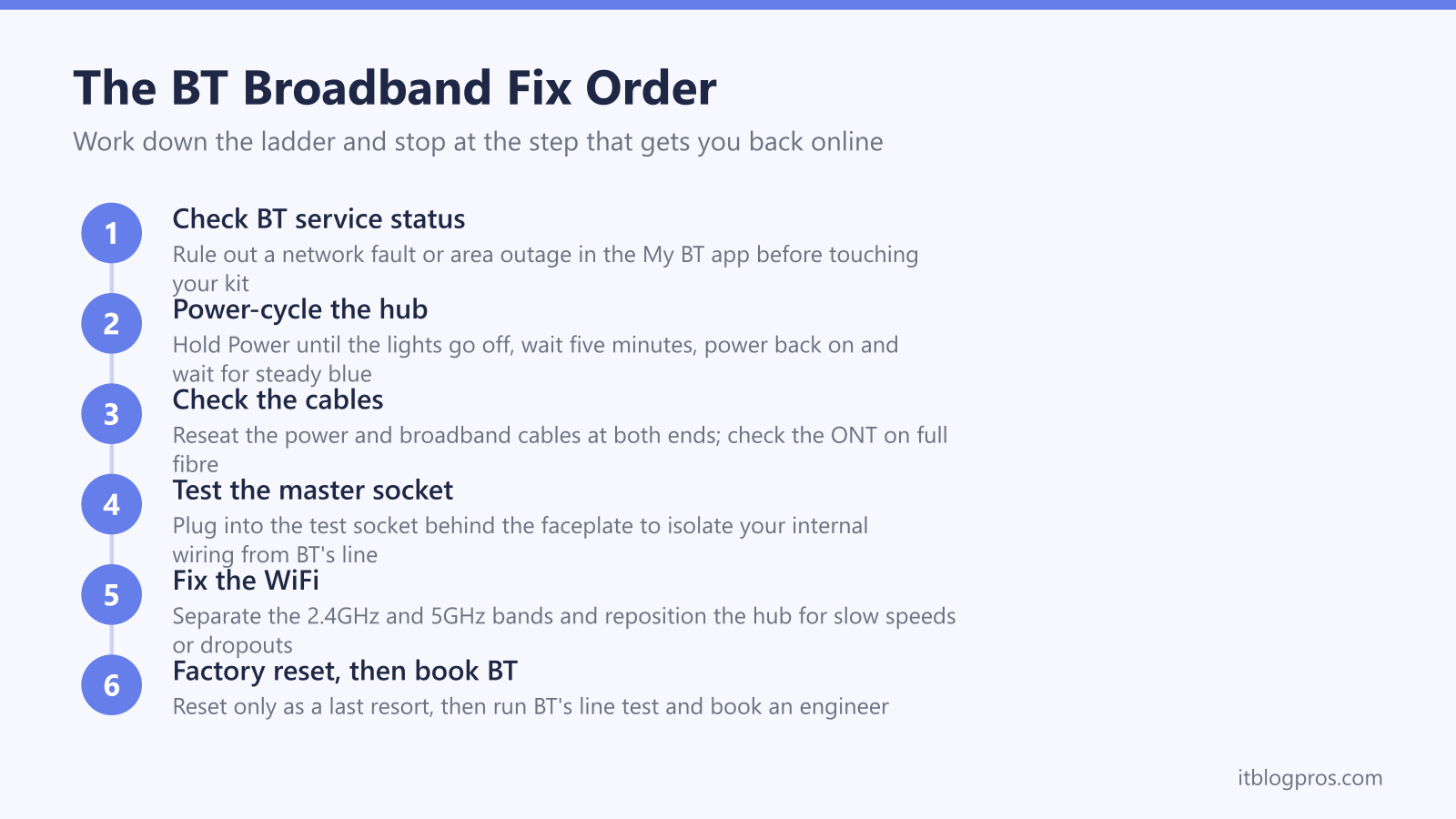
BT broadband that has stopped working can clear at one of six ordered steps. Check BT's service status for a fault first, power-cycle the hub and wait several minutes, check the broadband and power cables, test the master or test socket, separate the 2.4GHz and 5GHz WiFi bands for dropouts, and keep a factory reset as the last resort before booking an engineer.
Key Takeaways
- Checking BT's service status comes first, because a network fault or area outage cannot be fixed at home and rules out wasted troubleshooting on your own kit.
- BT's connection help sets out the power-cycle: hold the Power button until every light goes off, leave the hub off for five minutes, then power it back on and wait for the light to settle on steady blue.
- The master-socket and test-socket check isolates whether the fault is your internal wiring or BT's line, since broadband needs a working phone line on FTTC and a healthy ONT on full fibre.
- Slow speeds and dropping WiFi can be a wireless problem rather than a line fault, and BT's help suggests separate 2.4GHz and 5GHz names for devices that struggle, or moving the hub nearer the centre of the home.
- A factory reset is a near-last resort because it wipes your WiFi name, password and custom settings, so it sits below the cable, socket and band checks in the order.
The Fix Order At A Glance
BT broadband faults can fall into four buckets: a network fault, a hub glitch, a cable or socket problem, or a WiFi setting. Working them in order matters, because the cheapest fixes sit at the top and the disruptive ones sit at the bottom.
Work down this ladder and stop at the step that brings you back online:
- Check BT's service status for a fault or area outage.
- Power-cycle the hub and give it several minutes to resync.
- Check the broadband cable and the power cable at both ends.
- Test the master socket or test socket to isolate internal wiring.
- Fix WiFi-specific problems by separating or switching the 2.4GHz and 5GHz bands.
- Factory reset the hub only as a last resort, then book a BT engineer.
The sections below walk through each step in full. If your symptom is a specific light rather than a dead connection, jump straight to the BT Smart Hub lights guide, since a red, orange or flashing hub light has its own diagnosis.
Step One: Check BT's Service Status First
Before touching the hub, confirm the fault is yours and not BT's. A network fault or area outage cannot be fixed at home, so checking it first saves you from a pointless reset.
BT runs an official service status checker at bt.com/help/check-service-status, and the My BT app on your phone can check for known problems on your line and in your area straight from the home screen. Sign in and BT can run tests on your connection and flag a fault to its engineers, sending one out if the tests show you need it.
If BT reports a confirmed fault or outage, there is nothing to fix at your end and the connection returns once BT clears it. A quick word with a neighbour on BT confirms whether the whole street is affected. If the checker shows your line is healthy, move on to the hub.
Step Two: Power-Cycle The Hub The Right Way
A power-cycle is the next step once a network fault is ruled out. BT's connection problems help page is specific about the timing, so follow it rather than a quick off-and-on.
- Press the Power button on the back of the hub until all the lights go off.
- Leave the hub switched off for a full five minutes so the connection fully drops.
- Press the Power button again until the lights come back on.
- Do not touch it for a few minutes while it resyncs, then watch the light settle on steady blue, which means it is connected to your broadband.
If you are on a fibre line with a separate Openreach modem or an ONT, power-cycle that box as well by switching it off and back on. A genuine restart takes several minutes, so resist the urge to keep toggling the power, which only restarts the clock.
Step Three: Check The Cables And The Socket
A loose or wrong cable can stop a hub connecting, and it is quick to rule out before you go near the wiring.
Check the power cable is firmly seated at both the hub and the wall, and that the socket has power. Then check the broadband cable: on a full-fibre line BT's full fibre wiring help says it runs from the hub's WAN port into PORT 1 on the Openreach modem, which BT's connection help describes as a white box and BT also calls the ONT, and on an FTTC or copper line the grey-ended broadband cable runs into your master socket. Look for kinks or damage and reseat both ends firmly. BT's Smart Hub 2 user guide says a flashing purple light means the hub is working but the broadband cable is not connected, so check that cable and any filter first if you see it.
If you have full fibre, glance at the ONT itself; its power and connection lights should be on and steady. A dark or faulty ONT points to the line rather than the hub. For a flashing pink or purple light that will not clear, the BT hub flashing pink light guide covers that specific fault in depth.
Step Four: Test The Master Socket Or Test Socket
On an FTTC or copper line, broadband needs a working phone line, so the next check confirms whether the fault is in your internal wiring or on BT's line. This step does not apply to full-fibre lines, which use the ONT rather than a phone socket.
First, test the landline if you have one: pick up the phone and listen for crackle or noise, which can point to a line fault. Then connect the hub directly to your master socket, the main socket where the broadband cable comes into the house, rather than an extension lead or a socket in another room. BT's wiring help says that if the master socket has a line across the middle, you can remove the lower faceplate to reach a test socket on the right, and connecting the hub there through a microfilter bypasses all your internal extension wiring.
If the connection comes back when plugged into the test socket, BT's wiring help says it points to a problem with your internal wiring or with something plugged into an extension. If it stays down even at the test socket, it is worth running BT's line test and booking an engineer if the tests call for one.
Fixing Slow Speeds And Dropping WiFi
If the connection is up but slow, or devices keep dropping off, the problem can be WiFi rather than the line. Remember that your broadband speed is shared across every connected device, so several large downloads at once will slow everything down.
BT's hubs broadcast on two bands, and BT's split help page says 2.4GHz gives the best coverage around the home while 5GHz gives the fastest speeds in the same room or one room away. BT's dual-band help page says some devices do not handle one network name for both bands, and that separate names can fix it for some of them. BT's split page does not recommend splitting, saying most new devices work well with dual-band WiFi, and says the Smart Hub 2 lacks that capability, although the dual-band page includes the Smart Hub 2 in its steps, so check the 5GHz section in Hub Manager. BT's Smart Wireless help says the hub picks the channel with the least interference automatically, and BT's channel help advises against changing it manually.
Placement matters too. BT's broadband speed help recommends keeping the hub out in the open, not on the floor or in a cupboard, near the centre of the home and away from windows, and not behind a TV or near metal objects. For a far room that WiFi simply cannot reach, a single well-placed extender such as the TP-Link RE705X is a more honest fix than repeatedly rebooting the hub.
Step Six: Factory Reset As The Last Resort
BT's factory reset page recommends a reset only as a last resort, because the hub returns to its original settings and loses any personalised settings and passwords, so it belongs near the bottom of the order, below the cable, socket and band checks.
To reset, find the reset button in the pinhole on the back of the hub and press it with a paperclip. BT's factory reset page says to hold it for five seconds on a Smart Hub 2, 10 seconds on a Smart Hub 3 and 20 seconds on the original Smart Hub, and that a Smart Hub 2 can take up to five minutes to reset, so give the light time to settle on steady blue. You will then need to reconnect your devices using the default WiFi details printed on the hub's card or label, and re-apply any personal settings.
If the connection is still down after a reset, it is time to use BT's broadband troubleshooter to run a line test and book an engineer if the tests call for one. Have your account number, hub model and the steps you have already tried to hand.
When The Hub Itself Is The Limit
Sometimes the hub is simply past its best. BT's Different types of BT Hub page lists four antennas on the Home Hub 4 and five on the Home Hub 5, against seven on the Smart Hub, Smart Hub 2 and Smart Hub 3, and gives WiFi 6 only to the Smart Hub 3. For a unit that keeps failing, BT's connection help points to its broadband troubleshooter, which runs tests on your connection and lets you book an engineer if the problem cannot be fixed online.
If you want better WiFi rather than a like-for-like swap, BT Business's own-router help says a third-party router must be able to set up a PPPoE session, and needs an integrated VDSL modem on a fibre to the cabinet line with no separate Openreach modem. BT Business's Smart Hub 3 help says full fibre customers can plug their own router straight into the ONT. BT documents no bridge mode for the residential Smart Hub, so on FTTC either replace the hub with a router that has a built-in VDSL modem, or run a mesh kit in access-point mode behind it for whole-home coverage. The best router for BT broadband buying guide compares the options in full, and the BT router reset guide covers resetting both the Smart Hub and a third-party replacement.