
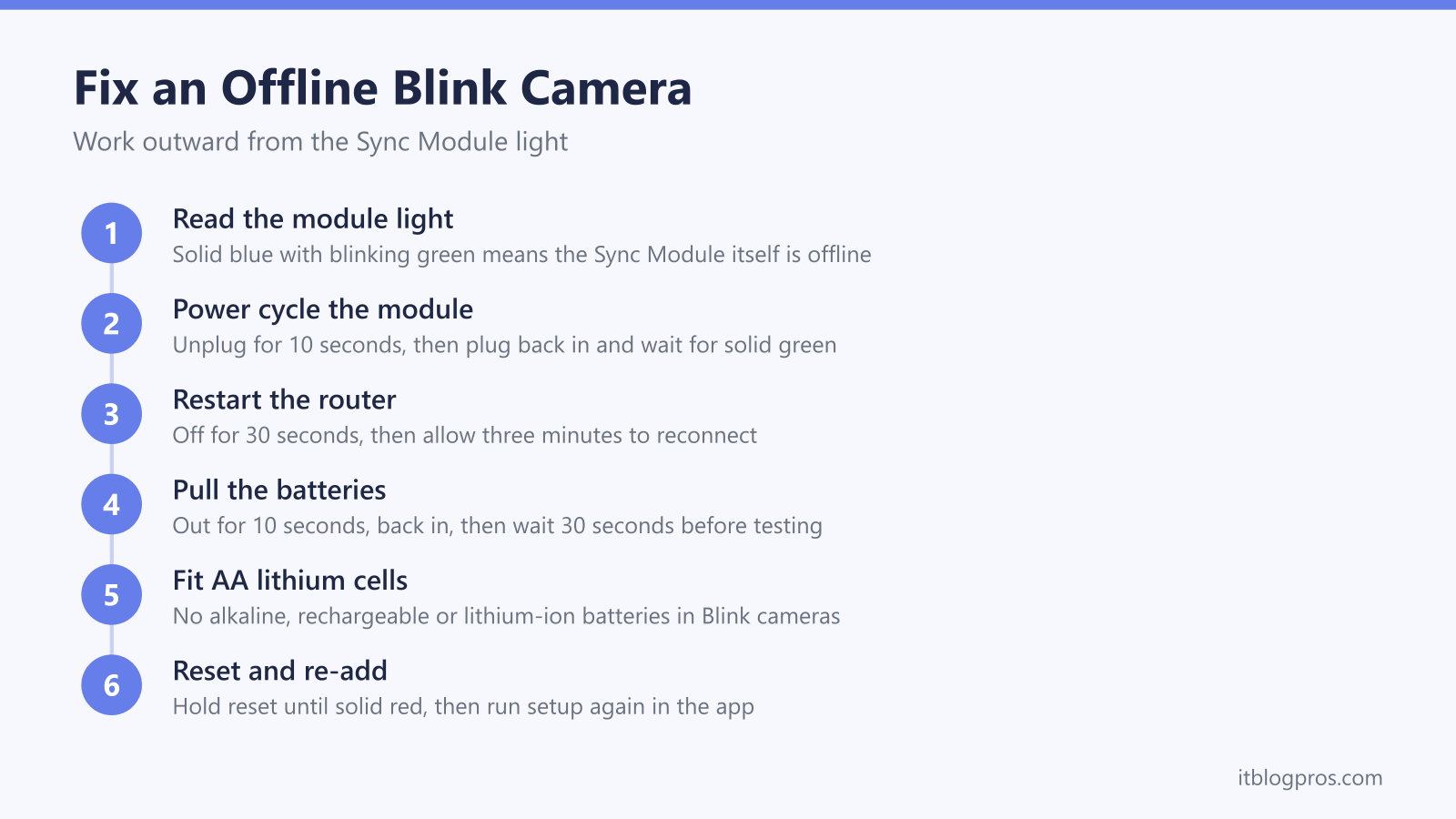
When a Blink camera shows offline, the first job is working out which link failed. Blink Outdoor 4, Outdoor and Indoor (3rd Gen), XT2 and the older XT all route commands through a Sync Module, and each camera also holds its own connection to your 2.4GHz WiFi, while the Blink Mini skips the module entirely. That layered design means the same offline banner can point at three different faults. This guide decodes the Sync Module lights, runs the reconnect steps in the order Blink's Sync Module Troubleshooting page gives for an offline module, and covers two specific failures: a camera that stays offline after a battery change and a Sync Module that refuses to come back.
A Blink camera shows offline when either the camera's link to the Sync Module or the module's link to your 2.4GHz WiFi drops. Check the Sync Module light first: solid blue with blinking green means the module itself is offline. Blink's support pages say to get the module online before the camera: restart the router for 30 seconds, then unplug the module for 10. Fit AA lithium batteries only, never alkaline or rechargeable.
Key Takeaways
- Blink battery cameras hold two links, one to the Sync Module and one to your WiFi, so an offline message can mean either link has dropped and the Sync Module light tells you which.
- Solid blue with blinking green on the Sync Module means the module itself is offline; Blink's Sync Module Troubleshooting page says to restart the router for 30 seconds, then unplug the module for 10 seconds, and Blink's camera offline page says to get the module online before moving on to the camera.
- Blink's WiFi guide says Blink supports merged networks that use one name for both bands but only communicates on 2.4GHz, and it asks you to check that the 2.4GHz network is functioning normally.
- Blink battery cameras take two AA 1.5 volt lithium non-rechargeable batteries; Blink states that alkaline, rechargeable and lithium-ion cells are unsupported, and its Red Light on a Camera page says to fit a fresh pair if the 5 long red flashes do not appear when the batteries go in.
- Blink's Sync Module placement page says the module should reach cameras up to 100 feet away in a typical single building, and Blink's WiFi guide says fewer than three bars on either connection can cause intermittent performance issues.
Blink Sync Module and Camera Light Patterns Decoded
| Light | What it means | What to do |
|---|---|---|
| Solid blue and solid green (Sync Module) | Online and connected to your WiFi and the Blink servers | None needed. If the app still shows offline, force close and reopen the Blink app. |
| Solid blue and blinking green (Sync Module) | Offline and attempting to reconnect to the previously configured WiFi network | Blink's Sync Module Troubleshooting page says to unplug the router for 30 seconds, then unplug the module for 10 seconds. |
| Blinking blue and solid green (Sync Module) | Setup mode. The module is waiting to be configured and is not serving cameras | Run setup in the Blink app, or re-add the module if it reached this state after a reset. |
| Solid red (Sync Module) | Unable to connect to the WiFi network, or the WiFi password entered may be incorrect | Re-enter the WiFi password during setup and confirm the router's 2.4GHz band is enabled. |
| No lights (Sync Module) | No power reaching the module | Try another wall socket and check the USB power cable and adapter. |
| Red flash every 3 seconds (Outdoor and Indoor 3rd Gen, XT2, XT camera) | The camera has lost its internet connection | Bring the Sync Module and router back online first, then remove and reinsert the camera's batteries. Blink's support pages variously say five, 10 or 30 seconds out. |
| 5 long red flashes on battery insert, then a short flash every 3 seconds (camera) | Shown after the batteries go in, until the camera establishes an internet connection | If the short flashes carry on, the camera has not established an internet connection, so check the module and WiFi. If the 5 long flashes do not appear, Blink says to fit fresh lithium AAs. |
| 5 to 6 red flashes after the blue recording light (camera) | The batteries are failing | Fit two fresh AA 1.5 volt lithium non-rechargeable batteries. Alkaline and rechargeable cells are unsupported. |
The Two Links That Decide Whether a Blink Camera Shows Offline
Blink's battery cameras do not talk to the cloud on their own. The Outdoor 4, Outdoor and Indoor (3rd Gen), XT2, XT and Indoor (1st Gen) all pair with a Sync Module, and the Network section of each camera's General Settings in the Blink app can show two separate readings: Connection to Sync Module and a WiFi reading that Blink's Device Settings page calls Network Strength and its WiFi guide calls Connection to Wi-Fi. The Sync Module then holds its own link to your router and to Blink's servers. Blink's WiFi guide asks for three bars on both camera readings.
An offline banner therefore means one of three things:
- The Sync Module lost your WiFi, which takes every camera on that system down at once.
- One camera lost the Sync Module, leaving the others online.
- One camera lost the WiFi itself, which shows as a weak Network Strength or Connection to Wi-Fi reading.
The pattern of the failure is the diagnosis. Every camera dropping together points at the module or the router; a single camera dropping alone points at that camera's batteries or position. The Blink Mini, Video Doorbell and Wired Floodlight can run without a Sync Module, so they follow the separate rules covered further down.
Read the Sync Module Lights Before Touching Anything
The two LEDs on the front of the Sync Module identify its exact state, and the table on this page decodes every pattern. Two of them are easily confused and the difference matters.
Solid blue with blinking green means the module is offline and attempting to reconnect to the WiFi network it already knows. Blink's Sync Module Troubleshooting page lists a router restart and a module power cycle as the first steps for this light.
Blinking blue with solid green means the module is sitting in setup mode waiting to be configured. It is not trying to reconnect to anything, so no amount of waiting fixes it. This is what you see after a reset, deliberate or accidental, and the only way forward is running setup again in the Blink app.
When everything is healthy the module shows solid blue with solid green. If the app says offline while the module shows this healthy pattern, force close the Blink app and reopen it before doing anything drastic.
Sync Module Offline Fixes in the Order That Works
Blink's Sync Module Troubleshooting page gives these steps for a module showing solid blue with blinking green, and it starts at the router; for a solid red light during setup, the same page power cycles the module before the router.
- Power cycle the router. Blink's Sync Module Troubleshooting page says to unplug the router from the power outlet, wait 30 seconds and plug it back in.
- Power cycle the Sync Module. The same page says to disconnect it from power for 10 seconds and plug it back in; solid blue with solid green confirms it has reconnected to the network. Blink's Improving Camera Connectivity page, written for weak camera links rather than an offline module, gives 30 seconds for the same unplug.
- Confirm the broadband actually works on a phone or laptop connected to the same network. A Blink outage that coincides with a broadband outage is not a Blink problem.
- Re-enter the WiFi password. Open the Sync Module's screen in the Blink app and re-run the WiFi connection with the current password. Blink's troubleshooting page says a solid red LED during setup means the module cannot connect to your WiFi network or the password entered may be incorrect.
- Simplify the network. Blink specifically advises disconnecting mesh pods and extenders temporarily so the module joins the main router directly. Reintroduce them once it is stable.
- Factory reset as the last resort. On the Sync Module 2, XR and Core, press and hold the reset button on the back until the LED turns solid red, then release. On the 1st Gen module the reset button sits recessed beside the USB port and needs a paperclip pressed until it clicks. Blinking blue with solid green confirms setup mode; re-add the module through the Blink app and the cameras on that system come back with it.
One Camera Offline While the Others Stay Up
When the Sync Module shows healthy lights and only one camera has dropped, the fault sits in that camera or its position.
Start with the power cycle: remove the camera's batteries and reinsert them. Blink's pages differ on how long to leave them out: five seconds on its Camera is offline message page, 10 seconds on its One Camera isn't Responding page and 30 seconds on its Improving Wi-Fi Performance page. The Camera is offline message page then says to wait 30 seconds and try the camera again.
If it comes back briefly and drops again, open the camera's settings and check both signal readings. Blink's WiFi guide asks for three bars on both Connection to Sync Module and Connection to Wi-Fi, the WiFi reading Blink's Device Settings page calls Network Strength. Blink's Sync Module placement page says that in a typical situation, meaning a single building with no unusually dense construction materials, the module should communicate with cameras up to 100 feet (30 metres) away in any direction. Blink's camera connectivity page names thick walls, concrete, brick, stone and metal as obstructions to avoid, and says any camera beyond 100 feet should be moved closer to the Sync Module. After any move, recheck the Connection to Sync Module reading in the camera's settings to see whether it improved.
Two further checks rule out hardware. Cameras with a USB port can run on mains USB power with the batteries removed, which isolates a battery-contact fault. And if nothing else sticks, delete the camera in the Blink app and re-add it with its serial number, which forces a completely fresh registration.
Camera Offline After a Battery Change
When a camera goes offline straight after a battery change, check the batteries themselves as well as the network. Blink's battery guide lists a camera going offline, once the issue has been confirmed as not related to network connectivity, as a time to replace the batteries.
Blink's battery cameras are designed for two AA 1.5 volt lithium non-rechargeable batteries, and Blink's USB power page is blunt about it: do not use lithium-ion, alkaline or rechargeable batteries. Blink's battery guide recommends Energizer lithium 1.5 volt non-rechargeables for optimal performance and says performance may vary with other battery types. Blink's battery life FAQ says up to two years of battery life is expected on default settings, and that it varies with device settings, use and environmental factors.
The startup light pattern is worth reading. Blink's Red Light on a Camera page says that when batteries first go in, the red LED shows 5 long flashes, then repeats a short flash every three seconds until an internet connection is established. The same page says that if the 5 long flashes do not appear, a fresh pair of lithium non-rechargeable AA batteries should go in.
If the short flashes carry on and the camera still shows offline: reseat the batteries, checking the orientation markings, power cycle the Sync Module, and as a final step delete and re-add the camera in the app.
The 2.4GHz Rule and Dual-Band Routers
Blink's WiFi Information and Troubleshooting Guide says Blink products can only connect to 2.4GHz (802.11 b/g/n) networks, and that the Sync Module will not respond if it has been switched to a 5GHz network.
Routers that broadcast 2.4GHz and 5GHz under one network name use what Blink's guide calls band steering, which it says is becoming more common. The same guide says Blink supports merged networks with a single network name and that Blink devices only connect to 2.4GHz bands, even when the bands are merged on your router. What Blink does ask you to check is that your 2.4GHz network is functioning normally and the internet is available, so if the router's settings let each band be switched off separately, confirm the 2.4GHz band is on.
For where the band settings sit on Virgin Media, BT and Sky hubs, the guide to smart plugs that refuse to connect goes through each hub. If you do change the router's network name or password, Blink's WiFi guide says the Blink system will not function correctly until you update the settings, which for a Sync Module means tapping the Sync Module on the Blink app's Home screen and choosing Change Wi-Fi Network.
Blink Mini Offline Follows Different Rules
The Blink Mini is the exception in the range. It runs on USB power rather than batteries and connects straight to your WiFi, so it works without a Sync Module at all; the module is optional for a Mini. An offline Mini therefore has no module link to check, which leaves its power and its own WiFi connection.
The fix list is short. Unplug the Mini's USB cable from the socket or the camera and reconnect it; Blink's Camera is offline message page says to wait five seconds, while its Improving Wi-Fi Performance page says to unplug wired cameras for 30 seconds. Restart the router if that fails. Then look at the distance: Blink's Mini WiFi connection issues page names poor signal strength as the most common cause of failure to connect or frequent disconnection, and says the ideal distance between a router and a Blink device is under 20 feet (about six metres). The same page suggests moving the Mini closer to the router, and the Network section of the camera's settings shows whether the Connection to WiFi reading improves after a move.
Blink's WiFi guide says the Mini camera needs a 2.4GHz WiFi connection too, so the 2.4GHz check above applies to it as well.
When Weak Signal Beats Every Reset
There is an honest limit to power cycling. If the Sync Module shows healthy lights, the batteries are proper lithium AAs and a distant camera still drops offline every few days, the problem is radio coverage, and no reset changes the shape of your house.
Placement comes first because it is free. Blink's Sync Module placement page suggests a window sill in a central location between indoor and outdoor cameras, and lists behind a television, inside a closed cabinet, directly on top of the router and in a basement as poor spots. Blink's pages differ on distance from the router: the placement page lists a spot no less than 3 feet (1 metre) and no more than 10 feet (3 metres) from the router as good, while Blink's camera connectivity page says to position the Sync Module at least 10 feet from the router to minimise interference. Both keep it off the top of the router, and the Sync Module signal reading in each camera's settings shows whether a new spot works. For the cameras themselves, Blink's connectivity guidance says repositioning can improve their link to the Sync Module and names concrete, brick, stone and metal as the obstructions to avoid, so where a camera watches a detached garage or the end of the garden, a small move on the mounting bracket away from brick piers and metalwork is worth testing against the signal bars in the app.
When the layout defeats placement, the two signal readings in the camera's settings point at different fixes, so check which one is weak before buying anything.
- Connection to Sync Module is the weak reading. Blink's connectivity guidance says that where cameras are spread across a large property, such as the front and back of a home, adding a second Sync Module may provide better coverage. The Blink Add-On Sync Module 2 is that route, and Blink's Sync Module 2 FAQ says every Blink camera works with it. Blink's own pages add two catches: the second module still needs an always-on 2.4GHz WiFi connection where it sits, and cameras cannot be moved directly between systems, so each distant camera has to be deleted from its current system and re-added to the new one.
- Network Strength, or Connection to Wi-Fi, is the weak reading. Blink's WiFi performance page suggests WiFi extenders and mesh networks as options for weak signal and dead zones. A dual-band extender such as the TP-Link RE315 broadcasts on 2.4GHz, the band every Blink device needs, and TP-Link's placement guidance puts an extender roughly halfway between the router and the weak area. The WiFi extender guide for Ring doorbells covers the same 2.4GHz coverage problem in more depth.
The network name matters with an extender, and Blink's extender page is specific about it. Blink says the Outdoor, Indoor (gen 2) and Mini can join an extender network with _EXT added to its name, but the original Indoor, XT and XT2 will only connect to the same network name the Sync Module uses, so for those the extender has to broadcast the main network's name with exactly the same password. That setting lives in the extender's own settings panel, which the tplinkrepeater.net login guide explains how to open. Blink also notes that an extender may not help a camera that already shows three bars, which is one more reason to read both signal readings first.