
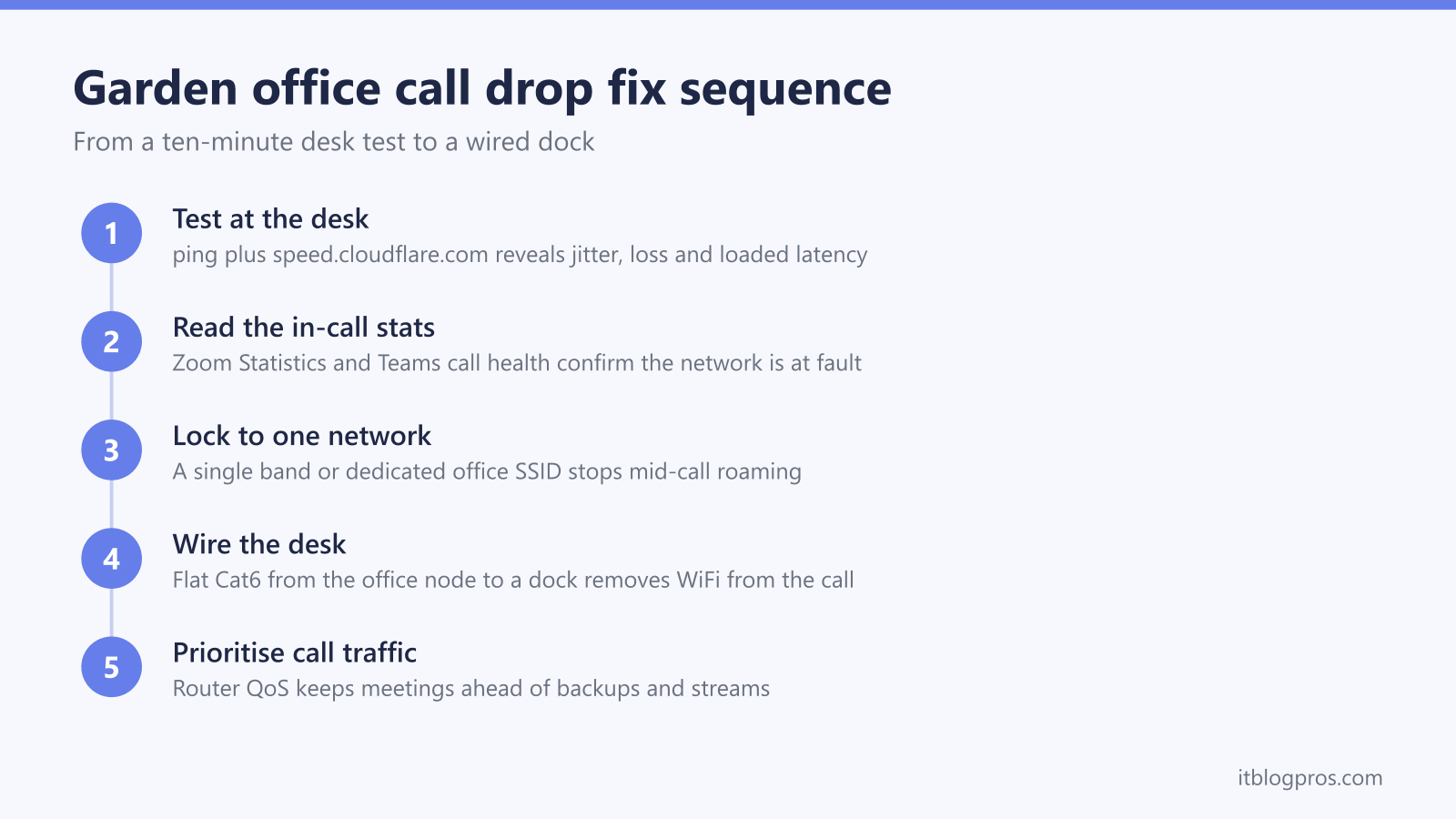
Teams, Zoom or Meet calls that freeze, stutter or drop entirely in a garden office, while web browsing at the same desk feels perfectly fine, point to one specific class of fault: a marginal wireless link. Browsing is designed to hide exactly the problems that real-time video cannot survive, so the speed test passes while the Monday stand-up falls apart. This guide explains what video calls actually demand from a connection, why the freeze-then-recover pattern almost always means the laptop is switching networks mid-call, and the fix ladder from a ten-minute test at the desk to a properly wired dock.
Garden office video calls drop because the link fails on jitter, packet loss and mid-call roaming, not headline speed. Teams delivers HD video in under 1.5Mbps, so bandwidth is rarely the culprit. Measure latency and jitter at the desk, lock the work laptop to the office node so it cannot roam mid-call, run flat Cat6 from the node to a dock, and switch on router QoS where available.
Key Takeaways
- Video calls run over UDP in real time, so a packet that arrives late is as useless as one that never arrives; browsing uses TCP retries that hide the same faults completely.
- Zoom officially recommends latency of 150ms or less, jitter of 40ms or less and packet loss of 2% or less, while Microsoft's Teams telemetry treats jitter under 30ms as good.
- The freeze-then-recover pattern usually means the laptop roamed between the house router and a weak extender mid-call, because the client device alone decides when to switch.
- Congested 2.4GHz gives stable-but-slow with jitter spikes from contention, while marginal 5GHz gives fast-but-spiky; locking the work laptop to the strongest single network stops the flapping.
- Ethernet from the office node to a dock removes WiFi from the call path entirely, and a flat Cat6 cable runs along the skirting without trunking or drilling.
Browsing hides the network faults that video calls expose
Web pages, email and cloud documents travel over TCP, a protocol built to survive bad links. When a packet goes missing, TCP quietly retransmits it; when the connection wobbles, the browser buffers and the page simply takes half a second longer to appear. A garden office link losing 3% of its packets feels completely normal for browsing.
Video calls cannot use those tricks. Teams, Zoom and Meet send audio and video over UDP, the real-time transport Microsoft describes as preferred for Teams media, precisely because retransmission is pointless in a live conversation. A packet that arrives 200ms late belongs to a moment that has already been played, so the app must either conceal the gap or freeze. There is no retry, no buffer deep enough, no second chance.
Bandwidth is almost never the real constraint. Microsoft's published figures show Teams audio needs about 58kbps each way for good quality and can survive on 10kbps, while the whole HD video experience fits in under 1.5Mbps. A garden office link showing 30Mbps on a speed test has twenty times the bandwidth a call needs. What the speed test does not show is whether packets arrive on time, every time, for 45 minutes straight. That consistency, not the headline number, is the entire game.
The latency, jitter and packet loss numbers Teams and Zoom publish
The vendors publish real thresholds, so the diagnosis does not have to rely on guesswork:
| Metric | Zoom's recommendation | Microsoft Teams telemetry |
|---|---|---|
| Latency (round trip) | 150ms or less | Under 500ms before flagged |
| Jitter | 40ms or less | Under 30ms rated good |
| Packet loss | 2% or less | Under 5% rated good for audio |
Jitter is the variation in packet arrival times, and it is the silent killer of marginal WiFi links. Call apps smooth jitter with a small buffer, but Microsoft's own documentation notes the effect only becomes audible once jitter exceeds what the buffer can absorb, and every extra millisecond of buffering adds delay to the conversation. A link averaging 20ms but spiking to 150ms whenever the microwave runs or a neighbour's network gets busy will pass every speed test and still produce robotic audio and frozen tiles.
Packet loss shows up differently by severity. Below roughly 2%, the apps conceal it almost perfectly. Between 2% and 5%, audio starts to sound choppy and video drops frames. Above 5%, Zoom progressively cuts frame rate and resolution, and eventually suspends video entirely while it fights to keep audio alive. That last behaviour is exactly the freezing-camera symptom garden office workers describe.
The freeze-then-recover pattern means the laptop is roaming mid-call
A call that freezes for five to fifteen seconds, shows a reconnecting banner, then carries on as if nothing happened has a distinctive cause: the laptop switched wireless networks in the middle of the call.
The WiFi standards leave the roaming decision entirely to the client device. The router and extender have no say; the laptop decides when its current signal is bad enough to justify scanning for something better, and different devices use different thresholds, commonly around -70dBm. A garden office desk often sits exactly on the boundary between the house router's weak signal and an extender's stronger one, and that boundary shifts with doors, weather and even where people are standing in the house.
Two failure modes follow. A sticky client clings to the distant house router long after the office extender became the better choice, delivering a slowly degrading call. A flappy client bounces between the two: each switch means disassociating, scanning, re-authenticating and re-establishing the media stream, and for those seconds the UDP packets carrying the call have nowhere to go. Browsing barely notices because TCP retries paper over the gap. The call freezes on the spot.
Where the office has no usable signal at all rather than a marginal one, that is a different fault with its own checklist, covered in the garden office WiFi not working guide.
Congested 2.4GHz and marginal 5GHz fail in opposite ways
Garden offices usually receive one of two flavours of bad link, and they misbehave differently on calls.
A 2.4GHz connection carries further and punches through brick, which is why extenders and laptops at range often end up on it. The price is congestion: only three non-overlapping channels, shared with every neighbour's network, plus baby monitors, Bluetooth and microwave ovens. The result is stable-but-slow, a connection that never drops but suffers constant contention. Each burst of interference forces retransmissions at the radio level, and those delays arrive at the call as jitter spikes. Audio warbles, video stutters, yet the speed test looks merely mediocre rather than broken.
A 5GHz connection at the edge of its range is the mirror image: fast-but-spiky. The channel is clean and the headline speed impressive, but 5GHz attenuates hard over distance and through walls, so the signal at a garden office desk may sit right at the limit. The link runs beautifully for minutes, then a small change in conditions triggers a cascade of radio retries or a rate renegotiation, and the call freezes while browsing barely blinks. Microsoft's Teams network guidance notes that 5GHz is better suited to real-time media but needs proper coverage to deliver it, which is precisely what a house-to-garden hop lacks.
Neither band is wrong in itself. The problem is asking a marginal instance of either to carry real-time traffic.
A ten-minute test at the desk finds the real fault
Testing from the actual desk, at the time of day calls normally fail, turns speculation into numbers.
Start with ping, which is built into Windows and macOS. Open a terminal and run a burst of 50 pings to the router's address, for example ping -n 50 192.168.1.1 on Windows, then the same to a public host such as bbc.co.uk. Three things matter: the average time, the gap between average and maximum, and any lost packets. An average of 5ms to the router with occasional 200ms spikes is a jitter problem on the wireless hop; clean numbers to the router but ugly ones beyond it point at the broadband line instead.
Next, run the test at speed.cloudflare.com, which goes beyond a basic speed test and reports latency, jitter and packet loss, including loaded latency measured while the connection is busy. A link that shows low idle latency but terrible loaded latency will collapse the moment a cloud backup or a housemate's stream competes with the call.
Finally, read the in-call statistics during a real meeting. Zoom shows latency, jitter and packet loss under Settings then Statistics, and Zoom's support documentation states its recommended ceilings of 150ms latency, 40ms jitter and 2% loss. Teams shows the equivalent live figures under More then Call health during a meeting. Numbers beyond the thresholds during a bad patch confirm the network, not the app or the laptop, is the fault.
Locking the work laptop to one network stops the flapping
Once the tests confirm a marginal or flapping link, the first free fix is removing the roaming decision from the laptop entirely.
Where the router allows the bands to be named separately, give 2.4GHz and 5GHz distinct names, connect the work laptop to whichever one tested better at the desk, and tell it to forget the other. Some ISP hubs only broadcast a single combined name and choose the band for you; where the hub cannot split bands, the cleaner route is a dedicated network name on the office access point or mesh node, with the work laptop joined to that name alone and the house network deleted from its saved list. A laptop that knows only one network cannot roam away from it mid-call.
On laptops with Intel wireless adapters there is a second lever: Device Manager, the wireless adapter's Properties, then the Advanced tab contains a Roaming Aggressiveness setting. Lowest makes the laptop hold its current connection until it is genuinely unusable, which suits a desk that never moves. Enterprise-grade kit softens roaming with the 802.11k, v and r standards, but consumer extenders rarely implement them well, so preventing the roam beats smoothing it.
One honest caveat: locking a laptop to a network that failed the desk test just guarantees a consistent bad call. Locking only pays off when there is one clearly good signal to lock to, which is the strongest argument for a proper node inside the office.
A wired desk and router QoS protect the call path
The strongest fix on the ladder costs one cable. If the garden office already has any wired-capable node, an access point, a mesh unit or a powerline adapter with a spare LAN port, run ethernet from that port to the laptop's dock or USB adapter and the wireless hop disappears from the call path completely. No jitter from contention, no roaming, no signal margin to worry about. A flat Cat6 cable sits flush against the skirting board and slips under a door seal, so the run from node to desk needs no trunking or drilling. With the dock wired, switch the laptop's WiFi off during calls so Windows cannot route traffic over the wrong interface.
Where the hop from house to office is powerline, latency and consistency questions are covered in the powerline adapter latency guide, and the same logic applies to calls as to gaming: a steady 30ms beats a spiky 10ms.
Router QoS is the finishing touch rather than the cure. Many routers offer device or application prioritisation, and Microsoft's Teams guidance recommends QoS and the wireless WMM standard so call packets jump the queue when the connection is busy. That protects a call from a cloud backup or a 4K stream saturating the uplink. It cannot fix jitter created on the radio link itself, which is why it sits after the locking and wiring steps, not before them.
The point where replacing the office link beats tweaking it
If the desk test still fails after locking the laptop to the best available signal, the link itself is the problem, and no setting rescues a signal that arrives too weak to hold steady. An extender rebroadcasting a marginal house signal can only ever relay that marginality onwards. The structural decision between powerline, mesh and a wired run is mapped out in the powerline or mesh guide for garden offices, and the wider replace-or-extend question in the mesh, extender or new router decider.
For most garden offices within WiFi reach of the house, the clean fix is a proper mesh node in the office itself. The TP-Link Deco X50 three-pack suits the job: one unit by the router, one at the house wall facing the office, one inside the office. Each unit is a full WiFi 6 AX3000 node with three gigabit ethernet ports, so the office unit doubles as a wired switch for the desk, and the system supports ethernet backhaul if a buried cable ever reaches the office. With a strong node two metres from the laptop, the signal differential is so large that roaming simply stops happening, and the desk test numbers move from marginal to boring. The honest limit: the office unit still needs a workable wireless path to the middle unit, so a long garden or dense walls push the answer towards powerline or a cabled run instead.
Pair the node with a Jadaol flat Cat6 cable from one of its gigabit ports to the dock, clipped along the skirting, and the call path is wired end to end inside the office. The full range of garden office options, including wired runs and point-to-point kit for longer gardens, is compared in the best way to get WiFi in a garden office guide.