
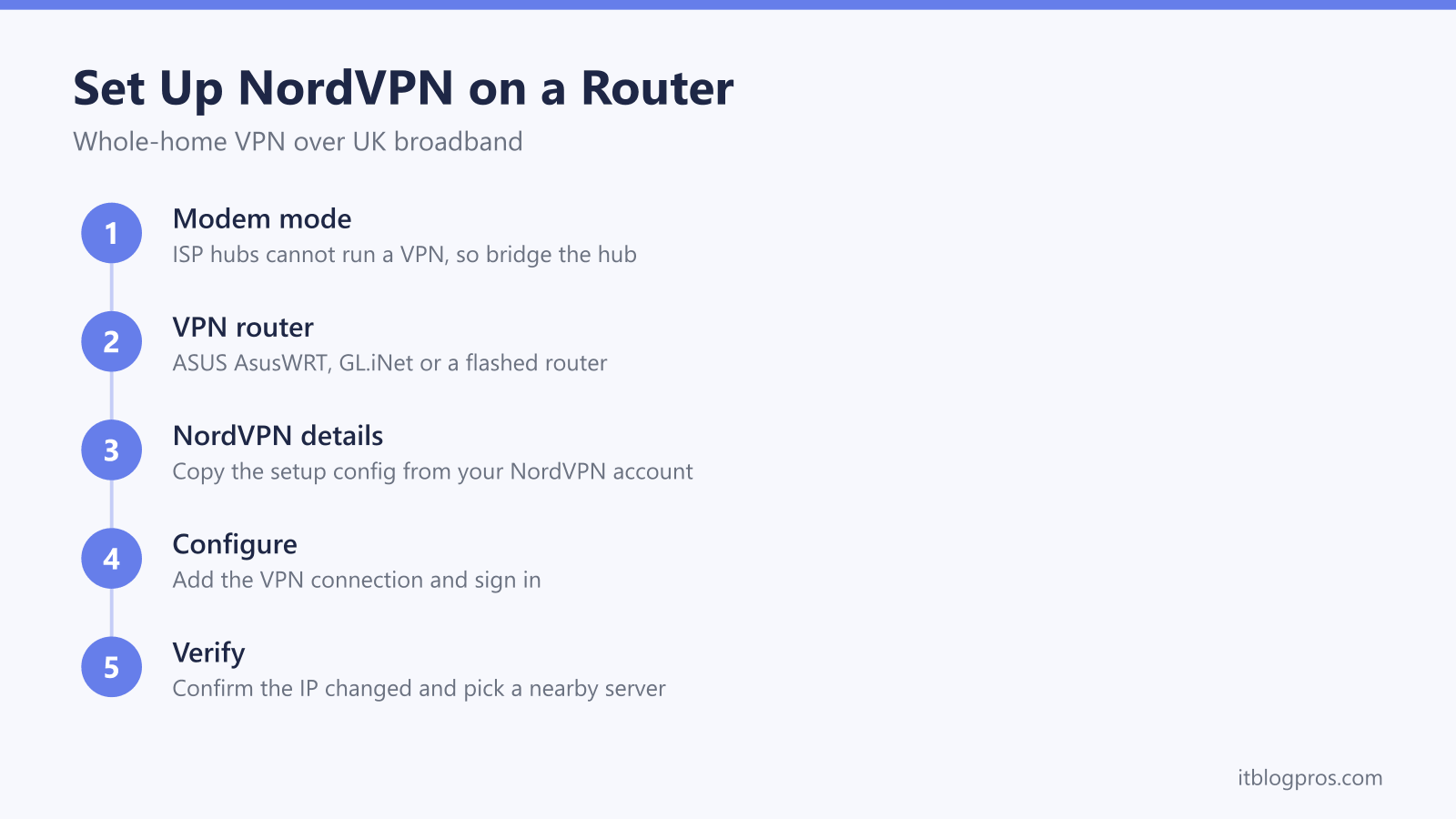
Running a VPN on your router is the tidiest way to cover every device in the house at once, including the smart TVs and consoles that cannot install an app of their own. It is also the step most people overthink. This guide explains what a UK ISP hub can and cannot do, the two honest routes to a whole-home VPN, and exactly how to set NordVPN up on a router.
No UK ISP hub, not the Virgin Media Hub, the Sky Hub, the BT Smart Hub, or the EE, Plusnet and TalkTalk routers, has a built-in VPN client, so you cannot switch NordVPN on inside it. The two real options are the NordVPN apps on each device or a router with a built-in VPN client sat behind your hub, in modem mode where the hub offers it, to cover the whole home.
Key Takeaways
- Running NordVPN on the router covers every device at once, including smart TVs, consoles and anything that cannot run a VPN app, and it stays always on.
- No UK ISP hub (Virgin Media, Sky, BT, EE, Plusnet, TalkTalk) has a built-in VPN client, and there is no hidden setting that adds one.
- For most households the per-device NordVPN apps are simpler, easier to fix, and quicker than the router route.
- Anyone who already owns an ASUS router running AsusWRT has a built-in VPN client to point at NordVPN, which is the easiest whole-home option.
- A router VPN is always on, but it is slower than a single-device app, fiddlier to set up, and sends all traffic out through one chosen server.
Why running a VPN on the router covers the whole home
Put the VPN on a single device and only that device is protected. Put it on the router and everything behind the router is covered, because the router is the gate every packet passes through on its way out to the internet. That is the whole appeal.
The bigger win is the kit that cannot help itself. A smart TV, a games console, a streaming stick, a smart speaker; none of these will let you install a VPN app, so on their own they always talk to the internet in the clear. A router VPN wraps them all in the same encrypted tunnel without you touching each one. It is also always on. There is no app to remember to launch, no toggle that quietly slips off after an update. Once the router is connected, new devices that join the WiFi are covered from the moment they connect.
That convenience comes with trade-offs, which are covered honestly further down. For a lot of people the simpler per-device route is still the better call, so it is worth understanding both before spending money.
Your ISP hub does not have a built-in VPN
This is the question that brings most people here, and the answer is clear. The Virgin Media Hub 3, Hub 4 and Hub 5 do not include a VPN client. Neither does the Sky Hub, the BT Smart Hub, the EE Smart Hub, the Plusnet Hub or the TalkTalk router. There is no hidden menu, no advanced setting, and no firmware update that quietly adds one. If you have been digging through your hub's admin pages looking for it, you can stop; it genuinely is not there.
It helps to know why. A commercial VPN like NordVPN needs the router to act as a VPN client, meaning the router itself logs in to a NordVPN server and pushes all your traffic out through it. ISP hubs are locked-down, cost-engineered boxes; the manufacturers simply do not build that client into the firmware. A few routers offer a VPN server instead, which is a different thing entirely; that lets you dial back into your home network from outside, not route your browsing out through NordVPN. For a fuller walkthrough on one specific line, the guide on the best way to use NordVPN with Virgin Media covers the same ground with Virgin's own kit.
The two real routes to NordVPN on your network
There are exactly two honest ways to get NordVPN working, and picking the right one saves a lot of grief.
The first is the per-device apps, and for most people this is the answer. You install the NordVPN app on each phone, laptop and tablet, sign in, and connect. Nothing on your hub changes. It is quick, it is easy to troubleshoot when one device misbehaves, and it lets you set a different server on each device. If your household is mostly phones and laptops, this route is almost always the better choice and there is no need to buy anything.
The second is the whole-home route, and it exists for the app-less kit. Because the ISP hub cannot run a VPN itself, you connect a separate VPN-capable router behind it, and where the hub offers modem mode (also called bridge mode), you turn that on so the hub works as a modem and your router does the routing. Check your provider's help pages for that setting before you plan around it. NordVPN lives on that router, and every device gets covered. On Virgin specifically, Virgin's help page gives modem mode steps for the Hub 3, 4 and 5 but says modem mode is not currently available for the Hub 5x, so on that Hub the VPN router sits behind a Hub that is still routing. For a Hub 5, the Hub 5 modem mode guide walks through flipping that switch. The rest of this article deals with the router half of that job.
Which routers work with NordVPN
Not every router can do this, so the router is the part to get right.
If you already own an ASUS router running AsusWRT, the standard ASUS firmware, you have the easiest route by a distance. AsusWRT has a genuine built-in VPN client (branded VPN Fusion on newer models), so there is no firmware flashing and no risk of bricking anything; you point it at NordVPN and go. This guide does not link a specific router to buy for this job, so if you are shopping, check that the model's own spec page lists a VPN client, not just a VPN server, before you pay.
A GL.iNet travel router is the neat option for a second home or for trips. These are small, cheap, and ship with NordVPN support built into their firmware, so you can drop one behind a hotel or holiday-let connection and have the whole room covered.
Beyond that, you can flash a compatible router with third-party firmware that adds a VPN client: OpenWRT, DD-WRT, Tomato or Asuswrt-Merlin. This opens up a much wider list of hardware, but be honest with yourself about the risk. Flashing firmware can brick a router if it goes wrong or the model is not properly supported, and it voids the warranty. It is a job for someone comfortable following a firmware guide carefully, not a five-minute tweak.
A common UK question is whether you can run a Netgear router behind a Virgin hub for a VPN. Connecting one is not the obstacle: Virgin's help page says modem mode lets you connect your own WiFi kit to the Hub, though the same page says modem mode is not currently available for the Hub 5x. The catch is that stock Netgear firmware offers a VPN server, not a VPN client, so it will not route your traffic out through NordVPN on its own. To do that on a Netgear you would need to flash DD-WRT or similar, with the brick risk above. If NordVPN on the router is the goal, a router with a built-in VPN client is far less hassle than flashing one. For a wider look at models that pair well with Virgin, the roundup of the best WiFi routers for Virgin Media is a good next stop, and if you are choosing the VPN itself for a Virgin line, the best VPN for Virgin Media guide compares the options.
Setting up NordVPN on an ASUS router, step by step
If you already own an ASUS router running AsusWRT, the setup is more approachable than it looks. The exact labels shift slightly between models, but the flow is the same.
- Sign in to the router admin. Open
router.asus.comor192.168.50.1in a browser and log in with the router's admin details. - Open the VPN section. Find VPN in the left menu, then the VPN Client tab (on newer firmware this sits under VPN Fusion).
- Grab the config from your NordVPN account. Sign in at nordvpn.com, go to the manual setup or service credentials area, and generate the service username and password plus the OpenVPN configuration for the server you want. Those service credentials are separate from your normal NordVPN login, which trips people up.
- Add the connection. Create a new VPN profile on the router, set the type to OpenVPN, import the configuration file you downloaded, and enter the service credentials. On firmware that supports WireGuard, NordVPN's NordLynx-style setup is an option too, though OpenVPN is the most widely documented router route.
- Connect and confirm. Activate the profile and wait for the router to report a connection. Then, from any device on the network, open an IP address checker site and confirm the public IP address and country have changed to the NordVPN server you chose. That change is your proof the whole network is now going through the tunnel.
If you want the router setup done and the reassurance of a money-back window while you test it, this is the point to get an account sorted.
One honest caveat: a kill switch and obfuscated servers are easy to switch on in the NordVPN apps, but on a router those features depend on the firmware. AsusWRT and Merlin handle the connection well; just do not assume every router-level setup carries the exact same protections the desktop app does.
The honest pros and cons of a router VPN
A router VPN is a genuinely good setup, and it is only fair to be straight about where it costs you.
On the plus side, it is whole-home and always on. Every device is covered, including the ones that cannot run an app, and there is nothing to remember to switch on. NordVPN itself brings an independently audited no-logs policy and strong encryption, so the traffic leaving your home is private from anyone watching the line.
On the downside, expect it to be slower than the same VPN running as an app on a single fast device. The router is doing the encryption for the whole house on a modest processor, so a cheap router will bottleneck a fast line. It is also fiddlier to set up than tapping "connect" in an app, and when something goes wrong the whole network feels it rather than one device. And because all traffic exits through one chosen server, every device shares that same location; a UK server keeps local services happy, but you lose the per-device flexibility the apps give you. For a lot of homes the sensible answer is a mix: a router VPN as the always-on baseline for the TVs and consoles, with the apps on the phones and laptops that occasionally need a specific country.