
The Hub 5 is a perfectly fine modem. As a router, it's a different story; it's locked down, the WiFi runs out of steam past a couple of rooms, and you get almost no control over it. Most people who land here have already decided they want their own router doing the heavy lifting. They just want someone to walk them through it without the jargon.
We've done this swap plenty of times across a few different lines, so here's the no-nonsense version. We'll cover what modem mode actually does, how to turn it on, and the couple of gotchas that trip everyone up.
Modem mode turns the Virgin Media Hub 5 into a plain modem so your own router runs the WiFi, addressing and settings. Virgin's help page puts the toggle in the Hub's settings at 192.168.0.1 and says modem mode is not currently available for the Hub 5x, so confirm your unit first. Modem mode avoids double NAT and improves coverage and control, but does not change the line speed Virgin sells you.
Key Takeaways
- Modem mode turns the Hub 5 into a plain modem so your own router runs the WiFi, the IP addressing, and all the settings.
- The switch upgrades coverage, stability, and control; it does not change the line speed set by your Virgin package.
- Running your own router in modem mode is how you avoid double NAT on Virgin, which keeps gaming and hosting trouble-free.
- Virgin's help page lists modem mode for the Hub 5 but says it is not currently available for the Hub 5x, so check which Hub you have before buying a router.
- Pairing modem mode with a router that has a 2.5G WAN port, such as the TP-Link Archer BE550, makes the most of Virgin's gigabit tiers.
What modem mode actually does (and doesn't)
In plain terms, modem mode tells the Hub 5 to stop being a router and just pass the raw internet connection straight to a device you plug into it with an Ethernet cable. That device, your new router, then handles all the WiFi, the IP addresses, the lot.
Here's what changes:
- ✅ Your WiFi gets a serious upgrade. Better range, more stable, proper settings.
- ✅ You get real control. Guest networks, QoS, VPN, port forwarding, the works.
- ✅ No more "double NAT" headaches when gaming or hosting anything.
- ❌ The Hub's own WiFi switches off. Virgin's Hub lights help page says a Hub 5 in modem mode won't be sharing WiFi; that's the whole idea.
- ❌ Some Hub features pause. Virgin's modem mode help page lists Cisco monitoring and the SamKnows speed test, Plume Pod compatibility, Intelligent WiFi and Connect app features (Homescan, Hub Management, WiFi Diagnostics), and says the 21CV phone service still works.
One thing modem mode won't do is make your line faster. A 500 Mbps package still gives you 500 Mbps; the difference is that you'll actually receive it in the back bedroom now.
Before you start: Hub 5 versus Hub 5x
This catches people out, so it's worth a quick check first. Virgin Media's reset and modem mode help page gives the modem mode steps for the standard Hub 5, but marks modem mode as not currently available for the Hub 5x, the Hub Virgin uses on full-fibre connections. Virgin's Connect app page says the sticker on the Hub or the Virgin Media Connect app shows which Hub you have, so check before you spend money on a router. Two minutes now saves a headache later.
How to put the Virgin Media Hub 5 into modem mode (step by step)
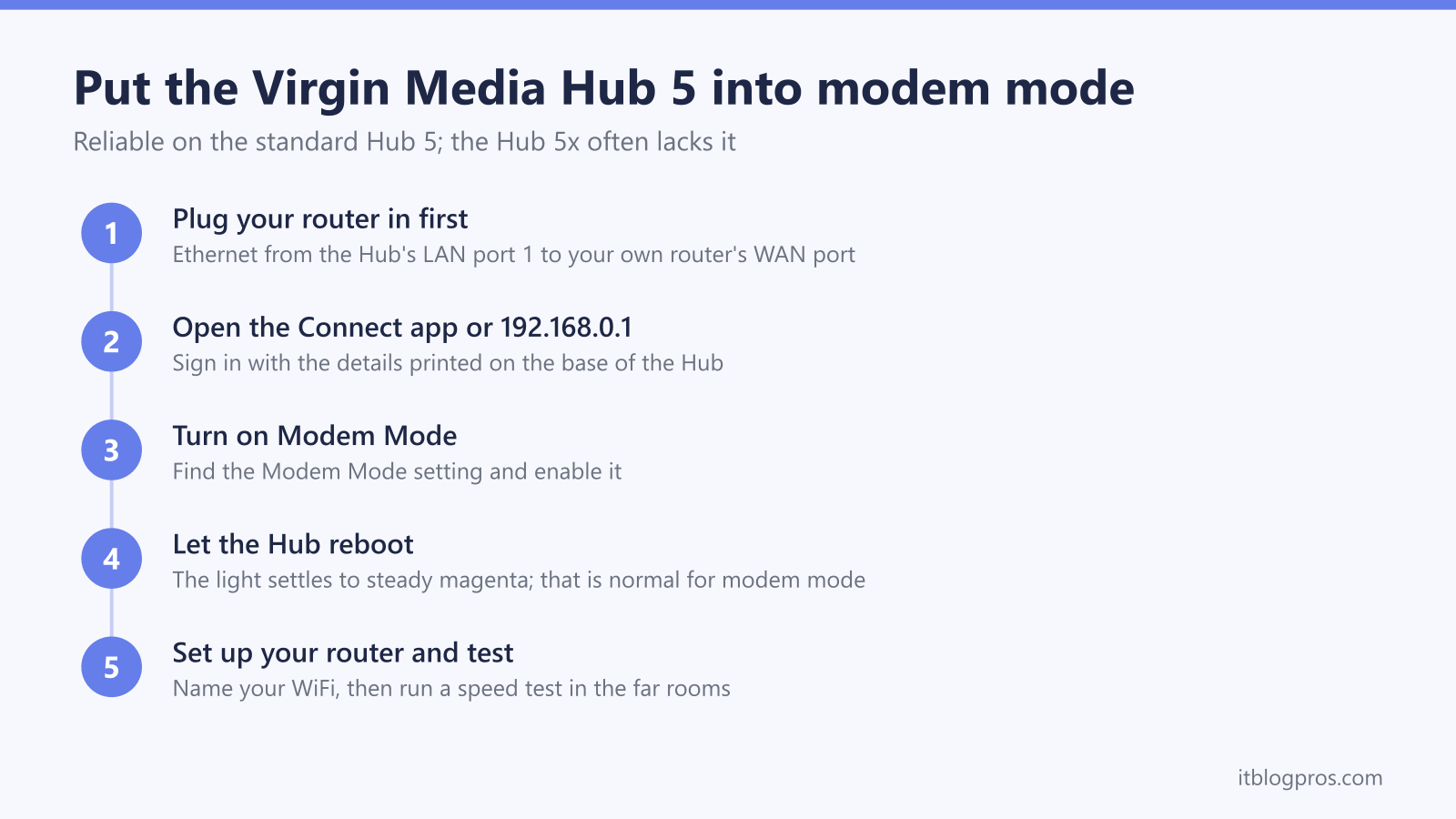
- Plug your new router in first. Connect an Ethernet cable from one of the Hub 5's Ethernet ports to your new router's WAN/Internet port. Doing this before you flip the switch makes the handover clean.
- Browse to
192.168.0.1, the route Virgin's help page gives, and sign in with the details on the Hub's base. Our 192.168.0.1 login guide covers that page if it refuses to load. - Find "Modem Mode" under the Hub's settings, select Enable Modem Mode, then Apply Changes, as Virgin's help page lists.
- Wait for a solid green light. Virgin's Hub lights help page says a solid green light on the Hub 5 means the Hub is in modem mode and won't be sharing WiFi, so green is expected here, not an error.
- Set up your new router. Run its app or setup wizard and leave the WAN on automatic or dynamic IP: Virgin Media's static versus dynamic IP explainer says residential customers get a dynamic IP address, which it describes as assigned automatically by DHCP, and Virgin's modem mode steps give no login for your router. Give your WiFi a name and a strong password.
- Test it. Run a speed test next to the router, then in your worst room. That second number is the one that'll make you smile.
That's genuinely it. To go back, Virgin's help page says to browse to 192.168.100.1, the address it gives for a Hub in modem mode, sign in with the settings password, open Modem Mode, select Enable Router Mode or Disable Modem Mode and then Apply Changes; the Hub reboots and returns to router mode.
The gotchas nobody warns you about
- If the router shows no internet, check the port. Virgin's modem mode help page does not say which of the Hub's Ethernet ports carries the connection, so move the cable to each of the Hub's other Ethernet ports in turn before assuming the line is down.
- Check the router's WAN address. Virgin's modem mode help page does not say what address your router receives, so run the WAN IP check from Xbox Support in the strict NAT section below. When chaining gear, set the router to do the routing and put everything else in access-point mode.
- Reboot order matters. After a power cut, power the Hub up first, then the router. Virgin's reset page says to allow 5 to 10 minutes for the Hub to reboot, and Xbox Support's steps for resetting an internet connection plug the router back in only after the modem's lights have returned to normal, which for a Hub 5 in modem mode is the solid green light from step 4.
Strict NAT on the Hub 5 can mean a second router is in the way
Xbox Support's NAT troubleshooting guide says your NAT type decides whether multiplayer gaming and party chat work, and sets out what each type means: Open NAT lets you play and host multiplayer games with people on any NAT type, Moderate NAT means you might not be able to play with some people and normally won't be picked as host, and Strict NAT limits you to players who have an Open NAT and rules you out as host. Sony numbers them instead. The PS4 User's Guide says Type 1 means the console is connected directly to the internet and Type 2 means it connects through a router, while with Type 3 communication with other consoles might be impossible or network features might be limited. Sony's Remote Play troubleshooting page adds that a network on NAT Type 3 may not be able to use Remote Play.
One way to land on strict NAT is a router or mesh sitting behind a Hub 5 that is still in router mode. Virgin Media's help page on resetting the Hub describes the Hub as a modem and a router in one, so plugging your own router, or the main unit of a mesh system, into its LAN port leaves two boxes routing. Xbox Support explains that when a gateway and a router are both performing NAT, the console can show a "Double NAT detected" error, and hosting games, joining parties and hearing other players can all run into trouble. Our guide to what double NAT is and how to fix it shows how to confirm it from your router's WAN IP and what to do when bridging is not an option.
Modem mode, covered step by step above, is Virgin's version of the fix Microsoft recommends. Xbox Support's advice for a double NAT error is to put the gateway into bridge mode, and Virgin's help page says modem mode turns the Hub into a cable modem that your own WiFi kit connects to, which leaves your router as the only device performing NAT. The same Virgin page marks modem mode as not currently available on the Hub 5x. Two checks are worth doing afterwards. Xbox Support says that if your router's WAN IP does not match your public IP, the ISP is supplying a private address and open NAT will not be possible under that setup. Virgin's network vulnerability alerts page warns that a Hub in modem mode operates without a firewall, so the router plugged into it needs an active firewall of its own.
If the Hub 5 stays as your only router, there is no second NAT layer to remove, and the settings to change are on the Hub itself. Virgin Media's help site does not currently publish a Hub 5 walkthrough for port forwarding or UPnP; its reset and modem mode page gives 192.168.0.1 as the Hub's address and says the settings password is on the base of the Hub, not your WiFi password. Xbox Support's order of attack is to turn UPnP on first (if it is already on, switch it off, restart the network hardware, then switch it back on), then forward the Xbox network ports it lists to a console with a reserved IP address, then try the perimeter network (DMZ) setting, and never to combine port forwarding, UPnP and DMZ. Virgin's WiFi security help page says the most common cause of the vulnerabilities it contacts customers about is a port forwarding or port filtering rule, and that a device in the DMZ bypasses all firewall settings, so remove any rule or DMZ entry once the game no longer needs it.
Picking the right router to pair with it
This is the part where it pays to not cheap out; the whole point of the exercise is a better router. A few units keep earning their place on Virgin lines, and all the links below are UK.
Best all-rounder: TP-Link Archer BE550. TP-Link lists a dedicated 2.5 Gbps WAN port and four 2.5 Gbps LAN ports, so the WAN port won't bottleneck Virgin's Gig1/Gig2 (though Virgin Media O2's Gig2 launch release puts Gig2 customers on the Hub 5x, where Virgin says modem mode is not currently available), and TP-Link lists it as EasyMesh-compatible, so it can work with other EasyMesh routers and range extenders if you need more coverage later.
Best value: TP-Link Archer AX73. WiFi 6, great coverage for a normal house, and a fraction of the price. On a sub-gigabit package, this one is plenty.
Side by side, with a mesh option for when coverage is the real problem:
| Product | Best for | Key specs | Price | |
|---|---|---|---|---|
 | TP-Link Archer BE550 Best all-rounder | Busy homes wanting WiFi 7 and 2.5G wired ports | Tri-band WiFi 7 (BE9300), 2.5G WAN, four 2.5G LAN | Check price → |
 | TP-Link Archer AX73 Best value | Sub-gigabit packages in a normal-sized house | WiFi 6 (AX5400), gigabit, six antennas | Check price → |
 | TP-Link Deco X50, 3-pack Mesh | Thick walls, several floors or a garden office | WiFi 6 mesh (AX3000), whole-home | Check price → |
When coverage is the real problem rather than the router itself, think thick walls, three floors, a garden office, skip the single router and go mesh. We've put together a full rundown here: the best routers and mesh systems to replace your Virgin Media Hub. When coverage rather than control is the issue, it's worth heading straight to our pick of the best mesh for the Hub 5.
Where this fits in the bigger picture
Using the Hub 5 in modem mode is one route in a wider decision. For the full lay of the land across providers, start with our guide to using your own router with any UK ISP. Modem mode is also the standard fix for the double NAT that crops up when two routers both try to do the routing; we explain the underlying issue in what double NAT is and how to fix it. Once your kit is sorted, browse our pick of the best WiFi routers for Virgin Media to match a model to your package.
Still weak after all that
If your WiFi is still weak once modem mode is running, the bottleneck might be your device rather than your network. That's a different fix, and we walk through it in WiFi only showing 2 bars? here's how to fix it.
Modem mode is one of those jobs that feels intimidating and then takes ten minutes. Do it once, pair it with a decent router, and the Hub's old WiFi quickly becomes a distant memory. Happy tinkering.