
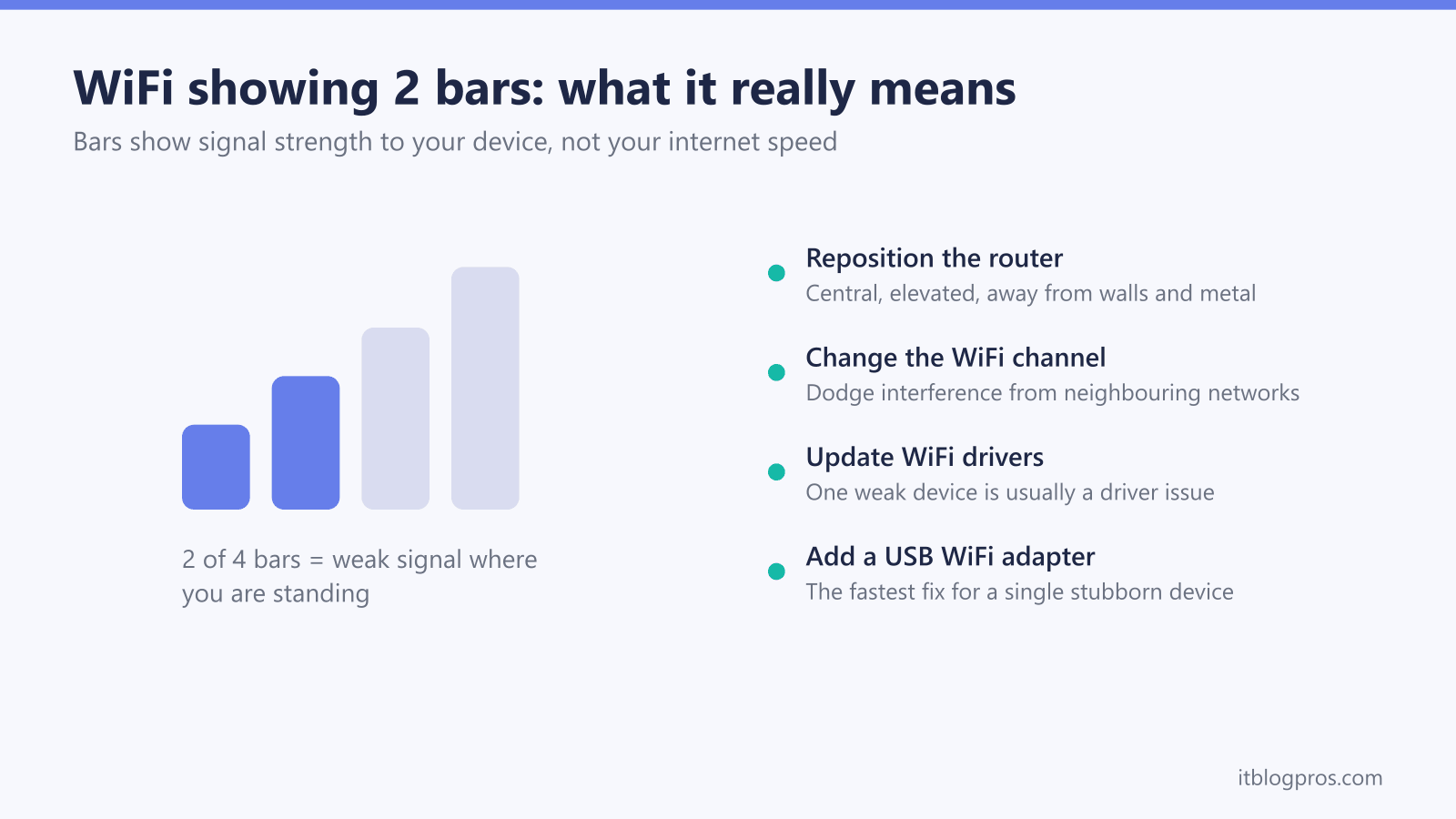
Having WiFi that only shows 2 bars is incredibly frustrating, especially when you need a reliable connection for work or streaming. The good news? Most WiFi signal issues can be fixed in under 5 minutes with the right approach.
Key Takeaways
- A quick run of fixes resolves most 2-bar WiFi: restarting the router, optimising its placement, switching channels and updating your device drivers.
- Bars measure signal strength, not speed; you'll learn to run a speed test before assuming a steady 2 bars is actually a fault worth chasing.
- When only one laptop or PC shows weak WiFi, the cause is usually its built-in adapter, an outdated driver or band-steering, and we walk through each in order.
- A USB WiFi adapter with an external antenna (around £20) is the cheapest, highest-value fix for a single weak device when router tuning won't help.
- For whole-room or whole-floor dead zones you'll know when to escalate from a single extender to a mesh system, and which router upgrades suit each home size.
Quick Fix Summary (Try These First)
Most Common Solutions:
- Restart your router (unplug 30 seconds, plug back in) - Clears most temporary glitches
- Move closer to router (test if signal improves) - Identifies distance issues
- Switch WiFi channel (use router admin panel) - Fixes interference
- Update device WiFi drivers (Windows: Device Manager) - Resolves compatibility
If these don't work, your router may need upgrading. Jump to our router recommendations below.
Why Your WiFi Only Shows 2 Bars
Before diving into solutions, here's what's actually happening:
WiFi Signal Strength Indicators:
- 5 bars = Excellent signal (-30 to -50 dBm)
- 4 bars = Good signal (-50 to -60 dBm)
- 3 bars = Fair signal (-60 to -67 dBm)
- 2 bars = Poor signal (-67 to -70 dBm) ← Your current situation
- 1 bar = Very poor signal (-70+ dBm)
Bars Are Not the Same as Speed
This is the part most guides skip, and it changes how you read those bars. The icon on your screen only measures signal strength (dBm); it tells you nothing about the actual throughput you are getting. A strong, full-bar connection on the crowded 2.4GHz band can be slower than a quieter 2-bar connection on 5GHz, because the 5GHz band uses much wider channels and faster modulation. So a steady 2 bars is not automatically a problem you need to solve.
The practical test is to ignore the bars for a moment and run a speed test (see the tools further down). If a 2-bar connection still delivers the speed you are paying for, the signal is fine and you can stop here. If the bars are high but the speed is poor, the issue is congestion or interference rather than range, and switching channel or band will help more than moving the router.
There is also a real difference between signal and stability. A device can show four bars and still drop packets if a microwave, a Bluetooth speaker or a neighbouring network is sharing the same 2.4GHz channel. We cover how to track that interference down in the advanced section below; for a wider walkthrough of weak-signal causes and proven speed gains, see our guide on how to fix weak WiFi signal and speed up your internet.
Common Causes of 2-Bar WiFi:
- Distance from router (the most common cause)
- Physical obstacles (walls, floors, furniture)
- WiFi interference (neighbors' networks, microwaves, baby monitors)
- Outdated router (old standards like 802.11g or early 802.11n)
- Device WiFi adapter issues
Step-by-Step WiFi Signal Fix
Step 1: Test Signal Strength Throughout Your Home
What to do:
- Walk around with your device
- Note where signal improves/worsens
- Mark dead zones and weak areas
What this tells you:
- If signal improves near router = distance/obstacle issue
- If consistently weak everywhere = router problem
- If spotty throughout = interference issue
Step 2: Optimize Router Placement
Current router placement problems:
- Hidden in closets or cabinets
- On the floor or very low surfaces
- Near other electronics
- In corners of the house
Optimal router placement:
- Central, elevated location (shelf or wall mount)
- Away from walls and metal objects
- At least 3 feet from other electronics
- Antennas positioned vertically (if adjustable)
Step 3: Change WiFi Channel to Reduce Interference
Most people never change their WiFi channel, creating network congestion.
How to change WiFi channel:
-
Access router admin panel:
- Open web browser
- Type router IP (usually 192.168.1.1 or 192.168.0.1); if the settings page will not load, see the 192.168.1.1 router login guide or the 192.168.0.1 router login guide
- Login with admin credentials
-
Find Wireless Settings:
- Look for "Wireless," "WiFi," or "Radio" settings
- Find "Channel" or "WiFi Channel" option
-
Best channels to use:
- 2.4GHz: Use channels 1, 6, or 11 only
- 5GHz: Use channels 36, 44, 149, or 157
- Avoid "Auto" - manually select less crowded channels
Step 4: Update Device WiFi Drivers
Outdated WiFi drivers can significantly reduce signal reception.
Windows 10/11:
- Right-click Start button → Device Manager
- Expand "Network adapters"
- Right-click your WiFi adapter → Update driver
- Choose "Search automatically for drivers"
- Restart computer after installation
Mac:
- Click Apple menu → System Preferences → Software Update
- Install any available updates
- Restart Mac
Why Only ONE Device Shows Weak WiFi When Everything Else Is Fine
If every other phone, tablet and TV in the house gets full bars and only one laptop or PC sits at 2 bars, the router is not the problem. The fault is on that single device, and there are three usual culprits.
1. A weak or cheap built-in adapter. Many laptops, and almost all desktops with a small internal card, ship with a single low-gain antenna tucked behind metal and plastic. It receives a noticeably weaker signal than a modern phone held in the open. This is the most common reason one device lags behind the rest, and it is the easiest to fix permanently (more on that in the next section).
2. An outdated or corrupted driver. A WiFi driver that is years old, or that Windows quietly replaced with a generic version, can cripple reception even when the hardware is fine. Update the driver using Step 4 above. On Windows it is also worth opening the adapter's Properties → Advanced tab and checking that any "Roaming Aggressiveness" or "Roaming Sensitivity" value is set to a middle or high level, and that power-saving features are not throttling the radio.
3. Band-steering sending the device to the wrong band. Most modern routers broadcast 2.4GHz and 5GHz under one name and decide which band each device uses. Band-steering is not part of the WiFi standard, so every manufacturer handles it differently, and a stubborn device can get parked on a distant 5GHz signal that barely reaches it. The fix is to give the two bands separate names (for example HomeWiFi and HomeWiFi-5G) in your router settings, then manually join the 2.4GHz network on that one device when it is far from the router. 2.4GHz travels further and through walls better, so it will hold a stronger signal in distant rooms.
Work through those three in order. If the driver is current and the band is correct but the device still trails everything else, the built-in adapter itself is the bottleneck, and replacing it is the next step.
When You Need a New Router
If the above fixes don't work, your router is likely the bottleneck. Here are signs you need an upgrade:
Replace your router if it's:
- More than 4 years old
- Using WiFi 4 (802.11n) or older standards
- Consistently providing weak signal despite optimization
- Frequently dropping connections
- Unable to handle multiple devices well
Best Routers for Strong WiFi Signal (2026)
Each of these picks answers a different version of the problem above:
Fastest, Cheapest Fix: TP-Link Archer T3U USB WiFi Adapter
Perfect for: A single laptop or desktop that shows 2 bars when other devices are fine
If only one device shows weak WiFi (very common on PCs and older laptops), the problem is almost always its tiny built-in antenna, not your router. A USB WiFi adapter with a proper antenna replaces it for around £20 and is the single highest-value fix on this page.
When the built-in adapter is the bottleneck (see the section above), no amount of router tuning will help that one machine; the radio receiving the signal is the limit. A plug-in USB adapter sidesteps the weak internal card entirely, and because it sits on the end of a short cable or stands proud of the case, its antenna is not buried behind metal the way a desktop's internal card is. That alone often turns a stubborn 2-bar laptop into a solid four-bar connection.
Why we recommend it:
- Dual-band AC1300 with a high-gain external antenna for far stronger reception
- Plugs into any USB port, no tools, works with Windows and Mac
- Fixes weak signal on desktops and laptops almost instantly
- The cheapest possible fix, typically around £20
- Lets you choose the band manually, which sidesteps flaky band-steering on a single device

Best Value Router: TP-Link Archer AX55 (AX3000)
Perfect for: A normal house where the router is several years old
For a laptop or TV sitting two interior walls from the hub, the AX55 aims the signal at the device rather than radiating it evenly, using the four fixed antennas and beamforming TP-Link lists to claw back range across those walls; what it cannot do is raise the speed your line delivers, or rescue a single machine whose own adapter is the bottleneck.
Key Features:
- WiFi 6 (AX3000) rather than the WiFi 5 most ageing routers still run
- Four antennas with beamforming, which do the work through interior walls
- Gigabit ports, enough for any sub-gigabit broadband package
- The value pick rather than the cheapest box on the shelf

Best for Large Homes: TP-Link Archer BE550 (BE9300)
Perfect for: Large homes and multiple floors
Two interior walls out, a device usually ends up on 2.4GHz, and one router in one spot can only reach so far, so the case for this pick in a bigger house is what it can grow into rather than a longer reach from a single box. TP-Link lists the Archer BE550 as tri-band WiFi 7, with a 6GHz band alongside 5GHz and 2.4GHz, and as EasyMesh-compatible, so it can work with other EasyMesh routers and range extenders when one unit does not cover the far rooms; it buys coverage options and multi-gig ports rather than line speed, so it is the answer when the weak spot is the far end of a bigger house rather than one device with a poor internal adapter.
Key Features:
- Tri-band WiFi 7 (BE9300 on TP-Link's spec page), with 6GHz, 5GHz and 2.4GHz bands
- A dedicated 2.5 Gbps WAN port and four 2.5 Gbps LAN ports (TP-Link), so it suits gigabit-and-beyond lines
- EasyMesh-compatible (TP-Link), so it can work with other EasyMesh routers and range extenders later rather than being replaced
- QoS by Device (TP-Link), which lets you put a work laptop or console ahead of other devices

WiFi Range Extenders vs Mesh Systems
If a new router isn't in the budget, consider these alternatives:
WiFi Range Extenders (Budget Solution)
Best Value: TP-Link RE705X (AX3000)
- Pushes coverage you already have into the weak room, and never raises the speed the line delivers
- Works with any router, and has a Gigabit Ethernet port so it can feed a wired device
- Simple setup through the Tether app or the WPS button
Pros:
- Affordable, and a fraction of the cost of a mesh set
- Works with existing router
- Easy to install
Cons:
- Halves throughput on the rebroadcast band, because the extender talks to the router and the device in turn
- May create network complexity
- Limited effectiveness through thick walls
Mesh WiFi Systems (Premium Solution)
If the weak signal is not one device but a whole room or floor that never gets a decent connection, you have a coverage problem rather than a device problem, and that is where you escalate from a single extender to a mesh system. An extender rebroadcasts one router's signal into one weak area; a mesh blankets the entire home in a single roaming network and removes dead zones everywhere at once. We compare the two approaches in detail, including when each one is the right call, in our guide on WiFi extender vs mesh: which fixes dead zones. If you are leaning towards mesh, our best WiFi mesh systems ranked by real-user reviews walks through the strongest options for each home size.
Best Mesh: TP-Link Deco X10 (whole-home mesh)
- TP-Link sells it as Dual-Band WiFi 6 AX1500; one network covers the whole home, so it tackles dead zones across the house, not just one weak spot
- Replaces your router and extender with one seamless network you roam across
- Simple app setup, and TP-Link rates the 2-pack at up to 3,900 sq ft (360 m²), which it positions for 2 to 4 bedroom houses

When to choose mesh over router upgrade:
- Home larger than 3,000 square feet
- Multiple floors with WiFi dead zones
- Want seamless roaming between access points
- Budget stretches to a mesh set rather than a single router
Advanced Troubleshooting Tips
Check for WiFi Interference
Common interference sources:
- Microwave ovens (2.4GHz interference)
- Baby monitors
- Bluetooth devices
- Neighboring WiFi networks
- Cordless phones
How to test:
- Turn off potential interference sources one by one
- Test WiFi signal after each device is turned off
- If signal improves, you've found the culprit
- Either relocate the interfering device or switch to 5GHz WiFi
Optimize Device-Specific Settings
Windows 10/11 Power Management:
- Device Manager → Network Adapters
- Right-click WiFi adapter → Properties
- Power Management tab
- Uncheck "Allow computer to turn off this device"
Android WiFi Optimization:
- Settings → WiFi → Advanced
- Turn off "WiFi optimization"
- Set "Keep WiFi on during sleep" to Always
iPhone WiFi Reset:
- Settings → General → Reset
- Reset Network Settings
- Reconnect to your WiFi network
Measuring Your WiFi Speed and Signal
Use these tools to test your improvements:
Speed Test Tools:
- Fast.com (Netflix's speed test)
- Speedtest.net (Ookla)
- Your ISP's speed test tool
WiFi Signal Analyzers:
- Windows: WiFi Explorer, WiFi Analyzer
- Mac: WiFi Explorer, Network Radar
- Android: WiFi Analyzer (by VREM)
- iPhone: Network Analyzer
What good speeds look like:
- Streaming HD: 5-8 Mbps minimum
- Streaming 4K: 15-25 Mbps minimum
- Video calls: 1-4 Mbps minimum
- Gaming: 3-6 Mbps minimum (but latency matters more)
When to Call Your Internet Provider
Contact your ISP if:
- Speed tests show significantly lower speeds than your plan
- Issues persist after router upgrade
- Multiple neighbors report similar problems
- Outages happen frequently
- Wired connections also have issues
What to tell them:
- Specific speed test results
- When the problems occur
- Devices affected
- Troubleshooting steps you've tried
- Your router model and age
Frequently Asked Questions
Q: Why do I get 2 bars right next to my router? A: This usually indicates a router hardware problem, WiFi driver issues, or severe interference. Try updating your device's WiFi drivers first, then consider router replacement if the problem persists.
Q: Is 2 bars WiFi fast enough for streaming? A: 2-bar WiFi typically provides 5-15 Mbps, which is sufficient for HD streaming on one device but may struggle with 4K content or multiple simultaneous streams.
Q: Should I use 2.4GHz or 5GHz for better signal? A: 2.4GHz travels further and penetrates walls better but is more congested. 5GHz is faster but has shorter range. Use 5GHz when close to the router, 2.4GHz for distant locations.
Q: How often should I restart my router? A: Monthly router restarts can prevent performance issues. If you experience frequent connectivity problems, weekly restarts may help until you identify the root cause.
Q: Can weather affect my WiFi signal? A: Indoor WiFi is rarely affected by weather, but extreme humidity or temperature changes can affect router electronics. If problems coincide with weather changes, ensure your router has proper ventilation.
Q: Will a VPN affect my WiFi signal strength? A: VPNs do not affect signal strength, though they do cost some throughput because traffic is encrypted and routed via the provider's server, and how much depends on the service and how far away the server is. Signal bars should remain the same.
Conclusion: Get Back to Full WiFi Bars
Most 2-bar WiFi issues can be resolved with simple fixes like router placement optimization, channel changes, or driver updates. However, if your router is more than 4 years old or these solutions don't work, investing in a modern WiFi 6 router will provide the best long-term solution.
Quick recap of solutions:
- Try the 5-minute fixes first (restart, placement, channels)
- Upgrade to a modern router if fixes don't work
- Consider mesh systems for large homes
- Use WiFi analyzers to monitor improvements
The routers above are picked for coverage, which is what a weak-signal problem actually needs. Neither changes the speed arriving at the property.
Need more help? Check out our other troubleshooting guides: