
The Hub 5 is a perfectly fine modem. As a router, it's a different story; the WiFi runs out of steam past a couple of rooms, and a single extender often makes things worse instead of better. Most people who land here have a big or awkwardly shaped house, a dead zone or two, and one decision left to make: which mesh to buy, and how to wire it to the Hub.
We've set up plenty of meshes behind Virgin lines, so this guide stays narrow on purpose. It covers the two ways a mesh attaches to a Hub 5, how to pick by home size, the verified UK picks framed for a Hub 5, and the one honest catch that trips Gig1 and Gig2 owners up. For the full field across every ISP, see the best WiFi mesh systems ranked by real user reviews; for the broader picture, this page sits under the best routers and mesh systems to replace your Virgin Media Hub.
The best mesh for a Virgin Media Hub 5 depends on your home: a TP-Link Deco X10 suits an average house, a TP-Link Deco X50 three-pack a large or multi-floor home, the eero Pro 6E a busy or newest-kit home, and the Google Nest Wifi Pro a Google smart home. Use access-point mode, or a Hub 5 in modem mode; Virgin's help page says modem mode is not currently available for the Hub 5x.
Key Takeaways
- A mesh cures Hub 5 dead zones and dropouts by blanketing the home with one network name, but it does not raise the line speed your Virgin package sells you.
- There are two ways to run a mesh with a Hub 5: access-point mode beside the Hub (simplest) or modem mode with the mesh as the router (cleaner, avoids double NAT).
- Virgin's help page gives modem mode steps for the standard Hub 5 but says modem mode is not currently available for the full-fibre Hub 5x, so on a 5x the practical route is access-point mode.
- Match the system to your home: the Deco X10 for flats, the Deco X60 for multi-floor houses, the Deco X50 three-pack for large homes, the eero Pro 6E for the easiest premium setup.
- TP-Link and Google list gigabit ports on their picks here and eero lists wired speeds up to a gigabit, so a single wired device tops out near 1Gbps; full multi-gig wired speed needs a 2.5G router instead.
A mesh fixes Hub 5 coverage, not the line speed Virgin sells you
It pays to set expectations before any money changes hands. A mesh blankets the home with a single network name and hands devices smoothly between nodes, curing the dead zones and dropouts the Hub's own WiFi cannot reach past a couple of rooms. That is the genuine win.
What it does not do is lift your package speed. A 500Mbps or Gig1 line is still that line; the mesh just makes the speed you already pay for actually arrive in the back bedroom or the garden office. A common description is a large house where extenders are not working, and that is the right read: when a single extender keeps failing, coverage and consistency are the problem, and a mesh is the correct class of fix. If you are still unsure whether you need a full mesh or just one extender, read our take on whether an extender or a mesh fixes dead zones first.
There are two ways to run a mesh behind a Hub 5
Both work; the difference is how much control you want and how much fuss you take on.
Option A, access-point (AP) mode beside the Hub. This is the simplest route. The Hub keeps doing the routing and DHCP, and the mesh just adds coverage. There are no Hub changes to make; you set the mesh to AP or bridge mode in its app and you are done. The downside is that the Hub's own WiFi stays live unless you mute it, and you keep its locked-down routing.
Option B, Hub 5 in modem mode with the mesh as the router. This is the cleaner setup. The Hub becomes a plain modem, the mesh stays in its default router mode and takes over routing, DHCP and WiFi. That avoids double NAT and gives you proper control: QoS, guest networks, port forwarding, the lot. Virgin's help page gives modem mode steps for the standard Hub 5; our dedicated walkthrough covers the exact steps when you put the Hub 5 into modem mode and run your own router, including the port check and the reboot order.
One important caveat sits on the newer unit. Virgin's help page says modem mode is not currently available for the full-fibre Hub 5x, so on a 5x the practical route is access-point mode behind the hub. Confirm which unit you have in how the Hub 5 and Hub 5x differ before you commit. As a plain rule of thumb: most people fixing coverage should start with AP mode for simplicity, and reach for modem mode only when they also want to escape the Hub's routing and avoid double NAT.
How to choose your Hub 5 mesh by home size and device count
The right system follows your layout and device load, not the spec-sheet coverage claims, which assume tidy open-plan rooms few UK homes have.
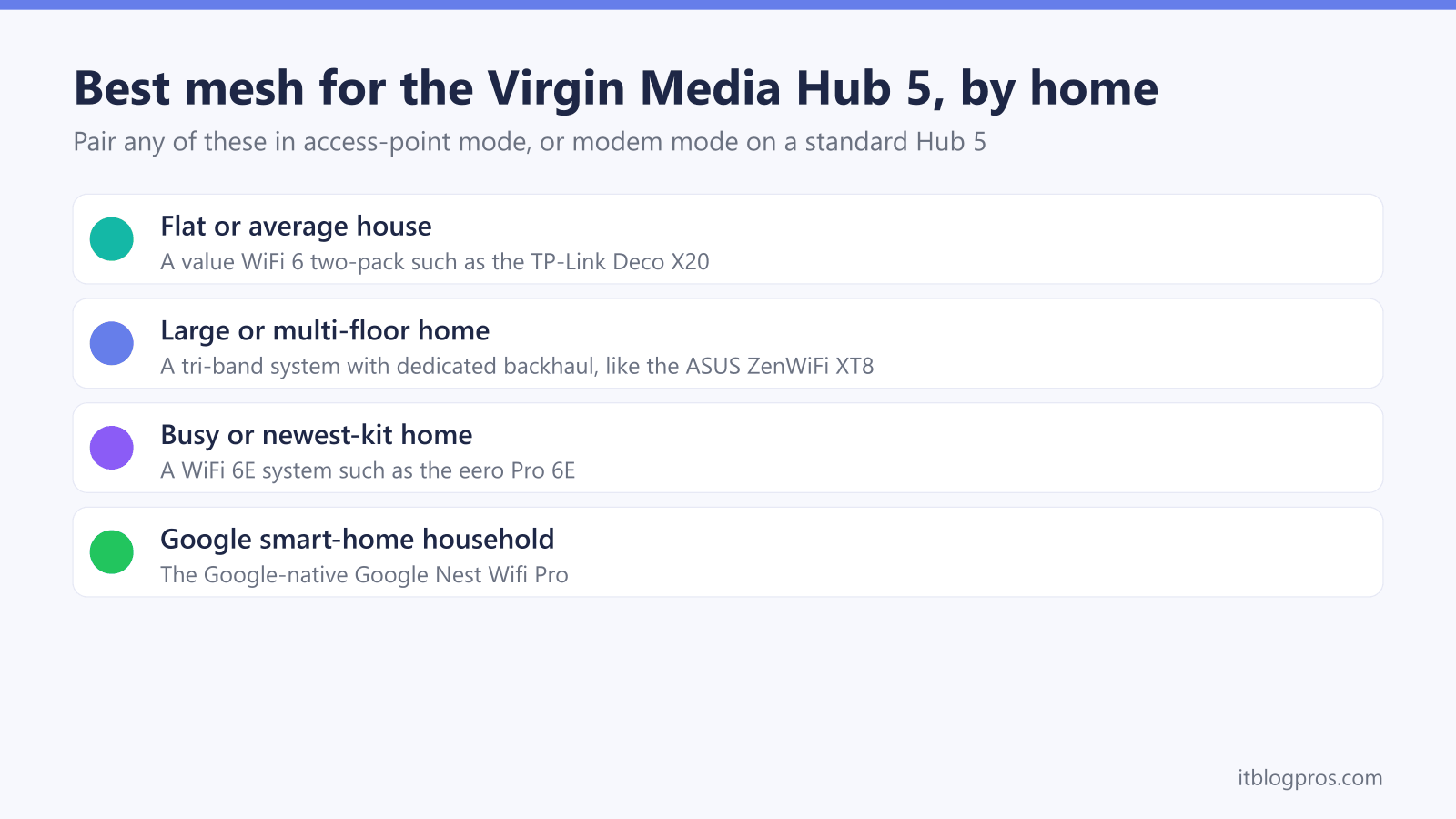
- Flat or average house, light device load: a value dual-band two-pack is plenty. To weigh it against renting pods, divide the mesh price by Virgin's £8 a month add-on; at September 2026 prices the Deco X10 two-pack comes out at about 14 months.
- Bigger or multi-floor home with thick walls: step up for more 5GHz headroom, or add a third node for three storeys plus a garden room.
- Large or multi-floor home: a three-pack rather than a two-pack, checked against the manufacturer's rating for the pack size you buy, with a node wired back over Ethernet wherever a cable run exists.
- Busiest or newest-kit homes, or anyone wanting the easiest premium setup: a WiFi 6E system adds a 6GHz band and drops into AP mode in minutes.
- Smart-home households already in the Google ecosystem: the natural fit is the Google-native mesh.
The verified UK mesh picks framed for a Hub 5
| Product | Best for | Key specs | Price | |
|---|---|---|---|---|
 | eero Pro 6E Easiest premium | Busy or newest-kit homes wanting the easiest premium setup | WiFi 6E, 2.5G WAN port | Check price → |
 | TP-Link Deco X10 Value pick | Flats and average houses | Dual-band AX1500, WiFi 6 on 5 GHz, 2-pack, gigabit Ethernet ports | Check price → |
 | TP-Link Deco X50 Large homes | Large or multi-floor homes | 3-pack rated up to 6,500 sq ft (TP-Link), three gigabit Ethernet ports per unit | Check price → |
 | Google Nest Wifi Pro Smart home | Google smart homes that want tidy app control | Google-native mesh | Check price → |
These are the systems we'd put behind a Hub 5, each matched to a job.
eero Pro 6E (easiest premium). Fit-and-forget setup, WiFi 6E, and it drops into AP mode without fuss. It has a 2.5 GbE port, but eero's product page lists wired speeds up to a gigabit, so treat it as a coverage upgrade rather than a multi-gig wired solution.
Check the eero Pro 6E price on Amazon UK →
TP-Link Deco X60 (bigger or multi-floor homes). More 5GHz headroom than the X10, so it stretches further across floors and stays easy to live with. Gigabit Ethernet ports throughout.
TP-Link Deco X10 (value). The sensible starting mesh for flats and average houses. TP-Link sells it as Dual-Band WiFi 6 AX1500, which means WiFi 6 on the 5GHz band and an older 802.11n radio on 2.4GHz, and rates the two-pack at up to 3,900 sq ft, which it positions for 2 to 4 bedroom houses. At September 2026 prices it costs about the same as 14 months of the £8 a month pods add-on, so it pays off for anyone who would otherwise rent pods for longer than that. Gigabit Ethernet ports.
Check the TP-Link Deco X10 price on Amazon UK →
TP-Link Deco X50 three-pack (large or multi-floor homes). TP-Link rates the three-pack at up to 6,500 sq ft and lists 2,402 Mbps on 5GHz, which makes it the pick when a two-pack would be stretched across the floor area. TP-Link lists three gigabit Ethernet ports per unit, so treat it as a coverage upgrade rather than a multi-gig one.
Check the TP-Link Deco X50 three-pack price on Amazon UK →
Google Nest Wifi Pro (smart home). The choice for Google-centric households that want tidy app control and a system that plays nicely with the rest of their kit (Google Nest Wifi Pro).
The honest wired-speed catch on Gig1 and Gig2
Here is the bit the spec sheets gloss over. TP-Link lists gigabit ports on the Deco X10, X50 and X60 and Google lists 1 Gbps ports on the Nest Wifi Pro, so a single wired device on those cannot exceed about 1Gbps even on Gig1 or Gig2. The eero Pro 6E has one 2.5 GbE port, which eero lists for WAN and/or LAN, but its product page lists wired speeds up to a gigabit.
If your goal is full multi-gig wired speed to one machine, such as a 2.5G PC, the right tool is a router with a 2.5 Gbps WAN and 2.5 Gbps LAN ports, running in modem mode behind the Hub, not a mesh. Virgin Media O2's Gig2 launch release puts Gig2 on the Hub 5x, where Virgin's help page says modem mode is not currently available, so check which Hub you have first. We mention it honestly rather than pushing it as a mesh pick. For the full wired path, point yourself at the best routers for Virgin Media Gig2 (2Gbps).
Over WiFi, even gigabit speeds rarely reach a single device in full. The genuine win from any mesh is consistent coverage and strong combined throughput across many devices, which is what the typical Hub 5 home needs. If renting Virgin's own pods is still on the table, weigh it up in Virgin WiFi Pods versus buying your own mesh.
Setup quick-start once you have chosen
You have picked the system; here is the short version of getting it live.
- AP mode: plug a node into a live Hub LAN port, open the mesh app, set it to access-point or bridge mode, then optionally mute the Hub's own WiFi so devices stop clinging to it.
- Modem mode: connect the first node to one of the Hub's Ethernet ports, switch the Hub to modem mode in its settings at 192.168.0.1 as Virgin's help page describes, and wait for a solid green light, which Virgin's Hub lights help page says means a Hub 5 is in modem mode and won't be sharing WiFi, then run the mesh setup in its default router mode. Virgin's page does not name a port, so if the mesh gets no internet, try the Hub's other Ethernet ports.
- Reboot order after a power cut: Hub first, then the mesh. Virgin's reset page says to allow 5 to 10 minutes for the Hub to reboot, and Xbox Support's network reset steps power the router only after the modem's lights have returned to normal.
- Test in your worst room before and after. That second number is the one that proves the mesh earned its place.
Get the wiring right, match the system to your home rather than the box art, and the Hub's old WiFi quickly becomes a distant memory. Happy tinkering.