
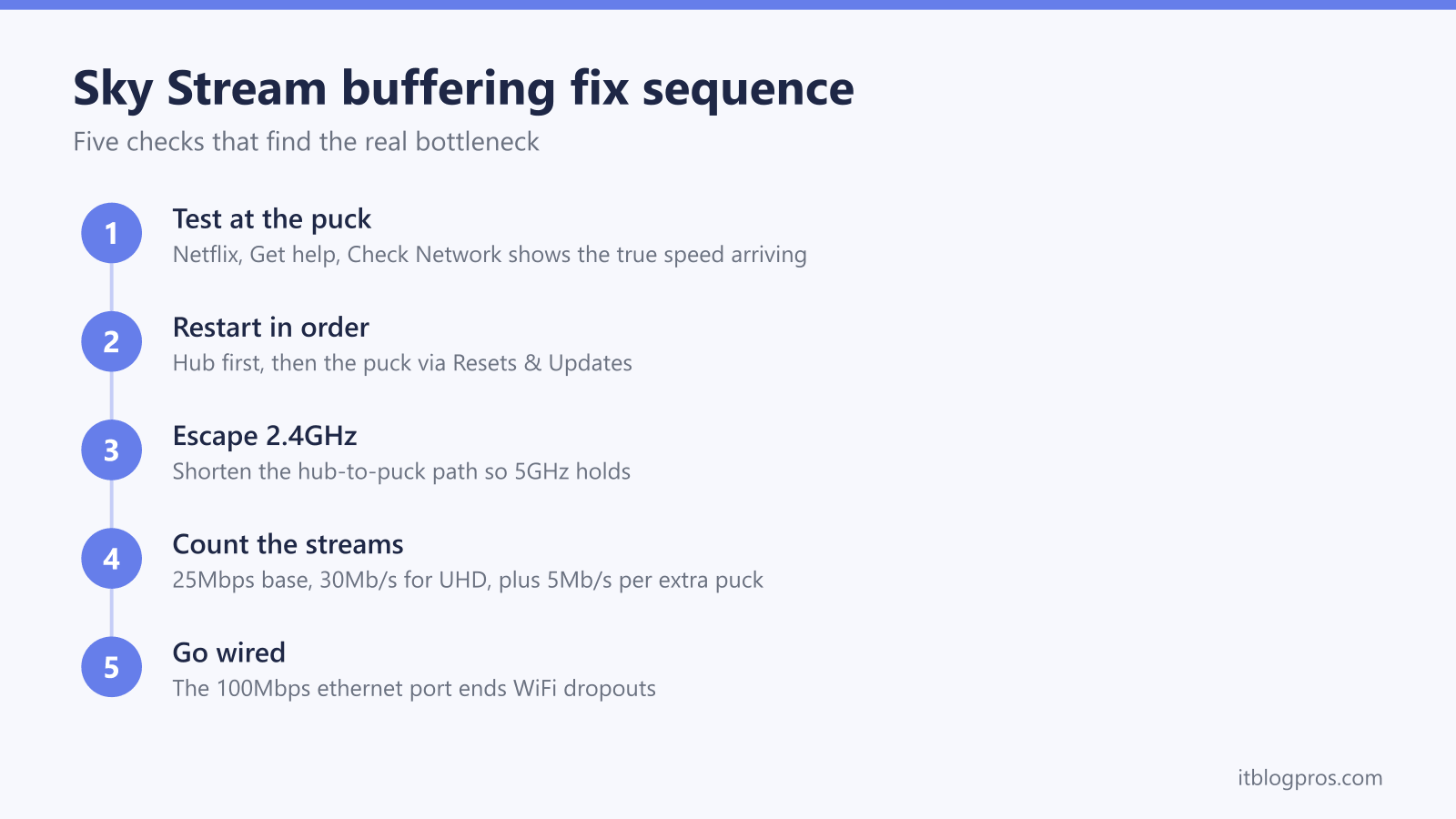
A Sky Stream puck that keeps pausing, freezing or dropping to a spinning circle is almost never faulty hardware. The puck is a thin client: every channel, app and Playlist recording arrives live from Sky's servers over your broadband, so any dip in the connection between Sky, your hub and the puck shows up on screen within seconds. This guide works through the fixes in the order that finds the real bottleneck fastest, including the one diagnostic most guides miss entirely.
Sky Stream buffers when the speed actually reaching the puck falls below Sky's recommended 25Mbps, rising to 30Mb/s for UHD or Whole Home plus 5Mb/s per extra puck. Measure the true figure with the Netflix app's Check Network test on the puck itself, restart the hub first and the puck second, keep the puck on the 5GHz band, and use the 100Mbps ethernet port when WiFi cannot hold steady.
Key Takeaways
- Sky recommends at least 25Mbps for Sky Stream, 30Mb/s for UHD or Whole Home, and an extra 5Mb/s for every additional puck in the house.
- The Netflix app's Check Network test runs on the puck itself and reveals the speed actually arriving, which matters far more than the headline broadband figure.
- Restarting the hub first and the puck second, via Settings, System Management, then Resets & Updates, clears most one-off buffering.
- Sky hubs share one network name across 2.4GHz and 5GHz, so a puck can silently drop to the slower band and buffer despite fast broadband.
- The puck's 100Mbps ethernet port comfortably exceeds Sky's highest streaming bitrates and removes WiFi from the equation entirely.
The puck buffers because it streams everything live
Sky Stream has no dish, no aerial recordings and no hard drive. Everything you watch, including anything saved to your Playlist, streams on demand from Sky's servers. That design keeps the puck tiny, but it also means there is no local buffer to ride out a wobble. Sky Community advisers describe the puck as very sensitive to speed and quality fluctuations because it needs a constant connection to Sky's servers, so a dip that a normal catch-up app would absorb silently becomes a freeze or a pause on Sky Stream.
The practical consequence: the number that matters is not the speed your broadband package promises, or even what a laptop next to the hub measures. It is the speed arriving at the puck, in the room where the puck sits, at the moment you are watching. Every fix below is about protecting that one number.
Sky's official speed requirements leave less headroom than expected
Sky publishes the requirements on its Sky Stream pages, and they are higher than many households assume:
| Setup | Sky's stated minimum |
|---|---|
| Sky Stream, single puck | 25Mbps recommended |
| Ultra HD and Dolby Atmos pack | 30Mb/s |
| Whole Home (additional pucks) | 30Mb/s, plus 5Mb/s for each extra puck |
Sky allows multiple pucks at one address, so a busy household can push the requirement well past what an entry-level broadband deal delivers. And these are floors, not comfort zones: the figure needs to hold steady during the evening peak, while phones, consoles and laptops share the same connection. A line that syncs at 36Mb/s can still buffer a UHD stream once the rest of the house comes online.
A quick reality check on your line itself starts at the hub. If the hub's lights show anything other than a settled steady state, sort the broadband before blaming the puck; the Sky hub lights guide decodes every state for every hub model.
The Netflix Check Network test measures the speed at the puck itself
This is the diagnostic that separates a WiFi problem from a broadband problem in two minutes, and it is built into every Sky Stream puck.
- Open the Netflix app on the puck (it is included in Sky Stream packages).
- Scroll down the left-hand menu and select Get help.
- Choose Check Network.
Netflix runs its own speed test, powered by the same infrastructure as its fast.com service, directly on the puck. The result is the download speed the puck is genuinely receiving over its own WiFi or ethernet connection, not the speed at the hub. Run it three times with a few minutes between tests, because WiFi conditions fluctuate.
Reading the result is simple. If the puck's figure is close to your broadband speed and comfortably above 25Mbps yet buffering continues, the problem sits on the broadband or Sky side. If the puck's figure is dramatically lower than the speed a phone measures next to the hub, the WiFi link between the hub and the puck is the bottleneck, and the sections below fix exactly that.
A full restart in the correct order clears one-off buffering
Restarts fix a surprising share of Sky Stream buffering complaints, but the order matters.
Restart the hub first. Switch the hub off at the mains, wait 30 seconds, and switch it back on. Give it a few minutes to reconnect fully; the lights should return to their normal steady state before you touch the puck.
Then restart the puck. Press the ... button on the remote and open Settings, then go to System Management, Resets & Updates, and select Restart device. The screen goes blank for a couple of minutes until the Sky logo reappears. If the puck is unresponsive, unplug it at the mains, wait at least 30 seconds, and plug it back in; Sky support treats a power-cycle as equivalent.
If a single app (iPlayer, Netflix, Disney+) buffers while live Sky channels behave, fully close that app and reopen it from the Sky home screen after the restart. Persistent app-specific trouble after a restart usually points back to the connection rather than the app.
The 2.4GHz band drop hides behind a single network name
The Sky Stream puck supports WiFi 6 and can use both the 2.4GHz and 5GHz bands. Sky's hubs broadcast one network name across both bands and decide which band each device gets. That creates a failure mode which is invisible from the sofa: at range, or after a brief signal dip, the hub steers the puck onto 2.4GHz. The 2.4GHz band travels further but is slower and far more congested, sharing airspace with neighbours' networks, Bluetooth and microwaves. Sky Community threads document exactly this pattern: buffering and sound dropouts on a fast line, with the Netflix test suddenly reading around 15Mbps because the puck had silently switched bands.
Sky's hubs give you no clean way out. Sky's help pages give no way to split the newest Sky Max Hub's bands into separate network names, so check the My Sky app on your own hub before planning around one. What does work:
- Shorten the path. Every wall and floor between hub and puck pushes the puck towards 2.4GHz. Move the hub into the open, off the floor, away from the TV cabinet's metal and clutter.
- Retest with Netflix Check Network after any change. A jump from 15Mbps to 60Mbps confirms the puck is back on 5GHz.
- Check what the hub sees. Signing in to the hub shows connected devices and lets you review wireless settings; the Sky hub login guide covers the address and default password for every model.
When no amount of repositioning keeps the puck on a healthy 5GHz link, skip ahead to the wired fix, which sidesteps the band problem completely.
Multi-puck households multiply the load on one hub
Whole Home households feel buffering first, and the maths explains it. Every active puck is an independent live stream, and Sky's own requirement scales accordingly: 30Mb/s for Whole Home plus 5Mb/s for each additional puck. Sky permits up to six pucks at one address, and each one typically sits in a different room, which means the furthest pucks are running the most demanding traffic over the weakest WiFi links.
Two pucks streaming UHD in the evening peak, plus the normal background load of phones and laptops, can saturate either the broadband line or the hub's WiFi capacity, and the symptom is identical: stuttering that comes and goes with household activity. The Netflix test run on each puck in turn shows exactly which rooms are starved.
The cheapest wins here are wiring the busiest puck (next section) and moving the hub to a more central spot. If every distant room tests poorly on every device, not just the pucks, the hub's WiFi reach is the true root cause, and the mesh WiFi guide for Sky Glass and Sky Stream explains the honest options, including what works alongside Sky's own hubs.
The ethernet port removes WiFi from the equation
On the back of every Sky Stream puck sits an ethernet port, and it is the single most reliable buffering fix available. The port runs at 100Mbps, which sounds modest next to gigabit broadband, but Sky's highest-bitrate UHD streams sit far below that ceiling, so a wired puck has headroom to spare. A cable gives the puck a dedicated, interference-free link: no band steering, no neighbouring networks, no signal fade through walls.
Two honest caveats before reaching for a cable. First, ethernet fixes the hub-to-puck link only; if the Netflix test already shows healthy speeds and buffering persists, the fault is on the line or at Sky's end, and a cable changes nothing. Second, if the hub and puck are in different rooms, a direct cable run is not always practical, and powerline adapters over aged house wiring can underperform a good 5GHz signal.
The full walkthrough, including cable choice, powerline pros and cons, and what speeds to expect, is in the dedicated Sky Stream ethernet vs WiFi guide.
Replacing the WiFi beats fixing it once every room buffers
There is a point where restarts and repositioning stop being fixes and start being rituals. The pattern that marks it: the Netflix test reads fine next to the hub but collapses in every room where a puck lives, other devices in those rooms struggle too, and a wired connection is impractical. That is a WiFi coverage problem, and no puck setting solves physics.
Before spending anything, rule the line out. Confirm the hub's sync speed and status by signing in to it, check Sky's service status for your postcode, and remember that Sky broadband customers are covered by a minimum speed guarantee if the line itself consistently underdelivers.
Once the line is cleared and the coverage diagnosis stands, a mesh system is the structural fix, replacing one overworked transmitter with nodes that put a strong 5GHz signal in each TV room. The best mesh WiFi for Sky Glass and Sky Stream guide covers which systems play nicely with Sky's hubs, the settings that matter for pucks, and the setups to avoid.