
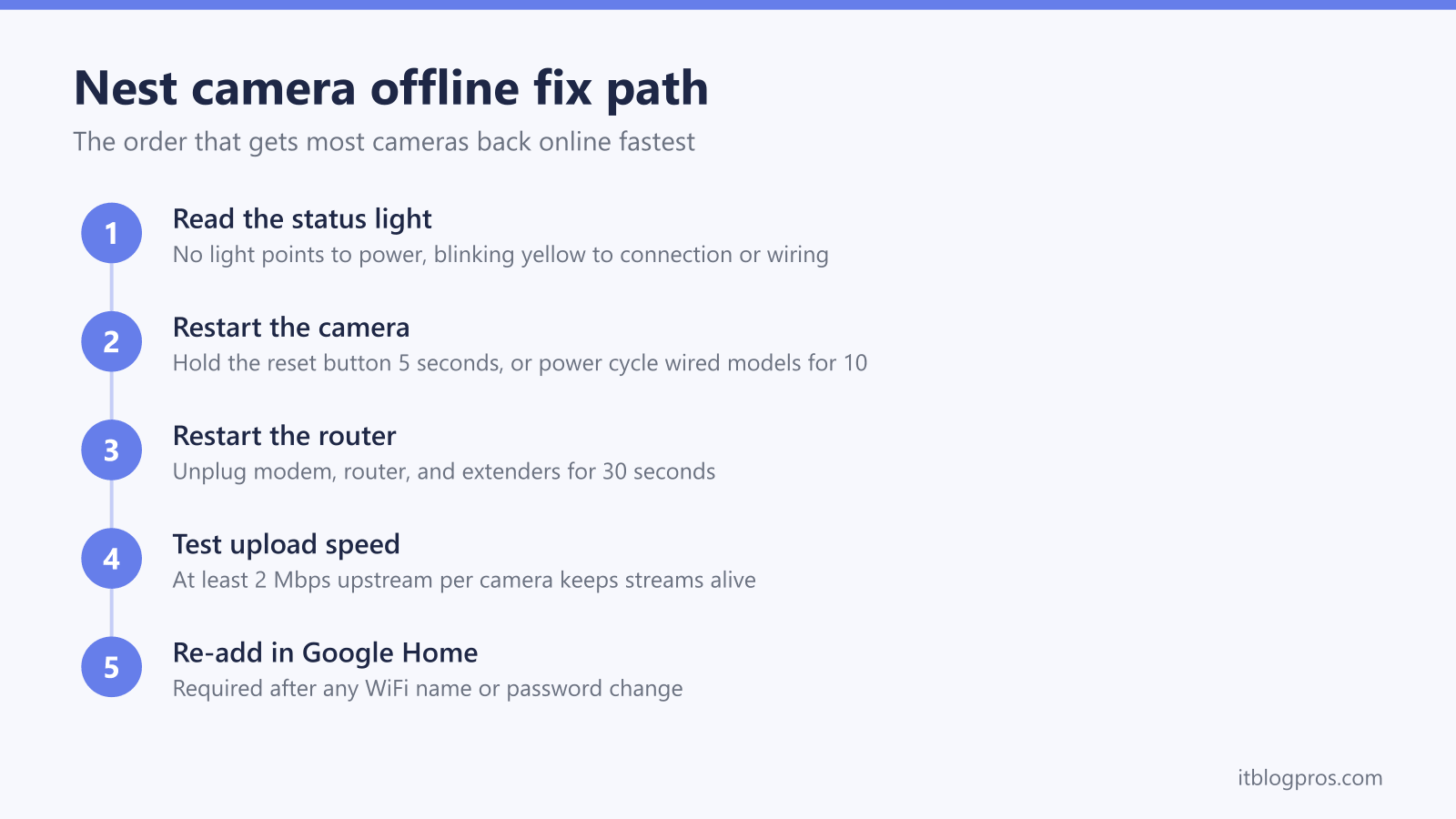
A Nest camera that shows offline in the Google Home app is nearly always fighting one of three problems: a WiFi connection it cannot hold, a power supply it cannot trust, or an upload pipe too narrow for the video it wants to push. This guide decodes the status lights for each camera and doorbell generation, works through the restart sequence Google recommends, and covers the two faults people search for most: cameras that drop offline every night, and cameras that refuse to reconnect after a WiFi change.
A Nest camera usually shows offline because of a WiFi drop, a power problem, or upload bandwidth running out. Restart the camera, then the router, and check the status light: no light means no power, blinking yellow means a connection or power fault. If you changed your WiFi name or password, cameras in the Google Home app must be removed and set up again.
Key Takeaways
- Restarting the camera first and the router second clears most one-off offline errors in the Google Home app.
- The status light narrows the fault fast: no light points to power, blinking yellow points to a failed connection or insufficient doorbell power.
- Cameras managed in the Google Home app cannot update saved WiFi details, so a changed network name or password means removing the camera and setting it up again.
- Nest cameras are upload-heavy: 24/7 recording can push 200 to 400 GB a month upstream, and Google recommends at least 2 Mbps of upload bandwidth per camera.
- Nightly dropouts usually trace back to router downtime schedules, band steering, cold weather, or underpowered doorbell wiring rather than a faulty camera.
Nest status lights and what each one means for an offline camera
| Light | What it means | What to do |
|---|---|---|
| No light | Camera is off, idle, or offline; on battery models the battery may be dead or not receiving power | Check the outlet, cable, fuse, or breaker; charge battery models and warm them if below 32°F |
| Solid green | Everything is working normally and the camera is online | No action needed; if the app still says offline, close and reopen Google Home |
| Pulsing green | A live view or live interaction is in progress | Normal behavior while someone watches the stream; no fix required |
| Solid blue | Nest Cam (indoor, wired) is starting up or restarting | Wait for it to settle to green; power cycle if it stays blue for several minutes |
| Pulsing blue | The device is in setup mode and ready to connect | Finish setup in the Google Home app, or restart the camera if you did not trigger a reset |
| Blinking white | The device has just connected to the network successfully | Wait for the light to settle; the camera should appear in the app shortly |
| Pulsing white | Starting up, installing an update, or charging on the Nest Doorbell (battery) | Leave the device powered until the update or charge completes |
| Blinking yellow | Connection to WiFi failed, or an original wired doorbell is not getting enough power | Move the router closer or re-run setup; on wired doorbells have the transformer and wiring checked |
| Slow blinking yellow | Battery issue on the Nest Doorbell (battery), or insufficient power on wired 2nd and 3rd gen doorbells | Charge the battery model; for wired models an electrician should verify transformer output |
| Solid yellow | Battery issue on the Nest Cam (battery), or a factory reset in progress if the button is still held | Release the reset button unless you intend to wipe the camera; otherwise charge or check the battery |
Reasons a Nest camera or doorbell drops offline
Google's own troubleshooting guidance groups offline faults into a short list of causes. The camera lost its WiFi connection, the router or modem hiccupped, the WiFi signal is blocked or too weak at the mounting spot, the device lost power, or your internet plan cannot carry the upload traffic the camera generates. Two less obvious causes are worth knowing. First, temperature: Nest cameras disconnect from WiFi to protect themselves when they get too hot or too cold, and battery models stop charging below 32°F (0°C), so a porch camera that vanishes on winter nights may simply be cold. Second, router settings: certain network types never work with Nest hardware at all, including enterprise 802.1x/RADIUS networks and captive portal networks of the kind found in hotels and coffee shops.
Before touching the camera, confirm the rest of the network is alive. Turn off mobile data on your phone, join the same WiFi, and load a website. If nothing loads, the problem is the broadband line or router, not the camera. If everything else works, move on to the status light, which tells you which of the remaining causes you are dealing with.
Status lights decoded by model generation
Nest hardware spans a decade and the lights moved around, so identify your model before reading the light.
Nest Cam (battery) and Nest Cam with floodlight: a single status light on the camera face. Solid green means everything is normal, pulsing green means someone is watching live, solid yellow signals a battery issue, and no light at all means the camera is off, idle, offline, or the battery is dead.
Nest Cam (indoor, wired, 2nd gen): solid green for normal operation, solid blue while starting up or restarting, and no light when the camera has no power or the light was disabled in settings.
Nest Doorbell (battery): a small status light above the camera plus the light ring around the button. Pulsing white means charging or starting up, solid white means fully charged, pulsing blue means ready to connect, blinking white confirms a successful connection, blinking yellow means the connection failed, and a slow blinking yellow signals a battery issue.
Nest Doorbell (wired, 2nd gen) and Nest Doorbell (wired, 3rd gen): the status light sits below the camera. The same green, white, and blue meanings apply, and slow blinking yellow means the doorbell is not getting enough power from its wiring.
Older Nest app models: the original Nest Doorbell (wired) blinks yellow five times when it has trouble connecting and blinks yellow steadily on insufficient power. The Nest Cam IQ blinks red when underpowered, and the original Nest Cam Indoor and Outdoor simply show no light when power is lost.
The restart sequence that fixes most offline errors
Google's first-line fix is a restart of the camera, and the method differs by model. On the Nest Cam (battery) and Nest Cam with floodlight, hold the reset button on the back of the camera for 5 seconds until the status light turns solid white. On the Nest Doorbell (battery), press the reset pin below the USB port for 5 seconds; on the wired doorbells the pinhole sits above the terminal screws. Wired indoor cameras and the older Nest Cam Indoor and Outdoor restart the old-fashioned way: unplug the power adapter, wait 10 seconds, and plug it back in.
If the camera comes back then drops again, restart the network. Unplug the modem, the router, and any WiFi extenders or repeaters, wait 30 seconds, and power them back on. Google specifically notes that extenders can cause camera trouble, and recommends turning an extender off entirely if problems persist, because a marginal extender link is often worse than a slightly weaker direct connection to the router.
A restart never deletes video history or settings, so it is always safe. A factory reset is a different operation: hold the same button through the four yellow blinks at 10 seconds until the light goes solid yellow at 12 seconds. That erases all settings and permanently deletes the camera's entire video history, so treat it as the last step, not the first.
Fixes for a camera that goes offline every night
A camera that drops offline on a schedule is rarely broken, because faulty hardware fails randomly. Something in the environment changes at night, and there are five usual suspects.
Router downtime schedules pause internet access for device groups at set hours, and a camera accidentally included in a kids' bedtime profile will die at the same minute every evening. Check parental controls and scheduled reboot settings in your router app.
Band steering pushes devices between 2.4 GHz and 5 GHz automatically, and some cameras handle the handoff badly at long range. If your router allows separate network names per band, pinning the camera to the stronger band often ends the nightly drop.
Night vision raises the upload load. Infrared video is grainier, grainy video compresses less efficiently, and the camera pushes more data upstream after dark. On a connection that is barely coping by day, night tips it over. Lowering the video quality in the camera's settings in the Google Home app is the direct fix.
Cold hits battery models hardest: below 32°F (0°C) the battery stops charging and the camera may disconnect to protect itself.
Weak doorbell wiring shows up at night because the infrared LEDs add electrical load. A wired doorbell that slow-blinks yellow after dark is telling you the transformer is undersized, which is a job for an electrician rather than a router setting. If your smart plugs and other 2.4 GHz devices also drop at night, work through the smart plug connection guide, because the shared cause is almost certainly the router.
Reconnecting after a WiFi name or password change
This is the fault with the least convenient answer, so it deserves the honest version up front. Cameras and doorbells that run in the Google Home app cannot have their saved WiFi details edited. There is no hidden menu. If your network name or password changed, Google's official procedure is to remove the device from the app and set it up again, and removing an online camera factory resets it automatically, which deletes its video history.
That leads to two practical workarounds. The easiest fix of all is to give the new router the same network name and password as the old one; every Nest device then reconnects on its own with nothing lost. If that ship has sailed and you need to keep old footage, Google's documented alternative is to factory reset the camera manually and add it as a new device without removing the old entry, which leaves two versions in the Home app: one holding the old video history and one recording fresh.
Older cameras that still live in the Nest app are better off here. The Nest app can update WiFi details over Bluetooth without a reset: open Settings, choose Home info then Home Wi-Fi help, select the camera, tap Start and Update settings, and scan the QR code on the back of the camera when prompted. Only if that fails do you fall back to remove-and-re-add, with the same history loss caveat.
Upload bandwidth demands behind repeat disconnects
Nest cameras stream everything to Google's cloud, so they consume upload bandwidth, the direction most home internet plans skimp on. Google recommends at least 2 Mbps of upload bandwidth for one camera and more for multiple cameras, and the per-model numbers explain why marginal connections struggle.
A Nest Cam (battery) or Nest Cam (wired, 2nd gen) on its Max quality setting uses up to 1 Mbps steadily and bursts to 3 Mbps during activity events. The Nest Cam Indoor (wired, 3rd gen), Nest Cam Outdoor (wired, 2nd gen), and Nest Doorbell (wired, 3rd gen) reach 3.3 Mbps at max video, and the older Nest Cam IQ tops out at 4 Mbps on High. Stack three or four cameras on a plan with 10 Mbps upload and the cameras alone can saturate it, at which point they drop streams and report offline even though the WiFi never blinked.
Monthly volume is just as startling. With 24/7 recording enabled, a single Nest Cam runs 200 to 300 GB a month at High or Max quality, and a Nest Cam IQ can reach 400 GB. Event-based recording is far lighter, at roughly 10 to 75 GB a month depending on quality. On a capped plan, that difference matters.
Run a speed test near the camera's location and look at the upload figure, not the download. If it is tight, open the camera in the Google Home app and lower the video quality setting; Google's own advice is that reducing quality smooths the whole network.
WiFi bands and router settings Nest cameras care about
Current Nest cameras and doorbells connect on 802.11a/b/g/n/ac and support both 2.4 GHz and 5 GHz bands, so band compatibility is rarely the blocker it is for cheap smart plugs. One generational quirk: US and Mexico units of the original Nest Cam Outdoor use both bands, while international units are restricted to 2.4 GHz by outdoor radio regulations.
The band trade-off still matters for placement. 5 GHz carries the camera's heavy upload comfortably at short range but fades through exterior walls; 2.4 GHz reaches further but is slower and more congested. A doorbell on the far side of a brick wall from the router often holds a 2.4 GHz connection more reliably than a flaky 5 GHz one, even though the 5 GHz link looks faster on paper.
Some network types are ruled out entirely. Google lists enterprise 802.1x/RADIUS networks and captive portal networks as incompatible with Nest products, and does not recommend mobile hotspots, open public networks, or guest networks, the last because a camera isolated on a guest SSID can be unreachable for troubleshooting. If your router runs WiFi 7 or aggressive smart-connect features and the camera misbehaves, a separate SSID on a single band is the cleanest diagnostic tool available.
When upgrading coverage beats more troubleshooting
If the camera holds a perfect connection next to the router but drops offline at its mounting point, no amount of restarting fixes physics. Doorbells suffer most because they sit outside the building envelope, behind a door frame and often a metal-mesh wall, in exactly the spot single-router WiFi reaches last.
Before spending anything, try the free option: move the router a few feet, raise it off the floor, or rotate it so fewer walls sit between it and the camera. Google's guidance also suggests removing interference sources such as cordless phone bases and baby monitors from the path.
When the layout simply will not cooperate, a mesh WiFi system is the durable fix, because it puts a node near the problem area and gives the camera a strong, steady link for its constant upload stream. A node placed inside the front door transforms doorbell reliability in particular. The eero vs Deco comparison walks through the two systems most US households shortlist, including how each handles the band steering behavior covered earlier, which is worth reading before buying if a Nest camera is the device you are trying to save. Avoid adding a cheap single-purpose extender instead: Google's own troubleshooting steps treat extenders as a suspect to switch off, not a cure.