
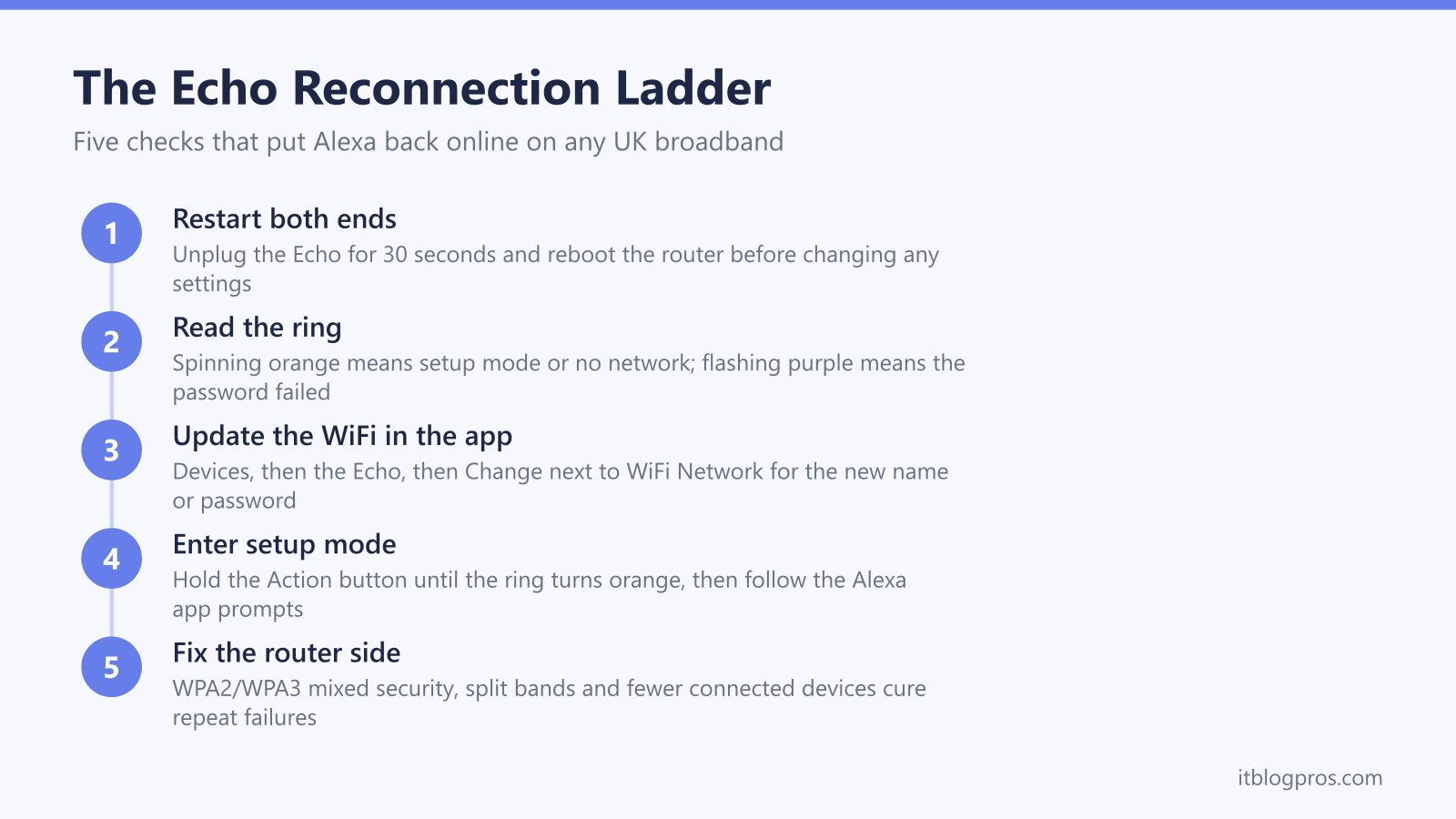
An Echo that answered every question yesterday goes silent, the app shows the device as offline, and Alexa announces a lost connection at the worst possible moment. The cause is almost never a dead speaker. A changed WiFi password, a new broadband hub, a security setting the router quietly enabled, or a crowded network knocks Echo devices offline far more often than hardware failure does. Amazon's own troubleshooting confirms the pattern: restart both ends, check the ring colour, then update the network details in the Alexa app. This guide works through the fix ladder in order, decodes the ring states that matter, covers the quirks that trip up the older Echo generations, and finishes with the honest test that separates a fixable fault from a speaker at the end of its life.
An Echo that will not connect to WiFi usually needs one of three things: a 30-second power cycle of both the Echo and the router, the new WiFi password entered in the Alexa app under Devices, or a fresh setup started by holding the Action button until the ring spins orange. If the router recently changed, WPA3-only security and merged bands are the usual blockers on older Echos.
Key Takeaways
- A spinning orange ring means the Echo is in setup mode or hunting for the network, not that the speaker has failed.
- A changed WiFi password or a new router knocks every Echo offline at once, and the WiFi Network option in the device's settings in the Alexa app puts it right.
- Older Echo models refuse WPA3-only networks, so the router should run WPA2 (AES) or WPA2/WPA3 mixed mode rather than WPA3 alone.
- Keeping the new hub's WiFi name and password identical to the old one reconnects every Alexa device automatically after a broadband switch.
- Echo speakers are dual-band, but the 2014 to 2017 generations top out at 802.11n, and splitting the hub's 2.4GHz and 5GHz bands gives them a steadier target.
Echo Ring States Decoded for WiFi Faults
| Light | What it means | What to do |
|---|---|---|
| Spinning orange | The Echo is in setup mode, or an already set-up device is trying to reach the WiFi network it has lost. | Run setup in the Alexa app, or check the router and broadband are up. After an outage the ring clears on its own once the connection returns. |
| Solid blue with spinning cyan | The device is starting up or processing. | Wait for it to settle. A boot that ends in spinning orange means the Echo cannot reach any saved network. |
| Flashing purple | WiFi setup hit a problem, most often a mistyped WiFi password. | Re-enter the password in the Alexa app, watching capitals and zero-versus-O mix-ups, then retry the connection. |
| Solid red | The microphone is switched off. This is not a network fault. | Press the microphone button on top of the Echo and the ring returns to normal. |
| No light at all | The Echo has no power, so it cannot connect to anything. | Check the socket and use the power adapter supplied with the device, since underpowered substitutes cause random restarts. |
Power, Distance and the Router Come First
Amazon's first-line fix is the simplest one: unplug the Echo's power adapter, wait 30 seconds, and plug it back in. Restart the broadband hub at the same time, since the pair of restarts clears the majority of sudden offline faults without touching a single setting. The per-model steps for every UK hub are in the guide to restarting and resetting every UK ISP router.
Placement matters more than most people expect. Amazon recommends keeping the Echo within about 10 metres (30 feet) of the router, and away from sources of interference such as microwave ovens and baby monitors. An Echo that only drops out in one room, or when the microwave runs, is reporting a signal problem rather than a settings problem.
Before going further, confirm the network itself works by loading a page on a phone connected to the same WiFi. If nothing gets online, the fault is the broadband, and the Echo reconnects by itself once service returns.
The Orange Ring Signals Setup Mode
A brand-new Echo, or one that has been factory reset, shows a spinning orange ring to say it is in setup mode. In that state the speaker broadcasts its own temporary network and waits for the Alexa app to find it, so an orange ring on a new device is an invitation rather than an error.
The same colour on a device that has been running happily for months tells a different story: the Echo has lost the network it knew and is trying to reconnect. A broadband outage, a rebooting hub or changed WiFi credentials all produce the identical spinning orange. If the router shows a healthy light and other devices are online, the Echo's saved details no longer match the network, and the re-setup flow below fixes it.
Any Echo can be put into setup mode manually. Hold the Action button, the one marked with a dot, until the ring turns orange, which takes roughly 15 seconds on most models. Echo Show models skip the button entirely: swipe down from the top of the screen and open Settings, then Network.
A Changed WiFi Password Knocks Every Echo Offline
The single most common cause of a sudden Alexa blackout is a WiFi password that changed on the router side. A new hub from the ISP, a factory-reset router, or a password changed for security reasons all leave the Echo repeating credentials that no longer work. The giveaway is every Alexa device in the house dropping offline at the same moment.
Amazon's fix is to update the details rather than start again. Open the Alexa app, go to Devices, pick the Echo, open its settings and choose Change next to WiFi Network. The app walks through picking the network and entering the new password. A flashing purple ring after the attempt means the password did not match, so type it again slowly, checking capital letters and characters that look alike.
During setup Amazon offers to save the WiFi password to Amazon. With the password saved, additional Echo devices and many other Alexa gadgets join the network automatically, which turns the next password change from an evening of re-pairing into a single update.
The Re-Setup Flow in the Alexa App
When the Echo no longer appears responsive in the app, run the full reconnection flow. It takes about ten minutes for a first device and two for each one after.
Start with the phone connected to the WiFi network the Echo should use. Open the Alexa app, choose Devices, then Echo & Alexa, and select the speaker. Open its settings with the gear icon and choose Change next to WiFi Network, then follow the prompts.
If the app cannot reach the device at all, hold the Action button until the ring spins orange, then return to the app and follow the setup prompts. The app connects to the Echo's temporary network, passes it the WiFi name and password, and hands it back to the home network. Keep the Echo and phone close to the router for this step, since a weak signal during the handover is a frequent cause of failed setups.
On Echo Show models the whole job happens on the touchscreen: swipe down, open Settings, choose Network, pick the WiFi name and enter the password on screen.
An Internet Change Has a Two-Route Fix
Echo offline after an internet change is one of the most searched Alexa faults for good reason: a broadband switch usually means a new hub with a new network name and password, and every WiFi device in the house goes dark at once.
There are two routes back. The tidy one is per-device: run the WiFi Network change in the Alexa app for each Echo, then work through the rest of the smart home. The fast one is to make the new network match the old. Log in to the new hub's settings and set the WiFi name and password to exactly what the old router used, and every Echo, plug, bulb and camera reconnects on its own with nothing re-paired.
The rename route works on all the mainstream UK hubs from BT, EE, Sky, Virgin Media and Vodafone, and takes five minutes in the hub's settings page. Keep the security mode on WPA2 or WPA2/WPA3 mixed while renaming, since matching the name but hardening the security to WPA3-only still locks older devices out.
Band Quirks Trip Up the Older Echo Generations
Every Echo speaker is dual-band, so 5GHz support is not the problem it is with cheaper smart-home kit. The generational difference is subtler: the 2014 to 2017 models, meaning the original Echo, the second-generation Echo and the first two Echo Dot generations, support 802.11a/b/g/n only, while the third generation onwards adds 802.11ac. None of them connect to ad-hoc networks or enterprise logins.
The trouble arrives when a modern hub merges both bands under one name and steers devices between them. Older Echo radios cope badly with being nudged from band to band, which shows up as an Echo that connects for a day and then drops. Amazon's own advice is to try the other band where the router broadcasts separate names, and giving an old Echo a dedicated 2.4GHz name to hold onto is the most reliable cure. The per-hub walkthroughs for Virgin Media, BT and Sky cover the exact band-splitting steps, and the smart devices and 2.4GHz guide covers the same problem on every other hub, EE included.
Genuinely 2.4GHz-only kit fails differently and earlier, at pairing. The smart plug WiFi guide covers that fault family.
Router Security Settings Can Block the Connection
A router that changed its security mode blocks an Echo just as surely as a wrong password, and the failure looks identical from the sofa.
WPA3 is the usual offender. Newer hubs and mesh systems sometimes arrive set to WPA3-only, and owners consistently report older Echo models refusing to join those networks. The fix costs nothing: set the router to WPA2 (AES) or the WPA2/WPA3 mixed mode, which lets modern devices negotiate WPA3 while older Echos fall back to WPA2 on the same name and password.
Three other settings deserve a check. MAC address filtering, where enabled, silently rejects any device not on the approved list, so the Echo needs adding or the filter disabling. Guest networks with client isolation stop the Alexa app finding the Echo during setup, so run setup on the main network. And captive-portal style logins that demand a browser page do not suit a speaker with no browser, which is why hotel-style networks need the workarounds Amazon documents rather than standard setup.
A Crowded Hub Refuses New Connections
ISP hubs juggle more than most people realise. A house with two Echos, a doorbell, a thermostat, bulbs, plugs, phones, laptops and TVs can pile dozens of active WiFi clients onto one router, and a hub under that load starts dropping or refusing new joins, usually the smart-home devices first.
Amazon's troubleshooting includes the honest, unglamorous test: temporarily switch off some connected devices and try the Echo again. If it connects the moment the network thins out, the hub is saturated rather than broken. A restart of the hub buys headroom for a while by clearing its connection table.
The lasting fix for a heavily automated home is hardware built for the client count, which is a router or mesh decision rather than an Alexa one. The smart home router guide sets out how many devices the popular UK options genuinely handle and which ones keep a dedicated 2.4GHz network for IoT kit.
A Factory Reset Is the Last Software Fix
When the ring stays orange after a careful re-setup, a factory reset clears corrupted settings and gives the speaker a clean start. The device drops off the Amazon account and forgets every network, so it is the last software step rather than the first.
On an Echo Dot from the second generation through to the fifth, hold the Action button for a full 25 seconds. The ring turns orange, goes dark, then returns to orange, and the device restarts into setup mode. Other current Echo speakers follow the same Action-button pattern, while the very first Echo and Echo Dot use a recessed reset button at the base that needs a paper clip. Echo Show models reset from Settings, Device Options on the screen.
After the reset, run the setup flow from the Alexa app as if the device were new, and take the option to save the WiFi password to Amazon so the next network change is painless. A speaker that still cannot hold a connection after a factory reset on a known-good network has moved from a settings problem to a hardware one.
When an Ageing Echo Is the Fault
Some Echos are beyond settings. Before blaming the speaker, run the two tests that prove it. First, factory reset and set up on the home network one more time. Second, set up a mobile hotspot on a phone and point the Echo at that instead. A speaker that fails on both the hub and a hotspot, after a reset, has a failing radio, and no router setting fixes failing hardware.
Age stacks the odds. The 2014 to 2017 generations carry 802.11n-era radios, predate WPA3, and cope worst with the band steering every modern hub now ships with, so they are the devices most likely to fall off the network for good after a broadband upgrade.
Where the tests point at the speaker, the sensible replacement is the Echo Dot 5th generation (2022). It carries a current dual-band 802.11ac radio that handles modern hubs properly, and for eero households it doubles as a mesh extender, adding up to 90 square metres of coverage through eero Built-in. One replacement Dot usually costs less than an hour of paid smart-home callout.
